LTX 2.3 Video-to-Video with Pose Control in ComfyUI
Table of Contents
1. Introduction
Standard image-to-video pipelines give you great motion — but it's invented motion. The model guesses what movement looks like based on the prompt alone. If you want a specific body pose, head tilt, or gesture sequence, you're left hoping the model interprets your description correctly.
The LTX 2.3 Video-to-Video workflow with IC-LoRA Union Control solves this. Instead of inventing motion from scratch, it extracts motion structure from a reference video — using OpenPose stick figures for body movement and transfers that motion onto a target portrait image of your choice.
The result: your subject moves exactly the way the person in the reference video moves. The audio from the reference clip is carried over automatically, keeping everything in sync. You supply the reference video, a portrait image to animate, and a prompt describing the environment — and the workflow does the rest inside a single ComfyUI pass.
2. Why the IC-LoRA Union Control Model?
This LoRA is a unified control adapter trained on top of LTX-2.3-22b. It enables multiple control signals — Canny edges, depth maps, and OpenPose skeleton data — to be applied simultaneously during video generation. Rather than being a separate ControlNet, it works as an In-Context LoRA (IC-LoRA): the control reference frames are injected directly into the generation context, so the model sees both the motion guide and the generation target at the same time.
Crucially, the reference control frames are downscaled to 0.5× the output resolution before encoding. This halves the token count for the reference signal, dramatically reducing VRAM usage without sacrificing control quality — you get precise motion transfer at a fraction of the cost of full-resolution conditioning.
In short: the IC-LoRA Union Control is what allows this workflow to use a reference video's pose structure to directly steer your generated video's motion, frame by frame, without requiring a separate ControlNet pipeline or post-production compositing.
3. System Requirements
Before loading the workflow, make sure your environment is ready. LTX 2.3 is a 22B-parameter model. We recommend at least an RTX 4090 (24 GB VRAM), or a cloud GPU service like RunPod for the FP8 workflow.
ComfyUI Installed & Updated
You need ComfyUI installed locally or via cloud. Once installed, open the Manager tab and click Update ComfyUI to ensure compatibility with the LTX 2.3 nodes and IC-LoRA nodes this workflow requires.
-
Local installation: 👉 How to Install ComfyUI Locally on Windows
-
RunPod setup: 👉 How to Run ComfyUI on RunPod with Network Volume
Download Model Files
This workflow uses the same core LTX 2.3 model files as the Talking Avatar workflow, with one additional LoRA file. Download each file and place it in the correct ComfyUI folder:
| File Name | Hugging Face | ComfyUI Folder |
|---|---|---|
| ltx-2.3-22b-distilled_transformer_only_fp8_input_scaled_v3.safetensors | 🤗 Download | ..\models\diffusion_models |
| gemma_3_12B_it_fpmixed.safetensors | 🤗 Download | ..\models\text_encoders |
| ltx-2.3_text_projection_bf16.safetensors | 🤗 Download | ..\models\text_encoders |
| LTX23_audio_vae_bf16.safetensors | 🤗 Download | ..\models\vae |
| LTX23_video_vae_bf16.safetensors | 🤗 Download | ..\models\vae |
| taeltx2_3.safetensors | 🤗 Download | ..\models\vae |
| ltx-2.3-spatial-upscaler-x2-1.1.safetensors | 🤗 Download | ..\models\latent_upscale_models |
| ltx-2.3-22b-ic-lora-union-control-ref0.5.safetensors | 🤗 Download | ..\models\loras |
Verify Folder Structure
Confirm your files are organized exactly like this before loading the workflow:
ts1📁 ComfyUI/
2└── 📁 models/
3    ├── 📁 diffusion_models/
4    │   └── ltx-2.3-22b-distilled_transformer_only_fp8_input_scaled_v3.safetensors
5    ├── 📁 text_encoders/
6    │   ├── gemma_3_12B_it_fpmixed.safetensors
7    │   └── ltx-2.3_text_projection_bf16.safetensors
8    ├── 📁 vae/
9    │   ├── LTX23_audio_vae_bf16.safetensors
10    │   ├── LTX23_video_vae_bf16.safetensors
11    │   └── taeltx2_3.safetensors
12    ├── 📁 latent_upscale_models/
13    │   └── ltx-2.3-spatial-upscaler-x2-1.1.safetensors
14    └── 📁 loras/
15        └── ltx-2.3-22b-ic-lora-union-control-ref0.5.safetensors
4. Download & Load the Workflow
With your environment and model files ready, it's time to load the workflow in ComfyUI.
Load the Workflow
👉 Download the LTX 2.3 IV2V Pose Control workflow JSON file and drag it directly onto your ComfyUI canvas.
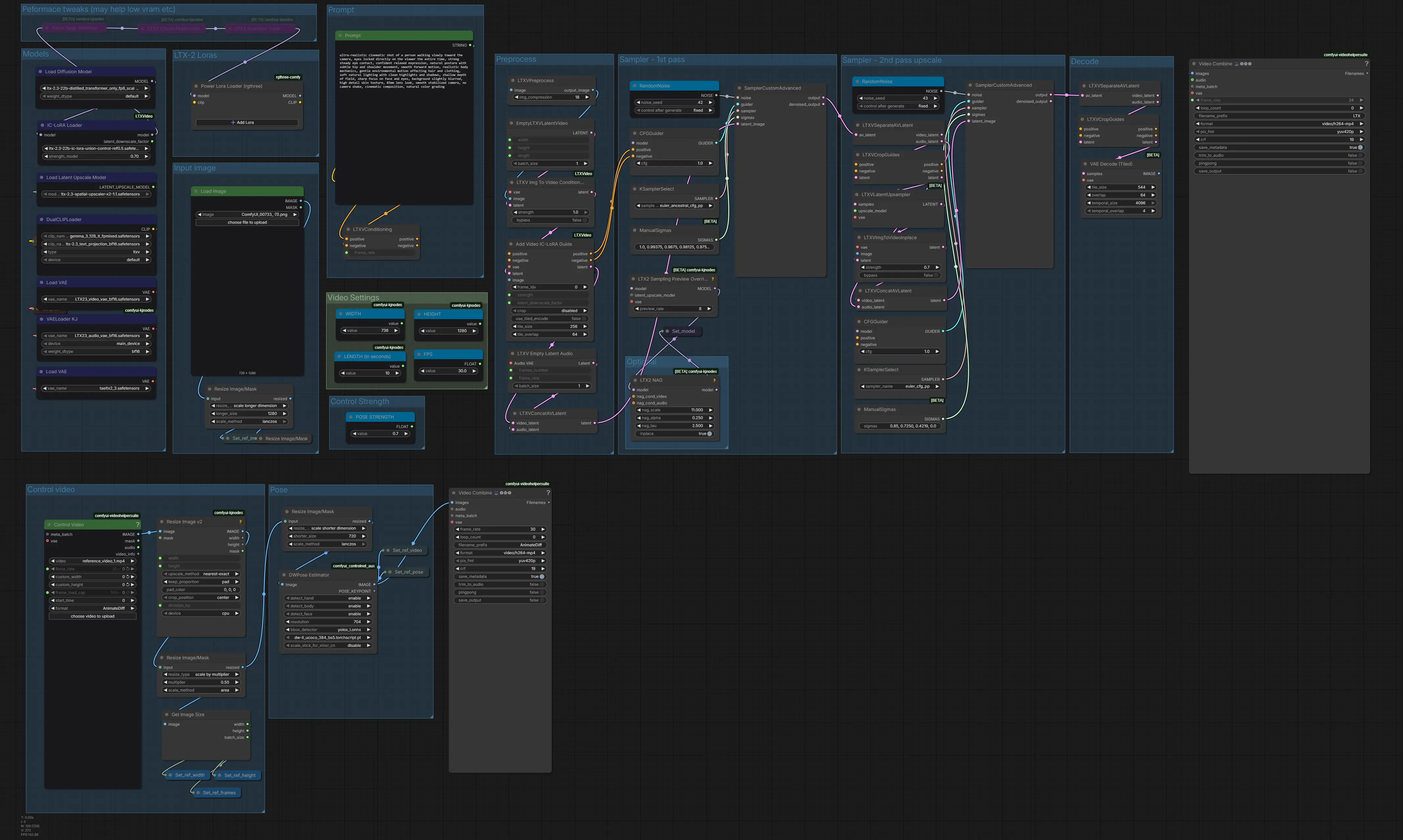
The workflow arrives fully pre-wired with all required nodes: a video loader for your reference clip with automatic audio extraction, a DWPreprocessor for OpenPose skeleton data, an image loader for your portrait, the IC-LoRA loader and guide nodes for Union Control conditioning, LTX 2.3's distilled transformer, video and audio VAEs, the sampler, and the spatial upscaler — all connected and ready to run.
Install Missing Nodes
If any nodes appear in red after loading, open the Manager tab, click Install Missing Custom Nodes, and restart ComfyUI. Once everything loads cleanly, you're ready to configure your inputs.
💡 Tip: If you're using a Blackwell GPU, make sure to install onnxruntime-gpu==1.22 to ensure compatibility.
5. Running the Video-to-Video Generation
With the workflow loaded and all nodes green, here is how to configure and run your first motion-transfer video.
Step 1: Upload Your Reference Video
In the Control Video (VHS_LoadVideoFFmpeg) node, upload the video clip you want to use as your motion reference. This is the footage whose body movements, poses, and gestures will be extracted and transferred onto your portrait image. The audio from this clip is automatically passed through to the final output.
💡 Best results: Use a well-lit clip of a single person, ideally filmed against a plain or non-cluttered background. Front-facing shots where the full upper body is visible will give the most reliable OpenPose skeleton extraction. Avoid fast cuts or heavy motion blur — smooth, continuous movement produces the cleanest control signals.
The workflow reads the video's frame count, FPS, and audio automatically. You don't need to trim or pre-process the clip — just upload and the pipeline handles the rest.
Step 2: Upload Your Portrait Image
In the LoadImage node, upload the portrait photo of the person you want to animate. This is the appearance source — the face, hair, and visual identity that will be rendered in the output video while adopting the motion from the reference clip.
 💡 Best results: Use a well-lit, forward-facing portrait — roughly chest-up framing, with the face looking toward the camera. Avoid extreme angles, heavy shadows, or tightly cropped face shots. The workflow automatically resizes the image to match the generation resolution, so no manual pre-cropping is needed.
The workflow uses LTXVImgToVideoInplace and LTXVImgToVideoConditionOnly to anchor the portrait as the visual starting frame, ensuring the generated subject consistently resembles your uploaded image throughout the animation.
Step 3: Write Your Animation Prompt
In the CLIP Text Encode (Positive Prompt) node, write a prompt describing the visual environment, lighting, quality, and style of the generated video. Because the motion is already defined by the reference video's pose and depth data, your prompt should focus on everything except the movement itself.
Here's an example prompt for a portrait animation:
ts1
2cinematic shot of a woman walking slowly toward the camera, eyes mostly locked on the viewer, natural occasional blinking, subtle micro-expressions with a calm confident presence, smooth forward walking motion with natural body sway and gentle bounce in each step, realistic weight shifting from foot to foot, soft hip and shoulder sway synchronized with movement, relaxed posture, natural breathing, hair and clothing reacting naturally to motion and air, smooth rhythmic walk cycle, fluid and grounded movement, subject stays centered and stable in frame, soft lighting, shallow depth of field or stylized depth depending on model, sharp focus on face and eyes, smooth stabilized camera, cinematic composition, consistent temporal motion, style-adaptive (realistic, stylized, anime, or cartoon)
Step 4: Configure the Reference Strength
The ref_strength parameter (connected via the Set_ref_strength node) controls how strongly the IC-LoRA guide signal influences the generation. This is a global dial between strict control adherence and creative freedom:
-
Higher values (0.8–1.0) — The output closely follows the reference pose/depth frame by frame. Motion is precise but the result may look more constrained.
-
Lower values (0.4–0.6) — The model interprets the control signal more loosely, producing more natural-looking results with slightly less strict motion adherence.
💡 Recommended starting point: Begin at 0.6–0.7. If the generated person's motion doesn't match the reference well enough, increase toward 0.85. If the output looks unnatural or the subject's appearance is being warped by the control signal, reduce toward 0.5.
Step 5: Run the Generation
Once your reference video, portrait image, control signal selection, prompt, and strength settings are all configured, click RUN.
The workflow will process in the following order: extract pose and depth frames from the reference video → downscale control latents → encode your portrait image → run the LTX 2.3 sampler with IC-LoRA guidance → upscale the output → combine video with the original audio → export the final file.
The result is a video of your portrait subject moving with the body motion and spatial structure from the reference clip, with the original audio track intact.
6. Video Settings & Resolution Guide
Output dimensions and video length are set in the WIDTH, HEIGHT, and LENGTH (in seconds) nodes. The workflow defaults to 736 x 1280 at 24 fps.
⚠️ Valid Parameter Rules: Width and height must be divisible by 32. Frame count must be divisible by 8, plus 1 (e.g., 97, 105, 113). The workflow automatically rounds to the nearest valid values if you enter invalid numbers. The video length is determined by the LENGTH node, but will never exceed the duration of your reference video clip.
| Aspect Ratio | Width | Height | Quality | VRAM |
|---|---|---|---|---|
| 9:16 (portrait) | 480 | 864 | Low / fast preview | Low |
| 9:16 (portrait) | 736 | 1280 | 720p — recommended | Medium |
| 9:16 (portrait) | 1088 | 1920 | 1080p — high quality | High (RTX 5090+) |
| 16:9 (landscape) | 864 | 480 | Low / fast preview | Low |
| 16:9 (landscape) | 1280 | 736 | 720p — recommended | Medium |
| 16:9 (landscape) | 1920 | 1088 | 1080p — high quality | High (RTX 5090+) |
| 1:1 (square) | 768 | 768 | Social media square | Medium |
7. Conclusion
You now have everything you need to transfer real body motion from a reference video onto any portrait image using LTX 2.3 and IC-LoRA Union Control in ComfyUI. OpenPose and depth maps give you precise control over how motion is extracted and applied, the IC-LoRA injects that signal directly into the generation process, and the original audio carries through automatically — all in a single workflow pass. Upload your reference clip, load your portrait, choose your control signals, write your environment prompt — and let LTX 2.3 do the rest. Happy generating!
👉 Want to take pose-driven animation even further? Check out our tutorial on SCAIL in ComfyUI — a solid alternative that uses 3D-consistent pose representations for smooth, coherent character animations with support for complex movements and large pose variations.