How to Use Fish Audio S2 Voice Clone TTS in ComfyUI
Table of Contents
1. Introduction
Fish Audio S2 Pro is one of the most capable open-weight text-to-speech models available today. Trained on over 10 million hours of audio across 83 languages, it combines a dual-autoregressive architecture with reinforcement learning alignment to produce speech that sounds genuinely human — complete with emotional nuance, natural pacing, and expressive delivery.
What sets S2 Pro apart from other TTS models is its zero-shot voice cloning capability: drop in just 5–15 seconds of any reference audio, and the model captures that voice's timbre, rhythm, and speaking style without any fine-tuning. Pair that with its powerful inline emotion tag system — where you write [excited], [whisper], or even [nervous laugh] directly into your script — and you have extraordinary control over the final output.
The ComfyUI-FishAudioS2 custom node brings all of this into the familiar ComfyUI node graph. The workflow is refreshingly simple: load a reference audio clip, write your text prompt with optional tags, and hit Run. Models are auto-downloaded from HuggingFace on the first run, so there's nothing manual to set up.
Note on licensing: Fish Audio S2 is source-available rather than fully open-source. The model weights are free to use for personal and research purposes, but commercial use has restrictions. Always check the official license before using in production.
2. Requirements
Before loading the workflow, make sure your environment is set up correctly. Fish Audio S2 Pro is a powerful TTS model — we recommend at least 8 GB VRAM for the FP8 variant, or a cloud GPU service like RunPod if you don't have a capable local machine.
Requirement 1: ComfyUI Installed
You need a working ComfyUI installation. If you haven't set it up yet, follow one of the guides below:
Requirement 2: Update ComfyUI
Make sure your ComfyUI is up to date before proceeding.
Windows Portable: Navigate to ...\ComfyUI_windows_portable\update and run update_comfyui.bat.
RunPod:
ts1 cd /workspace/ComfyUI && git pull origin master && pip install -r requirements.txt && cd /workspace
Requirement 3: GPU & VRAM
| Model Variant | Min VRAM | Notes |
|---|---|---|
| s2-pro-fp8 | ~8 GB | Recommended — lighter memory footprint |
| s2-pro (full) | ~16 GB | Highest quality output |
Auto-Download
The Fish Audio S2 model weights are automatically downloaded from HuggingFace the first time you run the workflow. No manual model placement needed — just run and wait.
3. Loading the Workflow & Installing the Node
With your environment ready, it's time to load the workflow into ComfyUI and get the custom node installed.
Load the Workflow
👉 Download the Fish Audio S2 Voice Clone TTS workflow JSON file and drag it directly onto your ComfyUI canvas.
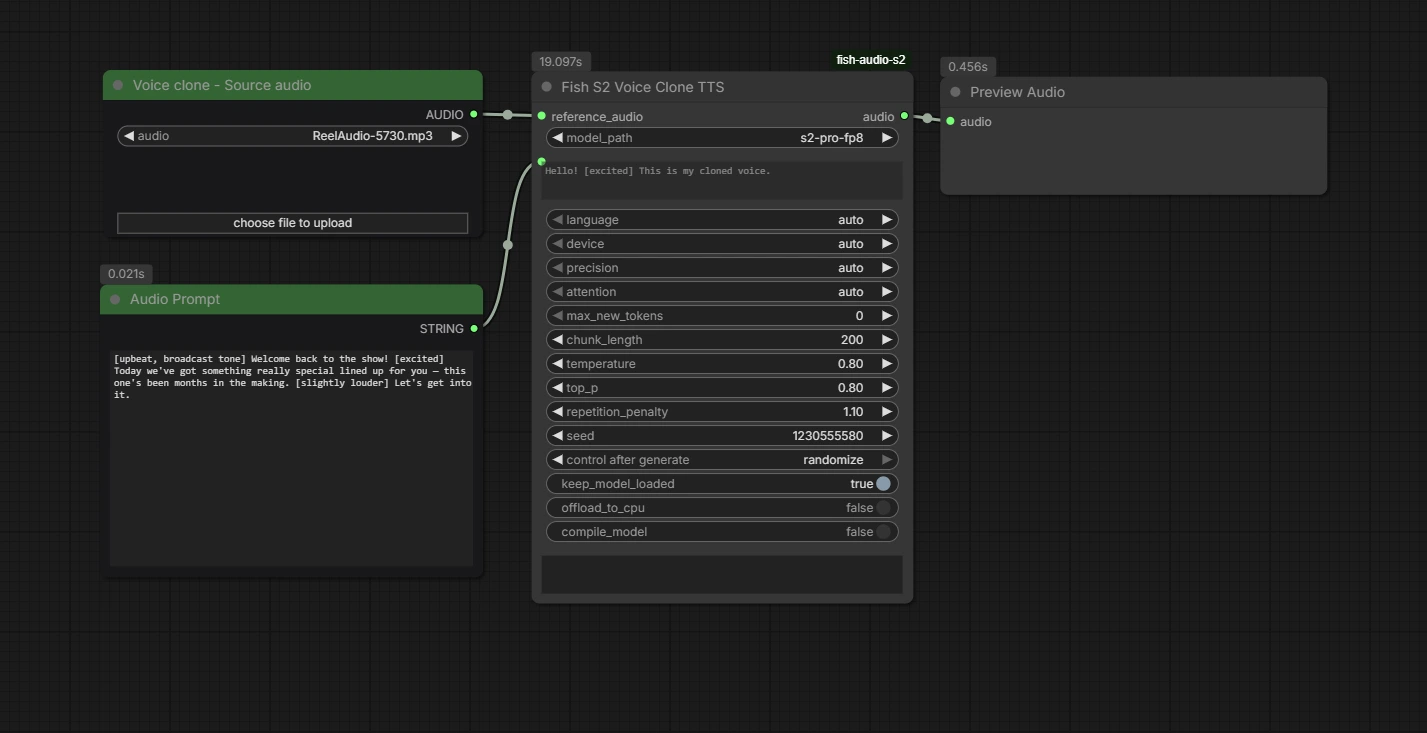
The workflow arrives fully pre-wired with four nodes, each with a specific role:
-
Voice clone – Source audio (LoadAudio) — This is where you provide the reference voice. Load any short audio clip here (5–15 seconds of clean speech) and the model will use it to capture the speaker's timbre, rhythm, and style.
-
Audio Prompt (PrimitiveStringMultiline) — Your text script goes here. This is also where you embed inline emotion tags like [excited] or [whisper] to shape the delivery. The green color marks it as a primary input node.
-
Fish S2 Voice Clone TTS — The main inference node. It receives both the reference audio and your text prompt, runs the S2 Pro model, and outputs the generated speech. All generation settings (temperature, model path, seed, and more) live here.
-
Preview Audio — Plays the generated audio directly inside ComfyUI once the run completes, so you can audition results without leaving the interface.
The Fish Audio S2 Voice Clone TTS workflow — four nodes, zero complexity.
Install Missing Nodes
If any nodes appear in red after loading, it means the ComfyUI-fish-audio-s2 custom node isn't installed yet. Open the Manager tab, click Install Missing Custom Nodes, locate ComfyUI-fish-audio-s2 by Saganaki22, and install it.
⚠️ Important: fully restart ComfyUI: After installation, don't just click Restart in the Manager or refresh your browser — fully close and relaunch ComfyUI. A partial restart often leaves the red nodes in place. Once ComfyUI is back up, reload the workflow and everything should be clean and ready.
4. Configuring the Workflow
Step 1: Load Your Reference Audio
Click the Voice clone – Source audio node and use the "choose file to upload" button to upload your reference clip. A clean 5–15 second sample works best — the model needs enough audio to capture the voice's timbre and rhythm, but a full minute isn't necessary. Avoid clips with heavy background music or noise. We'll be using the following clip as an example:
💡 Tip: What makes a good reference clip: Clear speech, minimal background noise, and a consistent speaking style. The model captures not just the voice but the overall delivery — so a calm reference clip will produce calm cloned output.
Step 2: Select the Model Path
In the Fish S2 Voice Clone TTS node, find the model_path dropdown. On your first run, select s2-pro-fp8 (auto downloaded) — this will auto-download the model weights from HuggingFace in the background. The download may take a few minutes.
On the very first run, the model downloads under the name s2-pro-fp8 (auto downloaded). After the run completes, press R on your keyboard (or use the Refresh button) to rescan the models folder. Then open the model_path dropdown again and select the now-available s2-pro-fp8 entry. This is a one-time step — subsequent runs will work normally.
Step 3: Write Your Text Prompt
Click the green Audio Prompt node and write your script. This is where the magic happens — you can embed emotion tags directly in your text using square brackets to shape exactly how each line is delivered.
ts1[deep, velvet voice] Hello everyone… your new favorite toy is here… [whimper] Fuck… I’m dripping just thinking about you sliding it in…
Step 4: Hit Run
Leave all other settings at their defaults and click Run. The generated audio will appear in the Preview Audio node on the right, ready to play back immediately.
💡 Parameters you can tweak:
| Parameter | Default | What it does |
|---|---|---|
| model_path | s2-pro-fp8 | Which model variant to use (fp8 = lighter VRAM) |
| temperature | 0.80 | Controls variability/creativity of speech |
| top_p | 0.80 | Nucleus sampling threshold |
| repetition_penalty | 1.10 | Reduces repeated sounds or stutters |
| chunk_length | 200 | Token chunk size per generation pass |
| control_after_generate | randomize | Randomizes seed each run for variation |
| keep_model_loaded | true | Keeps model in VRAM between runs (faster iteration) |
5. Using Emotion Tags
This is where Fish Audio S2 truly shines. Unlike other TTS systems that offer a fixed list of moods, S2 Pro uses free-form natural language tags placed anywhere in your text using square brackets. There are effectively 15,000+ supported tag variations — if you can describe it to a voice actor, S2 can attempt it.
How Tags Work
Tags affect everything that comes after them. Place the tag at the exact moment where you want the shift to happen — not necessarily at the start of the sentence. A tag mid-sentence applies from that word onward.
ts1[whisper] I can't believe it's already over.
2
3That was the third time this week. [sigh] I really need to fix that.
4
5Hello everyone! [excited] We finally launched it!
Common tags:
| Category | Examples |
|---|---|
| Emotion | [excited], [sad], [angry], [surprised], [delight] |
| Volume | [whisper], [low voice], [volume up], [loud], [shouting], [screaming] |
| Pacing | [pause], [short pause], [inhale], [exhale], [sigh] |
| Vocalization | [laugh], [laughing], [chuckle], [chuckling], [tsk], [clearing throat] |
| Tone | [professional broadcast tone], [singing], [with strong accent] |
| Expression | [moaning], [panting], [echo], [pitch up], [pitch down] |
💡 Pro tips for tags
-
Punctuation matters — commas and periods help phrasing feel natural
-
Tags placed at clause boundaries sound more natural than mid-word
-
Combining tags works: [calm, almost bored] or [sensual, energetic, slightly louder]
-
Less is more — don't overload short sentences with multiple back-to-back tags
-
Check the official repo for more guidance
6. Prompt Examples
Below are ready-to-use prompt examples demonstrating the range of expression you can achieve with Fish Audio S2 emotion tags. Drop any of these into the Audio Prompt node and pair with an appropriate reference voice.
Erotic Story / Spicy Narration / Cinematic & Sensual
ts1[low, slow, seductive narrator voice] She locked the door behind her… [soft breath] The room was dark, but she could already feel his eyes on her body… [whimpering] “I’ve been such a bad girl today,” she whispered… [moan] “Are you going to punish me?”
Girlfriend Experience (GFE) / Cuddly & Teasing
ts1[low, velvet voice] Hello my dirty little secret… [teasing laugh] Your new favorite toy just dropped… [breathless, aroused] and fuck… I’m already dripping down my thighs thinking about you using it on yourself tonight…
7. Conclusion
Fish Audio S2 Voice Clone TTS is one of the simplest yet most powerful audio workflows available in ComfyUI right now. The setup is a one-time process: install the node, let the model download on first run, refresh, and you're off. From there, the loop is beautifully fast — drop in a reference clip, write your script with emotion tags, hit Run, and listen back in seconds.
The inline tag system is what makes it genuinely exciting to use. You're not adjusting sliders or picking from a dropdown menu — you're writing directions in plain language, the same way you'd brief a voice actor. That creative freedom, combined with zero-shot voice cloning quality that rivals commercial APIs, makes S2 Pro a remarkable tool for content creators, indie developers, and anyone working with expressive audio.
Experiment with reference clips of different lengths and qualities. Try multi-clause tag combinations. Push the emotion tags to their limits — you might be surprised what the model can do. Happy generating! 🎙️