SCAIL in ComfyUI: 3D-Consistent Pose Animation for Characters
Table of Contents
1. Introduction
Creating high-quality character animations can be both challenging and rewarding, especially when aiming for smooth, natural, and believable motion. With advanced tools like SCAIL integrated into ComfyUI, creators can generate animations using 3D-consistent pose representations that significantly improve motion coherence and visual quality. This makes it easier to handle complex movements, large pose variations, and even interactions between multiple characters.
In this tutorial, you will learn how to use SCAIL inside ComfyUI to produce high-fidelity character animations. The workflow works well for a wide range of styles, from stylized characters to more realistic human characters, making it a versatile tool for many animation projects. By the end of this guide, you will understand how to set up the SCAIL workflow, generate your first animation, and explore examples that demonstrate the power and flexibility of this approach.
2. Requirements for Running SCAIL in ComfyUI
Before generating character animations with SCAIL, make sure your system meets the necessary hardware and software requirements. Since this workflow uses large video and animation models, a powerful GPU with sufficient VRAM is strongly recommended.
For the best experience, we recommend:
-
RTX 5090 (32GB VRAM) or higher for local setups
-
Or using a cloud GPU provider like Runpod if your local hardware is limited
Cloud environments can make setup much easier and allow you to run heavier workflows without worrying about VRAM limitations.
Requirement 1: Install ComfyUI (Local or Cloud)
To run the SCAIL workflow, you need ComfyUI installed and running. You can either install it locally on your machine or launch it using a cloud GPU service.
Option 1: For a local installation on Windows, follow this guide:
👉 How to Install ComfyUI Locally on Windows
Option 2 (Recommended): Run ComfyUI on Runpod
Running locally works with a strong GPU, but RunPod simplifies setup with pre-installed dependencies, faster cloud GPUs, and persistent storage for your models and outputs.
👉 How to Run ComfyUI on RunPod with Network Volume
Requirement 2: Download SCAIL Model Files
To run the SCAIL character animation workflow in ComfyUI, you need to download several required models. These models power the animation generation, pose detection used by the workflow.
| ile Name | Download Page | File Directory |
|---|---|---|
| Wan21-14B-SCAIL-preview_fp8_e4m3fn_scaled_KJ.safetensors | 🤗 Download Page | ComfyUI/models/diffusion_models |
| wan21-lightx2v-i2v-14b-480p-cfg-step-distill-rank256-bf16.safetensors | 🤗 Download Page | ComfyUI/models/loras |
| umt5-xxl-enc-bf16.safetensors | 🤗 Download Page | ComfyUI/models/text_encoders |
| Wan21_Uni3C_controlnet_fp16.safetensors | 🤗 Download Page | ComfyUI/models/controlnet |
| vitpose-l-wholebody.onnx | 🤗 Download Page | ComfyUI/models/detection |
| yolov10m.onnx | 🤗 Download Page | ComfyUI/models/detection |
| clip_vision_h.safetensors | 🤗 Download Page | ComfyUI/models/clip_vision |
| Wan2_1_VAE_bf16.safetensors | 🤗 Download Page | ComfyUI/models/vae |
Requirement 3: Verify Folder Structure
Before running the SCAIL animation workflow, confirm that all model files are placed in the correct directories.
Your folder structure should look like this:
ts1📁 ComfyUI/
2└── 📁 models/
3    ├── 📁 diffusion_models/
4    │   └── Wan21-14B-SCAIL-preview_fp8_e4m3fn_scaled_KJ.safetensors
5    ├── 📁 loras/
6    │   └── wan21-lightx2v-i2v-14b-480p-cfg-step-distill-rank256-bf16.safetensors
7    ├── 📁 text_encoders/
8    │   └── umt5-xxl-enc-bf16.safetensors
9    ├── 📁 vae/
10    │   └── Wan2_1_VAE_bf16.safetensors
11    ├── 📁 controlnet/
12    │   └── Wan21_Uni3C_controlnet_fp16.safetensors
13    ├── 📁 detection/
14    │   ├── vitpose-l-wholebody.onnx
15    │   └── yolov10m.onnx
16    └── 📁 clip_vision/
17        └── clip_vision_h.safetensors
Once verified, restart ComfyUI to detect the models. In the next section, we’ll download and load the SCAIL workflow JSON to get started with animation.
3. Downloading and Setting Up the SCAIL Workflow
Once you have confirmed that all requirements are met, the next step is to download and load the SCAIL workflow into ComfyUI. This workflow is designed to streamline the setup process by pre-connecting all essential nodes needed for 3D-consistent pose animation.
Step 1: Download Workflow File
Begin by downloading the JSON workflow file specifically created for SCAIL. This file contains all the necessary nodes and configurations to facilitate high-fidelity character animation.
👉 Download SCAIL Workflow JSON
Step 2: Load Workflow in ComfyUI
After downloading the workflow file:
-
Open ComfyUI.
-
Drag and drop the JSON file onto the canvas.
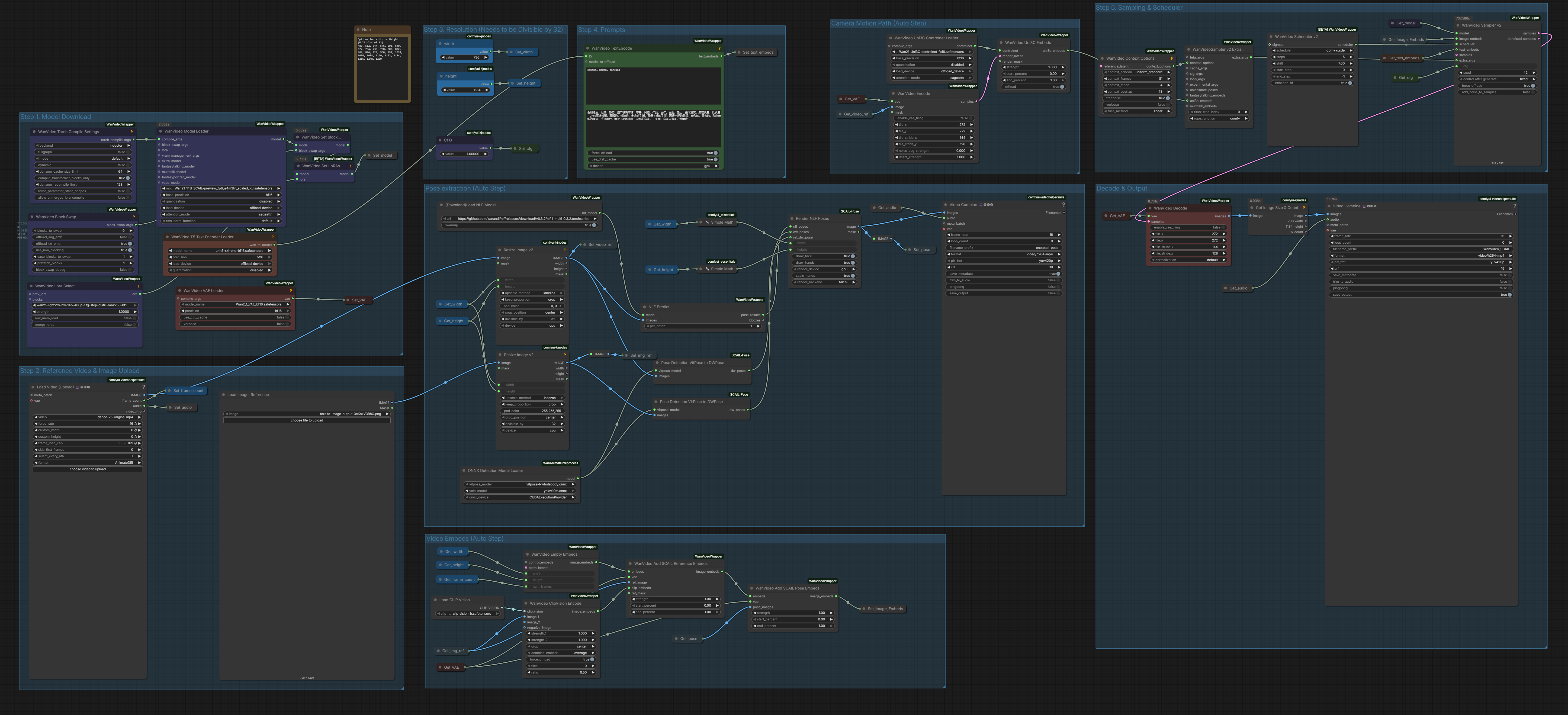
This action will automatically load all the nodes required for SCAIL, including diffusion models, LoRAs, ControlNet, detection, and CLIP Vision nodes.
Step 3: Verify Model Connections
It’s crucial to ensure that all model connections are correctly established.
-
Nodes that appear red or show errors may indicate missing models or custom nodes.
-
Install any required dependencies via the node manager and restart ComfyUI.
Ensuring correct connections will provide a seamless animation experience and prevent workflow interruptions.
4. Generating Your First Character Animation with SCAIL
With SCAIL successfully set up in ComfyUI, it’s time to create your first character animation. The workflow is mostly guided by the 3D pose extraction, so most steps are straightforward. Here’s a clear step-by-step process:
Step 1: Select Models
Begin by selecting the models you downloaded earlier. Make sure they are correctly loaded in the Step 1 Group of the SCAIL workflow. This ensures the animation nodes have access to the right models.
Step 2: Upload Reference Video and Initial Image
Provide a reference video and an initial image:
-
The reference video will be converted into pose sequences that drive the animation.
-
The initial image guides the style, appearance, and identity of the character throughout the animation.
This allows SCAIL to generate 3D-consistent motions while preserving the visual style of your character.
Step 3: Set Resolution
Set the Width and Height for the output video.
⚠️ Important: Both values must be divisible by 32 to avoid tensor mismatches in the model.
Step 4: Configure Prompt
Provide a positive prompt to guide the animation. Since most of the motion is already determined by the pose extraction, this prompt can be simple.
Step 5: Sampling and Scheduler
Set the WanVideo Context Options and the WanVideo Scheduler v2 parameters to handle longer videos and prevent fade-outs. Use the following table for recommended settings:
| Parameter | Value | Notes |
|---|---|---|
| context_frames | 81 | Number of frames the model considers in each context window |
| context_overlap | 48 | Overlap between context windows to ensure smooth transitions |
| fuse_method | linear | Can also use pyramid for more detailed center focus |
| scheduler | dpm++_side | Sampling scheduler for frame generation |
| shift | 7 | Adjustment for scheduler alignment |
These settings, combined with the WanVideo Context option, allow animations longer than 5 seconds to generate smoothly while maintaining natural transitions and avoiding fade-outs.
Final Step: Generate Animation
Once all settings are correctly configured, click RUN. SCAIL will transform your reference video into a 3D pose sequence and handle the majority of automatic workflow steps for you.
Then, just sit back and watch your character animation come to life.
💡Tip: The audio from your reference video is preserved by default. If you prefer, you can disconnect the audio connection to generate a silent animation.
5. SCAIL Character Animation Example and Tips
To see SCAIL in action, we’ll showcase examples where a reference video is converted into a 3D pose sequence and combined with a reference image to guide the character’s appearance. The results demonstrate SCAIL’s ability to maintain 3D-consistent motion, handle dynamic actions, and preserve the character’s style. Using a 9:16 aspect ratio for both the reference video and the initial reference image produces the best results. This workflow generates a final animation that matches the length of your reference video, and longer animations than the 5-second example shown here are also possible. Below, we’ve included an example rendered at 720×1280 to illustrate this workflow.
SCAIL Animation Example:
⚠️ Note: Processing time can vary depending on the resolution of your video and image, so higher-resolution animations may take longer to generate.
6. Conclusion
SCAIL in ComfyUI is a game-changing tool for character animation, allowing creators to generate high-fidelity, 3D-consistent animations with ease. Whether you’re working on professional projects, stylized characters, or eye-catching social media videos, SCAIL makes it faster and simpler to produce smooth, natural motion while maintaining the style and identity of your characters. Its integration with ComfyUI provides a flexible, node-based workflow, giving you full control over models, pose guidance, and animation parameters—all in a single environment.