LTX 2.3 Talking Avatar with Fish Audio S2 Pro in ComfyUI
Table of Contents
1. Introduction
Most image-to-video pipelines generate silent clips — you get the motion, but adding natural-sounding speech requires a separate TTS pipeline, manual audio syncing, and post-production editing. The LTX 2.3 Talking Avatar workflow eliminates all of that.
In this tutorial you'll learn how to use LTX 2.3 in ComfyUI with Fish Audio S2 Pro voice cloning to produce a fully lip-synced talking avatar video in a single workflow pass. You supply a portrait image of your subject, a short voice clone reference clip (a few seconds of someone speaking), and a text script for what you want them to say — and LTX 2.3 generates the video and audio together, with the avatar's mouth movements synchronized to the cloned voice reading your exact script.
This approach is perfect for product spokespersons, AI influencers, educational presenters, multilingual dubbing, or any project where you need a specific person to say specific words. Because the voice cloning and video generation happen together inside ComfyUI, there's no external TTS API, no manual audio alignment, and no editing required — just a finished video with synchronized speech ready to export.
We cover the full-quality FP8 workflow for high-VRAM GPUs — so read on to get everything set up and start generating.
2. System Requirements (FP8 Workflow)
Before loading the workflow, make sure your environment is set up correctly. LTX 2.3 is a large 22B-parameter model. We recommend at least an RTX 4090 (24 GB VRAM) for the FP8 workflow, or a cloud GPU service like RunPod.
Requirement 1: ComfyUI Installed & Updated
You need ComfyUI installed locally or via cloud. For a local Windows setup:
👉 How to Install ComfyUI Locally on Windows
Once installed, open the Manager tab and click Update ComfyUI to ensure compatibility with the LTX 2.3 nodes and Fish Audio nodes this workflow requires.
If you don't have a high-end GPU locally, consider running ComfyUI on RunPod with a network volume for persistent storage:
👉 How to Run ComfyUI on RunPod with Network Volume
Requirement 2: Download LTX 2.3 FP8 Model Files
Download each model file below and place it in the correct ComfyUI folder.
| File Name | Hugging Face Download | ComfyUI Folder |
|---|---|---|
| ltx-2.3-22b-distilled_transformer_only_fp8_input_scaled_v3.safetensors | 🤗 Download | ..\ComfyUI\models\diffusion_models |
| MelBandRoformer_fp16.safetensors | 🤗 Download | ..\ComfyUI\models\diffusion_models |
| gemma_3_12B_it_fpmixed.safetensors | 🤗 Download | ..\ComfyUI\models\text_encoders |
| ltx-2.3_text_projection_bf16.safetensors | 🤗 Download | ..\ComfyUI\models\text_encoders |
| LTX23_audio_vae_bf16.safetensors | 🤗 Download | ..\ComfyUI\models\vae |
| LTX23_video_vae_bf16.safetensors | 🤗 Download | ..\ComfyUI\models\vae |
| taeltx2_3.safetensors | 🤗 Download | ..\ComfyUI\models\vae |
| ltx-2.3-spatial-upscaler-x2-1.1.safetensors | 🤗 Download | ..\ComfyUI\models\latent_upscale_models |
Requirement 3: Verify Folder Structure
Confirm your files are organized exactly like this before loading the workflow:
ts1📁 ComfyUI/
2└── 📁 models/
3    ├── 📁 diffusion_models/
4    │   ├── ltx-2.3-22b-distilled_transformer_only_fp8_input_scaled_v3.safetensors
5    │   └── MelBandRoformer_fp16.safetensors
6    ├── 📁 text_encoders/
7    │   ├── gemma_3_12B_it_fpmixed.safetensors
8    │   └── ltx-2.3_text_projection_bf16.safetensors
9    ├── 📁 vae/
10    │   ├── LTX23_audio_vae_bf16.safetensors
11    │   ├── LTX23_video_vae_bf16.safetensors
12    │   ├── taeltx2_3.safetensors
13    └── 📁 latent_upscale_models/
14        └── ltx-2.3-spatial-upscaler-x2-1.1.safetensors
3. Download & Load the Talking Avatar Workflow
With your environment and model files ready, it's time to load the workflow in ComfyUI.
Load the Workflow
👉 Download the LTX 2.3 Talking Avatar workflow JSON file and drag it directly onto your ComfyUI canvas.
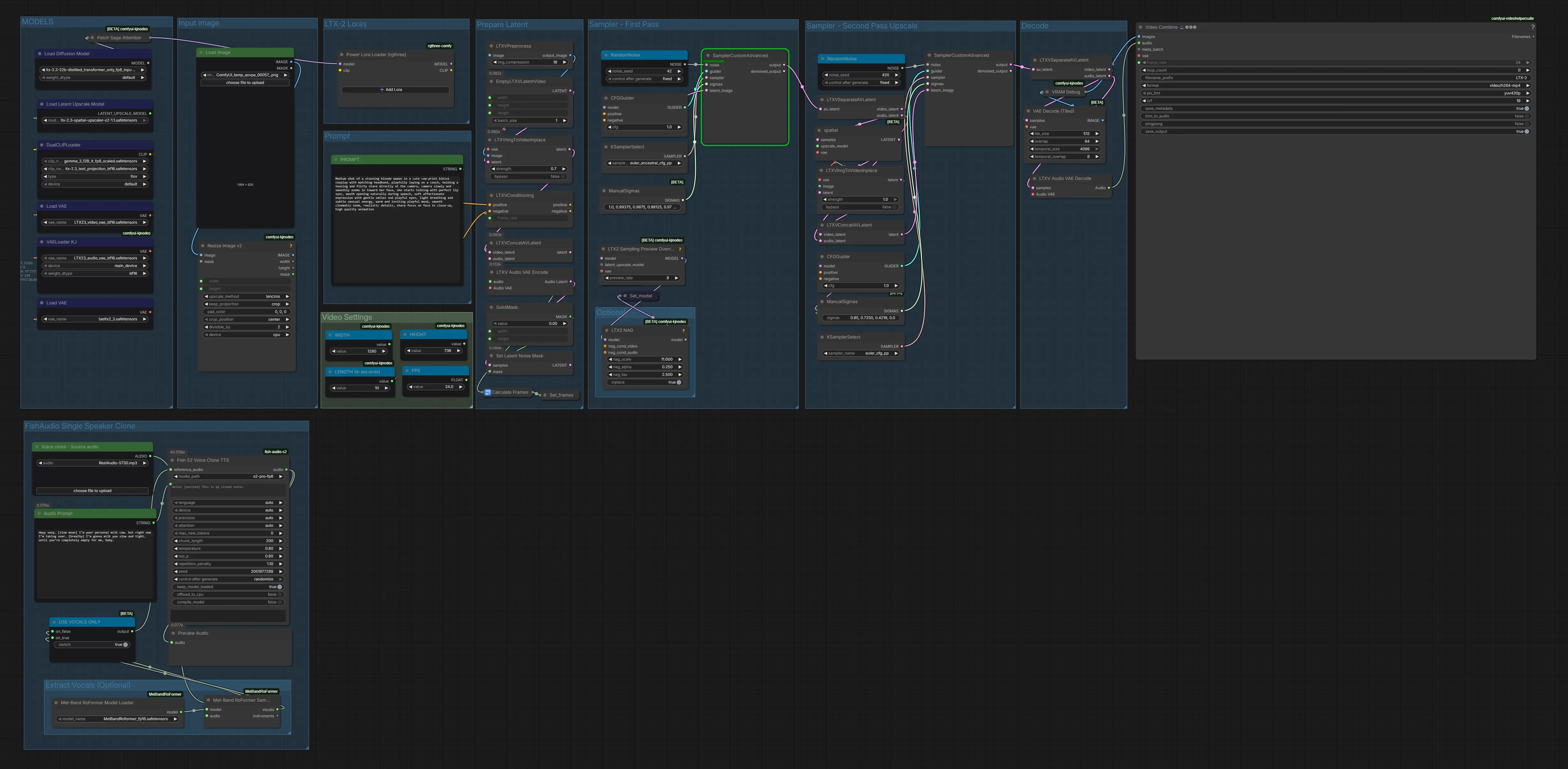
The workflow arrives fully pre-wired with all required nodes: an image loader for your portrait, a Load Audio node for your voice clone reference clip, the Fish Audio S2 Pro TTS node for your script, LTX 2.3's multimodal guider with separate VIDEO and AUDIO guidance paths, the LTX 2.3 distilled transformer, video and audio VAEs, the sampler, and the spatial upscaler — all connected and ready to run.
Install Missing Nodes
If any nodes appear in red after loading, open the Manager tab, click Install Missing Custom Nodes, and restart ComfyUI. Once everything loads cleanly, you're ready to configure your inputs.
4. Running the Talking Avatar Generation
With the workflow loaded and all nodes green, here is how to configure and run your first talking avatar video.
Step 1: Upload Your Portrait Image
In the Load Image node at the top-left of the workflow, upload your reference portrait. This is the face that will be animated — the avatar whose mouth, head, and expression will move as it speaks.
 💡 Best results come from well-lit, forward-facing portrait shots. Avoid extreme angles, heavy shadows, or heavily cropped faces. The avatar's facial motion will be more natural and stable if the subject is looking roughly toward the camera with a neutral or slightly open expression. Full-face shots at roughly chest-up framing work best.
The workflow automatically resizes your image to the correct generation dimensions, so you don't need to pre-crop or resize it manually — just upload the portrait as-is.
Step 2: Upload Your Voice Clone Audio
In the Voice Clone — Source Audio (Load Audio) node, upload a short audio clip of the voice you want to clone. This is the speaker's voice that Fish Audio S2 Pro will analyze and replicate when reading your script.
💡 5–15 seconds of clean speech is ideal. The clip should be a single speaker with no background music, reverb, or overlapping voices. A clear, naturally-paced recording — a podcast excerpt, a voice memo, or a short interview clip — works perfectly. The longer and cleaner the reference, the more accurate the cloned voice will sound.
Step 3: Type Your Script (TTS Text)
In the Fish Audio S2 Pro (FishS2VoiceCloneTTS) node, you'll find a text input box. This is where you type exactly what you want the avatar to say — word for word. The Fish Audio node uses your voice clone reference from Step 2 to synthesize the script text in the cloned speaker's voice. The generated audio is then fed directly into the LTX 2.3 audio pipeline, which drives the avatar's lip sync.
Here's an example script:
ts1
2We are live baby! [excited] [pause] So happy you're all here tonight! [chuckling] Get comfy and… [whisper in small voice] throw in a donation — some really amazing things are about to happen…
💡 Write naturally, as if someone is actually speaking. Avoid bullet points, markdown formatting, or abbreviations — the TTS model reads your text aloud, so punctuation and sentence structure directly affect the pacing and rhythm of the speech. Use commas for short pauses and periods for full stops. You can also use tags like in the example above, or check out the article on How to Use Fish Audio S2 Voice Clone TTS in ComfyUI
🎯 Script length automatically sets video length. If your TTS script produces audio that is longer than the frame count, the workflow automatically extends the video to match the full duration of the generated speech — you don't need to manually calculate frames to fit your script. This means you can freely write longer scripts without worrying about the video cutting off mid-sentence. The frame count effectively acts as a minimum length; your script is always the true ceiling.
Step 4: Write Your Animation Prompt
In the CLIPTextEncode (positive prompt) node, write your animation prompt. This steers the visual style, motion character, and quality of the generated video.
Because the avatar's speech is already defined by the audio, your animation prompt should focus on the visual environment, lighting, motion quality, and any desired camera behavior — not on what the subject is saying.
Here's an example prompt:
ts1
2Medium shot of a stunning blonde woman in a cute cow-print bikini cosplay with matching headband, playfully laying on a couch, maintaining constant direct eye contact with the camera the entire time. She holds a warm and engaging gaze locked on the viewer, never breaking eye contact. Camera slowly and smoothly zooms in toward her face while she keeps perfect eye contact. She starts talking right away with perfect lip sync, mouth opening naturally during speech. Her face is expressive and alive — soft genuine smiles that reach her eyes, eyebrows naturally rising and falling with emotion, playful glances and subtle reactions matching her words. Warm and inviting expression, light natural blinking, occasional happy squints when laughing, face lighting up with excitement during high energy moments. She has perfect teeth visible when she smiles and talks. Smooth cinematic zoom, realistic details, sharp focus on face in close-up, high quality animation, warm soft lighting on face.
Step 5: Configure Video Settings
Set your output dimensions and video length in the EmptyLTXVLatentVideo node — WIDTH, HEIGHT, and LENGTH (in seconds). The default is set to 1280 × 736 at 24fps for a landscape talking head format.
⚠️ Important — Valid Parameter Rules: Width and height must be divisible by 32. Frame count must be divisible by 8, plus 1 (e.g., 97, 105, 113). The workflow silently rounds to the nearest valid values if you enter invalid numbers.
For portrait-style talking avatars suitable for social media, switch to 9:16 dimensions:
| Aspect Ratio | Width | Height | Quality | VRAM |
|---|---|---|---|---|
| 9:16 (portrait) | 480 | 864 | Low / fast preview | Low |
| 9:16 (portrait) | 736 | 1280 | 720p — recommended default | Medium |
| 9:16 (portrait) | 1088 | 1920 | 1080p — high quality | High (RTX 5090+) |
| 16:9 (landscape) | 864 | 480 | Low / fast preview | Low |
| 16:9 (landscape) | 1280 | 736 | 720p — recommended | Medium |
| 16:9 (landscape) | 1920 | 1088 | 1080p — high quality | High (RTX 5090+) |
| 1:1 (square) | 768 | 768 | Social media square | Medium |
Step 6: Run the Generation
Once your portrait image, voice clone audio, TTS script, animation prompt, and video settings are all configured, click RUN.
The result is a single video file with the avatar speaking your exact script in the cloned voice, with synchronized facial animation throughout.
5. Conclusion
Congratulations — you now have everything you need to create AI talking avatar videos using LTX 2.3 and Fish Audio S2 Pro voice cloning in ComfyUI. From uploading your portrait and voice reference to writing your script and running the generation, the full pipeline runs inside a single ComfyUI workflow with no external tools or post-production required.
What makes this workflow genuinely powerful is how it collapses three separate production tasks — voice synthesis, audio-driven animation, and video upscaling — into a single run. LTX 2.3's multimodal architecture generates the video and audio latents together, meaning the lip sync isn't applied after the fact: the model generates facial motion and speech that are coherent from the ground up.
Whether you're building AI spokespersons for brands, creating educational presenters in multiple languages, animating historical portraits, or producing consistent on-screen hosts for content — if you have a portrait and a voice reference, this workflow can bring them to life. Now it's your turn: upload your image, record your voice reference, write your script, and run the LTX 2.3 Talking Avatar workflow. Happy generating!