1 Click Dataset Creation with Flux Klein 9B in ComfyUI
Table of Contents
1. Introduction
In the realm of machine learning and artificial intelligence, the quality and quantity of training data can significantly influence the performance of models. The 1 Click Dataset Creation with Flux Klein 9B in ComfyUI tutorial aims to streamline the process of generating structured, high-quality image datasets. By leveraging the capabilities of FLUX Klein 9B, users can automate the tedious tasks of prompting, batching, and saving images, making it an ideal solution for tasks such as LoRA training, fine-tuning, and synthetic data generation. This tutorial will guide you through the entire process, from setup to execution, ensuring that you can create datasets efficiently and effectively. Whether you are a seasoned data scientist or a newcomer to the field, this guide will provide you with the necessary steps to harness the power of ComfyUI and FLUX Klein 9B for your dataset creation needs.
2. Requirements & Setup for FLUX 2.0 Klein 9B Image Edit Model
Before using FLUX 2.0 [klein] in ComfyUI, make sure your system meets the required setup. Start by installing ComfyUI and updating it to the latest version to ensure compatibility with current workflows, nodes, and models.
If you plan to use the 9B Base or Distilled models, keep in mind that they are VRAM-intensive. A high-memory GPU is recommended, and cloud platforms like RunPod are a practical option if your local hardware is limited.
Requirement 1: ComfyUI Installed
You’ll need ComfyUI running either locally or on a cloud GPU.
-
Local (Windows):
👉 How to Install ComfyUI Locally on Windows -
Cloud GPU (Runpod):
👉 How to Run ComfyUI on RunPod with Network Volume
Requirement 2: Update ComfyUI
Keeping ComfyUI updated ensures full compatibility with the latest features and workflows.
Windows Portable Users:
-
Navigate to: ...\ComfyUI_windows_portable\update
-
Run: update_comfyui.bat
RunPod / Linux Users:
ts1
2cd /workspace/ComfyUI && git pull origin master && pip install -r requirements.txt && cd /workspace
Alternatively, update directly through the Custom Node Manager in ComfyUI.
Requirement 3: Download FLUX 2.0 9B klein Model Files
The 9B Distilled model generates or edits images in just 4 steps, delivering fast, high-quality results. It requires significantly more VRAM than 4B models, with 24GB+ recommended. Best suited for high-resolution outputs and advanced workflows.
| File Name | Download Page | File Directory |
|---|---|---|
| flux-2-klein-9b-fp8.safetensors | 🤗 Download Page | ..\ComfyUI\models\diffusion_models |
| qwen_3_8b_fp8mixed.safetensors | 🤗 Download Page | ..\ComfyUI\models\text_encoders |
| flux2-vae.safetensors | 🤗 Download Page | ..\ComfyUI\models\vae |
💡 Note: If you're using RunPod CLI, make sure to create a HuggingFace access token to download the 9B model file.
Requirement 4: HuggingFace Access Token (FLUX 2.0 [klein] 9B Model)
The FLUX 2.0 [klein] 9B models are distributed under a non-commercial license, which means you’ll need authenticated access via HuggingFace to download them.
Create a HuggingFace Access Token
To download the 9B model files, generate an access token:
-
Go to your HuggingFace account → Access Tokens
-
Click Create New Token and give it a name
-
Under Repositories permissions, add:
- black-forest-labs/FLUX.2-klein-9b-fp8 (9B Distilled)
-
Click Create Token
Download the Model Using Your Token
Once created, you can securely download the model using your token. Example:
ts1
2wget -4 --header="Authorization: Bearer HF_TOKEN_HERE" https://huggingface.co/black-forest-labs/FLUX.2-klein-base-9b-fp8/resolve/main/flux-2-klein-9b-fp8.safetensors
Replace HF_TOKEN_HERE with your actual HuggingFace token.
This method ensures you have proper access to the 9B model files and can download them directly into your cloud environment (e.g., Runpod).
3. Downloading and Loading the 1-Click Dataset Workflow (Flux 2.0 Klein 9B edit)
Once your environment is set up, the next step is to download and load the 1-Click Dataset Workflow into ComfyUI. This process is straightforward and can be completed in just a few steps:
Step 1: Download the Workflow
👉 Download 1-Click Dataset Creation Workflow
Begin by downloading the dataset creation workflow file, which is .json format. This file contains all the necessary configurations and settings that will allow you to generate datasets with a single click.
Step 2: Load workflow in ComfyUI
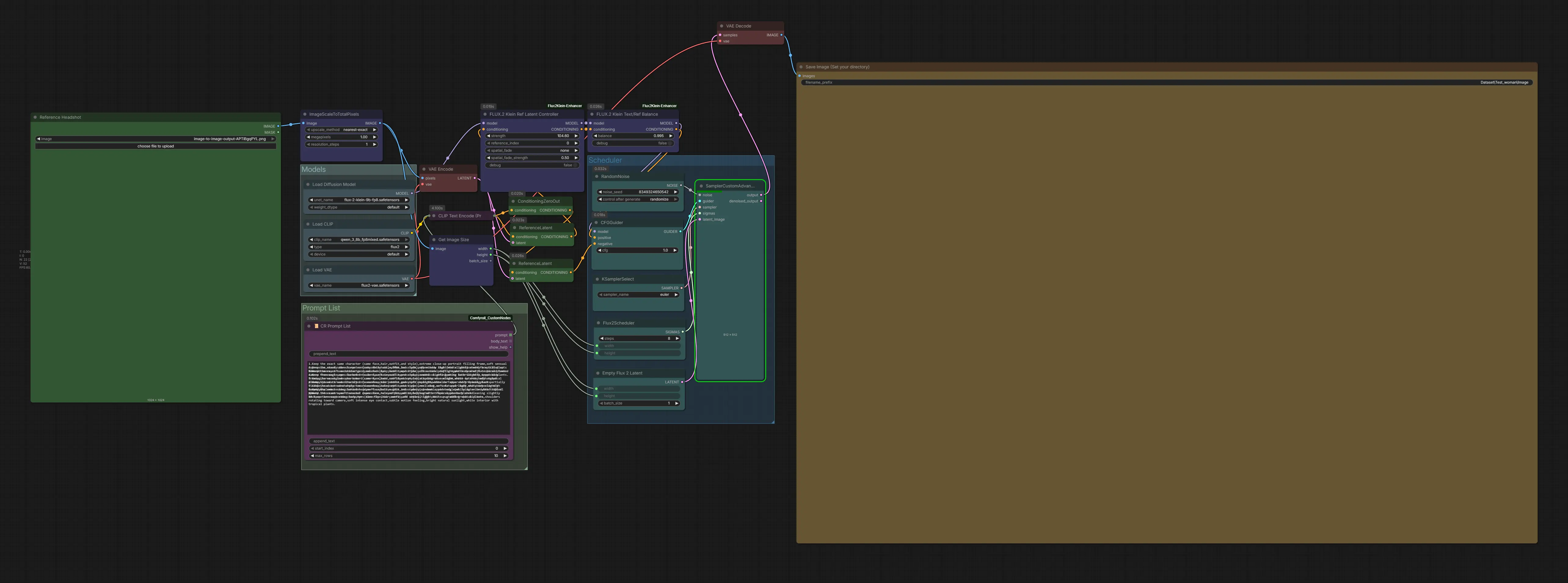
After downloading the workflow file, open ComfyUI. The loading process is as simple as dragging and dropping the .json file into the ComfyUI interface. Once you do this, the system will automatically recognize the workflow and prepare it for use.
Check for Missing Nodes
If any nodes appear in red after loading the workflow, open the Node Manager in the top-right corner of ComfyUI and click Install Missing Custom Nodes. Select all missing nodes and install them. Once finished, restart ComfyUI when prompted—after reboot, the red nodes should be resolved and your workflow will be ready to use.
4. Configuring the Workflow Settings
Once your workflow is set up, start by uploading your initial reference image into the Load Image (Reference Headshot) node. This image will define the character identity and ensure consistency across all generated outputs.
Next, provide your prompts inside the CR Prompt List node. Each line represents one variation, for example:
-
prompt one
-
prompt two
-
prompt three
The workflow is designed to automatically handle batch generation, so each prompt will be processed sequentially without additional setup.
Make sure to adjust the maximum rows / prompt count to match the total number of prompts you want to generate. This ensures every prompt in your list is executed correctly.
Finally, set the sampling steps to 4, since this workflow uses the distilled FLUX.2 Klein 9B model, which is optimized for low-step, high-efficiency generation. This keeps results fast while maintaining strong visual quality and consistency.
To improve dataset diversity, experiment with different prompt structures, camera angles, poses, lighting conditions, and backgrounds while keeping the same character reference. Small variations in composition can significantly enhance the robustness and usefulness of your final dataset.
5. Dataset Creation Example for FLUX.2 Klein 9B Distilled Image Generation
Now that you have configured the workflow settings, it’s time to move on to the execution phase. In this step, you simply upload your initial reference image into the Load Image (Reference Headshot) node. This image will act as the foundation for identity consistency across all generated outputs using the FLUX.2 Klein 9B Distilled workflow.
Once the image is processed, the system will automatically generate a structured dataset based on your prompt list and settings. Below you can see a visual example of the process and the resulting outputs.
Initial Image Upload

Created Dataset

This 1-click system allows you to rapidly transform a single reference image into a diverse, high-quality dataset without manual intervention. Each output maintains character consistency while exploring different poses, angles, and compositions defined in your prompts.
6. Conclusion
The 1 Click Dataset Creation with FLUX.2 Klein 9B Distilled in ComfyUI provides an efficient pipeline for generating high-quality training datasets with minimal manual effort. The workflow automates prompt execution, batch generation, and structured image output, removing the need for individual image creation or manual saving.
By using a single reference image combined with structured prompt variations, you can generate consistent character datasets suitable for LoRA training. The FLUX.2 Klein 9B Distilled model ensures fast generation at low step counts while maintaining strong identity consistency and visual stability across all outputs.
This approach enables rapid dataset scaling while preserving control over pose, angle, and composition variations.
If you don’t want the hassle of setting up ComfyUI, installing models, or managing workflows yourself, you can also use our dedicated dataset creation tool. It provides a simpler, ready-to-use alternative for generating high-quality training datasets in just a few clicks:
👉 Next Diffusion Dataset Creation Tool
Thanks for following along — and happy generating!