How to Deploy and Use The Hub on Next Diffusion

Table of Contents
1. Introduction to The Hub
The Hub is your own private AI workspace on Next Diffusion. Not shared. Not rate-limited. Yours.
When you deploy a Hub session, you get a dedicated instance that runs exclusively for you — a creative environment built around your ideas, your characters, and your vision.
This is your space to generate freely. Inside you'll find the full suite of Next Diffusion's tools: text-to-image, image editing, image-to-video, and long-form video up to 30 seconds. Your trained LoRAs are always available, so bringing your own characters and styles into any generation is effortless. And the built-in AI chat assistant keeps your creative flow going — helping craft prompts, analyzing your images, and making sure your ideas translate into exactly the output you're after.
Deploy your session. Create without limits. Your Hub, your rules.
2. Requirements Before You Start
Active Next Diffusion Subscription
To access The Hub, you need an active Next Diffusion subscription. Hub sessions are billed based on the session duration you select at deployment. For full details on plans and pricing, visit the Next Diffusion Pricing Page.
Trained LoRAs (Optional but Recommended)
While you can use The Hub with any text prompt, having a trained LoRA ready unlocks the most powerful use case — generating images of your own custom characters or styles directly inside your workspace. If you haven't trained a LoRA yet, check out our guide: How to Train a Z-Image Turbo LoRA with Next Diffusion.
A Compatible Browser
The Hub runs entirely in your browser — no local GPU or software installation required. Chrome, Firefox, Edge, and Safari all work. A stable internet connection is recommended!
3. Deploying Your Hub Session
Step 1: Log In and Head to Your Dashboard
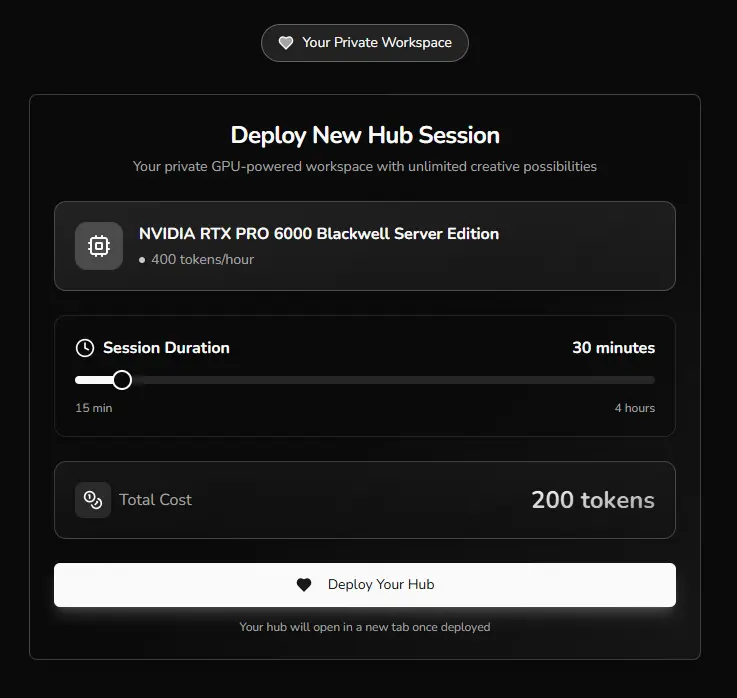
Log in to your Next Diffusion account and navigate to your Dashboard. In the left sidebar, click Deploy Hub to open the Hub deployment panel.
Step 2: Select Your Session Duration
Before deploying, choose how long you want your Hub session to run. Pick the duration that suits your workflow — shorter sessions for a focused generation run, longer sessions for more involved projects.
 💡 Tip: If you're exploring The Hub for the first time, start with a shorter session to get familiar with the tools before committing to a longer block.
Step 3: Deploy and Wait for Initialization
Click Deploy Hub. Your Hub instance will initialize over the next 2–5 minutes. A real-time status indicator shows you exactly where it's at.
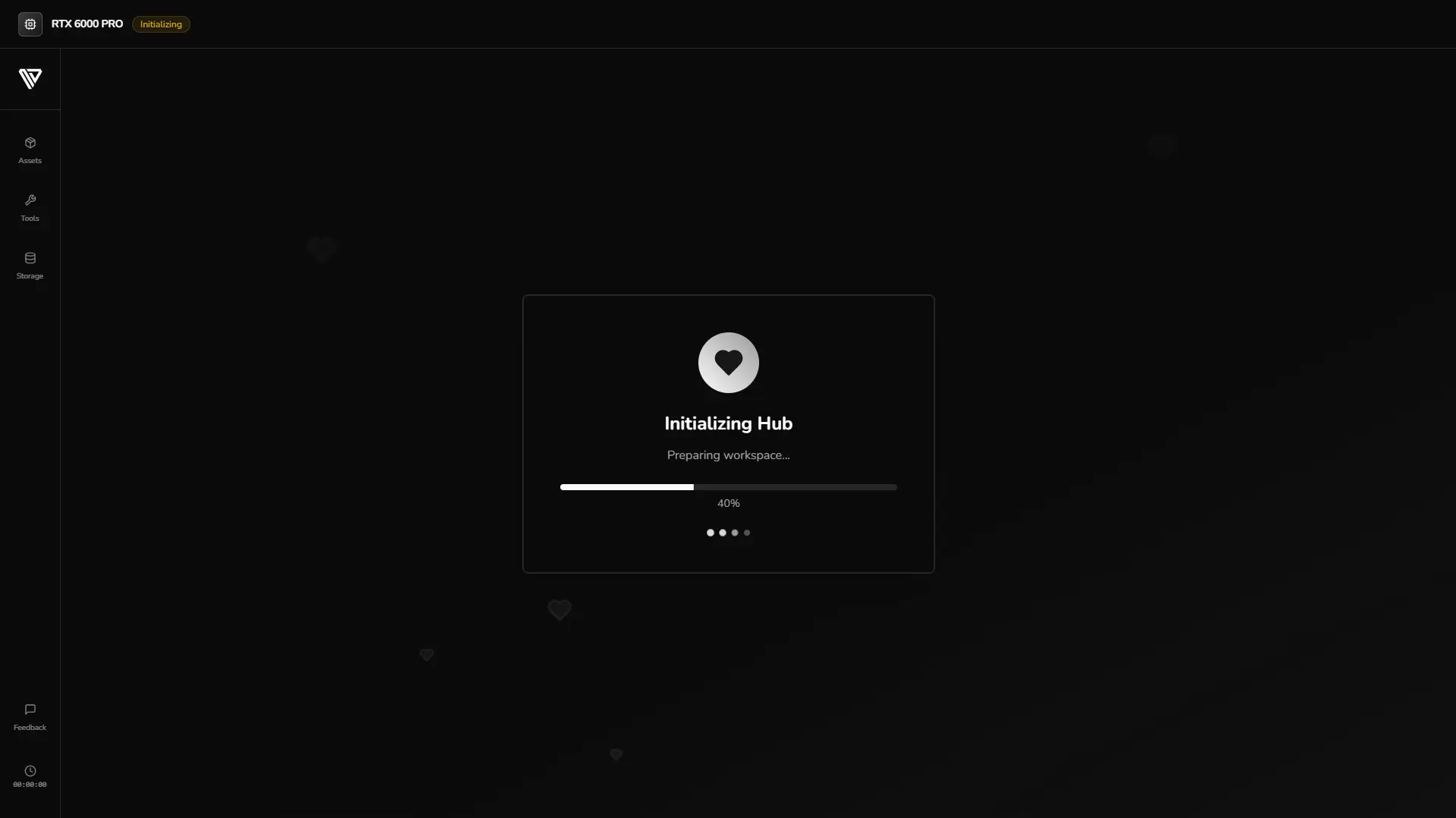
You don't need to stay on this screen — navigate away if you'd like and come back once your Hub is ready.
Step 4: Enter Your Hub
Once initialization completes, your workspace opens and all tools become available. Your session timer starts from this point.
4. Navigating Your Hub Dashboard
Inside your Hub, you'll find a clean workspace with all available tools listed in the sidebar. Clicking any tool opens its dedicated generation panel on the right side of the screen.
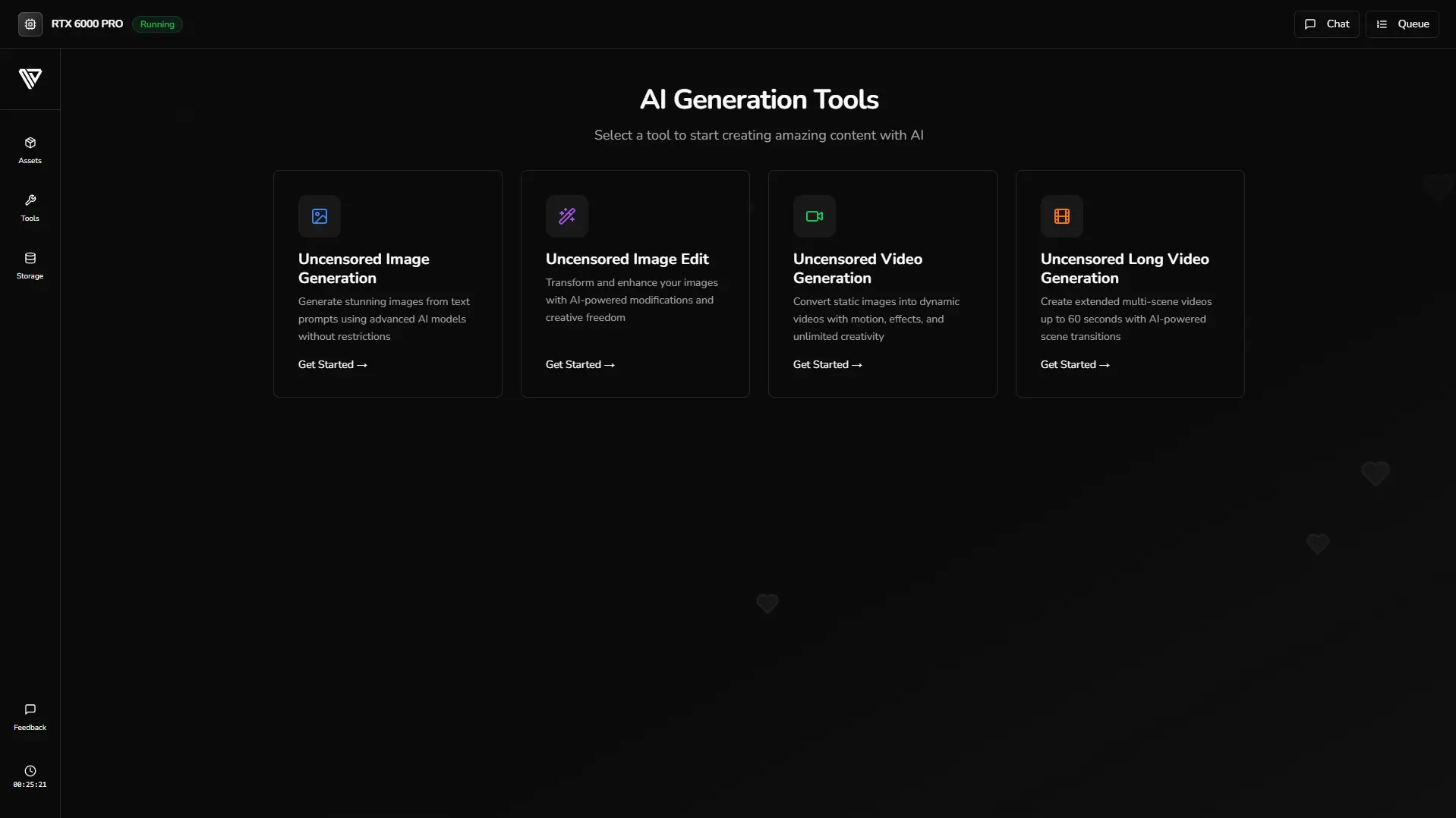
The layout is consistent across every tool — each panel has an input area, a settings section, and a results area. Once you've used one tool, the others feel immediately familiar.
💡 Tip: New tools added to The Hub appear in your workspace automatically, without any redeployment needed.
5. Tool: Text-to-Image Generation
The Text-to-Image tool generates high-quality images from a text prompt. It's the natural starting point for most Hub workflows — create your base image here, then edit or animate it using the other tools.
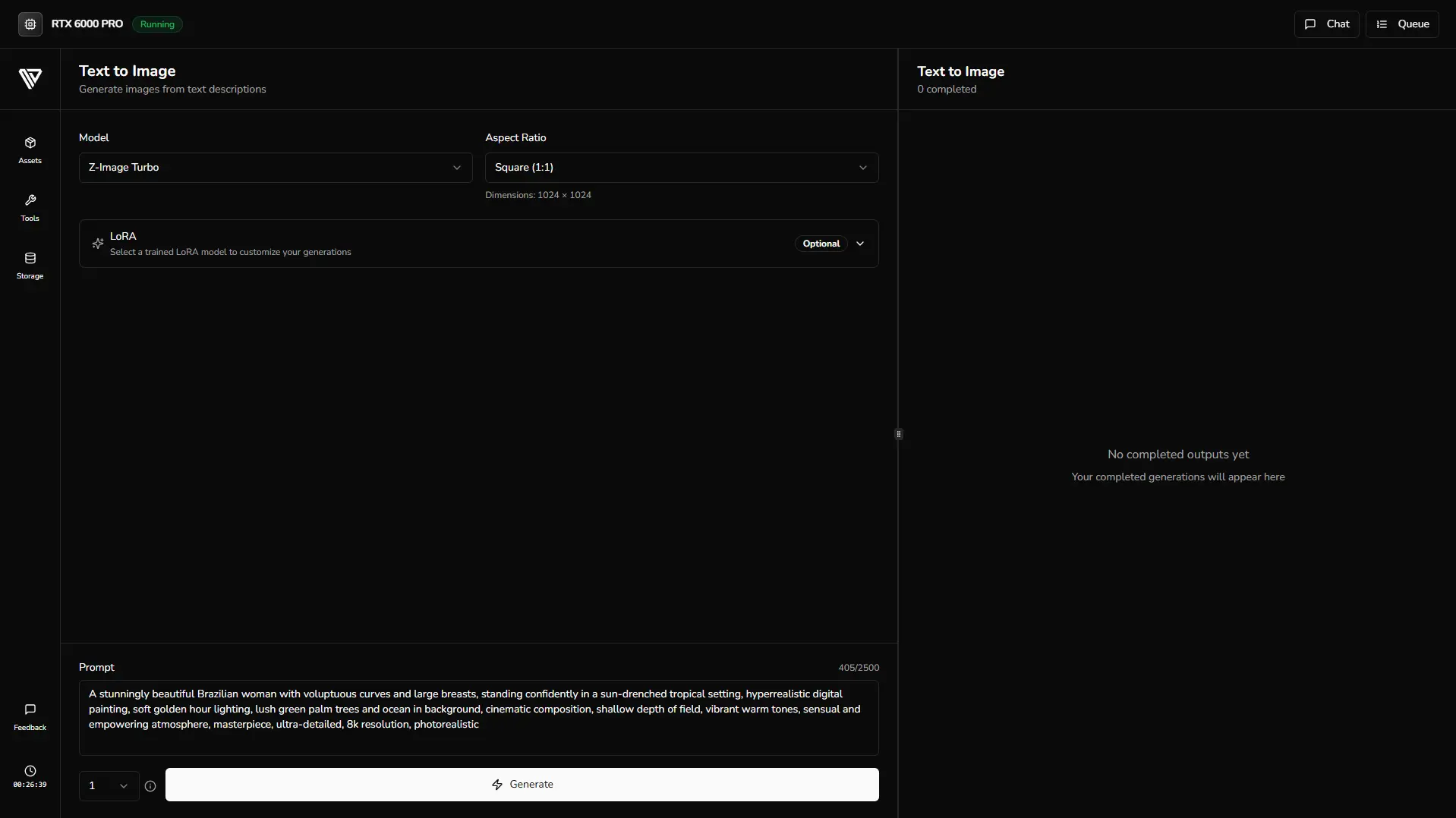
How to Use It
Step 1: Enter Your Prompt Type your prompt into the input field. Include detail about the subject, setting, lighting, mood, and style for the best results.
Step 2: Select Your LoRA (Optional) In the settings panel, open the LoRA dropdown to browse every LoRA you've trained on your account. Select the one you want to use and set the strength to control how strongly it influences the output. The trigger word is automatically applied — just write your prompt as normal and the LoRA will do the rest.
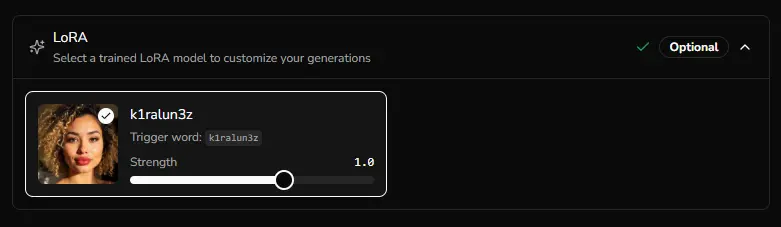
Step 3: Configure Settings Adjust aspect ratio and resolution to match your intended output.
Step 4: Click Generate. Your image will appear in the output panel once ready.
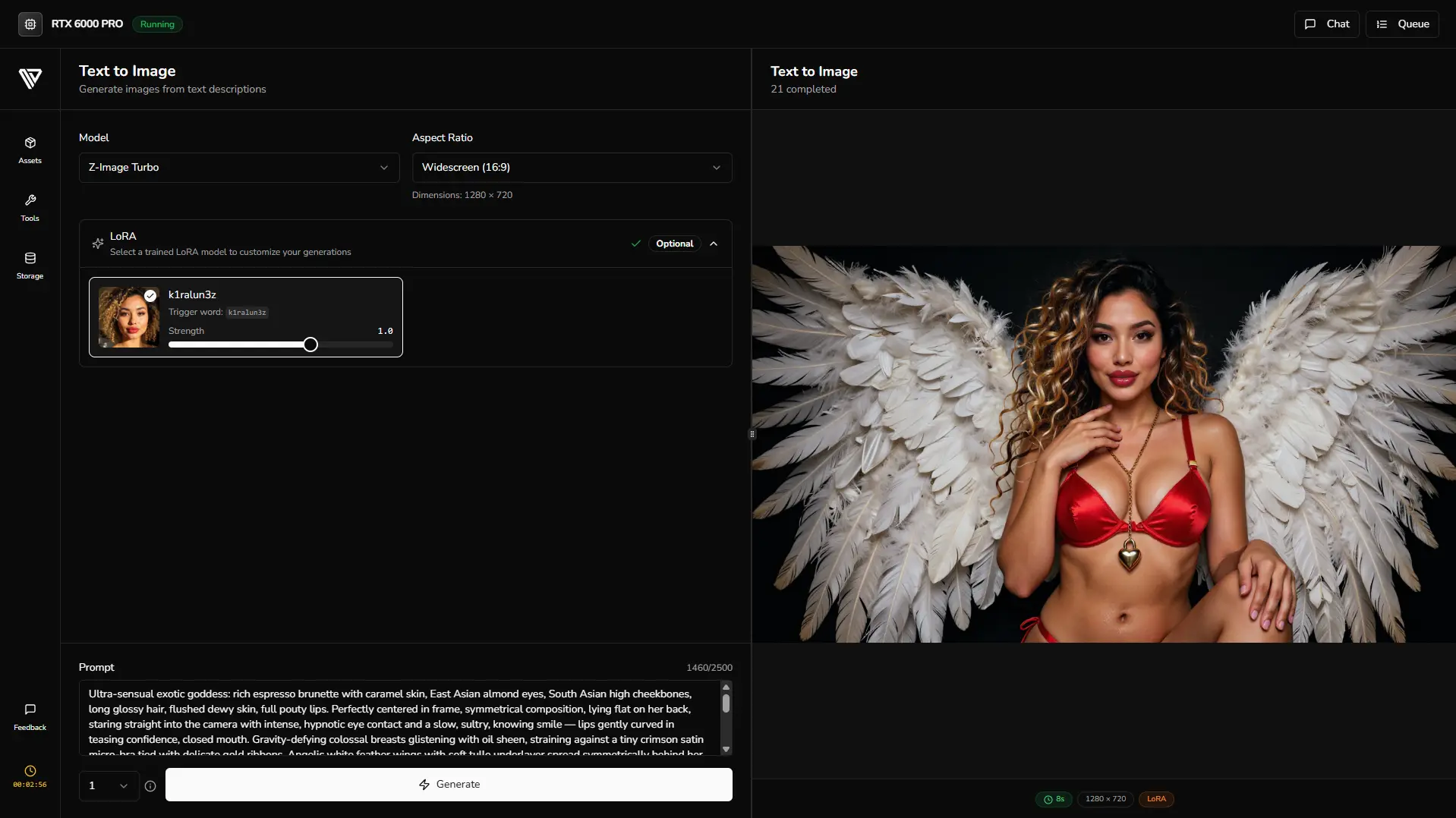
💡 Note: The first generation loads the models into VRAM, so it may take a little longer — every generation after that will be significantly faster. When you switch tools, the models are offloaded and reloaded for the new workflow. To keep things fast, batch all your generations in one tool before moving on to the next.
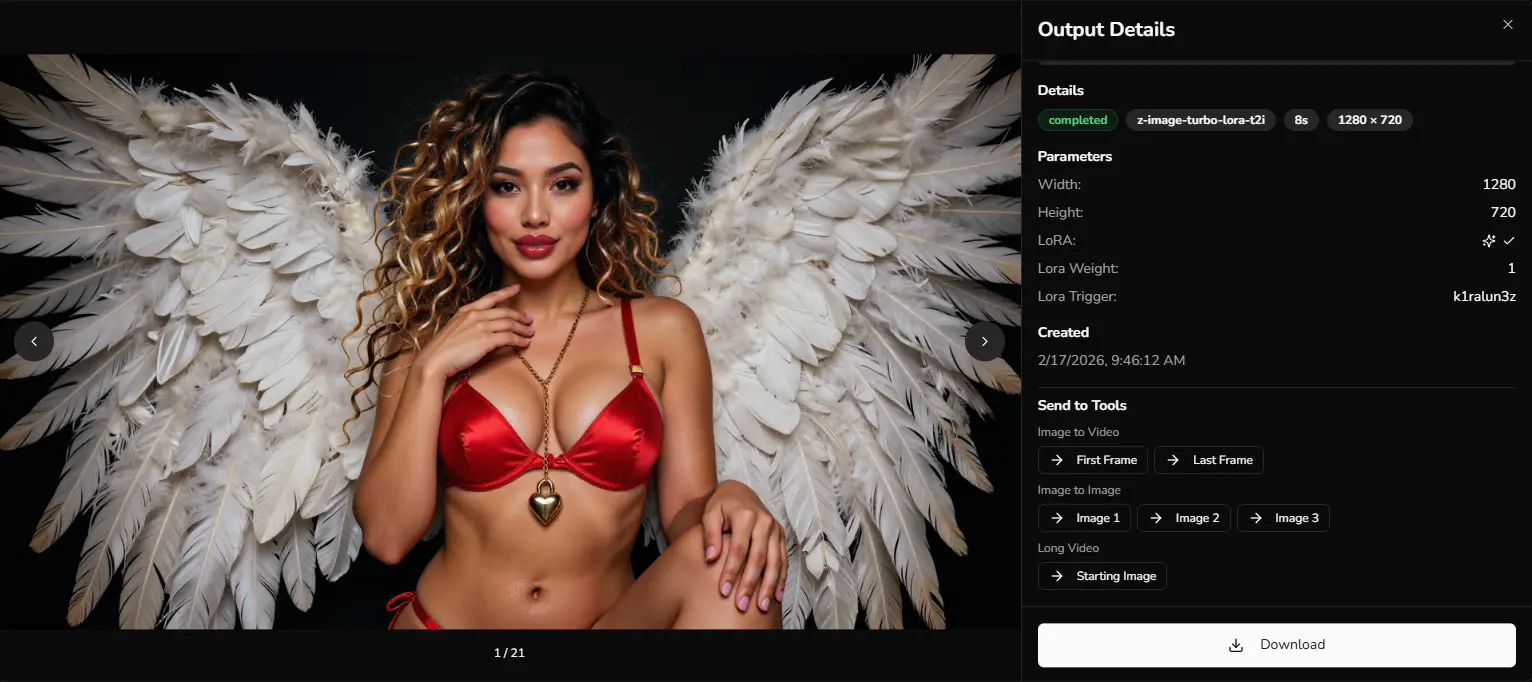
Step 5: Review and Continue Click the icon in the top right of your output image to open the output dialog. From here you can download your image or send it directly to another tool — such as Image to Video, Image to Image or Long Video.
💡 Tip: Not sure what to write? Open the AI Chat Assistant in the top right of your Hub — it can suggest a prompt based on the style or subject you have in mind.
6. Tool: Image to Image
The Image to Image tool lets you modify any image using a plain-text instruction — whether it's something you generated in The Hub or an image you upload from your device.
How to Use It
Step 1: Use Your Generated Image If you've been working in Text-to-Image, click the icon in the top right of your output image and send it directly to Image Edit. Your LoRA-generated image will be loaded in and ready to work with.
Step 2: Describe Your Edit Write your instruction in the prompt field. For example:
-
"Change the background to a rainy city street at night"
-
"Swap the jacket to a dark green bomber"
-
"Add soft golden hour lighting coming from the left"
Not sure how to phrase it? Open the AI Prompt Assistant in the top right. It's already aware of the images you've added to the tool — just describe what you want in plain language and it will translate that into a precise, ready-to-use prompt.
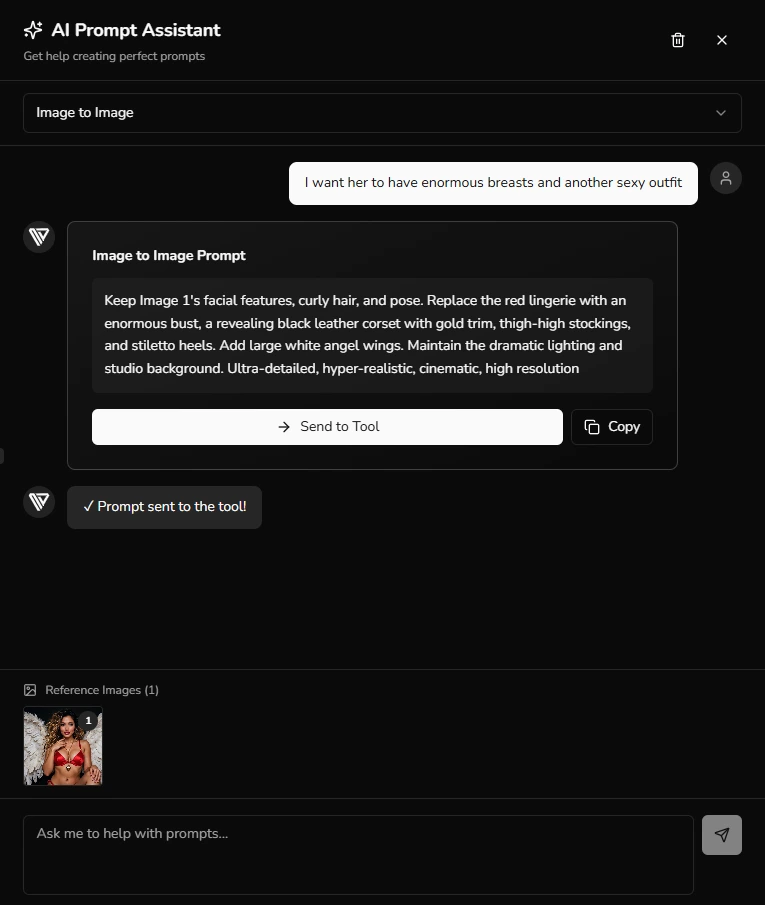
Hit Send to Tool and it's pasted into the prompt box of that tool instantly. If you have multiple reference images loaded, the assistant analyzes all of them together.
Step 3: Click Generate and review the result.
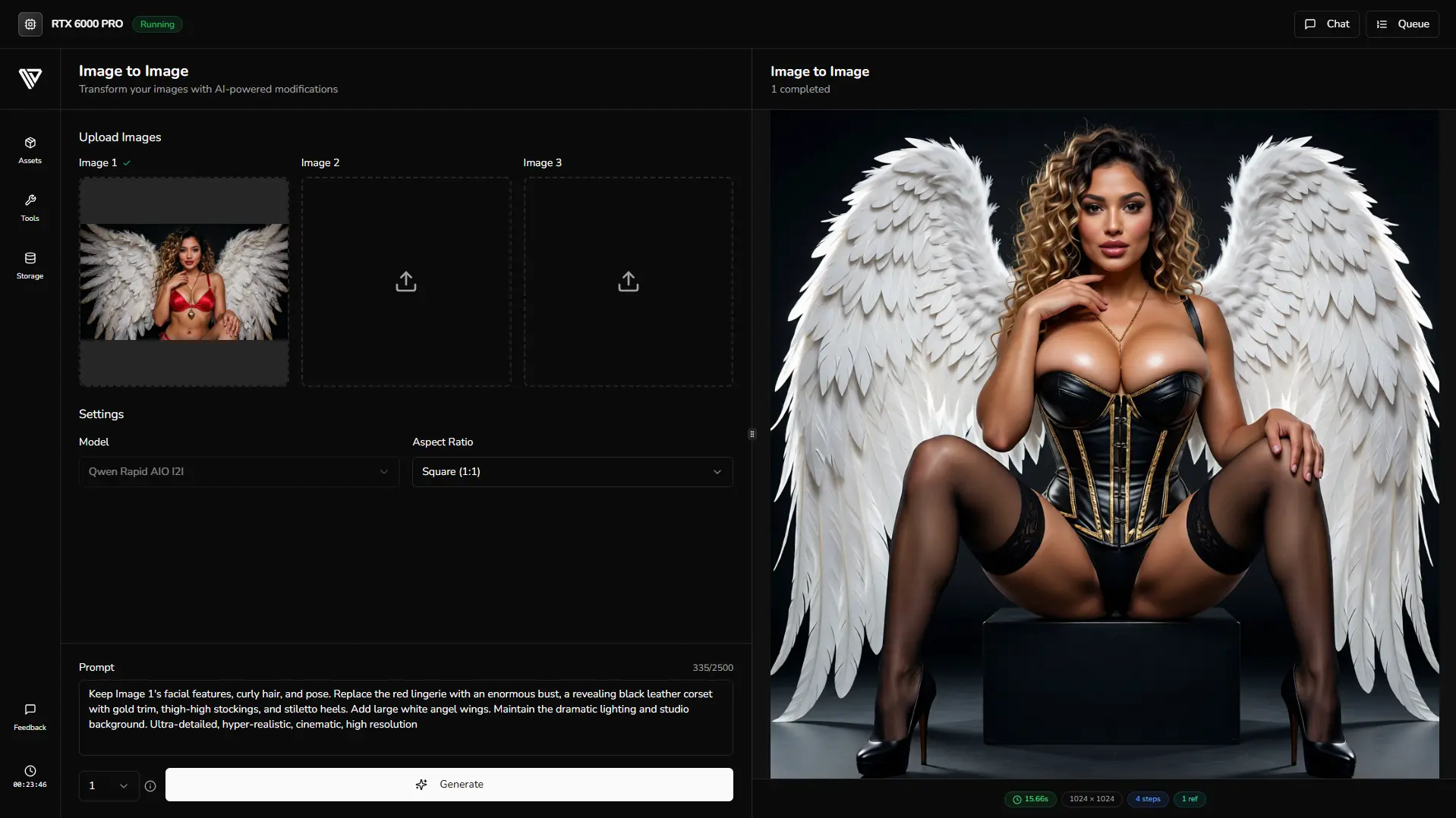
🔥 And that's how easy it is to edit your images — describe what you want, let the AI Prompt Assistant craft the perfect prompt, and generate. No limits, no restrictions.
7. More Tools Inside Your Hub
We've walked you through the core of The Hub — the interface, Text-to-Image, and Image Edit. But there's a lot more waiting for you inside.
The Image-to-Video tool lets you take any image you've generated and animate it into a dynamic video clip. Combine that with the Long Video tool and you can extend that into a full multi-scene production — all starting from a single image you created with your trained LoRA. The AI Prompt Assistant works across these tools too, analyzing your uploaded images and returning tailored motion prompts so you always know exactly what to type.
Here's what you can do with the video tools:
-
Image-to-Video — animate any image into a fluid video clip with natural motion
-
First & Last Frame — define exactly where your video starts and ends for full control over the animation
-
Looping — generate seamlessly looping clips, perfect for repeating animations and continuous motion
-
Long Video — create extended videos up to 30 seconds long with multi-scene AI transitions. Keep in mind that consistency may vary on longer productions, so we recommend keeping videos concise for the best results
And that's just what's available right now. New tools are added to The Hub regularly and will appear in your sidebar automatically — no redeployment, no updates, they're just there when you log in. We're constantly expanding what's possible inside your workspace, so the Hub you deploy today will be more capable tomorrow.
The best way to find out what it can do is to deploy a session and start exploring. 🚀
8. Managing Your Session (Extending & Terminating)
In the bottom left corner of your Hub sidebar you'll find the clock icon — your session control center. This is where you keep track of your remaining time and decide how to manage it as your workflow evolves.
Extending Your Session
Creative workflows don't always fit neatly into a fixed window of time. If you're deep into a project and your session is running low, you can extend it directly from the clock icon without interrupting anything. Your current tool stays loaded, your VRAM stays warm, and your generations keep flowing at full speed — you simply get more time to work with. Click the clock icon, review your remaining time, and select an extension that fits what you still need to get done.

Terminating Your Session
When you're done — or you've finished a specific batch of work — click the clock icon and choose to terminate your session. This shuts down your Hub instance immediately and stops any associated billing for that period. Rather than letting your session quietly run down to zero while you're not using it, terminating manually means you're only ever paying for the time you're actually creating.
And here's the best part: any remaining time on your session is returned to you as tokens when you terminate. So if you booked a longer session but wrapped up early, you're not losing that time — it comes straight back to your account to use whenever you need it.
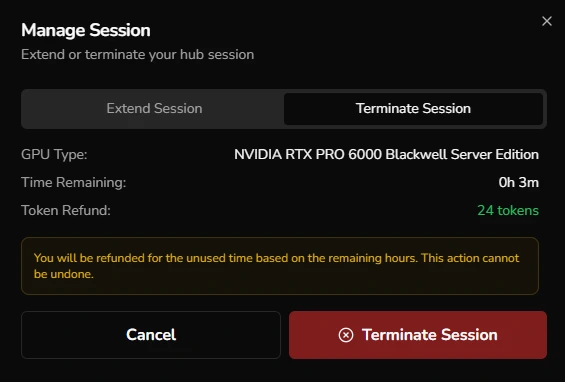
💡 Tip: Get into the habit of terminating your session when you're done rather than just closing the tab. You'll save tokens, keep your account topped up, and always have time ready for your next creative run.
9. Conclusion
The Hub is your creative home on Next Diffusion. A private workspace where your trained LoRAs are always within reach, your tools are all in one place, and the AI Prompt Assistant is always there to help you go from idea to output without breaking your flow. Whether you're generating a batch of character images, refining them with Image Edit, or animating them into video — it all happens inside a single session, built around your workflow and your vision.
Deploy your Hub, explore the tools, and see what you can create. And remember — terminate when you're done to get your remaining tokens back and keep your account ready for the next session.
The Hub is just getting started. New tools are on the way, and every one of them will be waiting for you in your sidebar the moment they go live. 🔥