How to Train a Z-Image Turbo LoRA with Next Diffusion
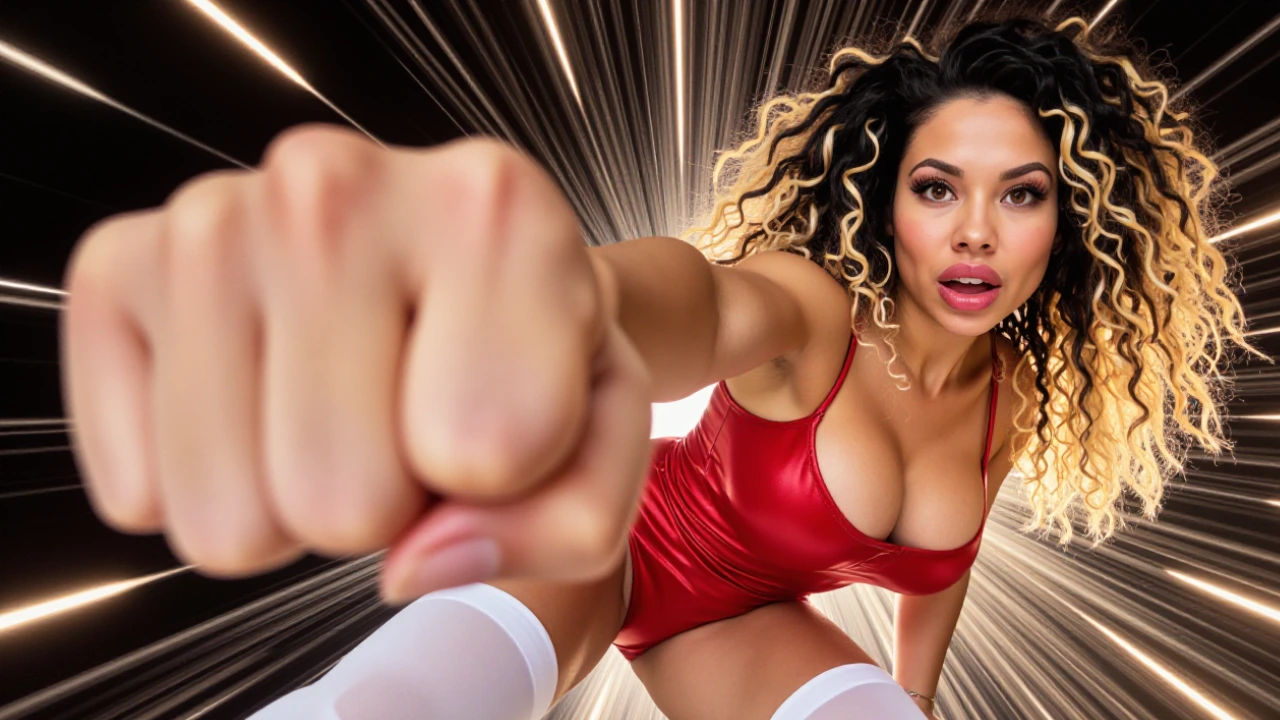
Table of Contents
- 1. Introduction to Z-Image Turbo LoRA Training
- 2. Requirements Before You Start
- 3. Understanding the Next Diffusion Training Workflow
- 4. Preparing, Uploading & Captioning Your Dataset
- 5. Configuring Training Parameters in LoRA Training
- 6. Monitoring Your Training Job
- 7. Generating Images with Your New LoRA
- 8. Conclusion: What You Can Build Next
1. Introduction to Z-Image Turbo LoRA Training
Training custom LoRAs is one of the most effective ways to achieve control and consistency in AI-generated imagery. Whether you’re creating a recognizable character, defining a unique visual style, or refining specific features, LoRAs let you inject your own identity directly into a base model.
With Next Diffusion, LoRA training is fully streamlined — no complex setups, no GPU management, and no local environments. Everything happens directly in the platform, from dataset preparation and captioning to training and generation. In this tutorial, we focus on Z-Image Turbo, a fast, high-quality base model built for sharp visuals and rapid inference. You’ll learn how to upload your dataset, configure training settings, track progress, and generate images with your trained LoRA from start to finish.
2. Requirements Before You Start
Before diving into the training process, it’s crucial to ensure that you have all the necessary components in place. Here are the key requirements you need to meet:
-
Active Next Diffusion Subscription: To access LoRA training, you need an active Next Diffusion subscription with enough tokens to cover GPU training costs. Your subscription provides access to the Training Center, GPU-backed training jobs, and all essential LoRA generation tools.
💡 For subscription details and pricing, visit the Next Diffusion Pricing Page
-
A High-Quality Dataset: The quality of your dataset is paramount. You should prepare a curated collection of images, ideally between 15 to 50 images, that represent the character, style, or specific features you wish to train. Remember, quality over quantity; a well-curated dataset with fewer images often yields better results than a larger, poorly curated one. Focus on images that showcase various angles, expressions, and lighting conditions to provide the model with a comprehensive understanding of the subject.
Once you have confirmed that you meet these requirements, you are ready to proceed to the next steps in the training process.
3. Understanding the Next Diffusion Training Workflow
Next Diffusion simplifies the LoRA training process by breaking it down into three distinct stages, each designed to streamline your workflow and enhance your training experience. Understanding this workflow is essential for effective training:
-
Dataset Creation & Captioning: This initial stage involves uploading your images and providing descriptive captions. Captions are crucial as they inform the model about the content of the images, helping it learn more effectively. A well-captioned dataset will lead to better results during the generation phase.
-
LoRA Training Configuration: In this stage, you will select your base model (Z-Image Turbo), configure your GPU settings, and set various training parameters. This is where you define how the model will learn from your dataset, including the number of training steps and learning rate.
-
Training, Monitoring & Generation: The final stage encompasses the actual training process, where you can monitor the job's progress, review logs, and generate images using your trained LoRA. This stage provides transparency and control, allowing you to track how well your model is learning and make adjustments as necessary.
By understanding these stages, you can navigate the Next Diffusion platform with confidence and ensure a smooth training experience.
4. Preparing, Uploading & Captioning Your Dataset
With a clear understanding of the Next Diffusion workflow, it’s time to dive into the first stage: Dataset Creation & Captioning. This step is crucial, as the quality and clarity of your dataset will directly impact how well your LoRA learns your character, style, or visual concept.
Curating Your Dataset
Before uploading, make sure your dataset is carefully curated:
-
Close-up shots: Faces, expressions, or detailed features
-
Medium shots: Upper body, posture, or clothing
-
Multiple angles: Front, side, and ¾ views
-
Lighting variation: Studio, soft light, or dramatic lighting
-
Subtle variations: Expressions, poses, or styling differences
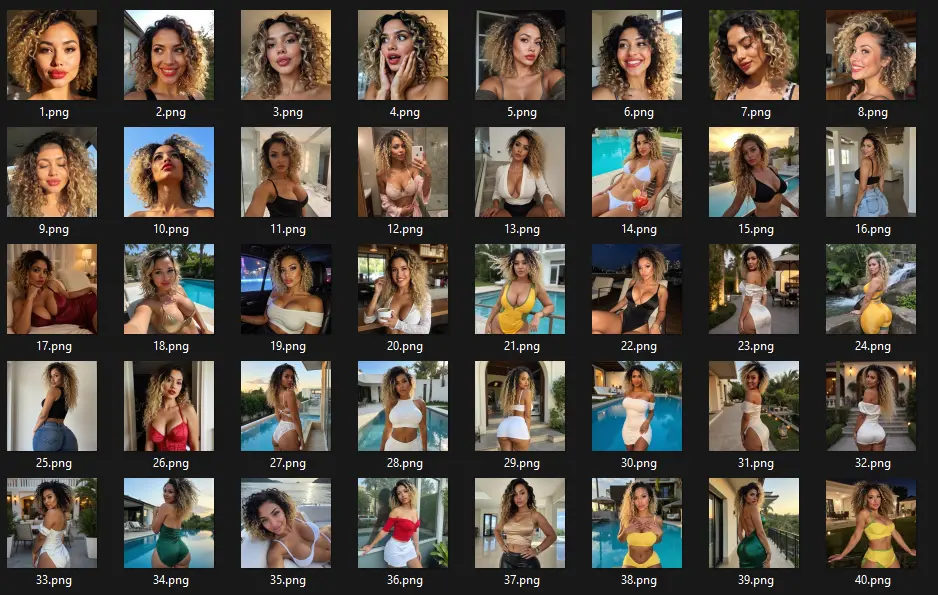
💡 Tip: Consistency and clarity matter more than quantity. A clean set of 15–30 high-quality images usually outperforms a messy 50-image dataset.
Uploading Your Dataset
To upload your dataset:
-
Click Training Center → Datasets from the sidebar.
-
On the Datasets page, click “Upload Dataset”.
-
In the popup dialog:
-
Dataset Name (required): Give your dataset a unique, descriptive name
-
Description (optional): Add details about the dataset’s content or purpose
-
Upload Images: Drag and drop up to 50 images (JPG, PNG, WEBP)
-
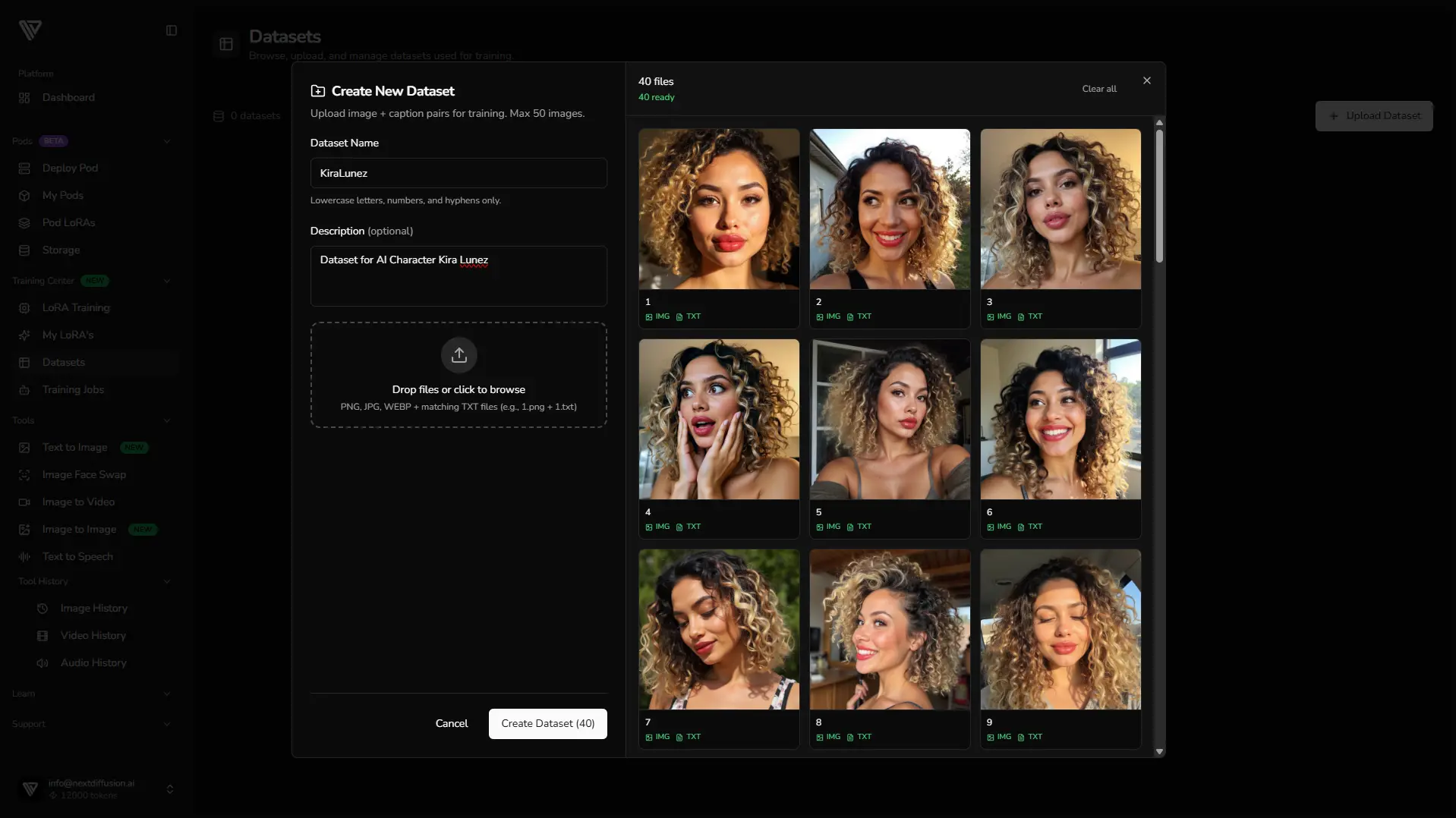
Optional .txt Captions
Next Diffusion allows you to pair images with text files for captions. If you have a .txt file with the same name as your image (e.g., 1.png and 1.txt), it will automatically link the caption to the image.
If no .txt file is provided, you can manually add captions later using the platform’s interface. This gives flexibility whether you pre-prepare captions or want to add them after uploading.
Once all images are selected, click “Create Dataset”. The system will upload your dataset and redirect you to the newly created dataset page, where you can review your images. Any paired .txt files will already have their captions applied.
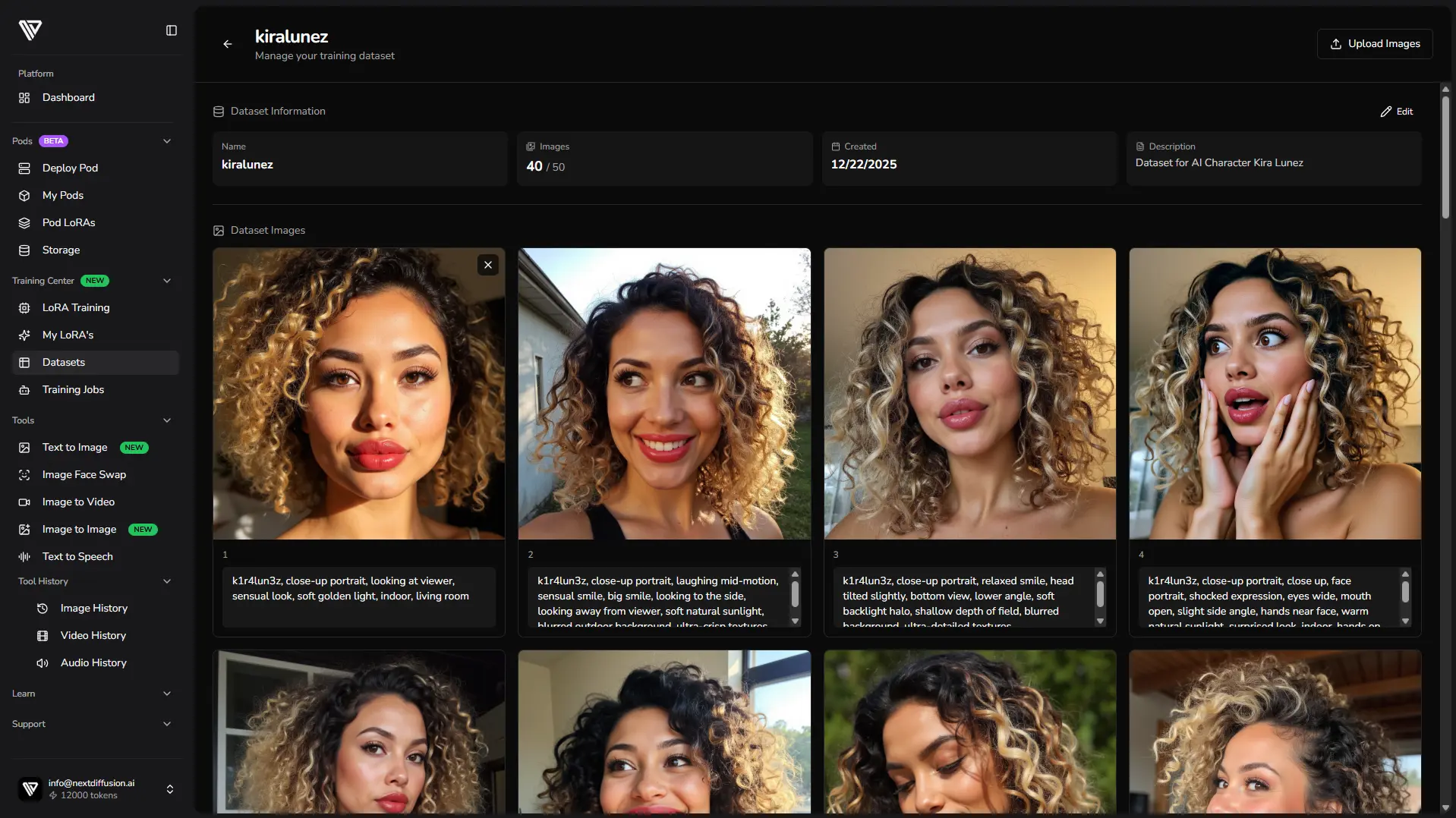
Reviewing & Completing Captions
On the dataset page, you can:
-
Review all captions and add additional images
-
Add captions for images that didn’t have a .txt file
-
Make edits or improve phrasing for clarity
Captioning Tips:
-
Include your trigger word at the beginning of every caption – this ensures your LoRA will be activated correctly during generation
-
Focus on pose, expression, clothing, camera angle, lighting, and mood
-
Keep captions concise but descriptive
-
Avoid repeating details already captured by the trigger word
💡 Clean, well-structured captions lead to stronger LoRA training results, better style consistency, and fewer artifacts.
5. Configuring Training Parameters in LoRA Training
With your dataset ready, it’s time to move into LoRA Training. Navigate to Training Center → LoRA Training from the sidebar. Here, you’ll select the dataset you just created and configure all the parameters that define how your LoRA will learn.
Model Configuration
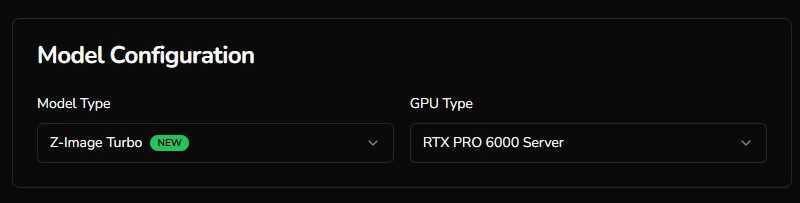
Here you define how your LoRA will learn.
-
Base Model: For this guide, we’ll focus on Z-Image Turbo, optimized for fast, high-quality generation.
💡 Optional: You can select FLUX Dev if you want to fine-tune on a different architecture. -
GPU Type: Choose your GPU based on speed needs and token budget:
-
RTX 5090: 100 tokens per 1000 training steps – best value for most users (with larger dataset, might result in OOM errors).
-
RTX PRO 6000 (Server & Workstation): 200 tokens per 1000 steps – faster training, higher throughput
-
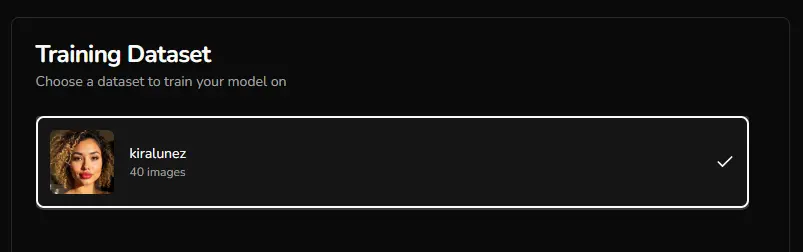
Training Dataset (Right Panel)
Here you select the dataset that your LoRA will learn from:
-
Choose the dataset you just uploaded and captioned
-
Confirm that all captions include your trigger word for proper activation during generation
💡 Keeping these panels organized ensures that your model configuration and dataset selection are clear and easy to manage before moving on to training parameters.
Training Parameters
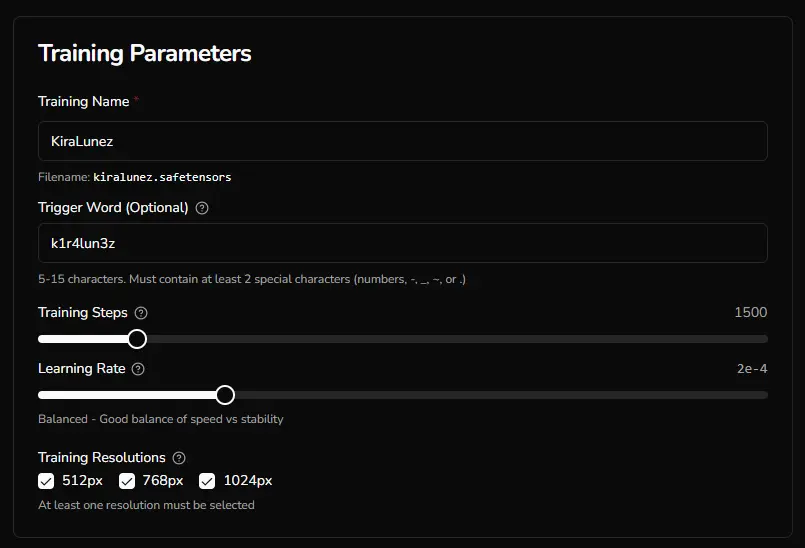
Now define how your LoRA learns from your dataset:
-
Training Name (required): Must be unique to identify this job, and will be used as the name for your final safetensors file.
-
Trigger Word (optional but recommended): Used in dataset captions and automatically applied during generation to activate the LoRA. Use the same trigger word you applied and the start of your captioning. In our case we used: k1r4lun3z
-
Training Steps: 1000–5000 iterations; 1500–2000 is recommended for most character or style LoRAs
-
Learning Rate: Controls how fast the model learns
-
1e-4 → Safest, ideal for small datasets
-
2e-4 → Balanced speed and stability
-
3e-4 → Faster, higher overfitting risk
-
4e-4+ → Experimental, may overcook
-
-
Training Resolutions: 512px, 768px, 1024px; select at least one, 1024px recommended for high-quality results
Sample Generation & Checkpoints
This section controls how progress is previewed during training and when checkpoints are saved.

-
Sample Every (Steps): Choose how often to generate sample images and save LoRA checkpoints. Options: 250, 500, 750, 1000 steps.
💡 Smaller intervals let you track progress more closely but may slightly increase GPU usage. -
Sample Width & Height: Define the resolution of the preview images. Use the same aspect ratio as your training images for best results.
-
Sample Prompts (Max 3): Enter up to three example prompts that will be used to generate sample images at each interval. These prompts do not require the trigger word — it will automatically be applied by Next Diffusion.
Our Sample Prompts:
-
Upper-body shot, natural morning light, shy smile, leaning forward slightly, oversized sweater slipping off shoulder, subtle peek of lace bra, cozy sensual style, soft shadows
-
Medium shot, soft studio key light, playful smile, sitting on edge of pool villa lounge chair, low-cut silk swimsuit showing subtle cleavage, relaxed pose, tropical outdoor background, cinematic romantic style, warm reflections on skin
-
Medium shot, natural morning light streaming through kitchen window, playful smile, leaning slightly on countertop, red velvet Christmas mini-dress with white fur trim, thigh-high stockings, hair loosely tousled, cozy festive style, warm reflections on skin, soft shadows accentuating curves
💡 Tip: Carefully chosen sample prompts give you a clear view of how your LoRA is learning style, pose, and expression consistency over time. Use this feedback to spot overfitting early and adjust future training jobs if needed.
Starting the Training Job
Once all settings, dataset selections, and sample prompts are configured, click “Start Training”.
A confirmation dialog will appear showing a summary of your training job, including:
-
Selected dataset
-
Base model and GPU type
-
Training parameters (name, steps, learning rate, resolutions)
-
Sample generation settings
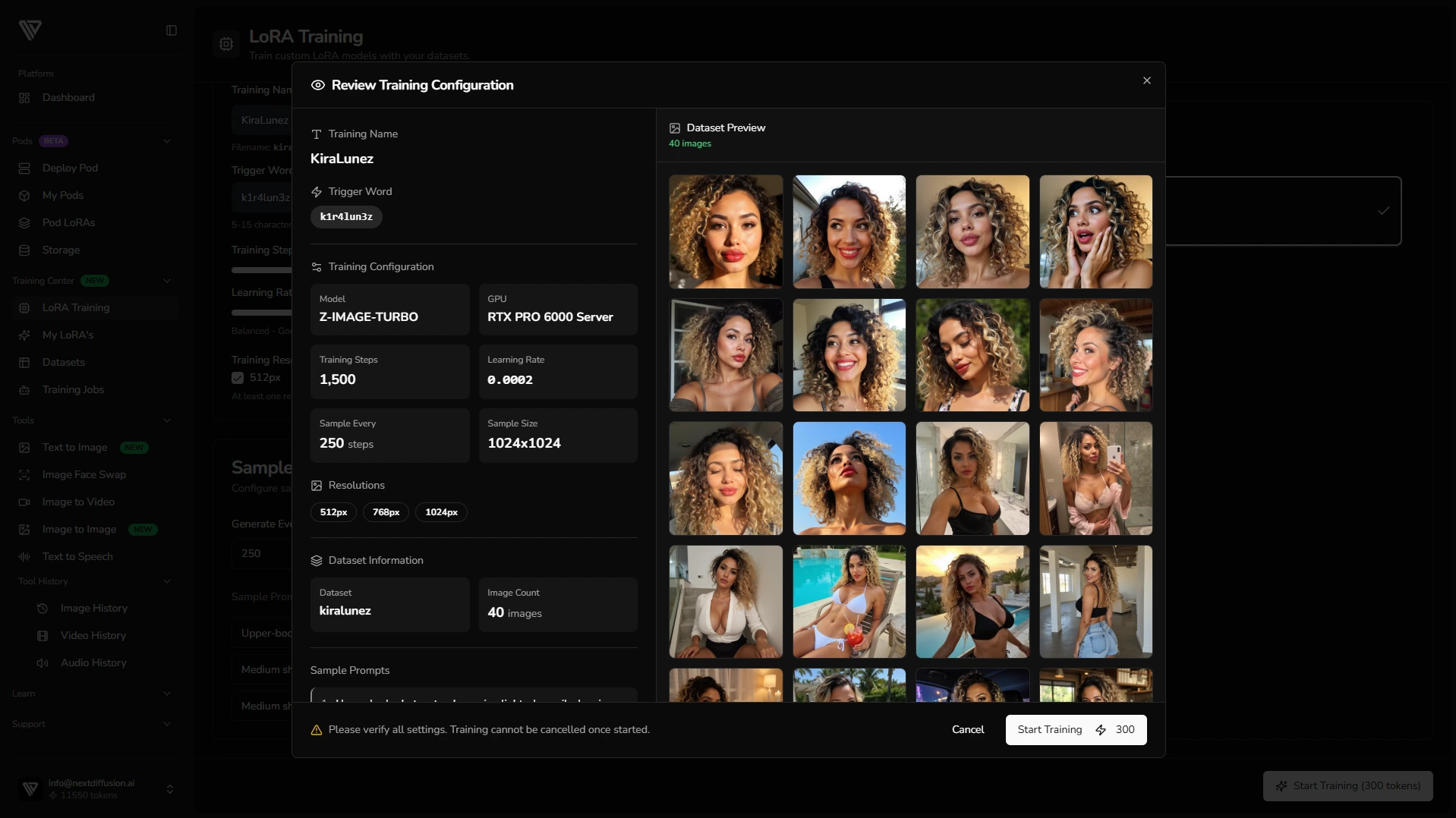
⚠️ Important: Carefully review all settings in this dialog. Once you click “Start Training” from this confirmation, the training job cannot be canceled or edited. Make sure everything is correct before proceeding.
After confirming, your LoRA training job will begin, and you’ll be redirected to the Training Jobs page to monitor its progress.
6. Monitoring Your Training Job
After starting your LoRA training, you’ll be redirected to the Training Jobs page. Clicking on your job opens a side panel with multiple tabs, giving you full visibility and control over your training.
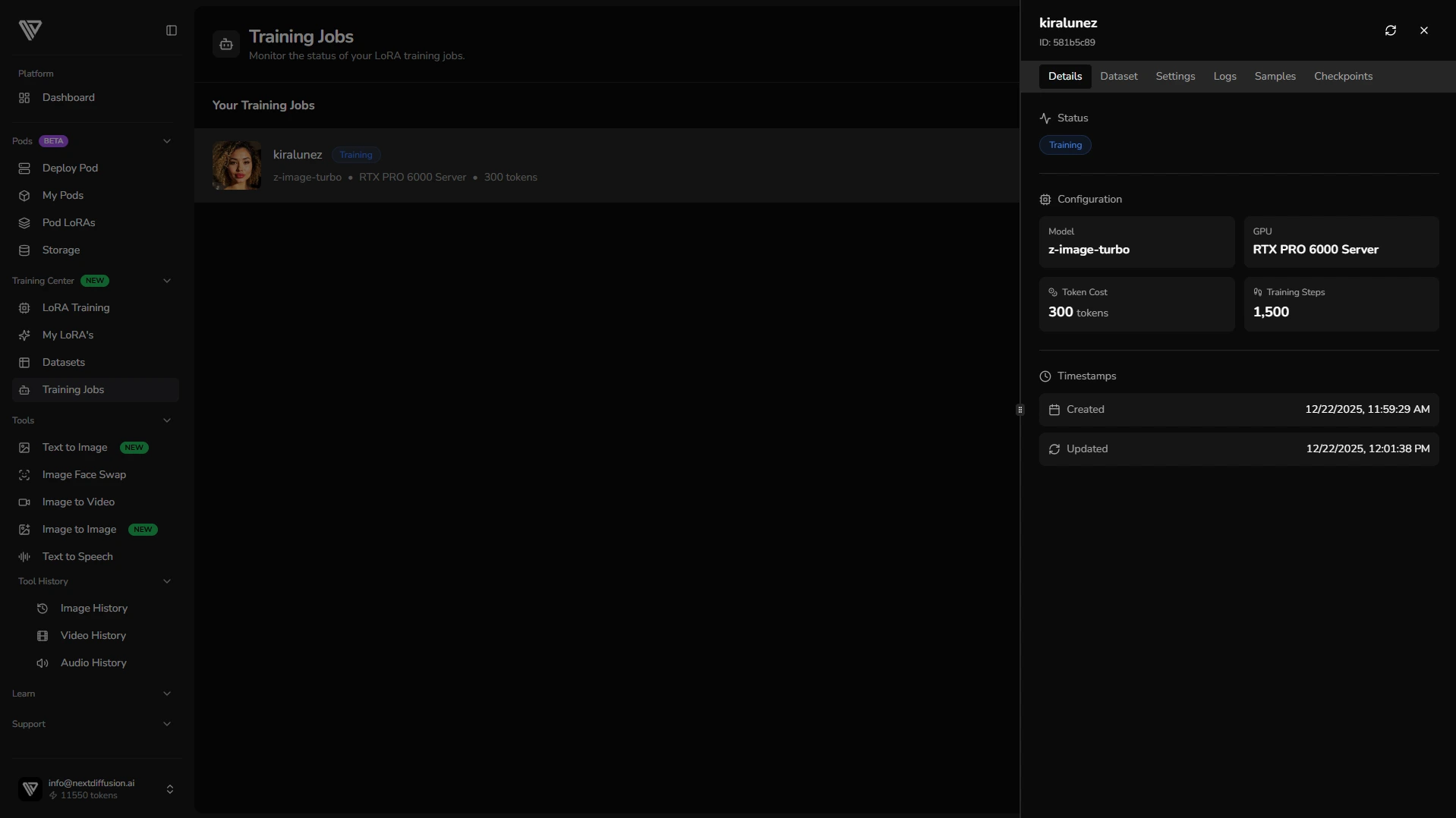
Tabs Overview
-
Details Tab:
Provides an overview of your model configuration: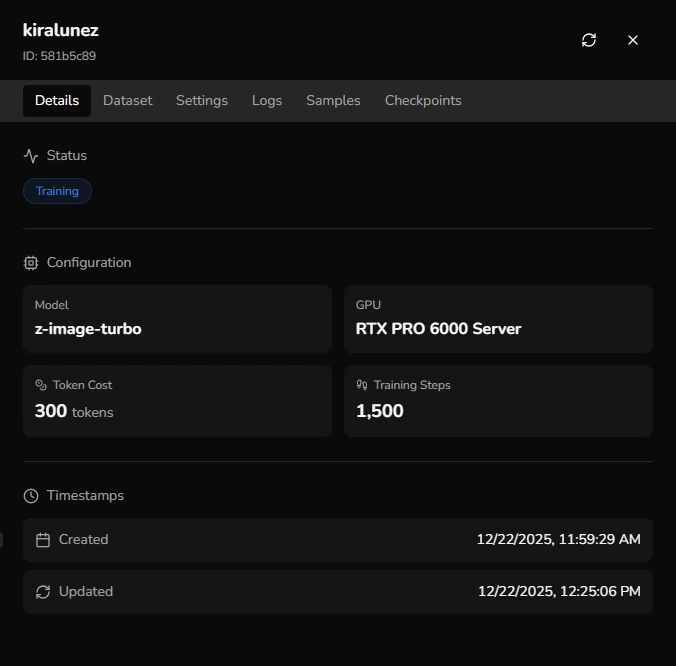 - Base model
-
GPU type
-
Token cost
-
Total training steps
-
-
Dataset Tab:
 Displays all images included in your training dataset, allowing you to quickly verify that everything uploaded correctly.
 -
Settings Tab:
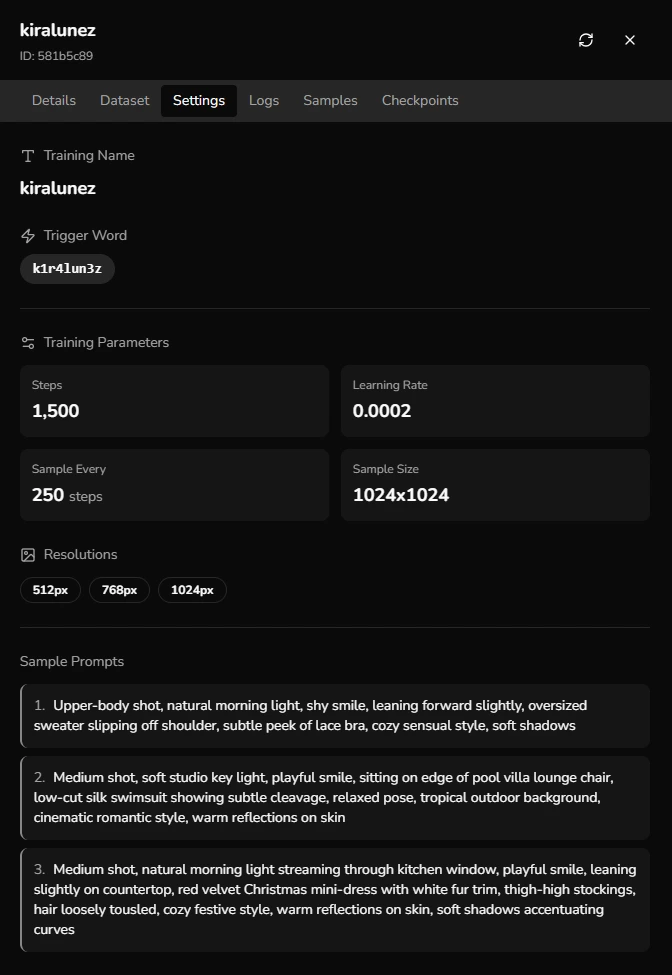 Shows all training parameters and sample generation prompts. This is useful for confirming that your job is running exactly as configured.
 -
Logs Tab:
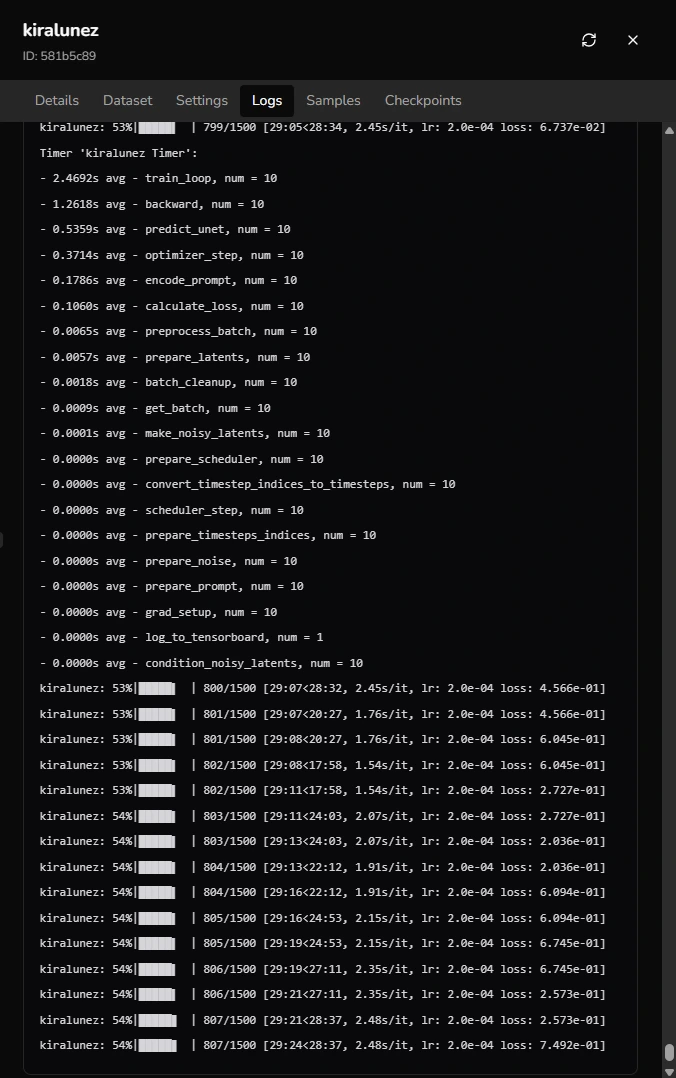 Streams live data from the training process, giving insights into the model’s progress. Here, you can also see the estimated training duration based on your GPU and training steps.
 -
Samples Tab:
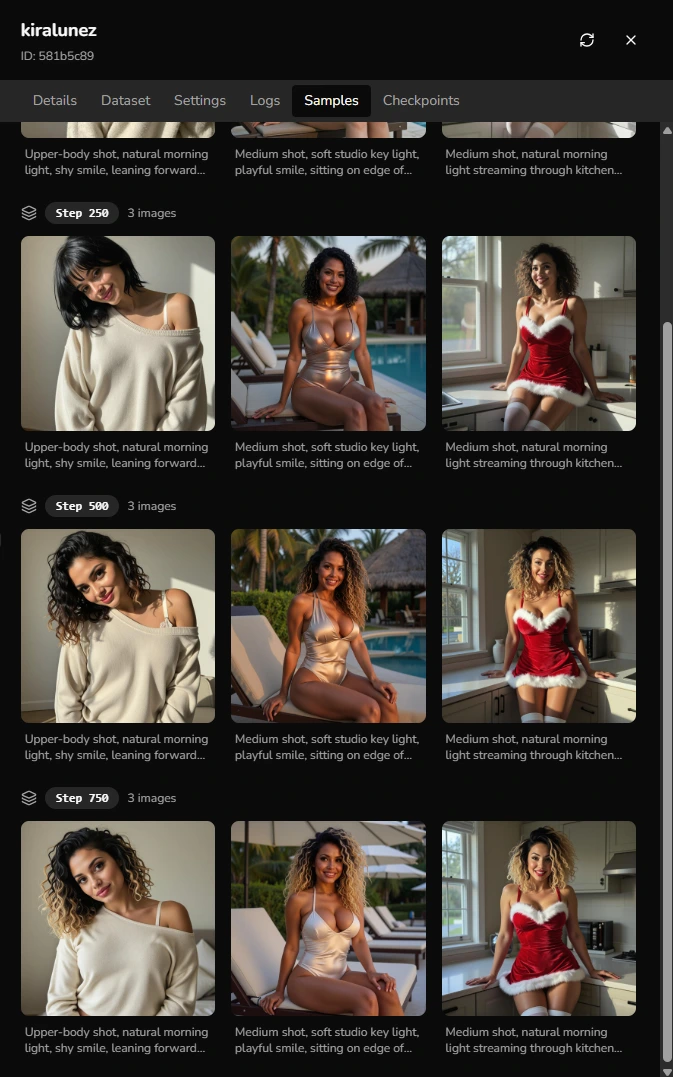 Displays the sample images generated at the intervals you set (e.g., every 250–1000 steps). This tab is a great way to visually track how your LoRA is learning style, pose, and expression consistency.
 -
Checkpoints Tab:
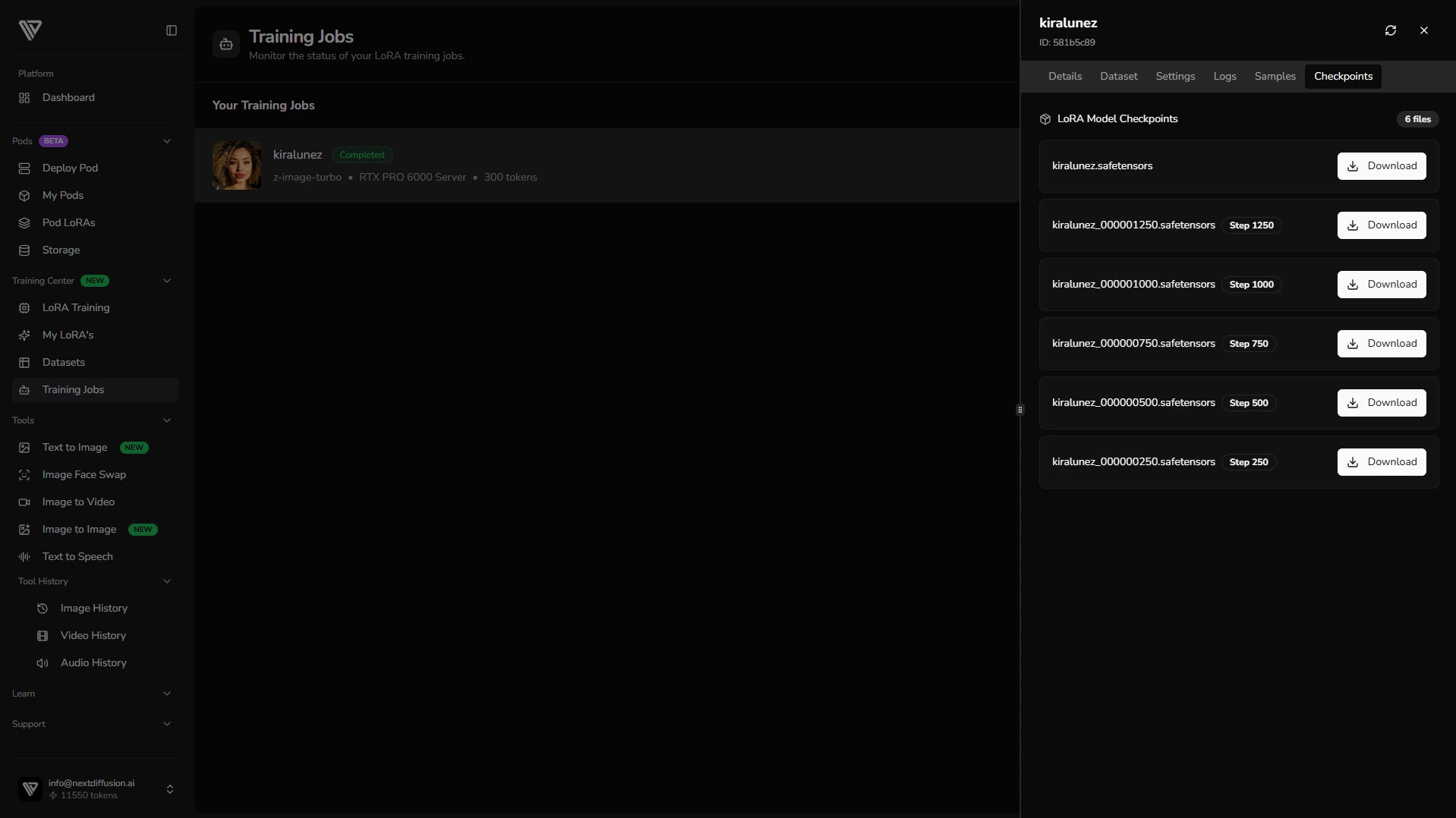
Contains the finetuned LoRA models (.safetensors). You can download your LoRA files here once training is complete and use them for generation immediately.
💡 Tip: Keep an eye on the Samples tab to see how your LoRA is learning style, pose, and expression over time. The Logs tab provides real-time feedback on progress and estimated completion. Once training finishes, use the Checkpoints tab to review and download the version that best matches your desired results.
Once training is complete, your newly trained LoRA will appear in My LoRAs, ready for download.
7. Generating Images with Your New LoRA
Once your training completes, your newly trained LoRA will appear in the My LoRAs sidebar menu. To start generating images:
-
Navigate to the Text to Image Tool:
From the sidebar, go to Tools → Text To Image. -
Select Your Base Model:
Choose Z-Image Turbo as the base model. -
Enable Your Trained LoRA:
Select your newly trained LoRA and set the LoRA strength — we recommend a value of 1 for optimal results. -
Enter a Prompt:
Type your desired prompt. No need to include your trigger word — Next Diffusion automatically appends it. -
Click Generate:
Hit Generate and watch your LoRA bring your dataset to life.
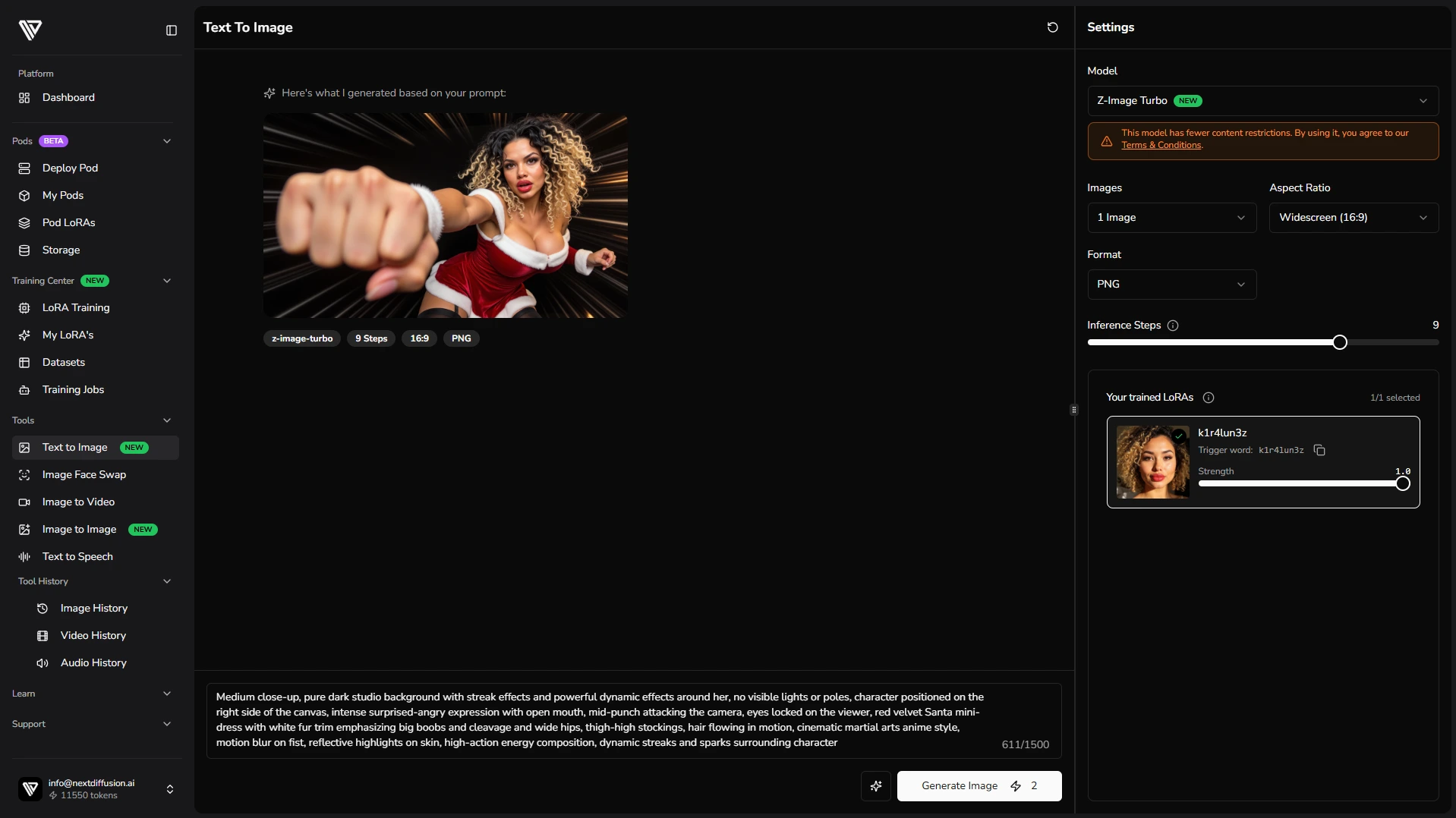
Another Example:
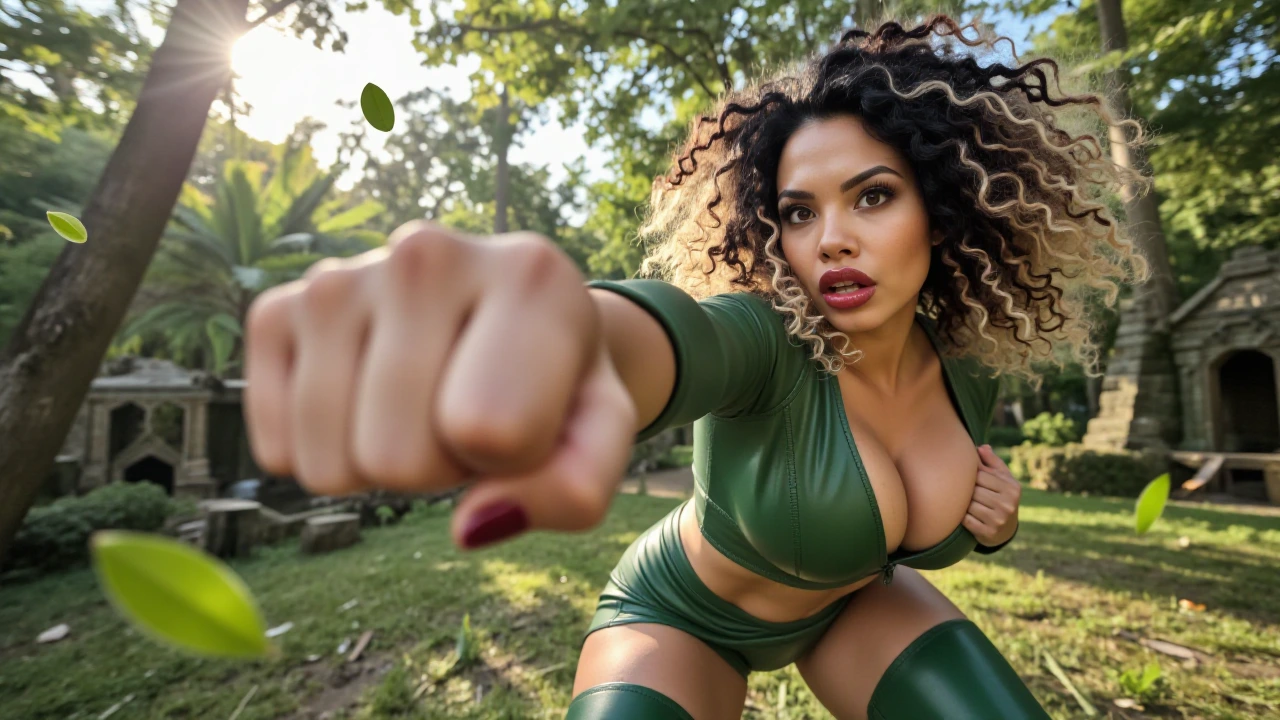
Prompt: k1r4lun3z Medium shot, lush jungle temple background with sunlight streaming through leaves, character on right side, surprised-angry expression, lunging punch toward viewer, green leather cropped top and shorts showing cleavage and wide hips, thigh-high boots, hair whipping dramatically, cinematic anime style, motion blur on fist, floating leaves and dust streaks emphasizing movement
🎉 That’s it! You’ve successfully trained a Z-Image Turbo LoRA and can now generate consistent, high-quality images. Experiment with different prompts, styles, or LoRA strengths to explore the full potential of your model.
8. Conclusion: What You Can Build Next
You’ve now completed the full workflow for training a Z-Image Turbo LoRA with Next Diffusion — from dataset preparation and captioning to training, checkpoint review, and image generation.
With Z-Image Turbo, you benefit from a high-speed, high-fidelity base model that is also uncensored, giving you full creative freedom for generating images. By carefully curating your dataset, setting clear trigger words, and monitoring sample generation, you can produce consistent characters, styles, and visual identities with ease.
Next Diffusion handles the technical setup, GPU allocation, and training infrastructure, allowing you to focus entirely on creativity. Experiment, iterate, and refine your LoRAs — whether for characters, styles, or visual storytelling — to unlock the full potential of AI-generated imagery.