Generate High-Quality 3D Assets with TRELLIS.2 in ComfyUI
Table of Contents
1. Introduction to TRELLIS.2 in ComfyUI
TRELLIS.2 is Microsoft’s state-of-the-art image-to-3D model that converts a single image into high-quality 3D geometry with PBR materials, offering a true end-to-end alternative to traditional multi-stage 3D pipelines. In this tutorial, you’ll learn how to run TRELLIS.2 inside ComfyUI using a pre-configured RunPod environment with the correct CUDA, PyTorch 2.9, FlashAttention, and Triton setup, eliminating local installation and dependency issues. By the end, you’ll be able to generate clean geometry, textured meshes, and PBR-ready 3D assets directly from a single image, completely out of the box.
2. System Requirements for TRELLIS.2 (RunPod Setup)
To successfully run TRELLIS.2, it is crucial to have a properly configured environment that meets specific system requirements. We highly recommend utilizing the RunPod platform with our custom ComfyUI template, which is optimized for TRELLIS.2 and modern NVIDIA GPUs. This setup ensures that all necessary dependencies are pre-installed and configured, allowing for a seamless experience.
Requirement 1: RunPod ComfyUI Template
The recommended setup includes the Next Diffusion – ComfyUI SageAttention RunPod template. This template comes equipped with:
-
ComfyUI + ComfyUI-Manager: Automatically installed for easy management.
-
Python 3.11 virtual environment: Ensures compatibility with the latest libraries.
-
PyTorch 2.9.1: The required version for deep learning tasks.
-
CUDA 12.8: Essential for GPU acceleration.
-
Triton 3.5.1: For optimized inference.
-
FlashAttention 2.8.3: Pre-built for performance.
-
SageAttention: Compiled for all modern NVIDIA architectures.
-
VS Code browser IDE: For code editing and management.
-
Persistent Network Volume: Mounted at /workspace for data storage.
Requirement 2: Network Volume (Recommended)
Before launching the pod, you must create and attach a Network Volume in RunPod. This volume is mounted at /workspace and is used to persist all data across sessions, including models, generated 3D assets, and custom ComfyUI nodes.
The Network Volume ensures that once the environment is set up on first boot, it can be reused instantly in future sessions without reinstallation.
A step-by-step guide for creating and attaching a Network Volume is available here:
👉 How to Run ComfyUI on RunPod with Network Volume
With your Network Volume attached and the pod launched, ComfyUI is ready to go. Next, we’ll install the ComfyUI-TRELLIS2 custom node to set up TRELLIS.2 and its workflows.
3. Installing Required Custom Nodes
Before running TRELLIS.2 workflows, it’s advisable to update ComfyUI via ComfyUI Manager to ensure full compatibility.
Installing the necessary custom nodes is straightforward thanks to ComfyUI Manager. This step sets up all required nodes, including TRELLIS.2 and ComfyUI-GeometryPack, while the actual TRELLIS.2 model weights will be downloaded automatically the first time you run a workflow.
Step 1: Open ComfyUI Manager
Access ComfyUI on port 8188 in your browser, then click Manager in the menu to open ComfyUI Manager.
Step 2: Install ComfyUI-TRELLIS2
In ComfyUI Manager, click Custom Nodes Manager, then use the search bar to find ComfyUI-TRELLIS2 and click Install.
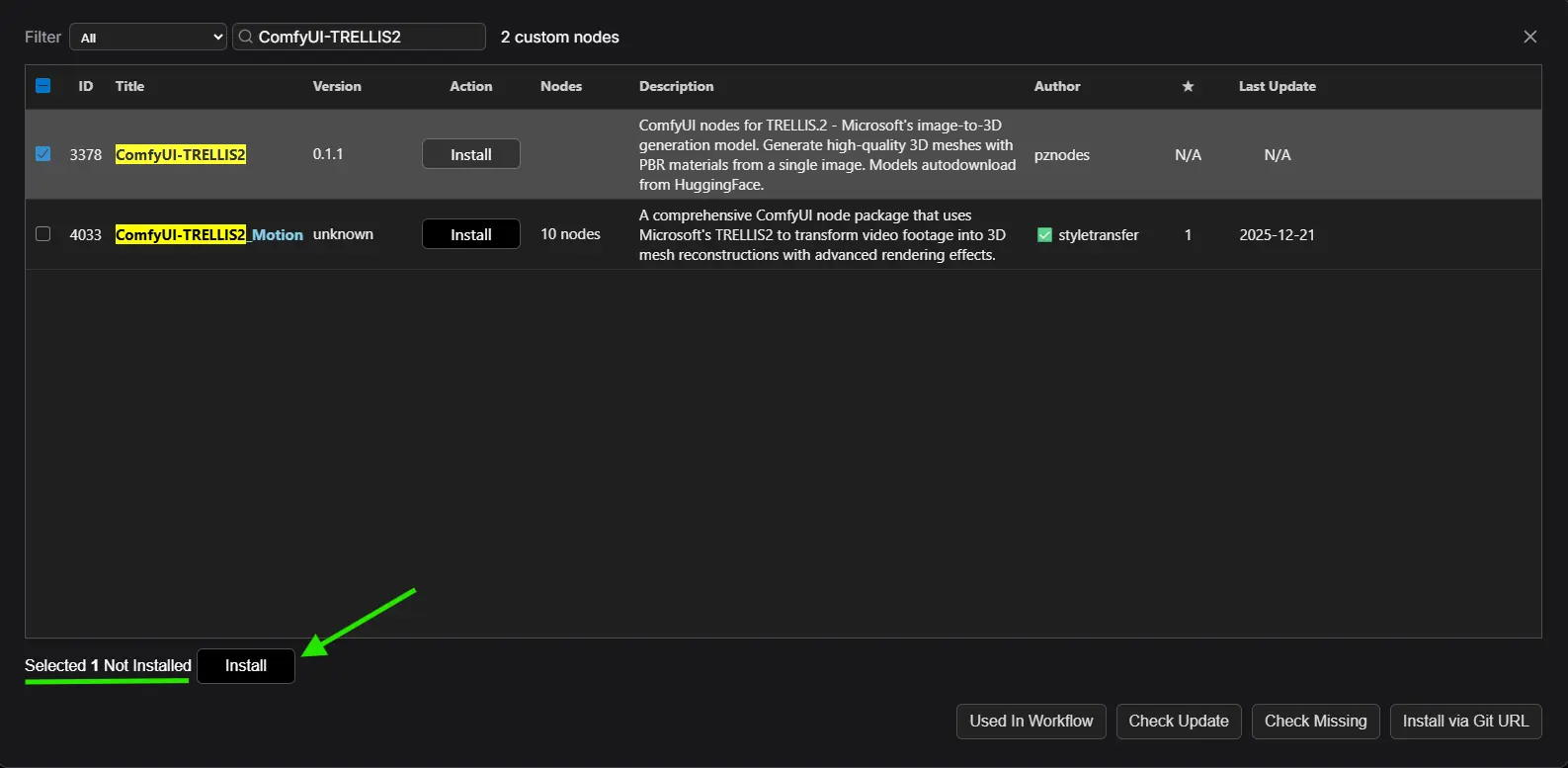 This installs the TRELLIS.2 custom node, sets up inference logic, and registers all required functionality. You can monitor the installation progress in the Container Logs from your RunPod dashboard. Since our template already provides the correct environment, you should see a message confirming that all dependencies installed successfully:
ts1============================================================
2 Installation Summary
3============================================================
4  nvdiffrast: [OK]
5  flex_gemm: [OK]
6  cumesh: [OK]
7  o_voxel: [OK]
8  nvdiffrec_render: [OK]
9  flash_attn: [OK]
10============================================================
11[ComfyUI-TRELLIS2] Installation completed successfully!
Step 3: Install ComfyUI-GeometryPack
Some workflows require the ComfyUI-GeometryPack node. Repeat the process in Custom Nodes Manager to locate and install ComfyUI-GeometryPack.
Step 4: Restart ComfyUI
After successful installation, restart ComfyUI to fully integrate the custom node.
Once complete, your environment is ready to generate high-quality 3D models from images without any manual configuration.
4. Running TRELLIS.2 Image-to-3D Workflows in ComfyUI
With the TRELLIS.2 model installed, you are now ready to generate 3D models from your images. The process involves loading a specific workflow and inputting your image. Here’s how to do it:
Step 1: Download & Load a TRELLIS.2 Workflow
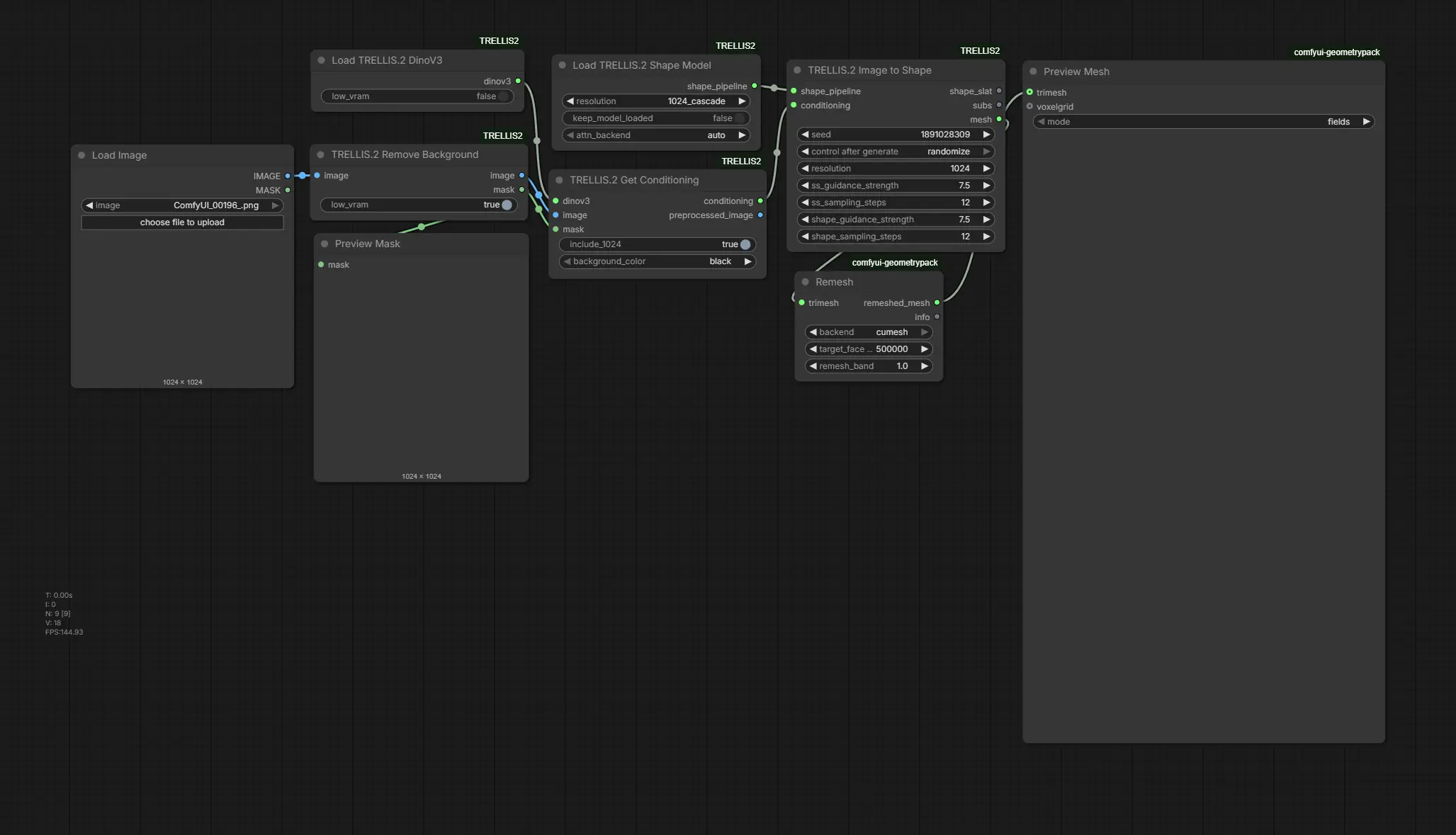
We have prepared two TRELLIS.2 workflows for different purposes:
-
👉 Geometry Only Workflow – Generates clean 3D geometry without textures.
-
👉 Geometry Texture Workflow – Produces a full 3D mesh with PBR textures and material maps.
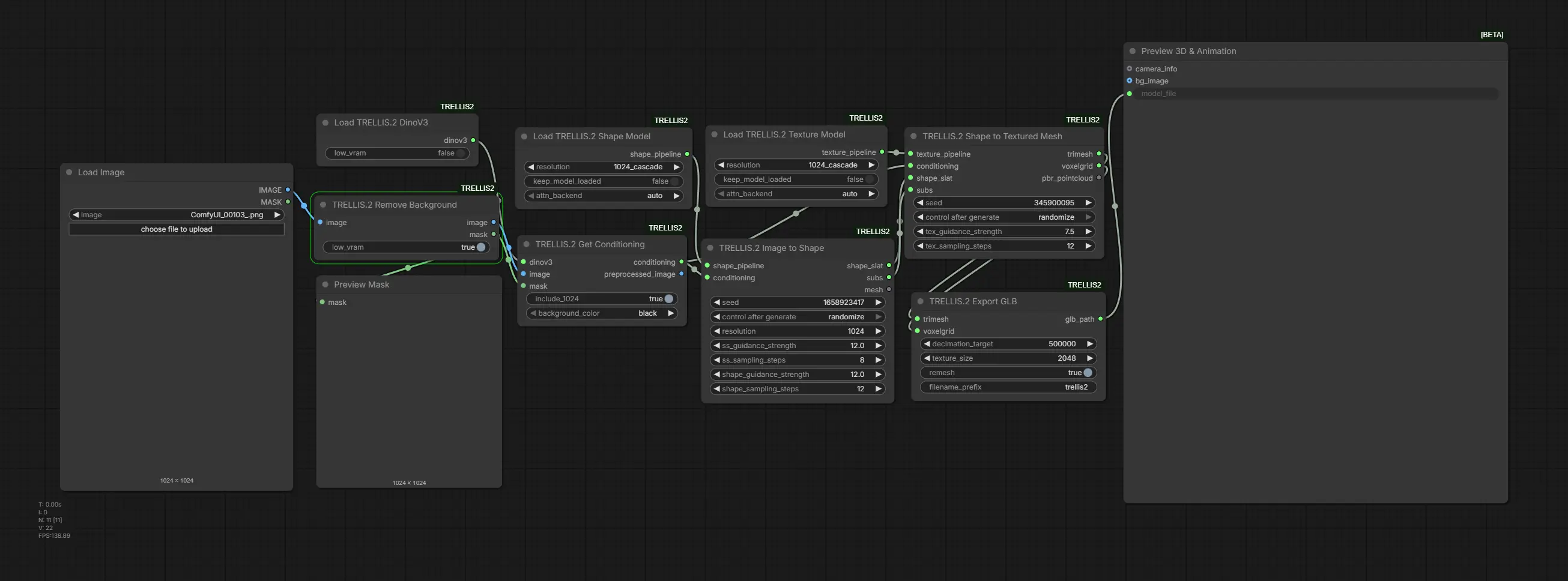
You can download any of these workflow JSON files and simply drop them into ComfyUI to load them onto the canvas and start generating 3D models.
For this example, we will use the Geometry Texture Workflow.
Step 2: Input Your Image
Next, upload a single high-quality image as input. Both workflows now automatically handle background removal, so you don’t need to manually edit your image beforehand. We'll start off with this image:
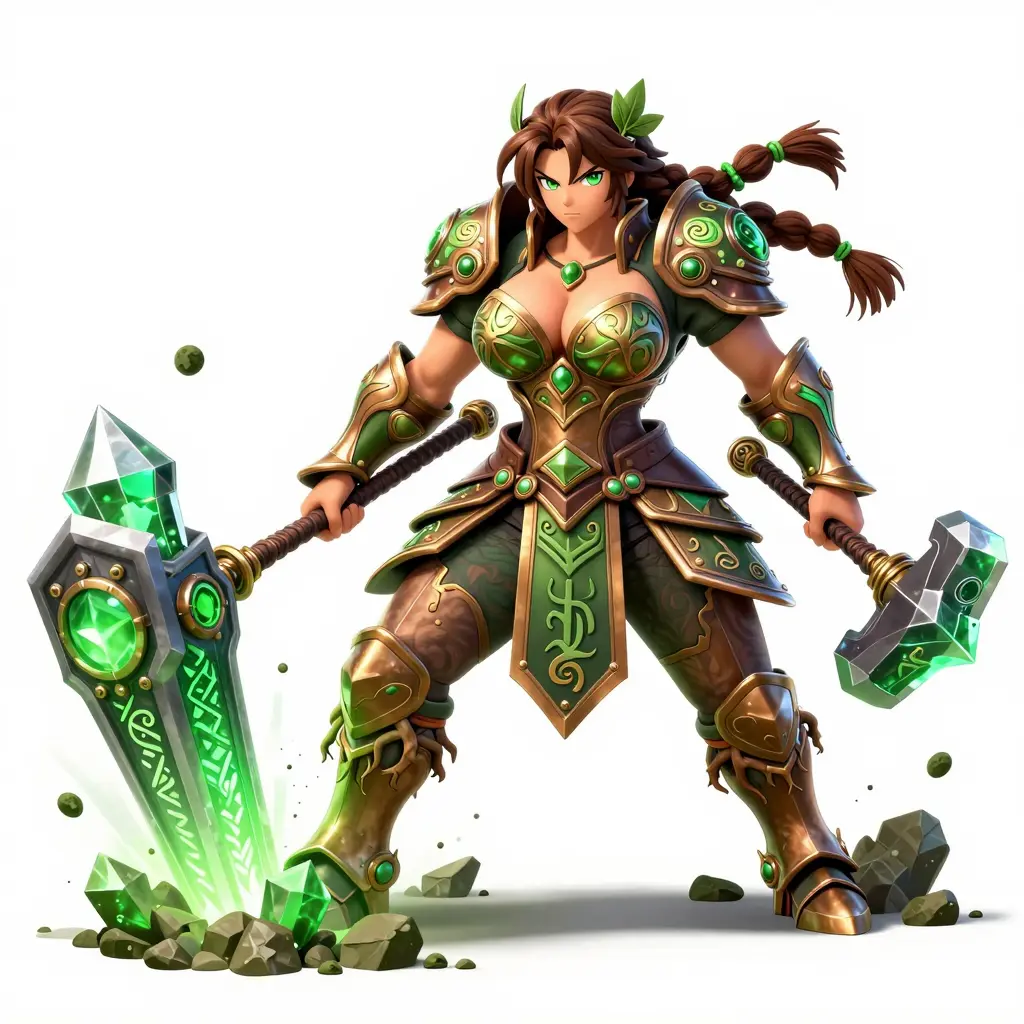 For the best results, a clear and well-lit subject can help the automatic background removal produce cleaner 3D models. Front-facing or 3/4 view objects work best for accurate mesh generation.
Step 3: Run the Workflow
Once your image is uploaded, click the Run button to initiate the processing. TRELLIS.2 will analyze the image and generate a 3D mesh. Since we are using the Geometry Texture Workflow, it will also produce PBR textures and material maps, transforming your 2D image into a fully textured 3D asset.
Feel free to experiment with the other workflow, different input images, and available settings to explore how TRELLIS.2 behaves in different scenarios. Small changes in input or configuration can lead to noticeably different 3D results, making experimentation a key part of getting the best output.
Below is an example using the Geometry Only Workflow, starting from this input image:
 After the workflow finishes running, we’ll show a video example of the final result, so you can clearly see how TRELLIS.2 transforms a single image into a clean 3D mesh.
And that’s it! 🚀 This is how TRELLIS.2 turns a single image into a clean, high-quality 3D mesh inside ComfyUI. From image input to finished geometry, the process is fast, powerful, and surprisingly simple—making TRELLIS.2 an exciting tool to add to your 3D creation workflow.
5. Conclusion: TRELLIS.2 for Production-Ready 3D Assets
TRELLIS.2 is a cutting-edge image-to-3D model that transforms a single image into high-quality 3D assets with clean geometry, detailed PBR textures, and fully textured meshes. Using our pre-configured RunPod template, you can skip local setup and dependency headaches and focus on creating stunning 3D models.
With the Geometry Only and Geometry Texture workflows, generating accurate, gamified, and photorealistic 3D models is fast and simple. Experimenting with different images and workflows lets you unlock the full potential of TRELLIS.2, making it a powerful tool for artists, game developers, and VFX professionals.
Whether you’re building characters, digital collectibles, or interactive 3D environments, TRELLIS.2 in ComfyUI provides a reliable and efficient workflow for all your image-to-3D projects. Start creating today and bring your 2D ideas to life in stunning 3D detail.