How to Create AI Music with Ace Step V1.5 XL in ComfyUI

Table of Contents
1. Introduction
Ready to take your local AI music generation to the next level? In this tutorial, we'll show you how to use Ace Step V1.5 XL in ComfyUI to generate stunningly rich, high-fidelity AI music directly on your PC. The XL model is the latest leap forward in the Ace Step family — a scaled-up 4B-parameter Diffusion Transformer (DiT) that delivers noticeably better audio quality, richer musicality, and sharper prompt adherence compared to the original 2B turbo model.
Ace Step V1.5 XL Turbo is currently the best-scoring open-source music generation model across all 11 benchmark metrics, surpassing every competing commercial and open-source model — including Suno v4.5 and Suno v5. And because we're using the Turbo distilled variant, you still only need just 8 sampling steps to get high-quality results fast.
Unlike the original Ace Step 1.5 AIO (all-in-one checkpoint), the XL model uses separate model files for the diffusion model, VAE, and text encoders. ComfyUI's native node system handles all of this cleanly with a split-file workflow, making the setup straightforward once you know where each file goes. Let's dive in.
2. System Requirements for Ace Step V1.5 XL in ComfyUI
Before generating music with the XL model, make sure your environment is ready. The XL model requires a bit more VRAM than the original due to its larger 4B-parameter architecture.
Requirement 1: ComfyUI Installed & Updated
You need ComfyUI installed and updated to the latest version. The Ace Step XL workflow uses only native ComfyUI nodes — no custom extensions required, as long as you're on the latest build.
-
Local Windows installation: 👉 How to Install ComfyUI Locally on Windows
-
Cloud GPU (e.g. RunPod): 👉 How to Run ComfyUI on RunPod with Network Volume
Requirement 2: Download the Ace Step V1.5 XL Model Files
Unlike the original AIO (All-In-One) checkpoint, the XL model uses four separate files placed in different directories. Download each file below and place it in the correct folder:
| File Name | Type | Hugging Face Download | Directory |
|---|---|---|---|
| acestep_v1.5_xl_turbo_bf16.safetensors | Diffusion Model | 🤗 Download | ..\ComfyUI\models\diffusion_models |
| ace_1.5_vae.safetensors | VAE | 🤗 Download | ..\ComfyUI\models\vae |
| qwen_0.6b_ace15.safetensors | Text Encoder (CLIP 1) | 🤗 Download | ..\ComfyUI\models\text_encoders |
| qwen_1.7b_ace15.safetensors | Text Encoder (CLIP 2) | 🤗 Download | ..\ComfyUI\models\text_encoders |
Requirement 3: Verify Folder Structure
Make sure all four files are placed in their correct directories. Your ComfyUI folder should look like this:
ts1📁 ComfyUI/
2└── 📁 models/
3    ├── 📁 diffusion_models/
4    │   └── acestep_v1.5_xl_turbo_bf16.safetensors
5    ├── 📁 vae/
6    │   └── ace_1.5_vae.safetensors
7    └── 📁 text_encoders/
8        ├── qwen_0.6b_ace15.safetensors
9        └── qwen_1.7b_ace15.safetensors
⚠️ Important: The XL model requires ≥12 GB VRAM with offloading enabled. For the best experience without offloading, ≥20 GB VRAM is recommended (e.g. RTX 4090, RTX 5090). The XL DiT weights alone are ~9 GB in BF16. So checkout Runpod if you want to rent a powerful GPU.
3. Download & Load the Ace Step V1.5 XL Workflow
With all model files in place, it's time to load the workflow. The Ace Step V1.5 XL workflow uses only native ComfyUI nodes — no custom extensions needed. This is different from many audio tools that require extra plugins; as long as ComfyUI is up to date, the workflow runs out of the box.
Load the Ace Step V1.5 XL Workflow JSON
👉 Download the Ace Step V1.5 XL workflow JSON file and drag it directly into your ComfyUI canvas.
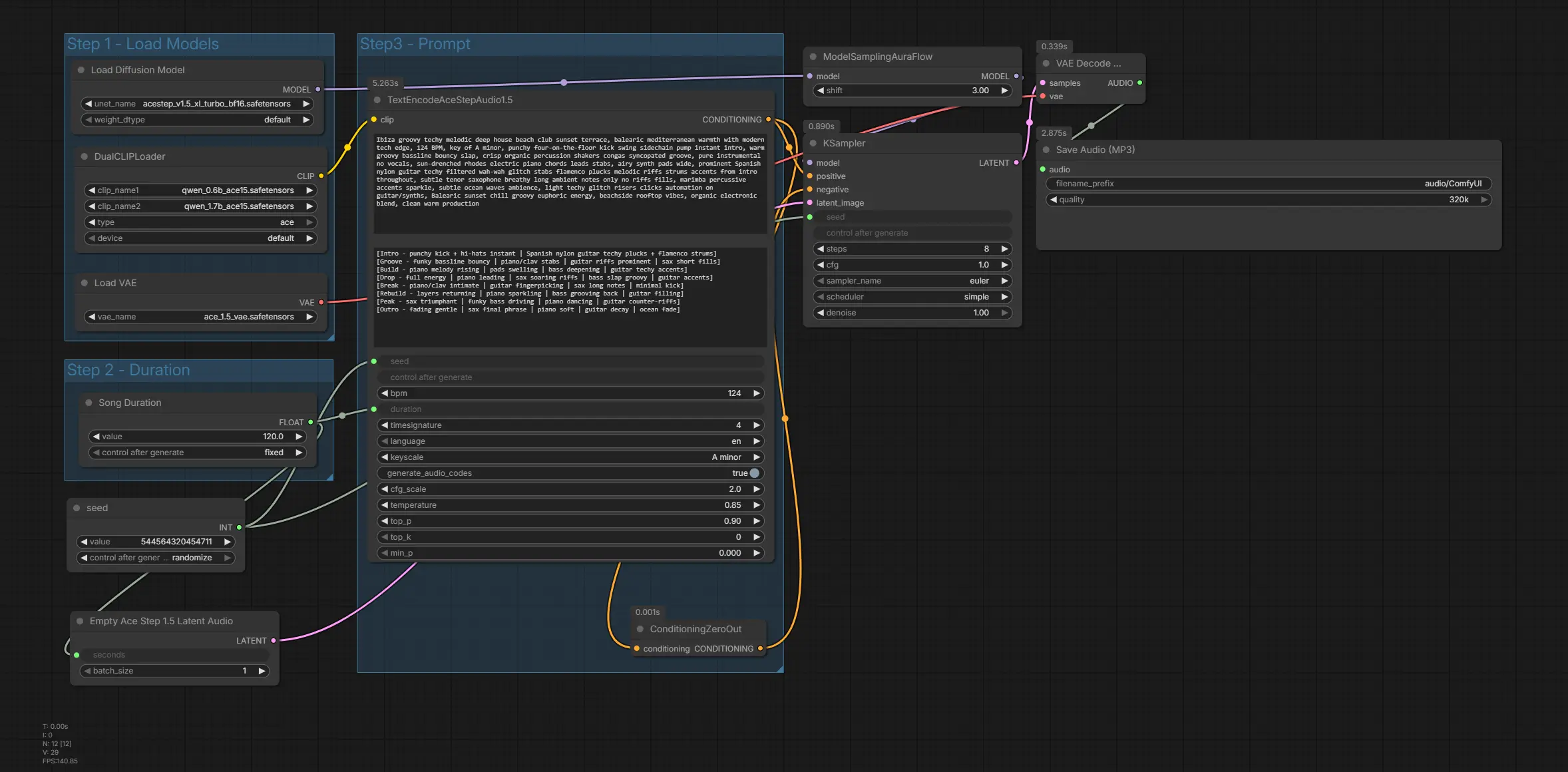
This workflow comes fully pre-arranged with all necessary native nodes and model references for smooth AI music generation. Since Ace Step V1.5 XL uses only built-in ComfyUI functionality, you won't need to install any custom nodes or extensions.
Verify Your ComfyUI Version
If you encounter issues loading or running the workflow, make sure ComfyUI is on the latest version, for this tutorial we are using v0.19.0:
-
Open the Manager tab in ComfyUI
-
Click Update ComfyUI
-
Restart ComfyUI after the update completes
The native audio generation nodes required by Ace Step XL are only available in the most recent ComfyUI builds. Without updating, the workflow may fail to load.
4. Running the Ace Step V1.5 XL Audio Generation
With the workflow loaded, let's walk through each step to generate your first XL-quality AI music track.
Step 1: Load Models
Three loaders handle your model files automatically:
-
UNETLoader → loads acestep_v1.5_xl_turbo_bf16.safetensors
-
DualCLIPLoader → loads both Qwen text encoders (qwen_0.6b + qwen_1.7b)
-
VAELoader → loads ace_1.5_vae.safetensors
Verify these match the filenames you downloaded.
Step 2: Duration
Set your desired song duration in seconds using the Song Duration primitive node. The workflow defaults to 120 seconds (2 minutes). For experimentation, start with 60 seconds to iterate faster.
Step 3: Prompt
The TextEncodeAceStepAudio1.5 node is where the magic happens. It contains two distinct prompt boxes that give you fine-grained creative control.
The Two Prompt Boxes Explained
Upper Prompt Box — Style Description
Describe the overall vibe, instruments, production style, BPM, and key. The XL model's larger parameter count means it responds even more accurately to detailed descriptions. Here's an example for a Balearic deep house track:
ts1
2Afro House, Afro Ibiza, Melodic Deep House, Balearic House, Organic House, Ibiza sunset beach club terrace vibe, Mediterranean warmth, 124 BPM, A minor, punchy four-on-the-floor kick, groovy swing, sidechain pump, warm bouncy afro bassline with deep sub, crisp layered shakers, congas, bongos, syncopated tribal groove with call-and-response percussion, instrumental only, sun-drenched Rhodes chords and jazzy stabs, airy wide pads, prominent Spanish nylon guitar with flamenco plucks, melodic riffs and strums, filtered wah-wah techy chops and subtle glitch edits, soft breathy tenor sax ambient notes (no solos), marimba accents, light ocean waves ambience, clean warm modern production, Ibiza rooftop sunset energy, euphoric, hypnotic, smooth, sensual Afro-Balearic groove
Lower Prompt Box — Song Structure Tags
Define your song's structure using bracket tags [...]. You can write instrumental sections or add lyrics within these tags. For an instrumental track:
ts1[Intro - breathy, laid-back male hum]
2
3Sunshine…
4[Verse - intimate, warm raspy male vocals]
5
6Sun is shining, the weather is sweet
7
8Make you want to move your dancing feet
9
10Rise up this morning, smile with the rising sun
11
12Three little birds, here I stand
13[Chorus - powerful, soulful male vocals with wide layered harmonies, joyful and energetic]
14
15This is the good life, one love, one heart
16
17Let’s get together and feel alright
18
19Positive vibration, irie ites, good vibe
20
21Good life, good life, we a sing this song
22
23Heya heya, feel the fire
24
25Take me higher, higher, higher
Check the official Ace Step demo page for examples of lyrics structured with tags:
👉 Ace Step V1.5 Demo & Tag Examples
Configure Audio Parameters
Below the prompt boxes, you'll find key parameters to fine-tune your generation. Here are the recommended settings for the above example:
| Parameter | Value | Notes |
|---|---|---|
| bpm | 122 | Beats per minute — adjust to your genre |
| language | en | English (for any vocal-related tags) |
| key_scale | A minor | Musical key of your track |
| steps (KSampler) | 8 | Turbo distillation — 8 steps is optimal, don't increase |
⚡ XL Turbo tip: The Turbo variant was specifically distilled for 8-step inference. All other parameters can be left at their default values. The larger 4B architecture handles quality automatically — no extensive tweaking needed.
Final Result
The lyrics are significantly improved compared to the non-XL version of Ace Step V1.5, but it still takes a few attempts to get the result you’re aiming for.
5. Conclusion
Congratulations! You've now set up and run Ace Step V1.5 XL Turbo in ComfyUI — one of the most powerful open-source music generation models available today. With its 4B-parameter DiT decoder, it pushes past both open-source and commercial alternatives on benchmark quality, while still delivering full tracks in just 8 steps.
-
🏆 Top-Tier Quality
The massive 4B DiT architecture produces richer sound, cleaner vocals, and far better musical coherence than any other open model. -
⚡ Blazing Fast
Thanks to turbo distillation, you get high-quality results in only 8 sampling steps — no trade-off between speed and output. -
🔒 Fully Local, Fully Yours
Run everything on your own hardware with no subscriptions, no limits, and complete privacy. -
🎛️ Precision Prompting
Use dual prompts, BPM, key, structure tags, and 1000+ instrument descriptors to shape your music exactly how you want. -
🌍 Multilingual Power
Generate vocals in 50+ languages, with strong prompt adherence across styles and cultures.
Now it’s your turn — experiment with genres, push complex prompts, and explore creative structures. The XL model’s improved prompt understanding means what you imagine is closer than ever to what you’ll hear. Happy generating. 🚀