How to Create AI Music with Ace Step V1.5 in ComfyUI
Table of Contents
1. Introduction
Looking for a fast and efficient way to create AI music locally? In this tutorial, we'll show you how to use Ace Step V1.5 in ComfyUI to generate high-quality AI-generated music directly on your PC. Ace Step V1.5 is a turbo-optimized model that combines speed with quality, making it perfect for creators who want to iterate quickly on musical ideas. The Ace Step 1.5 Turbo AIO (All-In-One) model delivers impressive results with significantly faster inference times compared to traditional audio generation models.
With ComfyUI's flexible workflow system, you can start creating professional-sounding tracks in just a few steps. Whether you're producing background music, experimenting with sound design, or exploring AI music composition, Ace Step V1.5 offers an accessible and powerful solution for local AI audio generation.
2. System Requirements for Ace Step V1.5 in ComfyUI
Before you can start creating music with Ace Step V1.5, it’s crucial to ensure that your system meets the necessary requirements. This model is designed to be efficient and accessible, even for those with mid-range GPU setups. Here are the key requirements you need to check:
Requirement 1: ComfyUI Installed & Updated
First and foremost, you need to have ComfyUI installed on your system. You can either install it locally or use a cloud-based solution. If you are setting it up on Windows, follow the guide provided in the link below to ensure a smooth installation:
-
Local Windows installation: Follow this guide:
👉 How to Install ComfyUI Locally on Windows -
Cloud GPU (e.g., RunPod): If your GPU is limited, you can run ComfyUI in the cloud using a persistent network volume. Step-by-step instructions are available here:
👉 How to Run ComfyUI on RunPod with Network Volume
Requirement 2: Download the Ace Step V1.5 Model File
Next, you will need to download the Ace Step V1.5 model file. This is a single file that you can easily obtain from the Hugging Face page. Make sure to place it in the correct directory within ComfyUI:
| File Name | Hugging Face Download Page | File Directory |
|---|---|---|
| ace_step_1.5_turbo_aio.safetensors | 🤗 Download | ..\ComfyUI\models\checkpoints |
Requirement 3: Verify Folder Structure
Finally, confirm that your folder structure is set up correctly. It should look like this:
ts1📁 ComfyUI/
2└── 📁 models/
3    └── 📁 checkpoints/
4        └── ace_step_1.5_turbo_aio.safetensors
Once you have verified that everything is in place, you are ready to load the Ace Step V1.5 workflow and start generating your own AI music!
3. Download & Load the Ace Step V1.5 Workflow
Now that your environment and model file are set, it's time to load the Ace Step V1.5 workflow in ComfyUI. Unlike many audio generation tools that require custom nodes, Ace Step V1.5 works entirely with native ComfyUI nodes — making setup incredibly simple. As long as you've updated ComfyUI to the latest version (as mentioned in the requirements section), everything will work out of the box.
Load the Ace Step V1.5 Workflow JSON file
👉 Download the Ace Step V1.5 workflow JSON file and drag it directly into your ComfyUI canvas.
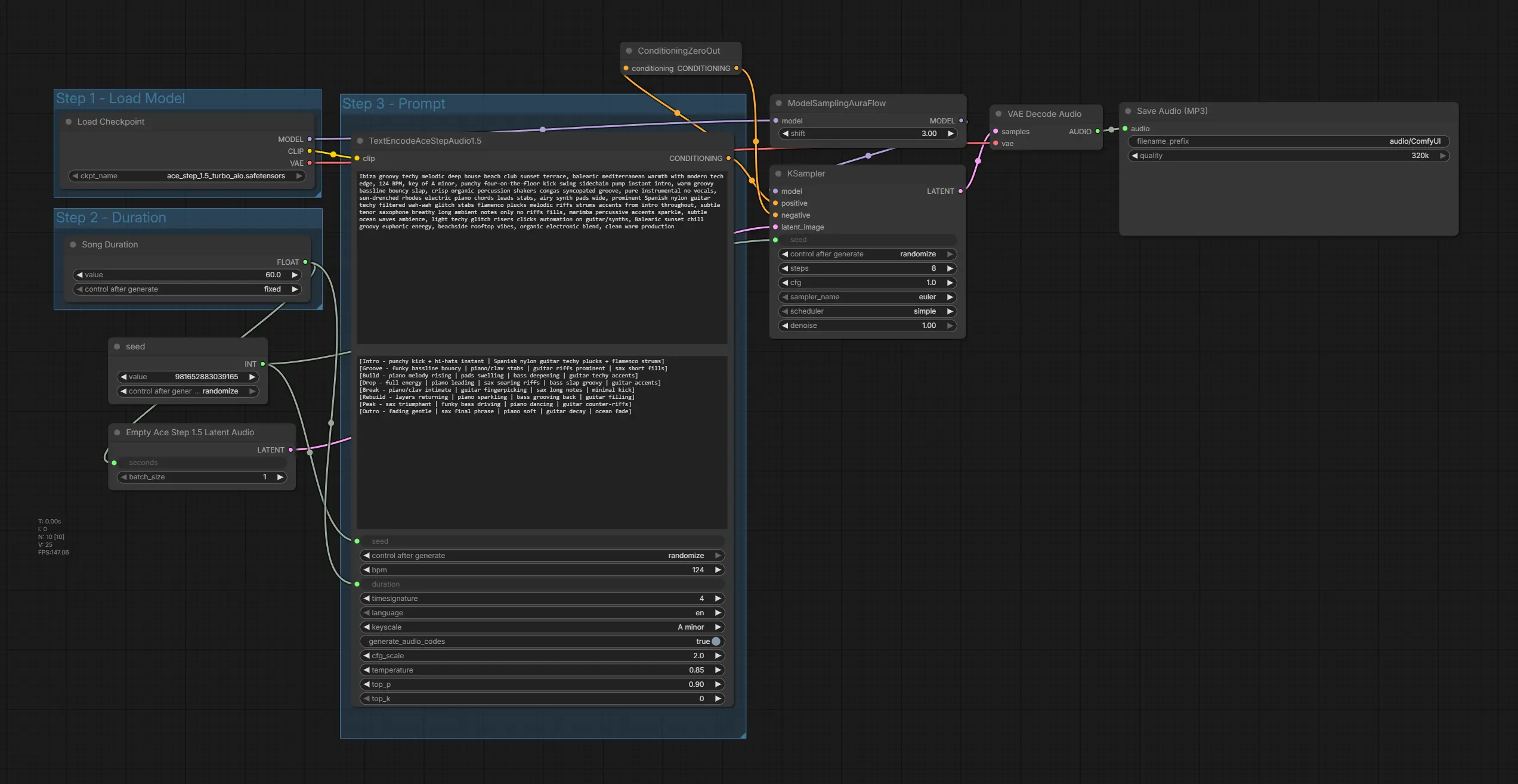
This workflow comes fully pre-arranged with all necessary native nodes and model references for smooth AI music generation. Since Ace Step V1.5 uses only built-in ComfyUI functionality, you won't need to install any custom nodes or extensions.
Verify Your ComfyUI Version
If you encounter any issues loading/running the workflow, make sure you've updated ComfyUI to the latest version:
-
Open the Manager tab in ComfyUI
-
Click Update ComfyUI
-
Restart ComfyUI after the update completes
Important: Ace Step V1.5 requires the latest ComfyUI version to access the native audio generation nodes. Without updating, the workflow may not function properly.
4. Running the Ace Step V1.5 Audio Generation
With your Ace Step V1.5 workflow loaded and ready, it's time to generate your first AI music track. The workflow is organized into clear steps that make the generation process intuitive and straightforward.
Show Image
Understanding the Workflow Steps
The Ace Step V1.5 workflow is divided into three main steps:
Step 1: Load Model - The checkpoint loader automatically loads your ace_step_1.5_turbo_aio.safetensors file
Step 2: Duration - Set your desired song duration in seconds (we'll use 60 seconds for this example)
Step 3: Prompt - This is where the magic happens! The Ace Step Audio Node contains two separate prompt boxes for maximum control over your music generation.
The Two Prompt Boxes Explained
The Ace Step Audio Node features two distinct prompt inputs:
Upper Prompt Box - Style Description
This is where you describe the overall style, vibe, instruments, and production characteristics of your track. Be as detailed as possible! Here's an example for an Ibiza lounge-style track:
ts1
2Ibiza groovy techy melodic deep house beach club sunset terrace, balearic mediterranean warmth with modern tech edge, 124 BPM, key of A minor, punchy four-on-the-floor kick swing sidechain pump instant intro, warm groovy bassline bouncy slap, crisp organic percussion shakers congas syncopated groove, pure instrumental no vocals, sun-drenched rhodes electric piano chords leads stabs, airy synth pads wide, prominent Spanish nylon guitar techy filtered wah-wah glitch stabs flamenco plucks melodic riffs strums accents from intro throughout, subtle tenor saxophone breathy long ambient notes only no riffs fills, marimba percussive accents sparkle, subtle ocean waves ambience, light techy glitch risers clicks automation on guitar/synths, Balearic sunset chill groovy euphoric energy, beachside rooftop vibes, organic electronic blend, clean warm production
Lower Prompt Box - Song Structure Tags
This is where you define the structure of your song using tags in square brackets [...]. You can create instrumental tracks or add lyrics within these sections.
For an instrumental track (recommended for Ace Step V1.5), here's an example structure:
ts1[Intro - punchy kick + hi-hats instant | Spanish nylon guitar techy plucks + flamenco strums]
2[Groove - funky bassline bouncy | piano/clav stabs | guitar riffs prominent | sax short fills]
3[Build - piano melody rising | pads swelling | bass deepening | guitar techy accents]
4[Drop - full energy | piano leading | sax soaring riffs | bass slap groovy | guitar accents]
5[Break - piano/clav intimate | guitar fingerpicking | sax long notes | minimal kick]
6[Rebuild - layers returning | piano sparkling | bass grooving back | guitar filling]
7[Peak - sax triumphant | funky bass driving | piano dancing | guitar counter-riffs]
8[Outro - fading gentle | sax final phrase | piano soft | guitar decay | ocean fade]
Want to add lyrics instead? Check out the official Ace Step demo page for examples of how to structure tags with lyrics:
👉 Ace Step V1.5 Demo & Tag Examples
Configure Audio Parameters
Below the prompt boxes, you'll find several key parameters to fine-tune your generation. Here are the recommended settings for our Ibiza lounge example:
| Parameter | Value | Notes |
|---|---|---|
| bpm | 124 | Beats per minute - adjust to your genre |
| language | en | English (for any vocal-related tags) |
| key_scale | A minor | Musical key of your track |
All other parameters can be left at their default values for excellent results. The Ace Step V1.5 Turbo model is pre-optimized for quality output without extensive tweaking.
Final Result
This render took around ~20 seconds on a RTX 4090 (24GB VRAM).
5. Conclusion
Congratulations! You have successfully learned how to use Ace Step V1.5 Turbo AIO in ComfyUI to generate high-quality AI music locally. This powerful model strikes an excellent balance between speed and audio quality, making it an ideal choice for creators looking to explore the world of AI-generated music.
Key Takeaways
-
Fast Generation: The turbo optimization allows for quality results in just 8, significantly reducing the time needed for music creation.
-
Local Control: You maintain complete ownership and privacy over your AI music generation process, without relying on cloud services.
-
Flexible Workflow: ComfyUI offers a customizable setup that can be tailored to your specific needs and preferences.
-
Quality Output: The model produces professional-grade audio suitable for various projects, from background music to sound design.
-
Accessible Requirements: Ace Step V1.5 is designed to work on mid-range GPU setups, making it accessible to a wider audience.
Now that you have the tools and knowledge to create your own AI music, it’s time to start experimenting with different prompts and parameters. Dive into the creative possibilities that Ace Step V1.5 offers and let your musical ideas flourish!