FlashVSR Stable: Video Upscaling in ComfyUI

Table of Contents
1. Introduction
Welcome to the comprehensive tutorial on FlashVSR Stable, a cutting-edge video super-resolution (VSR) node designed for ComfyUI. This powerful tool is engineered to provide high-performance, artifact-free upscaling of videos at 2× and 4× resolutions, making it suitable for a wide range of hardware configurations—from 8 GB laptops to robust 24 GB+ workstations. In this guide, we will walk you through the essential steps to set up and optimize FlashVSR Stable for your video processing needs.
In this tutorial will provide you with the knowledge and tools necessary to leverage FlashVSR Stable effectively. We will cover everything from installation to best practices, ensuring you can achieve the best possible results with your video upscaling projects.
2. Requirements for FlashVSR Stable Video Upscaling
To run the FlashVSR Stable workflow, you’ll need the latest version of ComfyUI installed either locally or on a cloud GPU platform, along with a CUDA-capable NVIDIA GPU. FlashVSR Stable supports GPUs from 8 GB to 24 GB+, but the VRAM will determine which mode you can use for stable, artifact-free upscaling.
For the initial testing, we’ll be using an RTX PRO 4500 (32 GB VRAM), which can handle high-resolution videos efficiently. For maximum time efficiency, an NVIDIA B200 is of course a faster option, though not everyone can justify this level of hardware for initial experimenting with the upscaler. For lower VRAM GPUs, safe upscaling with tiled VAE and tiled DiT processing is possible, and we’ll cover the optimal settings for these lower GPUs in a later section of this article.
If you don’t have access to a high-end local GPU, you can run FlashVSR Stable on a cloud GPU platform such as Runpod. This lets you rent powerful NVIDIA GPUs on demand and run ComfyUI without needing expensive hardware locally.
Requirement 1: ComfyUI Installed & Updated
-
Local installation: 👉 How to Install ComfyUI Locally on Windows
-
RunPod setup: 👉 How to Run ComfyUI on RunPod with Network Volume
Requirement 2: Model Downloads
Most FlashVSR Stable models are automatically downloaded on first use. The only exception is the Wan2.2 VAE, which must be downloaded manually and placed in the proper folder:
| File Name | Hugging Face Download | Placement Folder |
|---|---|---|
| wan2.2_vae.safetensors | 🤗 Download Page | ../ComfyUI/models/vae |
Next, we’ll dive into workflow setup so you can start upscaling your videos smoothly and efficiently. Let’s continue step by step.
3. Workflow Download & Custom Node Installation for FlashVSR Video Upscaling
With ComfyUI updated and ready, it’s time to download and load the workflow that will handle video upscaling with FlashVSR Stable.
Step 1: Download the Video Upscaler Workflow
👉 FlashVSR Stable Video Upscaler ComfyUI Workflow
Step 2: Load the Workflow in ComfyUI
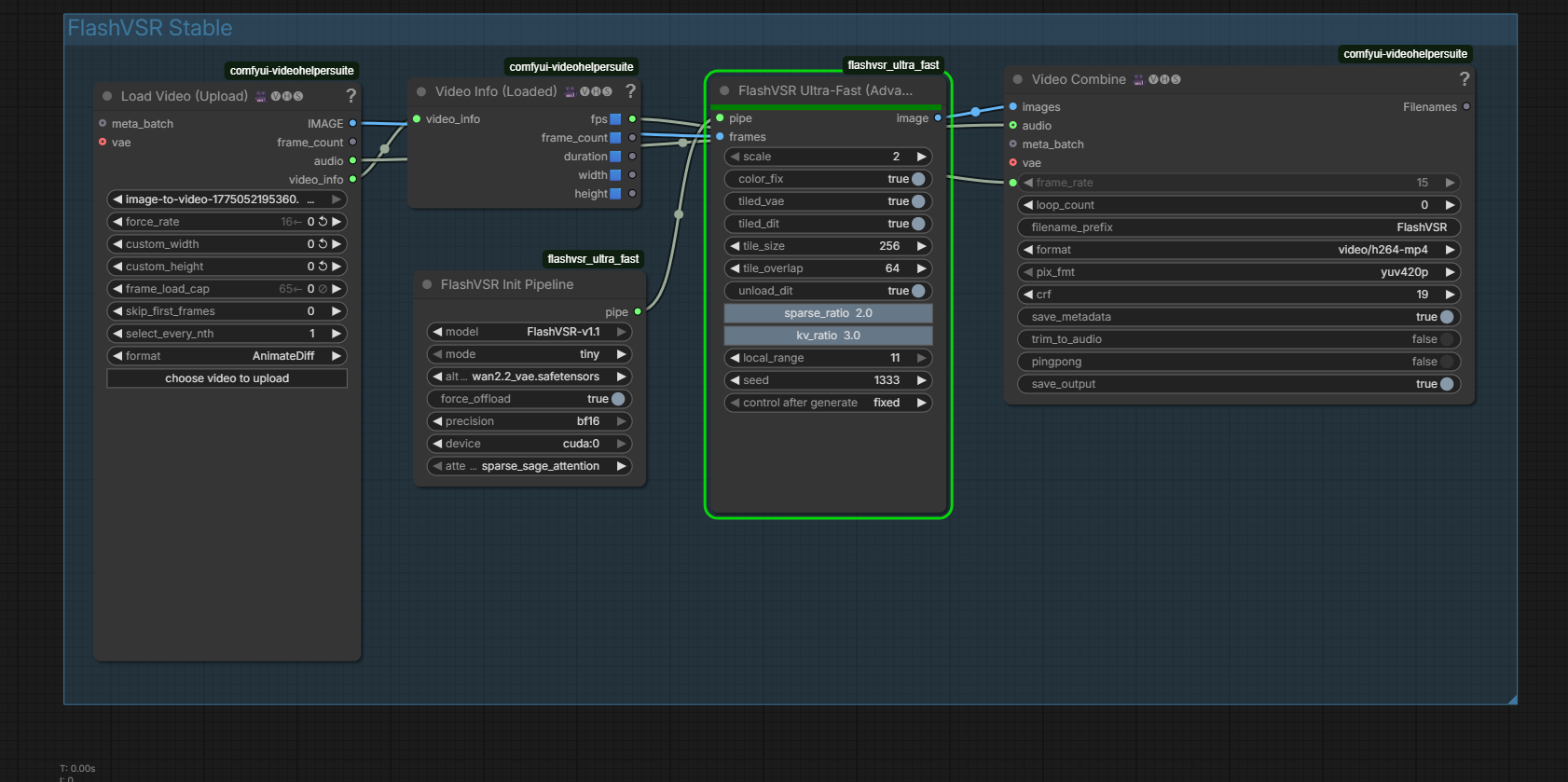
Launch ComfyUI, then drag and drop the downloaded JSON file onto the canvas. The workflow will automatically populate with all required nodes.
Step 3: Install Missing Custom Nodes
If any nodes appear outlined in red, it means certain custom nodes aren’t installed yet. To fix this:

-
Click the Manager button in ComfyUI.
-
Select Install Missing Custom Nodes.
-
Choose ComfyUI-FlashVSR-Ultra-Fast from the list and click Install.
-
Restart ComfyUI to register the new nodes.
After restarting, reload the canvas — all red outlines should now be gone. You only need to do this once. Once the missing nodes are installed, you’re ready to continue and generate your first upscaled video using FlashVSR Stable.
4. Configuring FlashVSR Stable: Optimal Settings for All GPUs
For most users, starting with the Tiny model provides a good balance of speed, VRAM usage, and quality. We will be using FlashVSR-v1.1 and mode: Tiny. You can experiment with other modes from the dropdown, like Tiny-Long or Full, for higher quality or longer videos.
Below are suggested settings based on your GPU VRAM tier:
| VRAM | Mode | Tiling | Precision | Notes |
|---|---|---|---|---|
| 24GB+ | full/tiny | Disabled | bf16/auto | Maximum quality and speed |
| 16GB | tiny | Tiled VAE = True | bf16/auto | Optionally keep models on CPU |
| 12GB | tiny | Tiled VAE = True, Tiled DiT = True | fp16 | Use sparse_sage_attention for efficiency |
| 8GB | tiny-long | Required | fp16 | Must use tiling |
Performance Enhancements & Tips
These settings help improve speed, stability, and quality while avoiding VRAM issues.
-
Attention Mode: sparse_sage_attention is recommended for the best balance of speed and quality.
Precision:
-
bf16 → ideal for RTX 3000/4000/5000 series; faster processing with better dynamic range.
-
fp16 → works universally; slightly less stable with extreme color or contrast.
💡Tips for OOM (Out of Memory) Errors:\
If your GPU runs out of VRAM:
-
Use shorter video clips.
-
Enable tiled_vae = True and tiled_dit = True.
-
Set tile_size to a lower value to reduce VRAM usage.
Next, we’ll showcase an example of FlashVSR Stable in action, demonstrating video upscaling in practice.
5. Example: FlashVSR Stable Video Upscaling
In this example, we demonstrate a 480×480 video upscaled 3× using FlashVSR Stable. You can upscale videos up to a maximum of 4× the original resolution. Keep in mind that higher resolutions require more VRAM, so always consider your GPU capacity to avoid out-of-memory (OOM) errors.
6. Conclusion
FlashVSR Stable is a powerful, flexible tool for high-quality video upscaling, capable of delivering artifact-free results across a wide range of GPU configurations. By following the workflow, installation, and configuration steps outlined in this guide, you can optimize performance and VRAM usage while achieving professional-quality results. Whether you’re working on short clips or full-length videos, FlashVSR Stable makes advanced video super-resolution accessible for both hobbyists and professionals. Remember to start with manageable resolutions and carefully adjust settings based on your hardware to avoid OOM errors and ensure smooth processing.