How to Create AI Dance Animations with WAN 2.1 SteadyDancer in ComfyUI
Table of Contents
1. Introduction
In this tutorial, you’ll learn how to create realistic dance animations using WAN 2.1 SteadyDancer in ComfyUI. The workflow analyzes the original video to extract pose and movement information using detection models, then applies your reference character image on top of those poses. The result is a stylized animation of your character performing the same dance or motions from your input video.
SteadyDancer is ideal for:
-
Dance recreations
-
Motion-driven character animations
-
TikTok-style movement transfers
-
Character performance videos
For this guide, we’ll be using the FP8 model, which is the version included in the workflow demonstrated.
2. System Requirements for WAN 2.1 SteadyDancer
Before generating animations, ensure your system meets the requirements to run the WAN 2.1 SteadyDancer workflow smoothly. A strong GPU is recommended — ideally an RTX 4090 (24GB VRAM) or a cloud GPU provider like RunPod.
Requirement 1: ComfyUI Installed & Updated
You’ll need a recent version of ComfyUI installed locally or on a cloud instance. If you’re on Windows:
👉 How to Install ComfyUI Locally on Windows
Once installed, open the Manager tab and click Update ComfyUI. This ensures compatibility with the latest nodes and components used by the SteadyDancer workflow.
We highly recommend using the Next Diffusion – ComfyUI SageAttention template on RunPod for the best performance:
-
SageAttention & Triton acceleration pre-installed
-
Fully optimized environment
-
Persistent storage using a network volume
👉 How to Run ComfyUI on RunPod with Network Volume
Requirement 2: Download WAN 2.1 SteadyDancer Model Files
WAN 2.1 SteadyDancer uses many of the same components as WAN 2.2 Animate — including the VAE, text encoder, clip vision model, and pose detection models.
Below are the required model files and their necessary directories:
| File Name | Download Page | File Directory |
|---|---|---|
| Wan21_SteadyDancer_fp8_e4m3fn_scaled_KJ.safetensors | 🤗 Download | ..\ComfyUI\models\diffusion_models |
| Wan2_1_VAE_bf16.safetensors | 🤗 Download | ..\ComfyUI\models\vae |
| clip_vision_h.safetensors | 🤗 Download | ..\ComfyUI\models\clip_vision |
| umt5-xxl-enc-bf16.safetensors | 🤗 Download | ..\ComfyUI\models\text_encoders |
| lightx2v_I2V_14B_480p_cfg_step_distill_rank64_bf16.safetensors | 🤗 Download | ..\ComfyUI\models\loras |
| yolov10m.onnx | 🤗 Download | ..\ComfyUI\models\detection |
| vitpose-l-wholebody.onnx | 🤗 Download | ..\ComfyUI\models\detection |
💡The detection folder does not exist by default in ComfyUI. Make sure to create the ..\ComfyUI\models\detection folder before placing the detection models.
Requirement 3: Verify Folder Structure
Your ComfyUI folder structure should look like this:
ts1📁 ComfyUI/
2└── 📁 models/
3    ├── 📁 diffusion_models/
4    │   └── Wan21_SteadyDancer_fp8_e4m3fn_scaled_KJ.safetensors
5    ├── 📁 vae/
6    │   └── Wan2_1_VAE_bf16.safetensors
7    ├── 📁 clip_vision/
8    │   └── clip_vision_h.safetensors
9    ├── 📁 text_encoders/
10    │   └── umt5-xxl-enc-bf16.safetensors
11    ├── 📁 loras/
12    │   └── lightx2v_I2V_14B_480p_cfg_step_distill_rank64_bf16.safetensors
13    └── 📁 detection/
14        ├── yolov10m.onnx
15        └── vitpose-l-wholebody.onnx
Once all the models are downloaded and correctly placed in your ComfyUI folders, you’re ready to load the WAN 2.1 SteadyDancer workflow and start generating smooth, dance-driven character animations. The optional 4-step LightX2V LoRA can further reduce generation time. Before we jump into animation, though, we need to download the actual workflow file. Let’s move on to the next section!
3. Download & Load the WAN 2.1 SteadyDancer Workflow
Now that your environment is set up and all required model files are in the correct folders, it’s time to load and configure the WAN 2.1 SteadyDancer workflow in ComfyUI. This workflow brings together the SteadyDancer diffusion model, the optional 4-step LightX2V LoRA, the VAE, and the text encoder — ensuring everything works together seamlessly for smooth, dance-focused motion generation. Once loaded, you’ll be ready to start turning static images into expressive dance animations.
Load the WAN 2.1 SteadyDancer workflow JSON file:
👉 Download the WAN 2.1 SteadyDancer workflow JSON file and drag it directly onto your ComfyUI canvas.

This workflow includes all essential nodes, file references, and pose-driven animation components pre-arranged for reliable, character-stable motion generation. Next, we’ll walk through the key workflow settings and show you how to optimize SteadyDancer for your first dancing sequence.
4. Running the WAN 2.1 SteadyDancer Workflow
This section explains how to configure your video, character reference image, and sampler settings.
Upload Your Video (Motion Source)
Load your motion video into the Upload Video node. SteadyDancer extracts pose and motion data using the detection models.
Recommended settings for a 720×1280 9:16 clip:
| Parameter | Value | Notes |
|---|---|---|
| Width | 720 | Match your video |
| Height | 1280 | Keep 9:16 aspect ratio |
| FPS (force_rate) | 30 | Matches most mobile videos |
| frame_load_cap | 120 | 4 seconds at 30 FPS |
Tip: Start with fewer frames to avoid OOM errors; increase later as needed.
Upload Your Reference Image
Place your reference character image into the Load Image node. Use the same aspect ratio (ideally 9:16) as your video.
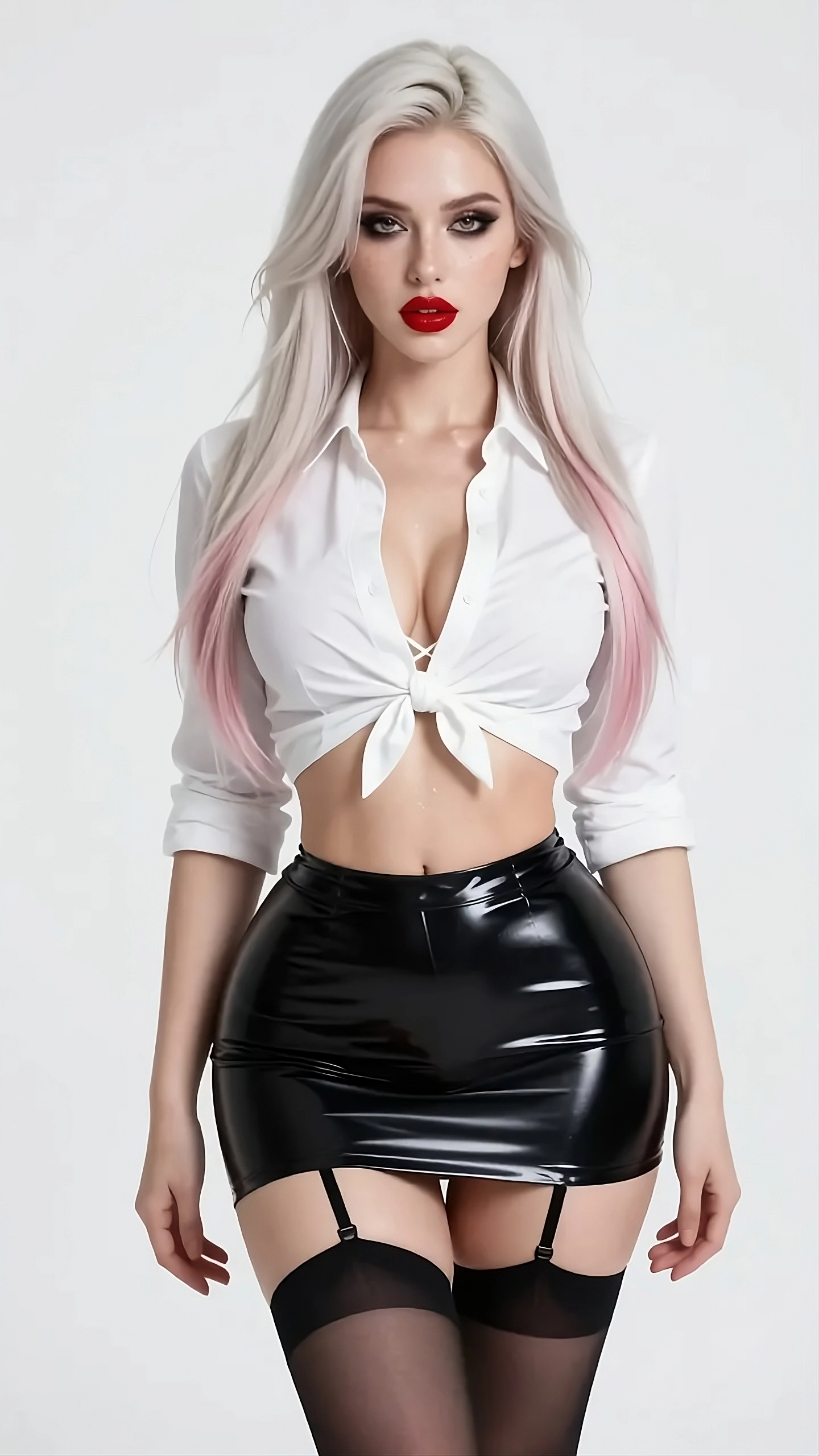
SteadyDancer is movement-focused — there is no facial control, so the reference image guides style rather than facial expression.
Set Text Prompt
In the Text Encode node, describe the character:
Example:
ts1
2a woman dancing, shaking her hips, bouncing boobs
Prompts subtly influence style but do not override pose-driven movement.
SteadyDancer Sampler Settings
Because SteadyDancer uses the LightX2V 4-step animation process, set:
| Node | Setting | Value | Notes |
|---|---|---|---|
| SteadyDancer Sampler | Steps | 4 | Uses LightX2V’s 4-step method |
| Video Combine | frame_rate | 30 | Match original FPS |
Press Run to generate your animation. Below are multiple examples.
Performance Note
⚡ Tip: On an RTX 4090 (24GB VRAM), a 4-second clip at 720 × 1280 takes roughly ~450 seconds. For this workflow i highly recommend using a cloud GPU provider like RunPod.
5. Conclusion
WAN 2.1 SteadyDancer is a powerful tool for generating AI dance animations and motion-driven character clips. It excels at pose-based movement transfer and works well for short-form, energetic videos.
However, implementation is still in progress, and SteadyDancer has some notable limitations:
Limitations of SteadyDancer
-
No face control
-
No long-generation method (context windows help but are limited)
-
Consistency issues with long sequences
Because of this, SteadyDancer is best suited for:
-
Short dance clips
-
Social media animations
-
Stylized character motions
👉 If you need full facial control, lip-sync, relighting, and detailed motion preservation, refer to the full tutorial on: How to Use WAN 2.2 Animate in ComfyUI for Character Animations