How to Use Z-Image Turbo as a Face Detailer in ComfyUI
Table of Contents
1. Introduction
This Face Detailer Workflow is a precision face enhancement tool built for ComfyUI that targets only the faces in your image. Instead of re-generating the entire picture, it automatically detects faces, builds accurate masks, crops the face region at high resolution, enhances it with Z-Image Turbo, and pastes it seamlessly back into the original.
It's extremely fast because it operates in the low sigma range — the stage of the diffusion process where large structural decisions are made — which means the model drives straight toward detail and definition without any of the slow, low-level refinement passes. Combined with Z-Image Turbo's 8-step generation, faces are enhanced in seconds without any noticeable change to their original structure or surrounding areas.
The best part? You only need 3 model files — the exact same ones from the Z-Image Turbo tutorial workflow. No extra downloads required.
2. System Requirements
To run this Face Detailer Workflow, you'll need the latest version of ComfyUI installed either locally or on a cloud GPU platform, and a GPU with at least 6–12 GB of VRAM. Thanks to Z-Image Turbo's efficiency, even modest GPUs can run this workflow at solid resolutions.
Requirement 1: ComfyUI Installed & Updated
For local Windows installation, follow this guide: 👉 How to Install ComfyUI Locally on Windows
For cloud GPU users: 👉 How to Run ComfyUI on RunPod with Network Volume
Once installed, navigate to the Manager tab and click Update ComfyUI to ensure you're on the latest version before loading any workflow.
Requirement 2: Custom Nodes
This workflow uses a BBOX Detector node for face detection and a SAM Detector for mask generation. These will download their required model weights automatically on first run. Any missing custom nodes can be installed through ComfyUI's built-in Manager — see Section 4 for details.
3. Download Models for the Face Detailer Workflow
This workflow uses the exact same three model files as the standard Z-Image Turbo text-to-image workflow. If you've already run that workflow, you're ready to go — no additional downloads needed.
| File Name | Hugging Face Download | Placement Folder |
|---|---|---|
| z_image_turbo_bf16.safetensors | 🤗 Download | ComfyUI/models/diffusion_models |
| qwen_3_4b.safetensors | 🤗 Download | ComfyUI/models/text_encoders |
| ae.safetensors | 🤗 Download | ComfyUI/models/vae |
Verify your folder structure looks like this:
ts1📁 ComfyUI/
2└── 📁 models/
3     ├── 📁 diffusion_models/
4     │     └── z_image_turbo_bf16.safetensors
5     ├── 📁 text_encoders/
6     │     └── qwen_3_4b.safetensors
7     └── 📁 vae/
8           └── ae.safetensors
💡 Note: The BBOX detector model and SAM detector model will download automatically the first time you run the workflow.
4. Download & Load the Face Detailer Workflow
With your models in place, it's time to load the workflow into ComfyUI.
Step 1: Download the Workflow
👉 Download the Z-Image Turbo Face Detailer Workflow JSON
Step 2: Load It in ComfyUI
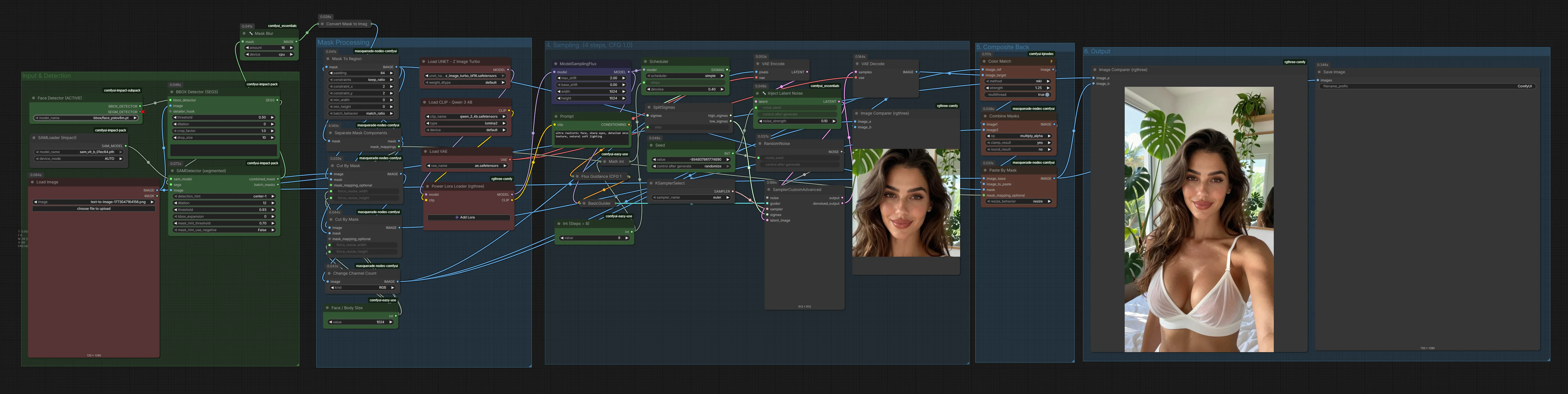
Launch ComfyUI, then drag and drop the downloaded JSON file directly onto the canvas. The workflow will populate automatically with all required nodes — face detection, masking, cropping, the Z-Image Turbo enhancer, and the final paste-back compositing stage.
Step 3: Install Missing Custom Nodes
If any nodes appear outlined in red, it means certain custom nodes aren't yet installed. To fix this:
-
Click the Manager button in ComfyUI.
-
Select Install Missing Custom Nodes.
-
Click Install on each missing node, selecting the latest version.
-
Restart ComfyUI to register the new nodes.
After restarting, reload the page and all red outlines should be gone. You only need to do this once.
5. Running the Face Detailer Workflow
Once the workflow is loaded and all nodes are green, you're ready to enhance your first face. The workflow is divided into two main stages: face detection and masking, then the actual enhancement.
Face Detection & Masking
The workflow automatically detects faces in your input image using a BBOX Detector, then refines the detection into a detailed segmentation mask using a SAM Detector. The masked face region is cropped and resized for high-resolution processing. This all happens automatically — but a few settings are worth knowing:
-
BBOX Detector Threshold — Lower this if faces aren't being detected. Raise it to reduce false positives on non-face regions.
-
SAMDetector Dilation — Expands the mask outward to capture hairlines, ears, and the natural edge of the face. Increase slightly for close-up portraits; keep low for small or distant faces.
-
Mask Blur — Softens the mask edges for a smoother blend back into the original image. A value of 8–16 works well for most cases.
-
Face Crop Size — Default is 1024 for maximum detail. Lower this if you're hitting VRAM limits.
The Z-Image Turbo Face Enhancer
This is where the magic happens. The cropped face region is passed directly into Z-Image Turbo for enhancement.
Model Selection
Select the three models you downloaded in Section 3:
| Model | Loader |
|---|---|
| z_image_turbo_bf16.safetensors | Load UNET |
| qwen_3_4b.safetensors | Load CLIP |
| ae.safetensors | Load VAE |
Prompting
Z-Image Turbo takes a single positive prompt — there is no negative prompt. Focus your prompt on facial quality and the kind of detail you want to bring out. Keep it short and specific:
ultra realistic face, sharp eyes, detailed skin texture, natural soft lighting
Avoid adding style terms that don't relate to the face, as Z-Image Turbo will take everything in the prompt literally.
💡 Tip: Start with a 4–6 word prompt and adjust between runs. Simple prompts tend to produce the most natural-looking enhancements.
Steps, Denoise & Latent Noise
The key to this workflow's speed is Z-Image Turbo's 8-step generation in the low sigma range. There are two separate values to set here — the scheduler denoise and the inject latent noise strength — and it's worth understanding what each one does:
| Setting | Recommended Range | Effect |
|---|---|---|
| Steps | 8 | — |
| Scheduler Denoise | 0.1–0.3 | Subtle enhancement, minimal changes |
| Scheduler Denoise | 0.4–0.8 | Stronger corrections for blurry or degraded faces |
| Inject Latent Noise | 0.05–0.25 | Adds organic variation and texture |
The scheduler denoise controls how much the model is allowed to change the face — keep it low for portraits that are already sharp, and push it higher for blurry or degraded faces. The Inject Latent Noise node adds subtle organic variation to avoid an overly smooth result; keep this low or it will introduce unwanted noise rather than clean detail.
Optional — max_shift: The max_shift parameter in the ModelSamplingFlux node determines how far the sampler can stray from the base signal during generation. Keeping it lower produces more consistent and predictable face enhancements, while nudging it higher (up to 2) can bring out a bit more detail and variation in the result. That said, pushing it too far risks introducing artifacts, so it's best left at 2 unless you have a specific reason to change it.
💡 Tip: For portraits that already look decent, stick to a low denoise of 0.1–0.3 paired with minimal latent noise (0.05–0.1). This sharpens existing detail cleanly without risking new artifacts creeping in.
Because we're working in the low sigmas, Z-Image Turbo makes bold, confident improvements in very few steps — this is what keeps the workflow so fast while still delivering noticeable results.
6. Example Results
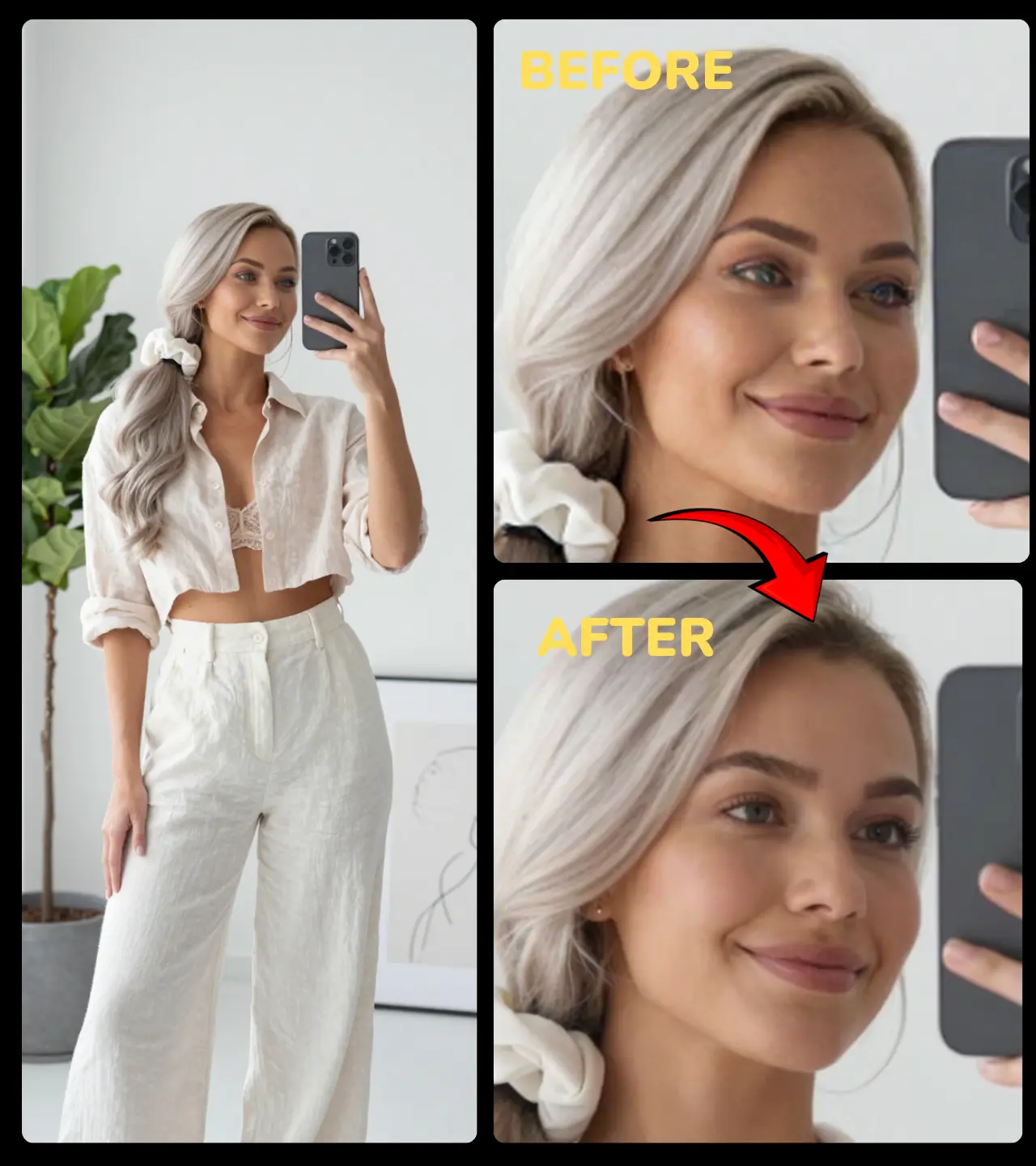
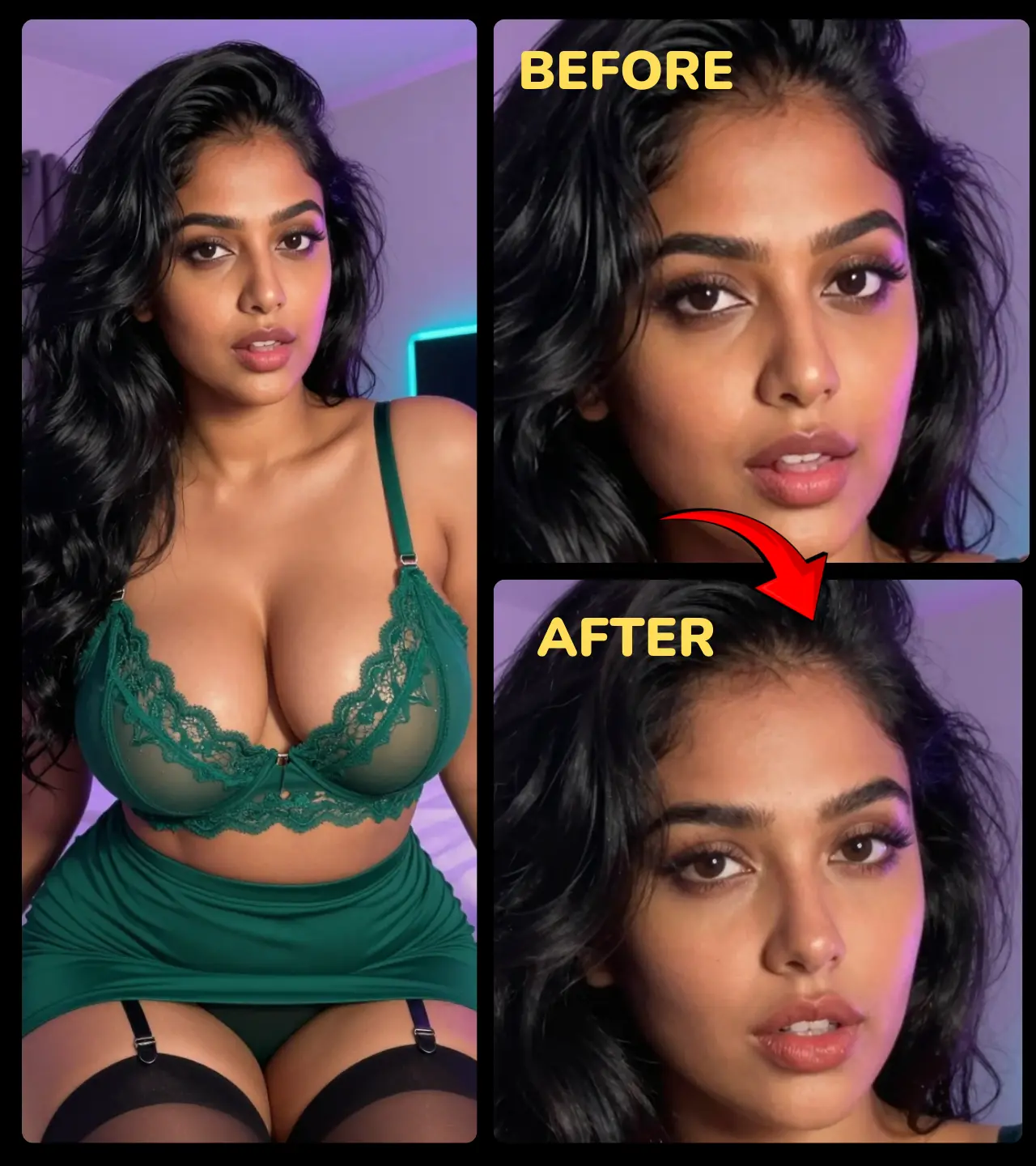
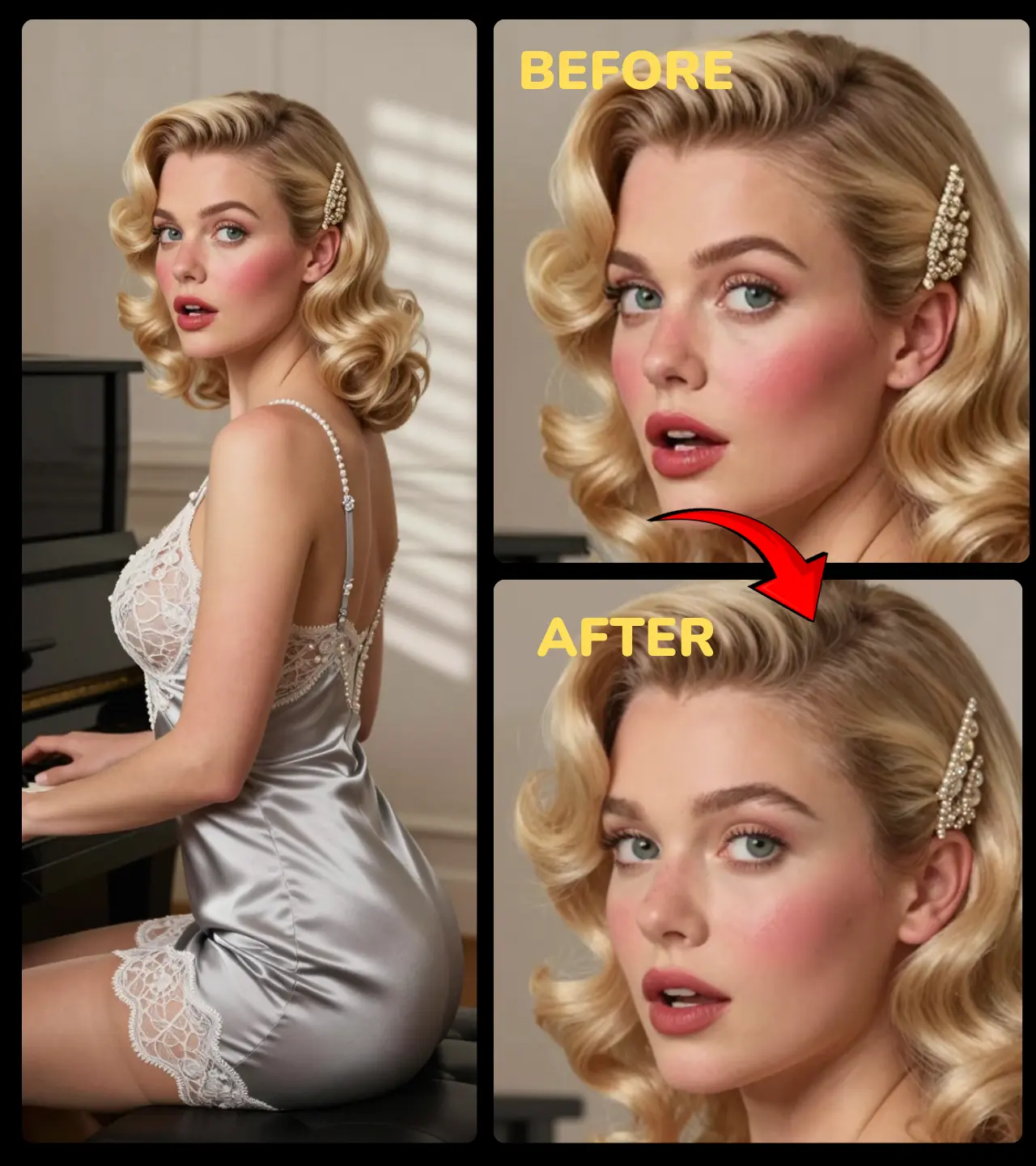
Here are a few before-and-after comparisons showing what the Z-Image Turbo Face Detailer can do. In each case, facial details such as skin texture, eyes, and fine features are noticeably improved, while the hair, background, and clothing remain completely untouched. The enhancements look natural but bring out a level of definition that simply wasn't there in the original.
Example 1 - Improving Eyes/Skin
Example 2 - Improving Eyes/Skin/Teeth
Example 3 - Improving Skin/Eyes/Teeth/Jewelry
7. Tips & Troubleshooting
As with any workflow, you may encounter challenges along the way. Here are some helpful tips and troubleshooting strategies to ensure a smooth experience with the Face Detailer Workflow:
Common Issues and Solutions
-
Face Not Detected?: If the BBOX Detector is not identifying faces, try lowering the threshold to increase sensitivity. For very small faces or unusual angles, increasing the dilation value can also help.
-
Mask Cutting Off Too Close?: If the mask is too tight around facial features, increase the SAMDetector dilation to cover more surrounding area, including hairlines and ears, for a more natural blend.
-
Visible Blend Edge?: If you notice a harsh edge around the enhanced face, increase the mask blur value slightly. A blur of 12 to 20 can help soften the transition between the enhanced face and the untouched background.
-
Running Out of VRAM?: If you encounter VRAM limitations, consider lowering the face crop resolution from 1024 to 768 or 512. This adjustment will reduce the resolution of the enhancement region, significantly cutting VRAM usage while still providing noticeable improvements.
💡 Tip: If your GPU still struggles with VRAM, you can also rent a powerful cloud GPU through RunPod to run the workflow with higher settings.
-
Enhancement Looks Too Strong?: If the results appear artificial, reduce the denoise strength to 0.2 or 0.3 and simplify your prompt. Z-Image Turbo is powerful, and a little adjustment can lead to more natural-looking enhancements.
By keeping these tips in mind, you can troubleshoot common issues effectively and optimize your workflow for the best results.
8. Conclusion
This Z-Image Turbo Face Detailer Workflow delivers some of the fastest targeted face enhancement available in ComfyUI. By combining automatic face detection, precise SAM masking, and Z-Image Turbo's 8-step low-sigma generation, the entire process takes just seconds — and uses only the three model files you likely already have on disk.
Whether you're polishing AI-generated portraits, restoring real photographs, or batch processing a set of images, this workflow offers a reliable, efficient, and genuinely fast way to bring facial detail back to life. With the right balance of denoise strength, mask dilation, and a clean prompt, results look natural yet sharply improved — in just 8 steps.
It's also a surprisingly effective way to remove that plastic, artificial skin look that shows up in a lot of AI-generated images. On cartoon or anime-style outputs in particular, running the face detailer adds just enough realistic skin texture and definition to make the face feel grounded and human — without losing the overall style of the image. A subtle but powerful trick worth keeping in your workflow.