Z-Image Turbo Upscaler and Detailer Workflow in ComfyUI
Table of Contents
1. Introduction
This Z-Image Turbo Upscaler + Detailer Workflow extends the standard Z-Image Turbo text-to-image pipeline with two extra stages built for ComfyUI: a dedicated upscale model pass, followed by a Z-Image Turbo detail refinement pass. The result is a complete end-to-end workflow that doesn't stop at generation.
Here's how it works: Z-Image Turbo generates your image at a chosen base resolution using its fast 8-step process. Once generation is done, the workflow hands the image off to a dedicated upscale model (either 4x-UltraSharp or 4xFaceUpDAT) which physically increases the pixel count. Then, a second KSampler pass runs with a dedicated detail prompt and a low denoise value — sharpening skin texture, eyes, fine features, and overall crispness without altering the composition or structure of the original image.
The result is a high-resolution, detail-enhanced image produced end-to-end in a single workflow run — no manual steps, no round-tripping between tools. And the best part? You only need 4 model files total — the 3 Z-Image Turbo models you likely already have, plus one upscale model of your choice.
2. Requirements & Model Downloads
Before loading the workflow, make sure your environment is ready. This workflow runs Z-Image Turbo's 8-step generation plus two additional processing passes. We recommend at least a GPU with 8–12 GB of VRAM, or a cloud GPU service like RunPod if you want to run at higher upscale factors.
ComfyUI Installed & Updated
You need ComfyUI installed locally or via cloud. Once installed, open the Manager tab and click Update ComfyUI to ensure compatibility with all nodes this workflow requires.
-
Local installation: 👉 How to Install ComfyUI Locally on Windows
-
RunPod setup: 👉 How to Run ComfyUI on RunPod with Network Volume
Download Model Files
This workflow requires 4 model files: the standard Z-Image Turbo trio plus one upscale model. If you've already run the Z-Image Turbo text-to-image or face detailer workflow, you already have the first three.
Z-Image Turbo Core Models
| File Name | Download | ComfyUI Folder |
|---|---|---|
| z_image_turbo_bf16.safetensors | 🤗 Download | ..\models\diffusion_models |
| qwen_3_4b.safetensors | 🤗 Download | ..\models\text_encoders |
| ae.safetensors | 🤗 Download | ..\models\vae |
Upscale Model (choose one)
| File Name | Download | Best For |
|---|---|---|
| 4x-UltraSharp.safetensors | 🤗 Download | General images, landscapes, objects, stylized art |
| 4xFaceUpDAT.safetensors | 🤗 Download | Portraits and close-up faces |
Which one should you use? For most general-purpose images, 4x-UltraSharp is the go-to — it produces sharp, clean results across a wide range of subjects. If you're primarily generating portraits or close-up facial shots, 4xFaceUpDAT is purpose-built for face detail and will give you good eye and skin enhancement on human subjects. Honestly my pick would be the 4x-UltraSharp.
Verify Folder Structure
Confirm your files are organized exactly like this before loading the workflow:
ts1📁 ComfyUI/
2└── 📁 models/
3     ├── 📁 diffusion_models/
4     │     └── z_image_turbo_bf16.safetensors
5     ├── 📁 text_encoders/
6     │     └── qwen_3_4b.safetensors
7     ├── 📁 vae/
8     │     └── ae.safetensors
9     └── 📁 upscale_models/
10           ├── 4x-UltraSharp.safetensors
11           └── 4xFaceUpDAT.safetensors  (optional)
3. Download & Load the Workflow
With your models in place, it's time to load the workflow into ComfyUI.
Step 1: Download the Workflow
👉 Download the Z-Image Turbo Upscaler + Detailer Workflow JSON
Step 2: Load It in ComfyUI
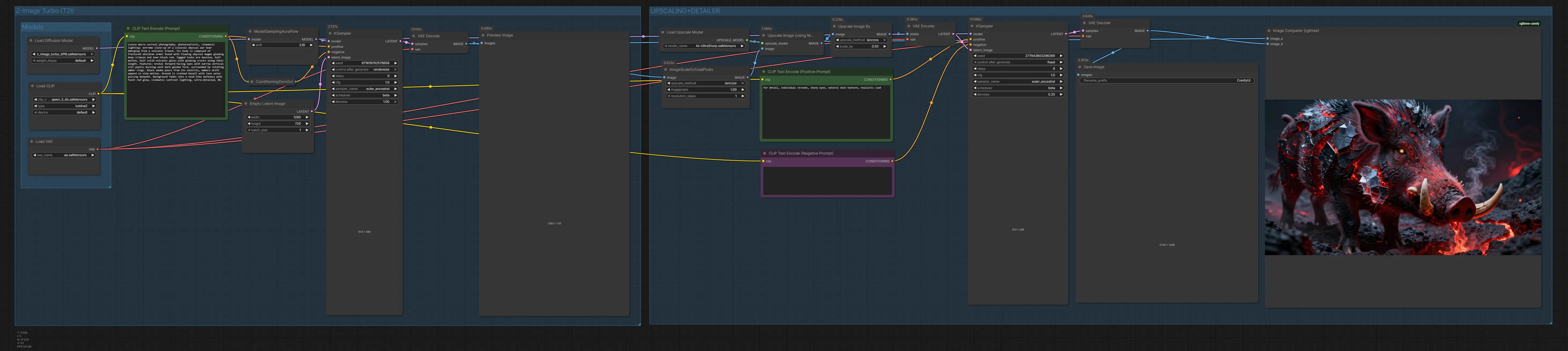
Launch ComfyUI, then drag and drop the downloaded JSON file directly onto the canvas. The workflow will populate automatically with all nodes connected — the text-to-image generation stage, the upscale model loader, the ImageUpscaleWithModel node, the ImageScaleBy resize node, and the detail-pass KSampler at the end.
Step 3: Install Missing Custom Nodes
If any nodes appear outlined in red, certain custom nodes aren't yet installed. To fix this:
-
Click the Manager button in ComfyUI
-
Select Install Missing Custom Nodes
-
Click Install on each missing node, choosing the latest version
-
Restart ComfyUI to register the new nodes
After restarting, reload the page and all red outlines should be resolved. You only need to do this once.
4. Running the Upscaler + Detailer Workflow
The workflow runs automatically in two stages once you hit queue — generation, then upscale + detail. There are just a handful of settings worth knowing about.
Generation prompt — Z-Image Turbo takes a single positive prompt, no negative. Keep it focused and specific; 20–60 words works well. The default resolution is 1280×720 (landscape) — don't go too large here or the upscale pass will push you into VRAM limits.
Upscale model — In the UpscaleModelLoader node, select either 4x-UltraSharp.safetensors (general use) or 4xFaceUpDAT.safetensors (portraits). The model runs at 4× internally, then the ImageScaleBy node at 0.5 brings that down to a net ~2× output — so a 1280×720 image comes out at approximately 2560×1440. You can adjust that multiplier freely:
| ImageScaleBy Value | Net Upscale | Approximate Output |
|---|---|---|
| 0.25 | ~1× | Original size |
| 0.5 | ~2× | ~2560×1440 |
| 0.75 | ~3× | ~3840×2160 |
| 1.0 | ~4× (full) | ~5120×2880 |
💡 Note: Exact output dimensions may vary slightly as the nodes round to maintain the correct aspect ratio.
Detail pass denoise — The second KSampler runs a low-denoise refinement pass (default 0.3). Keep this in the 0.2–0.4 range: below 0.2 won't change much, above 0.4 starts altering the original image. Adjust the detail prompt to match your subject — here are two ready-to-use starting points:
-
Animals: fur detail, individual strands, sharp eyes, natural skin texture, realistic coat
-
Humans/portraits: skin texture, skin pores, detailed skin, natural sunlight on face and skin
Drop in whichever fits and tweak from there.
Example Results
The following examples show the final output of the upscaler + detailer pipeline. Notice how fur texture, eye sharpness, and fine detail are significantly improved over the raw generation — while the composition, lighting, and overall structure stay identical.
Example 1:
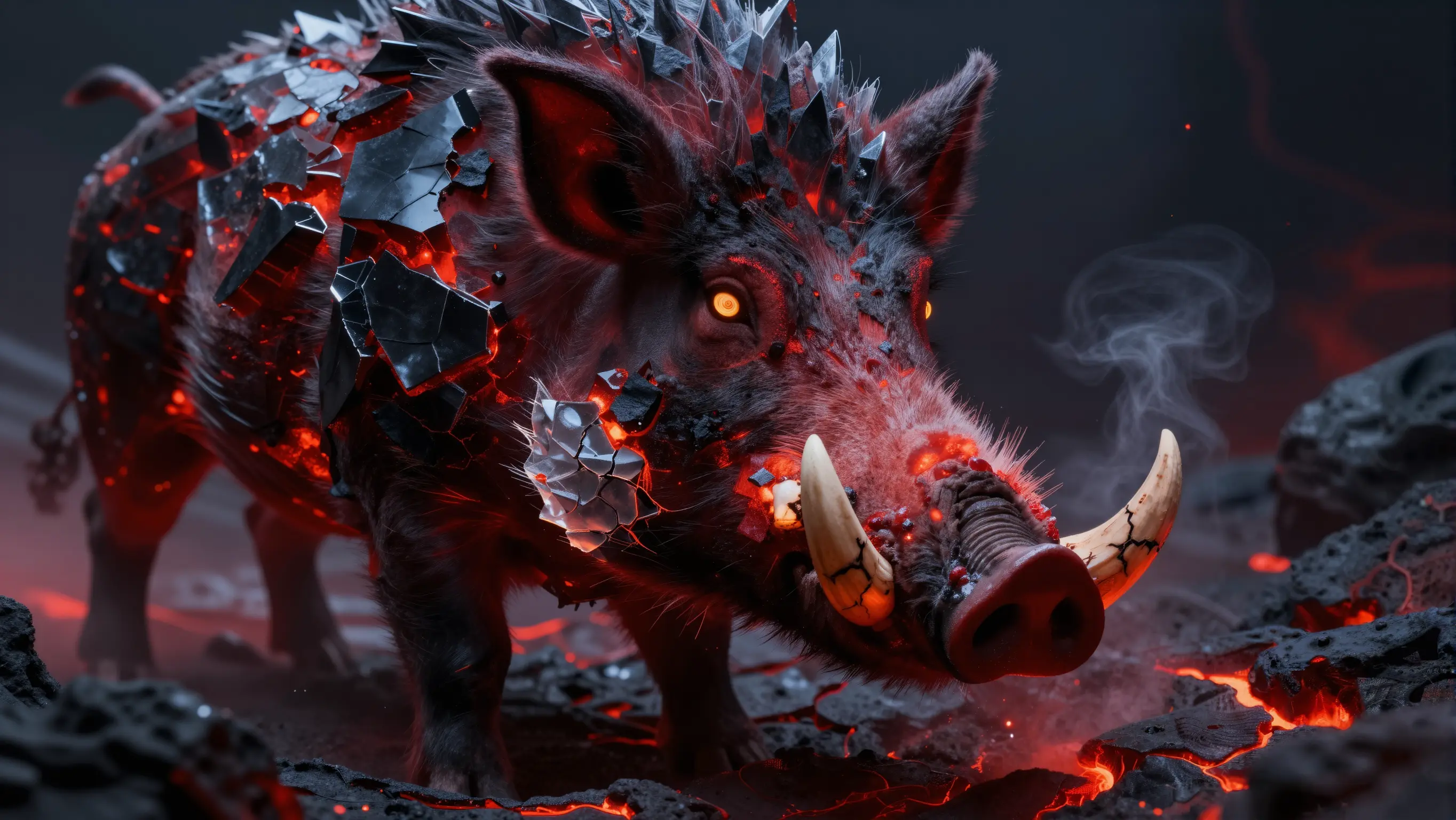
Prompt: Luxury macro surreal photography, photorealistic, cinematic lighting: extreme close-up of a colossal abyssal war boar emerging from a volcanic trench. Its body is composed of fractured obsidian armor fused with flowing abyssal magma glowing deep crimson and near-black red. Jagged tusks are massive, half molten, half solid volcanic glass with glowing cracks along their length. Features: brutal forward-facing eyes with narrow vertical slit pupils burning with dark golden fire, surrounded by rotating ember rings. Black smoke pours from its nostrils, embers drift upward in slow motion. Ground is cracked basalt with lava veins pulsing beneath. Background fades into a void-like darkness with faint red glow, cinematic contrast lighting, ultra-detailed, 8k.
Example 2:
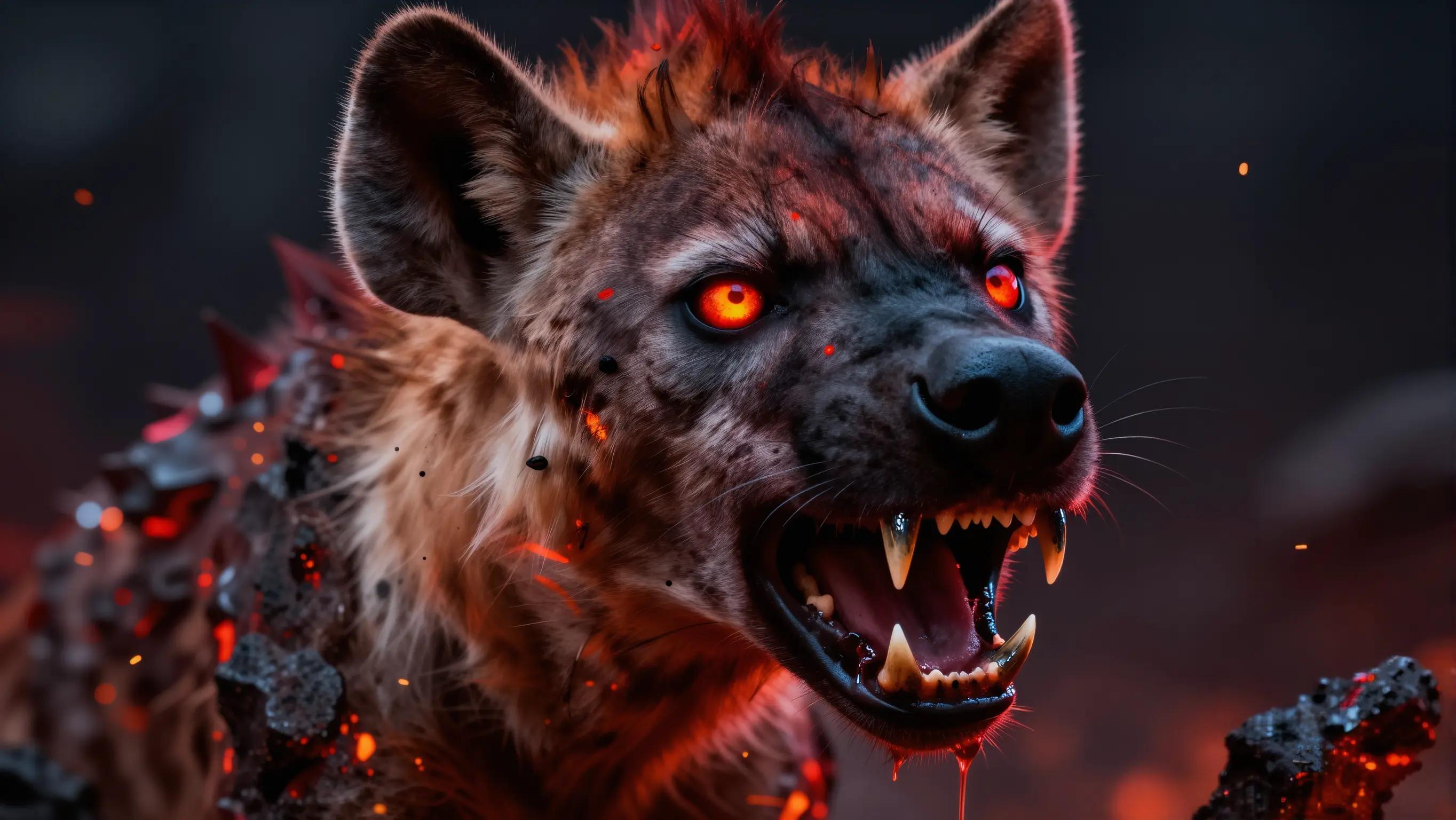
Prompt: Luxury macro surreal photography, photorealistic, cinematic lighting: extreme close-up of a hyper-realistic infernal dragon, depicted mid-snarl with its head angled slightly forward, dominating the frame. Its body is composed of layered volcanic armor plates, cracked open with flowing molten lava veins glowing deep red, orange, and near-white at the hottest نقاط. Scales are hyper-detailed, mixing matte obsidian textures with glossy molten surfaces that reflect fiery highlights. Massive horn structures curve backward like forged black metal, partially melted at the edges. Features: colossal, dominant eyes with vertical slit pupils, intensely luminous with concentric molten rings—gold, amber, and crimson—swirling like a living furnace, highly reflective and hypnotic. Heat distortion warps the air around its face, with sparks and ember particles drifting. Mouth slightly open revealing rows of jagged obsidian teeth and internal furnace glow. Subtle smoke and flame leaks from between scales. Background deep black fading into a fiery red haze with aggressive rim lighting, cinematic still frame, ultra-detailed, 8k, masterpiece.
5. Tips & Troubleshooting
Running Out of VRAM During the Detail Pass
This is the most common issue. The detail KSampler runs at the full upscaled resolution, which can be significant if you're using a 0.75 or 1.0 scale factor. Fix this by:
-
Reducing ImageScaleBy from 0.5 to 0.25 — this runs the detail pass at original resolution while still benefiting from the upscale model's sharpening on the way in
-
Lowering your base generation resolution (e.g. from 1280×720 to 912×512)
-
Switching to a cloud GPU via RunPod for higher VRAM headroom
Detail Pass Changes the Image Too Much
If the detail pass is visibly altering your composition, faces, or lighting, your denoise is too high. Bring it down to 0.2 — the lower end of the recommended range — and the pass will refine without restructuring. Remember: anything above 0.4 starts pushing into territory where the model makes its own structural decisions.
Result Looks Over-Sharpened or Crunchy
This can happen when the upscale model and the detail pass are both running at high settings. Try:
-
Using 4x-UltraSharp instead of FaceUpDAT (slightly smoother output for non-portrait subjects)
-
Reducing the detail pass denoise to 0.2
-
Simplifying your detail prompt — fewer keywords means less aggressive sharpening
Upscale Model Not Showing in Dropdown
Make sure your model file is placed in ComfyUI/models/upscale_models/ (not checkpoints, not diffusion_models). Restart ComfyUI after adding new files to any models folder.
Image Looks Identical Before and After Detail Pass
Your denoise might be too low. Bring it up to at least 0.2 and the difference should become visible. Also check that the detail prompt is filled in — an empty prompt will produce little to no change.
6. Conclusion
In conclusion, the Z-Image Turbo + Upscaler & Detailer Workflow in ComfyUI offers a powerful and efficient way to generate high-resolution images with enhanced detail. By following the steps outlined in this tutorial, you can seamlessly integrate an upscaling and detailing process into your image generation workflow. The combination of Z-Image Turbo for generation and the selected upscale model for detail enhancement allows you to produce stunning images that maintain their original structure while benefiting from increased resolution and clarity.
The flexibility of the ImageScaleBy multiplier gives you creative control over the final output size, enabling you to balance quality and performance based on your GPU capabilities. Whether you are creating portraits, landscapes, or stylized art, this workflow provides a comprehensive solution for achieving professional-quality results. With just five model files and a few straightforward steps, you can elevate your image generation process and explore new creative possibilities in ComfyUI.