Qwen Image Edit 2511: Multi-Angle AI Image Editing in ComfyUI
Table of Contents
1. Introduction
The Qwen 2511 Multi-Angle workflow in ComfyUI brings a powerful new capability to AI image editing: changing the camera angle of an existing image. Built on the Qwen Image Edit 2511 diffusion model, this workflow combines a purpose-built multi-angle LoRA with a dedicated ComfyUI node to let you re-shoot any subject from a completely different perspective — without re-prompting from scratch.
Whether you want to shift from a front-facing portrait to a three-quarter view, flip a product shot to a bird's-eye angle, or re-frame a scene from a low, dramatic perspective, Qwen 2511 Multi-Angle handles it all while preserving the identity, style, and details of the original image.
In this tutorial you'll learn exactly how to install all required models and LoRAs, load the workflow, configure the multi-angle node, and generate your first angle-edited image — step by step.
2. System Requirements for Qwen 2511 Multi-Angle Workflow
Before starting, make sure your system meets the hardware and software requirements to run the Qwen 2511 Multi-Angle workflow in ComfyUI. It's worth noting upfront that this is a heavy model — approximately 40 GB. This puts it well beyond the reach of typical consumer GPUs.
For local setups, we recommend high-end workstation GPUs such as the NVIDIA RTX 5090 or RTX 6000. For most users, running this workflow on a cloud GPU via RunPod is the most practical and cost-effective option — giving you access to the necessary VRAM without a large hardware investment.
Requirement 1: ComfyUI Installed
You'll need ComfyUI installed either locally or on a cloud GPU service.
-
Local Windows installation: Follow this guide:
👉 How to Install ComfyUI Locally on Windows -
Cloud GPU (e.g., RunPod): If your local GPU is limited, you can run ComfyUI in the cloud using a persistent network volume.
👉 How to Run ComfyUI on RunPod with Network Volume
Requirement 2: Update ComfyUI
Keeping ComfyUI updated ensures full compatibility with the latest workflows, nodes, and features.
For RunPod Users:
ts1 cd /workspace/ComfyUI && git pull origin master && pip install -r requirements.txt && cd /workspace
💡 Tip: Keeping ComfyUI updated guarantees you have the latest features, bug fixes, and node compatibility — including the multi-angle node required for this workflow.
Requirement 3: Download Models for Qwen 2511 Multi-Angle
Download all five model files below and place each one in the correct directory inside your ComfyUI installation. Pay close attention to the File Directory column — the LoRA files go into a separate loras folder.
| File Name | Hugging Face Download | File Directory | Type |
|---|---|---|---|
| qwen_image_edit_2511_bf16.safetensors | 🤗 Download | ..\ComfyUI\models\diffusion_models | Required |
| qwen_2.5_vl_7b_fp8_scaled.safetensors | 🤗 Download | ..\ComfyUI\models\text_encoders | Required |
| qwen_image_vae.safetensors | 🤗 Download | ..\ComfyUI\models\vae | Required |
| Qwen-Image-Edit-2511-Lightning-4steps-V1.0-bf16.safetensors | 🤗 Download | ..\ComfyUI\models\loras | LoRA |
| qwen-image-edit-2511-multiple-angles-lora.safetensors | 🤗 Download | ..\ComfyUI\models\loras | LoRA |
Verify Folder Structure
Confirm that your folders and files are organised like this before proceeding:
ts1📁 ComfyUI/
2└── 📁 models/
3     ├── 📁 diffusion_models/
4     │     └── qwen_image_edit_2511_bf16.safetensors
5     ├── 📁 text_encoders/
6     │     └── qwen_2.5_vl_7b_fp8_scaled.safetensors
7     ├── 📁 vae/
8     │     └── qwen_image_vae.safetensors
9     └── 📁 loras/
10           ├── Qwen-Image-Edit-2511-Lightning-4steps-V1.0-bf16.safetensors
11           └── qwen-image-edit-2511-multiple-angles-lora.safetensors
3. Download & Load the Multi-Angle Workflow
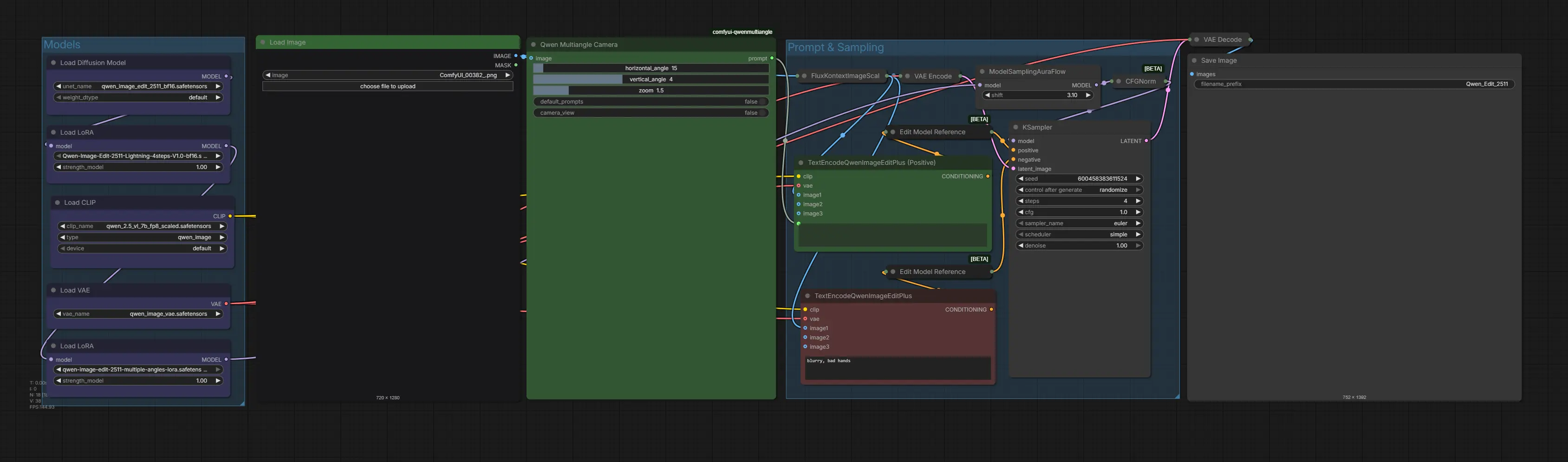
Now that your models and LoRAs are in place, it's time to load the Qwen 2511 Multi-Angle workflow into ComfyUI. This workflow ships pre-configured with all the necessary nodes — including the dedicated multi-angle node, LoRA loaders, image input, and output — so you can start editing immediately.
Step 1: Download the Workflow File
Start by downloading the workflow JSON file built specifically for Qwen 2511 Multi-Angle. This file includes all nodes, samplers, LoRA loaders, and model references pre-configured for smooth operation.
👉 Download Qwen 2511 Multi-Angle ComfyUI Workflow JSON
Step 2: Load the Workflow in ComfyUI
Once downloaded:
-
Launch ComfyUI.
-
Drag and drop the JSON workflow file onto the canvas.
-
The workflow will automatically populate all required nodes, including the diffusion model loader, text encoder, VAE, both LoRA loaders, the multi-angle node, and the output node.
Step 3: Install Missing Custom Nodes
If any nodes appear outlined in red, it means certain custom nodes aren't yet installed. To fix this:
-
Click the Manager button in ComfyUI.
-
Select Install Missing Custom Nodes.
-
Click Install on each missing node, selecting the latest version.
-
Restart ComfyUI to register the new nodes.
After restarting, reload the page and all red outlines should be gone. You only need to do this once.
4. Running the Qwen 2511 Multi-Angle Workflow
With the workflow loaded, you're ready to generate your first multi-angle edit. The workflow is centred around the multi-angle node, which takes your source image and an angle instruction and produces a re-shot version of the same scene from the requested perspective.
Step 1: Upload Your Source Image
In the image input node, upload the photo or AI-generated image you want to re-angle. This is the reference image that Qwen 2511 will use to reconstruct the scene from a new perspective. Use clear, well-lit images for the best results — the model preserves fine details like textures, clothing, and facial features across angle changes. We'll be using this initial image:

💡 Above image was created using the Z-Image Turbo Workflow, which generates high-resolution source images to preserve fine details and produce sharper, more accurate angle edits.
Step 2: Adjust the Angle Using the Qwen Multiangle Camera Node
This workflow uses the Qwen Multiangle Camera node — a visual, interactive camera controller. There's no manual prompting required here. The node automatically generates the correct angle prompt behind the scenes based on the sliders you set.
Simply adjust the three sliders to dial in the perspective you want:
-
horizontal_angle — slide left/right to rotate the camera horizontally around the subject (e.g. 0° = front, 90° = side, 180° = back)
-
vertical_angle — slide up/down to tilt the camera vertically (e.g. negative = looking down / bird's eye, positive = looking up / low angle)
-
zoom — controls how close or far the virtual camera is from the subject
As you move the sliders, a live 3D visualiser inside the node shows a preview of the camera orbit position — so you can see exactly what angle you're setting before you run the workflow. The prompt is constructed and passed automatically; you don't need to type anything.
Step 3: Configure Steps, Models & LoRAs
Set up the generation parameters as follows for optimal results:
-
Steps: Set to 4 steps when using the Lightning LoRA for fast generation, or 20–30 steps without it for maximum quality.
-
Diffusion Model: qwen_image_edit_2511_bf16.safetensors
-
Text Encoder: qwen_2.5_vl_7b_fp8_scaled.safetensors
-
VAE: qwen_image_vae.safetensors
-
LoRA 1 (Speed): Qwen-Image-Edit-2511-Lightning-4steps-V1.0-bf16.safetensors
-
LoRA 2 (Multi-Angle): qwen-image-edit-2511-multiple-angles-lora.safetensors
Step 4: Run the Workflow
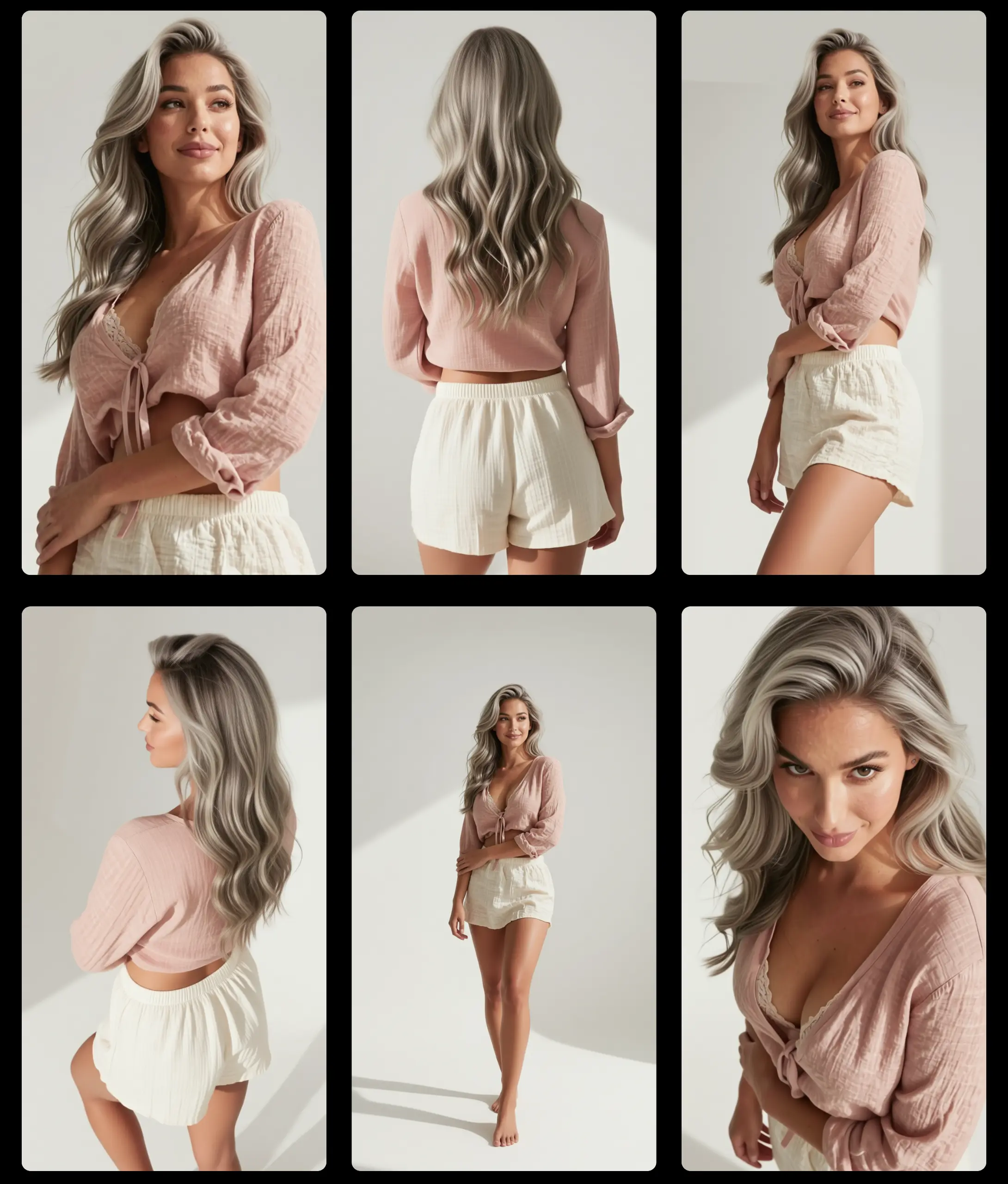
Click the RUN button to start generation. In just a few seconds — thanks to the Lightning LoRA — your angle-edited image will appear in the output node. Compare it with your source image and, if needed, adjust the angle description or refine your prompt to dial in the exact perspective you want.
5. Conclusion
In this tutorial, you've learned how to set up and use the Qwen 2511 Multi-Angle workflow in ComfyUI — from downloading all five model and LoRA files, to configuring the multi-angle node, to generating fast, high-quality perspective edits with just 4 steps using the Lightning LoRA.
Whether you're a product photographer wanting to explore new angles, an artist iterating on character poses, or a developer building multi-view pipelines, Qwen 2511 Multi-Angle gives you a powerful, flexible, and fast tool to reshape any image's perspective — right inside ComfyUI.