Z-Anime Image Generation in ComfyUI (Uncensored)
Table of Contents
1. Introduction
Welcome to the tutorial on Z-Anime Image Generation in ComfyUI! In this guide, we will explore how to generate stunning anime images using the Z-Anime model family within the ComfyUI framework. Z-Anime is built on the advanced Z-Image architecture and offers various model types tailored to different needs, including the Base Model for the highest quality, the Distill 8-Step for a perfect balance of speed and quality, and the ultra-fast Distill 4-Step model.
The focus of this tutorial will be on the Distill 8-Step AIO FP8 model, which is renowned for its excellent image quality, rapid generation times, and straightforward setup process. This model is particularly appealing for users who want to dive into anime image generation without the hassle of complex configurations.
In addition to the model types, Z-Anime also provides different formats such as AIO (All-in-One), GGUF (optimized for low VRAM or CPU), and Standard Diffusion for advanced setups. The AIO format is especially user-friendly, as it includes all necessary components in a single file, eliminating the need for additional downloads.
By the end of this tutorial, you will have a comprehensive understanding of how to set up and run Z-Anime in ComfyUI, enabling you to create high-quality anime images effortlessly. Let’s get started!
2. Requirements & Model Download for Z-Anime
Before loading the workflow, make sure your environment is ready.\
This workflow runs Z-Anime Distill 8-Step AIO (FP8), a fast and efficient anime generation model designed for high-quality results with a simple, plug-and-play setup.
For this guide, we will run the workflow on an RTX 5090, which provides excellent performance for smooth 8-step generation and optional upscaling without VRAM limitations. This allows for fast iteration, stable renders, and consistent high-quality outputs when working with anime-style prompts.
Lower-end GPUs can still run the model, but they may require reduced resolution, disabling the upscale step, or simply longer render times depending on the workload.
Requirement 1: ComfyUI Installed & Updated
You need ComfyUI installed locally or via cloud. Once installed, make sure it is fully updated.
Open the Manager tab and click “Update ComfyUI” to ensure compatibility with all required nodes.
-
Local installation guide: 👉 How to Install ComfyUI Locally on Windows
-
RunPod setup: 👉 How to Run ComfyUI on RunPod with Network Volume
Requirement 2: Model Download
This workflow requires only 1 model file, since we are using the Z-Anime Distill 8-Step AIO (FP8) version.\
Everything (VAE, text encoder, and diffusion model) is already included in this single checkpoint.
| File Name | Download | ComfyUI Folder |
|---|---|---|
| z-anime-distill-8step-aio-fp8.safetensors | 🤗 Download Page | ..\models\checkpoints |
Requirement 3: Verify Folder Structure
ts1📁 ComfyUI/
2└── 📁 models/
3     └── 📁 checkpoints/
4           └── z-anime-distill-8step-aio-fp8.safetensors
Once everything is set up and your model is placed correctly, you’re ready to load the workflow. In the next step, we’ll download and open the ComfyUI workflow to start generating images with Z-Anime.
3. Download and Load the Z-Anime Workflow in Comfyui
With the model ready, the next step is to load the ComfyUI workflow. This will automatically set up all required nodes so you can start generating images right away with the Z-Anime 8-step setup.
Download the Workflow
👉 Download the Z-Anime AIO ComfyUI Workflow JSON
Load It in ComfyUI
Launch ComfyUI, then simply drag and drop the downloaded JSON file onto the canvas.
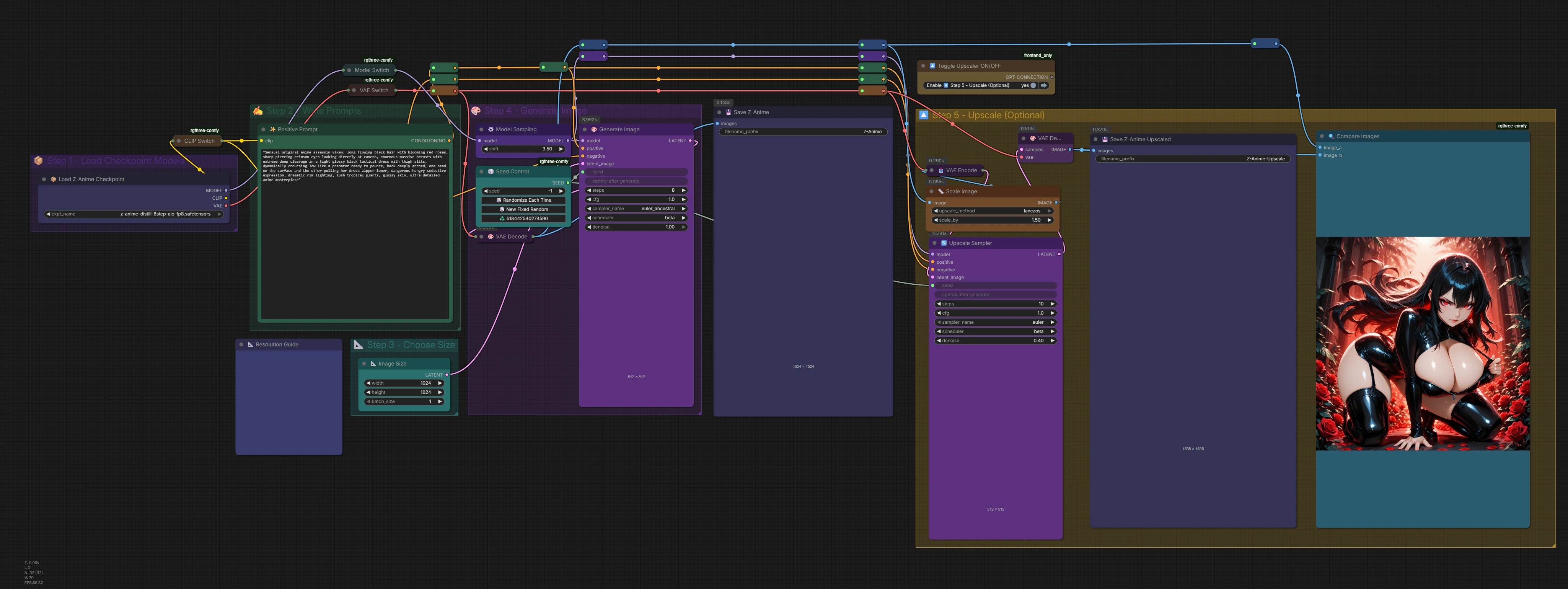
The workflow will automatically populate with all nodes already connected — including:
-
Prompt input nodes
-
Checkpoint loader (AIO model)
-
Sampler settings (8-step setup)
-
Upscale toggle (optional)
Missing Custom Nodes
If any actual required nodes are missing (not just unused loaders):
-
Open Manager in ComfyUI
-
Click Install Missing Custom Nodes
-
Install everything shown
-
Restart ComfyUI
After restart, reload the workflow — all required nodes should be active.
4. Running Z-Anime (8-Step Workflow)
Now that you have successfully loaded the Z-Anime model in ComfyUI, it’s time to generate your first anime image using the 8-step AIO workflow. This process is designed to be intuitive and allows for customization to achieve the desired results.
Step 1: Write Your Prompt
The first step in the workflow is to write a prompt that describes the image you want to generate. Z-Anime works best with natural language prompts. For example, you might use a prompt like:
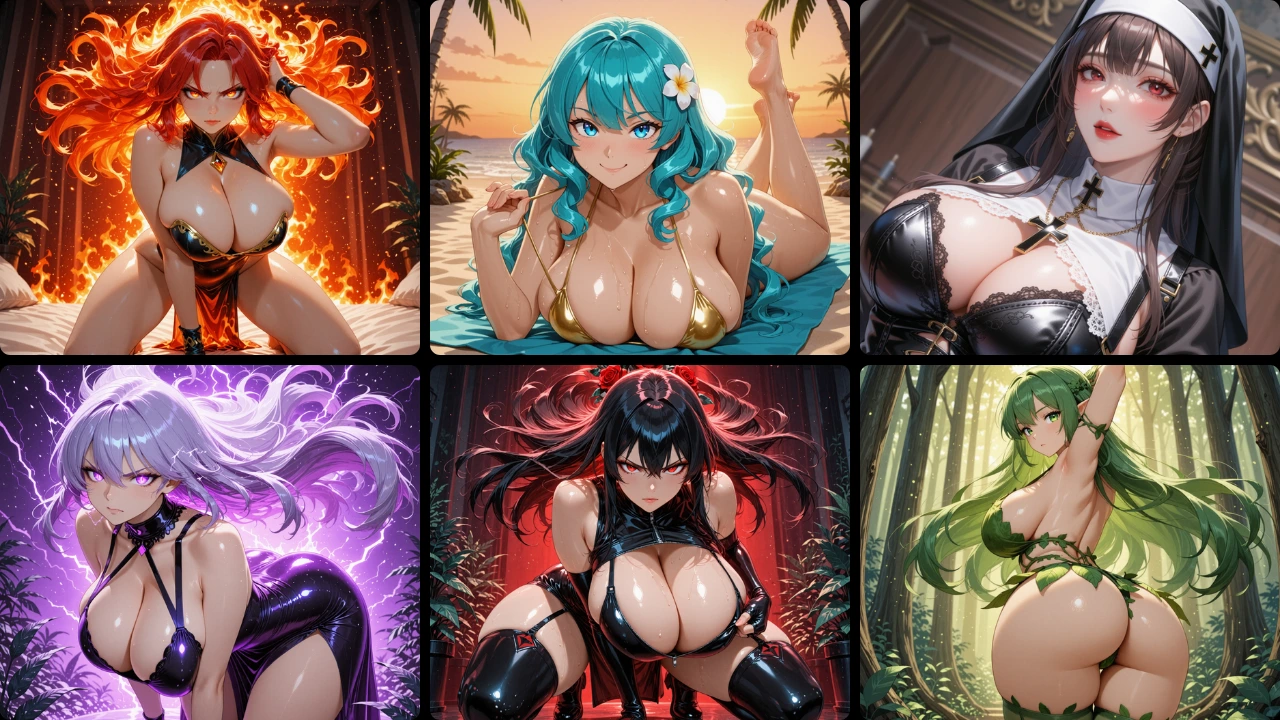
Sensual original anime assassin vixen, long flowing black hair with blooming red roses, sharp piercing crimson eyes looking directly at camera, enormous massive breasts with extreme deep cleavage in a tight glossy black tactical dress with thigh slits, dynamically crouching low like a predator ready to pounce, back deeply arched, one hand on the surface and the other pulling her dress zipper lower, dangerous hungry seductive expression, dramatic rim lighting, lush tropical plants, glossy skin, ultra detailed anime masterpiece
You can also include a negative prompt, which is optional for Distill models. This can help refine the output by specifying what you do not want in the image.
Step 2: Choose Resolution
Next, you will need to select the resolution for your image. Here are some recommended presets:
| Resolution | Use Case |
|---|---|
| 832 × 1216 | Portrait |
| 1216 × 832 | Landscape |
| 1024 × 1024 | Square |
| 768 × 1344 | Full Body |
| 1920 × 1088 | Cinematic |
| 1024 × 1536 | High-Quality Portrait |
Choosing the right resolution is crucial for achieving the best quality in your generated images.
Step 3: Generate Image
Now it’s time to generate the image! For the Distill-8-Step model, set the following parameters:
-
Steps: 8
-
CFG: 1.0 (max ~1.5)
You can also control the seed for randomness: -
Fixed → same image every run
-
Random → new image every run
Step 4: Upscale (Optional)
If you want to enhance the quality of your image further, you can upscale it. The default scale is set to 1.5×. For example, if your original image is 1024 pixels, upscaling it will result in a 1536-pixel image.
By following these steps, you will be able to generate high-quality anime images using the Z-Anime model in ComfyUI. Let’s move on to some tips and troubleshooting advice to help you optimize your experience.
5. Example Images of Z-Anime 8 Step AIO Model
These example images demonstrate the capabilities of the Z-Anime Distill 8-Step AIO model using the workflow outlined above. They highlight the model’s ability to produce high-quality anime visuals across different styles, compositions, and lighting setups, while maintaining fast generation times. Use them as a reference for what’s possible and as inspiration when refining your own prompts and settings.
6. Conclusion
Congratulations—you now know how to generate high-quality anime images using the Z-Anime model in ComfyUI. This guide walked you through the full process, from setting up your environment and downloading the model to running the workflow and producing your first results.
The Z-Anime model family is designed to be flexible, offering different options to suit a wide range of hardware and use cases. By using the AIO FP8 8-step version, you’re working with a setup that delivers an excellent balance of speed, image quality, and simplicity. Its all-in-one format keeps things straightforward, letting you focus on creating rather than configuring.
As you continue experimenting, you can explore other model variants and formats depending on your needs. Whether you want faster generations, lower VRAM usage, or more advanced control, Z-Anime gives you room to grow. For additional models and updates, the Z-Anime Hugging Face page is a good place to check out.
Thanks for following along, and enjoy creating your own anime images!