LTX 2.3 Image-to-Video with Custom Audio in ComfyUI
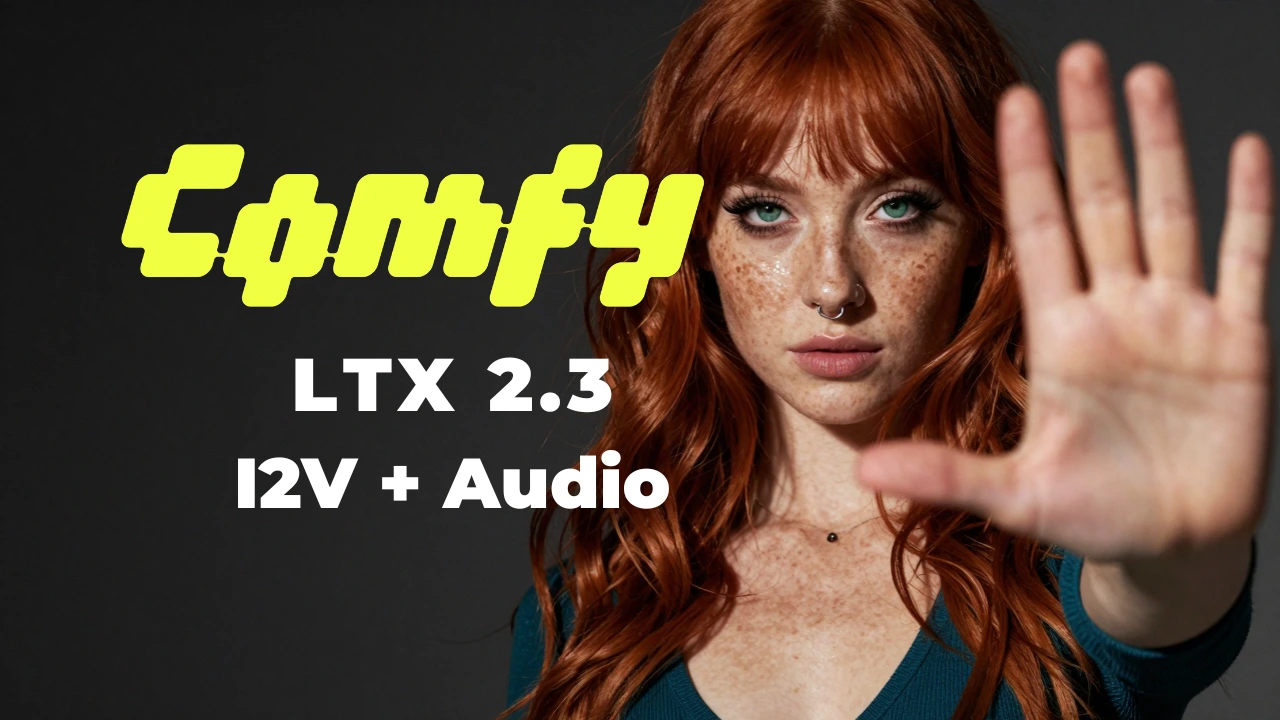
Table of Contents
1. Introduction
In this tutorial, you'll learn how to create a lip-synced talking video from a single still image using LTX 2.3 in ComfyUI. The workflow is straightforward: you provide an image and a speech audio file, and LTX 2.3 generates a video where the subject's mouth moves in sync with the spoken audio. The result is a natural, believable talking animation — driven entirely by the voice you supply.
This makes LTX 2.3 a powerful tool for bringing portraits, characters, avatars, and illustrations to life with spoken dialogue. Whether you're animating a product spokesperson, a historical figure, an AI avatar, or any other subject — if it has a face and you have a voice, LTX 2.3 can make it talk.
We cover the full-quality FP8 workflow for high-VRAM GPUs and a GGUF variant for lower-spec systems — so you can run this locally on a wide range of hardware.
2. System Requirements for LTX 2.3 I2V + Audio (FP8 Workflow)
Before generating your first talking portrait, make sure your system meets the hardware and software requirements. LTX 2.3 is a large 22B-parameter model — we recommend at least an RTX 4090 (24 GB VRAM) for the FP8 workflow, or a cloud GPU service like RunPod.
Requirement 1: ComfyUI Installed & Updated
You need ComfyUI installed locally or via cloud. For a local Windows setup:
👉 How to Install ComfyUI Locally on Windows
Once installed, open the Manager tab and click Update ComfyUI to ensure compatibility with the LTX 2.3 nodes this workflow requires.
If you don’t have a high-end GPU locally, consider running ComfyUI on RunPod with a network volume for persistent storage:
👉 How to Run ComfyUI on RunPod with Network Volume
Requirement 2: Download LTX 2.3 FP8 Model Files
Download each model file below and place it in the correct ComfyUI folder.
| File Name | Hugging Face Download | ComfyUI Folder |
|---|---|---|
| ltx-2.3-22b-distilled_transformer_only_fp8_scaled.safetensors | 🤗 Download | ..\ComfyUI\models\diffusion_models |
| MelBandRoformer_fp16.safetensors | 🤗 Download | ..\ComfyUI\models\diffusion_models |
| gemma_3_12B_it_fpmixed.safetensors | 🤗 Download | ..\ComfyUI\models\text_encoders |
| ltx-2.3_text_projection_bf16.safetensors | 🤗 Download | ..\ComfyUI\models\text_encoders |
| LTX23_audio_vae_bf16.safetensors | 🤗 Download | ..\ComfyUI\models\vae |
| LTX23_video_vae_bf16.safetensors | 🤗 Download | ..\ComfyUI\models\vae |
| taeltx2_3.safetensors | 🤗 Download | ..\ComfyUI\models\vae |
| ltx-2.3-spatial-upscaler-x2-1.0.safetensors | 🤗 Download | ..\ComfyUI\models\latent_upscale_models |
Requirement 3: Verify Folder Structure
Confirm your files are organized exactly like this before loading the workflow:
ts1📁 ComfyUI/
2└── 📁 models/
3    ├── 📁 diffusion_models/
4    │   ├── ltx-2.3-22b-distilled_transformer_only_fp8_scaled.safetensors
5    │   └── MelBandRoformer_fp16.safetensors
6    ├── 📁 text_encoders/
7    │   ├── gemma_3_12B_it_fpmixed.safetensors
8    │   └── ltx-2.3_text_projection_bf16.safetensors
9    ├── 📁 vae/
10    │   ├── LTX23_audio_vae_bf16.safetensors
11    │   ├── LTX23_video_vae_bf16.safetensors
12    │   └── taeltx2_3.safetensors
13    └── 📁 latent_upscale_models/
14        └── ltx-2.3-spatial-upscaler-x2-1.0.safetensors
3. Download & Load the LTX 2.3 I2V Audio Workflow
With your environment and model files ready, it's time to load the workflow in ComfyUI.
Load the Workflow
👉 Download the LTX 2.3 I2V + Custom Audio workflow JSON file and drag it directly onto your ComfyUI canvas.
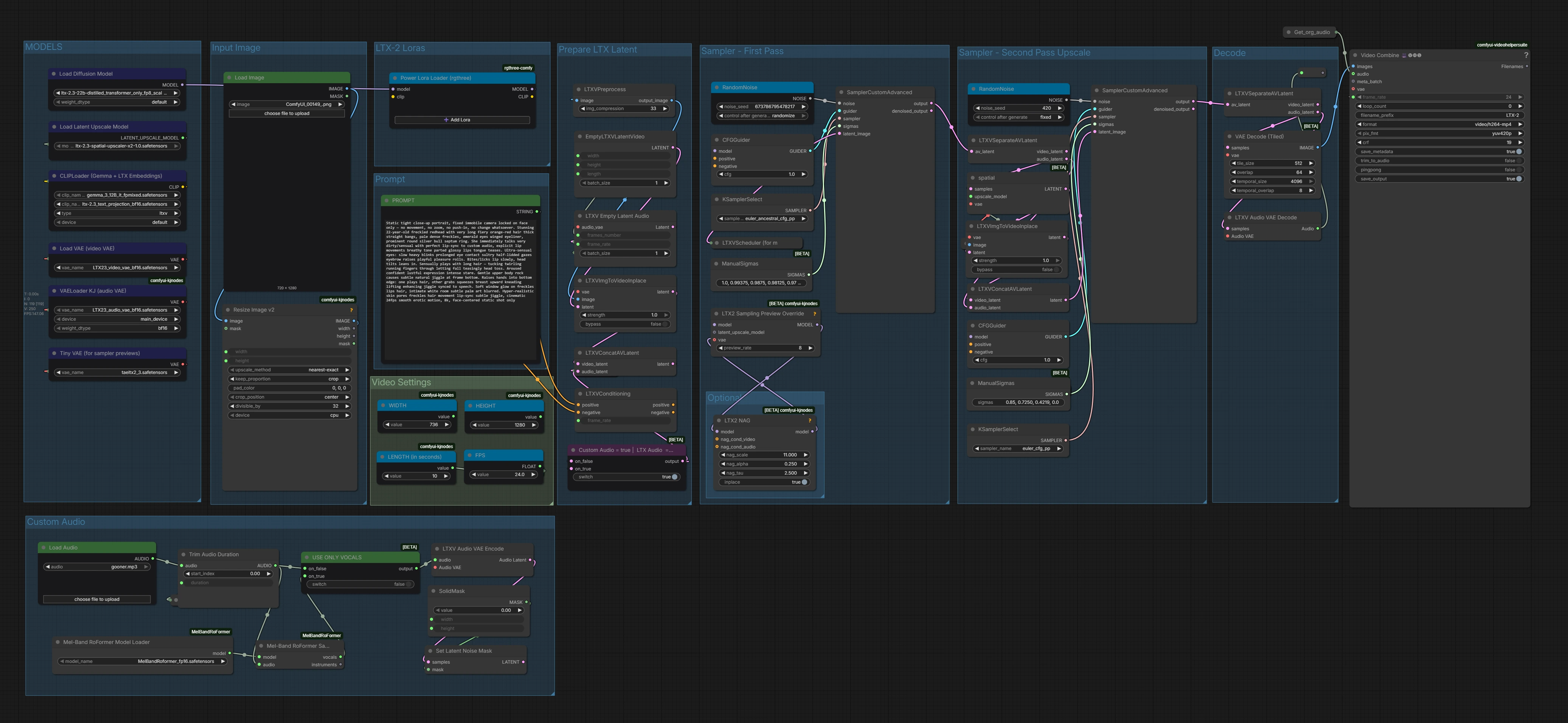
The workflow arrives fully pre-wired with all required nodes: audio loader, MelBand Roformer vocal separator, audio VAE encoder, video VAE, LTX 2.3 distilled transformer, image-to-video conditioning, dual samplers, spatial upscaler, and the custom audio switch.
Install Missing Nodes
If any nodes appear in red after loading, open the Manager tab, click Install Missing Custom Nodes, and restart ComfyUI. Once everything loads cleanly, you're ready to configure your inputs.
4. Running the Image-to-Video + Audio Generation
With the workflow loaded and all nodes green, here is how to configure and run your first lip-synced animation.
Step 1 — Generate or Prepare Your Portrait Image
Start with a high-quality portrait image as your source frame. For this tutorial we generated our starting image using Z-Image Turbo — a fast, high-quality image generation workflow — with the following prompt:
Close-up naughty woman 20-25, porcelain skin dense freckles illuminated by bright window sun, fiery copper-red long wavy hair thick straight bangs radiant, intense emerald eyes lashes liner sparkling, prominent round silver cow septum nose ring catching light, delicate necklace, deep teal low-cut sweater neckline huge cleavage, head cocked to side with gentle inviting smile direct gaze, strong natural sunlight glowing on freckles and soft skin shine, elegant white room with subtle tropical palm and white-on-white art, dominant close-up, ultra-detailed realistic gloss 8k
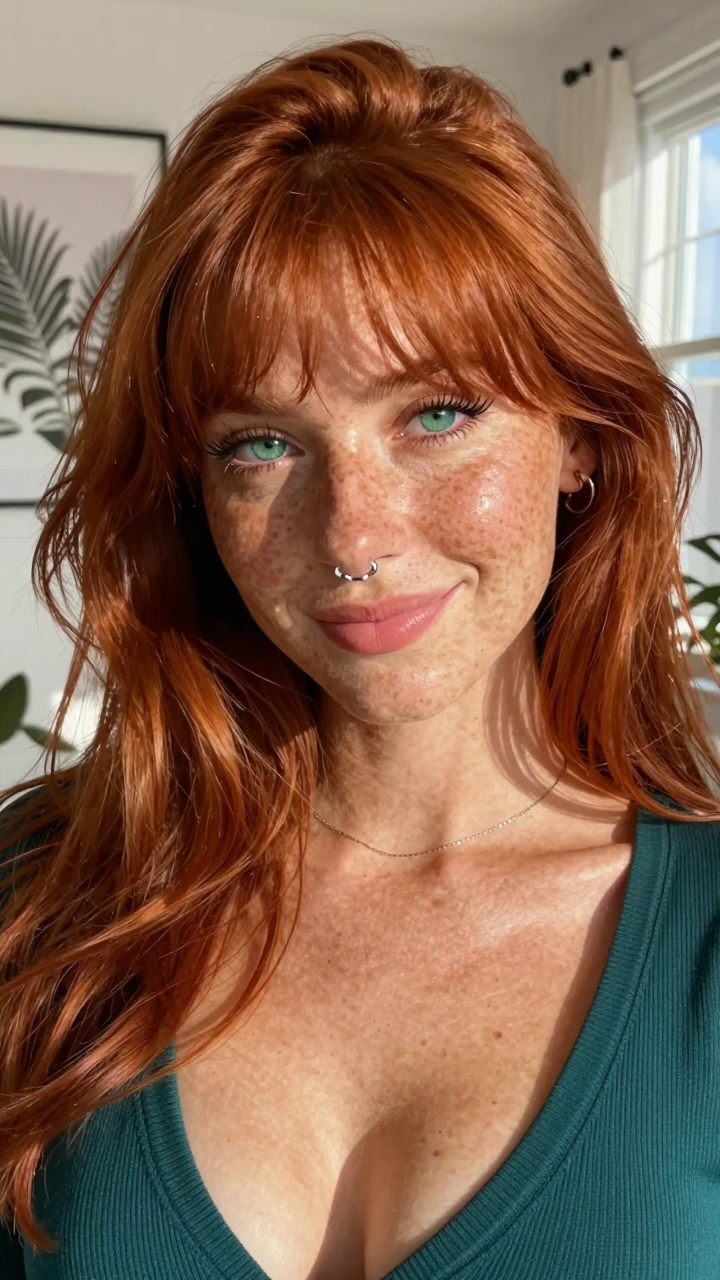 For the best lip-sync results, choose a front-facing or mild three-quarter portrait where the subject's mouth and lower face are clearly visible. Sharper, higher-resolution portraits produce noticeably better output.
💡 Tip: Avoid images where the mouth is covered, heavily shadowed, or shot at a steep side angle — lip-sync accuracy drops significantly when the mouth area isn't clearly visible.
Step 2 — Upload Your Voice Audio
Load your voice recording into the audio input node. This is the speech the portrait will appear to say.
💡 Tip: A clean vocal recording without heavy background noise or music gives the model the clearest phoneme signal and produces the most accurate lip movements. If your audio has a music bed, the MelBand Roformer node will automatically isolate the vocal stem before it reaches the model.
Step 3 — Set Your Animation Prompt
Your text prompt controls the animation style, motion, and overall feel of the video. For lip-sync generation, keep the camera locked and focus the prompt on facial expressions, eye behaviour, and subtle natural movement. Here is the prompt we used for this example:
Static tight close-up portrait, fixed immobile camera locked on face only — no movement, no zoom, no push-in, no change whatsoever. She immediately talks with perfect lip-sync to custom audio, explicit lip movements breathy tone parted glossy lips. Ultra-sensual eyes: slow heavy blinks prolonged eye contact sultry half-lidded gazes eyebrow raises. Bites/licks lip slowly, head tilts leans in. Sensually plays with long hair — tucking twirling running fingers through. Gentle upper body movement. Soft window glow on freckles lips hair, intimate white room. Hyper-realistic skin pores freckles hair movement lip-sync, cinematic 24fps smooth motion, 8k, face-centered static shot only.
When writing your own prompts, keep the camera static and describe only gradual, continuous motion — subtle eye movement, natural head tilts, hair play, and facial expressions. Avoid prompting large camera moves or sudden action; these compete with the lip-sync signal.
Step 4 — Configure Video Settings
Set your output dimensions and video length in the Video Settings nodes — WIDTH, HEIGHT, LENGTH (in seconds), and FPS. For this tutorial we are using 736 × 1280 at 24 fps for a 9:16 portrait video (ideal for Reels and TikTok).
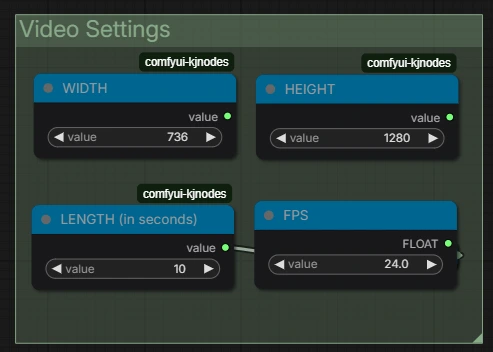 ⚠️ Important — Valid Parameter Rules: Width and height values must be divisible by 32, plus 1 (e.g. 737, not 736 — though the workflow will silently round to the nearest valid value if you don't). Frame count must be divisible by 8, plus 1. Running with invalid parameters will not throw an error — the workflow will silently use the closest valid values instead.
Below is a reference table of common resolutions you can use. We default to 720p (736 × 1280) for 9:16. If you have a powerful GPU (RTX 5090 or better), try 1088 × 1920 for full 1080p quality.
| Aspect Ratio | Width | Height | Quality | VRAM |
|---|---|---|---|---|
| 9:16 (portrait) | 480 | 864 | Low / fast preview | Low |
| 9:16 (portrait) | 736 | 1280 | 720p — recommended default | Medium |
| 9:16 (portrait) | 1088 | 1920 | 1080p — high quality | High (RTX 5090+) |
| 16:9 (landscape) | 864 | 480 | Low / fast preview | Low |
| 16:9 (landscape) | 1280 | 736 | 720p — recommended | Medium |
| 16:9 (landscape) | 1920 | 1088 | 1080p — high quality | High (RTX 5090+) |
| 1:1 (square) | 768 | 768 | Social media square | Medium |
Step 5 — Run the Generation
Once your image, audio, prompt, and video settings are configured, click RUN. LTX 2.3 runs two sampling passes — a fast distilled pass followed by a refinement pass — then decodes both the audio and video latents and combines them into the final output.
5. Bonus: GGUF I2V + Audio Workflow for Low-VRAM Systems
For users without a high-end GPU, the GGUF variant delivers the same audio-driven image-to-video generation at significantly reduced VRAM usage.
Load the GGUF Workflow
👉 Download the LTX 2.3 I2V + Custom Audio GGUF workflow JSON file and drag it onto your ComfyUI canvas.
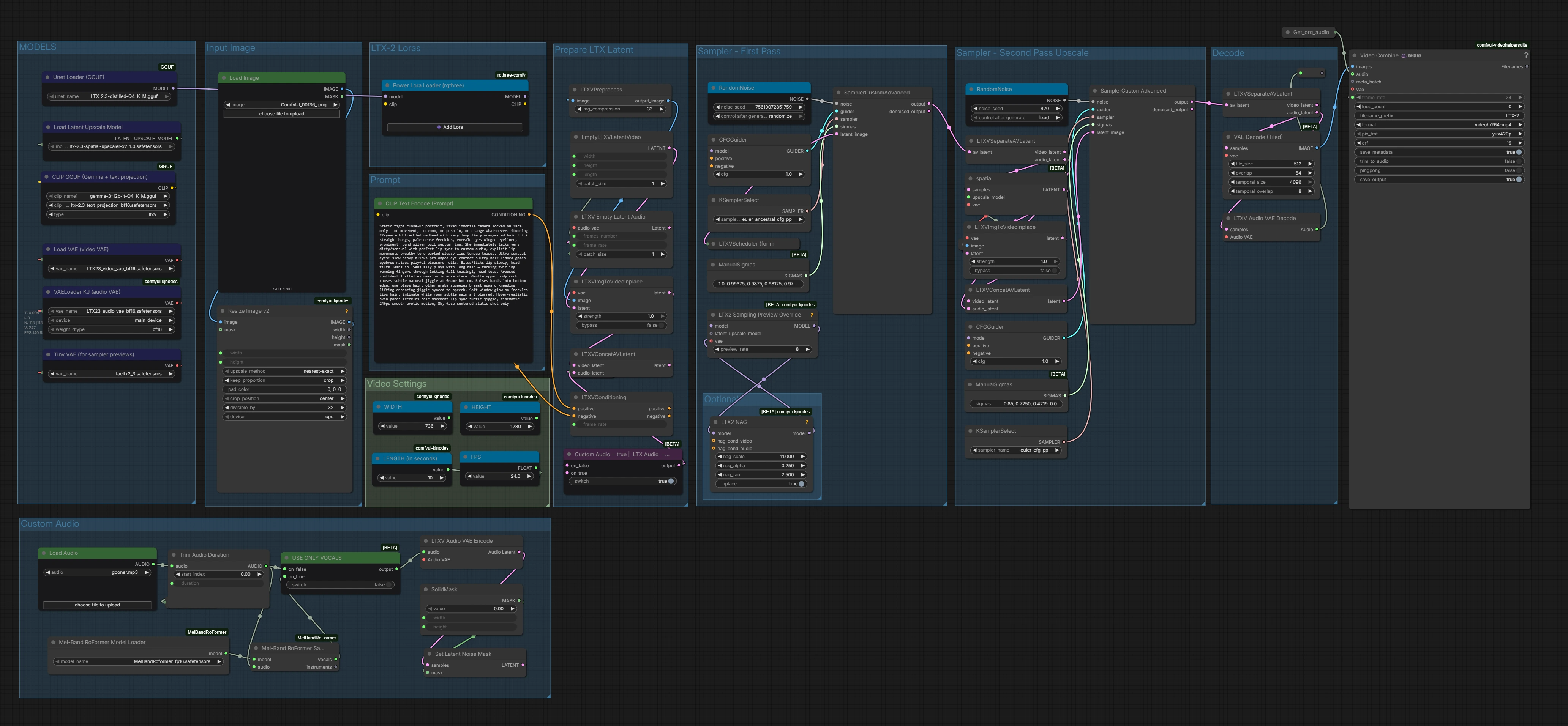
The GGUF workflow uses GGUF loader nodes in place of the standard safetensors loaders — everything else in the pipeline (audio input, MelBand Roformer, VAE) works identically to the FP8 version.
GGUF Model Download
Replace the FP8 diffusion model with a GGUF-quantized LTX 2.3 model. Pick a quantization level that fits your VRAM (Q4 for tighter budgets, Q5/Q8 for higher quality):
⚠️ Important: Unlike the FP8 model which goes in diffusion_models, the GGUF file must be placed in the unet folder.
For the GGUF text encoder (Gemma 3 12B):
🤗 Unsloth — gemma-3-12b-it-GGUF
All other model files remain identical to the FP8 workflow — both VAE files, the audio VAE, MelBand Roformer, text projection, and spatial upscaler are unchanged.
GGUF Folder Structure
ts1📁 ComfyUI/
2└── 📁 models/
3    ├── 📁 unet/
4    │   └── LTX-2.3-distilled-Q4_K_M.gguf  ← GGUF model goes here (NOT diffusion_models)
5    ├── 📁 diffusion_models/
6    │   └── MelBandRoformer_fp16.safetensors
7    ├── 📁 text_encoders/
8    │   ├── gemma-3-12b-it-Q4_K_M.gguf
9    │   └── ltx-2.3_text_projection_bf16.safetensors
10    ├── 📁 vae/
11    │   ├── LTX23_audio_vae_bf16.safetensors
12    │   ├── LTX23_video_vae_bf16.safetensors
13    │   └── taeltx2_3.safetensors
14    └── 📁 latent_upscale_models/
15        └── ltx-2.3-spatial-upscaler-x2-1.0.safetensors
And that's it — you're all set! You may need a few GGUF-specific custom nodes, so make sure to open the Manager and install any missing nodes before you start. After that, just load the workflow, upload your portrait image and voice audio, adjust your video settings, and hit RUN. Happy Gooning! 🔥
6. Conclusion
Congratulations — you now have everything you need to create realistic lip-synced talking portrait videos using LTX 2.3 in ComfyUI. From generating your source image to uploading a voice recording and running the full LTX 2.3 image-to-video workflow, you've seen how straightforward the process is once everything is in place.
What makes this workflow genuinely exciting is that LTX 2.3's native audio VAE handles the lip-sync as part of the generation itself — not as a post-process overlay. That means the mouth movement, facial expressions, and natural head motion are all produced together in a single pass, giving you results that feel cohesive and believable rather than pasted on.
Whether you're animating a photorealistic portrait, a digital illustration, an AI-generated character, or any face you can imagine — if you have a voice recording and a good source image, this workflow will bring it to life. And with the GGUF variant available for lower-VRAM systems, you don't need a top-tier GPU to get started. Now it's your turn: pick your portrait, record or find your audio, and run the workflow. The results might surprise you. Happy generating!