Audio-Driven Image-to-Video with LTX-2 in ComfyUI
Table of Contents
1. Introduction to LTX-2 Image-to-Video in ComfyUI
Creating a video from a static image with your own audio is now simple with LTX-2 in ComfyUI. This tutorial will show you how to generate high-quality, animated videos using a single reference image and a custom audio track. LTX-2 is a cutting-edge audio-video diffusion model that produces smooth, coherent video sequences directly from your image and prompt, making it perfect for storytelling, character animation, or music-driven projects. We’ll cover everything from system requirements and model setup to workflow tips, giving you all the tools you need to start turning still images into dynamic videos with synchronized audio.
2. System Requirements & Model Setup for LTX‑2 Video Generation
Before generating videos, ensure your system meets the requirements to run the LTX‑2 Image-to-Video workflow with custom audio smoothly. A high-end GPU is recommended — ideally an RTX 5090 (48GB+ VRAM) or a cloud GPU provider like RunPod, as LTX‑2 uses significant memory for video and audio diffusion.
Requirement 1: ComfyUI Installed
You’ll need ComfyUI installed either locally or on a cloud GPU service.
-
Local Windows installation: Follow this guide:
👉 How to Install ComfyUI Locally on Windows -
Cloud GPU (e.g., RunPod): If your GPU is limited, you can run ComfyUI in the cloud using a persistent network volume. Step-by-step instructions are available here:
👉 How to Run ComfyUI on RunPod with Network Volume
Requirement 2: Update ComfyUI
Keeping ComfyUI updated ensures full compatibility with the latest workflows, nodes, and features.
For Windows Portable Users:
-
Open the folder: ...\ComfyUI_windows_portable\update
-
Double-click update_comfyui.bat
For RunPod Users:
ts1 cd /workspace/ComfyUI && git pull origin master && pip install -r requirements.txt && cd /workspace
💡Keeping ComfyUI updated guarantees you have the latest features, bug fixes, and node compatibility.
Requirement 2: Download LTX‑2 Model Files
LTX‑2 requires several model files for video diffusion, audio conditioning, and LoRA enhancements. Download and place them in the correct directories as shown below:
| File Name | Download Page | File Directory |
|---|---|---|
| ltx-2-19b-dev-fp8.safetensors | 🤗 HuggingFace | ..\ComfyUI\models\checkpoints |
| MelBandRoformer_fp16.safetensors | 🤗 HuggingFace | ..\ComfyUI\models\diffusion_models |
| ltx-2-19b-distilled-lora-384.safetensors | 🤗 HuggingFace | ..\ComfyUI\models\loras |
| ltx-2-19b-ic-lora-detailer.safetensors | 🤗 HuggingFace | ..\ComfyUI\models\loras |
| ltx-2-19b-lora-camera-control-dolly-in.safetensors | 🤗 HuggingFace | ..\ComfyUI\models\loras |
Requirement 3: Verify Folder Structure
After downloading all models, your ComfyUI folder structure should look like this:
ts1📁 ComfyUI/
2└── 📁 models/
3    ├── 📁 checkpoints/
4    │   └── ltx-2-19b-dev-fp8.safetensors
5    ├── 📁 diffusion_models/
6    │   └── MelBandRoformer_fp16.safetensors
7    └── 📁 loras/
8        ├── ltx-2-19b-distilled-lora-384.safetensors
9        ├── ltx-2-19b-ic-lora-detailer.safetensors
10        └── ltx-2-19b-lora-camera-control-dolly-in.safetensors
Once all models are downloaded and correctly placed, you’re ready to load the LTX‑2 workflow in ComfyUI and start generating high-quality videos with synchronized audio. Thanks to the distilled LoRA, you can use 8-step sampling, reducing runtime while keeping quality high. Because LTX‑2 is memory-intensive, an RTX 5090 or cloud GPU like RunPod ensures smooth generation, especially for longer videos or higher resolutions.
Next, we’ll download the actual workflow file and prepare it for your first video generation session.
3. Download & Load the LTX‑2 Image-to-Video Workflow
Now that your environment is set up and all required model files are in the correct folders, it’s time to load and configure the LTX‑2 Image-to-Video workflow in ComfyUI. This workflow brings together the LTX‑2 diffusion model, MelBandRoFormer audio model, and the optional LoRAs — ensuring everything works together for smooth, audio-driven video generation. Once loaded, you’ll be ready to start creating your first animated video.
Load the LTX‑2 workflow JSON file:
👉 Download the LTX‑2 Image-to-Video Audio workflow JSON file and drag it directly onto your ComfyUI canvas
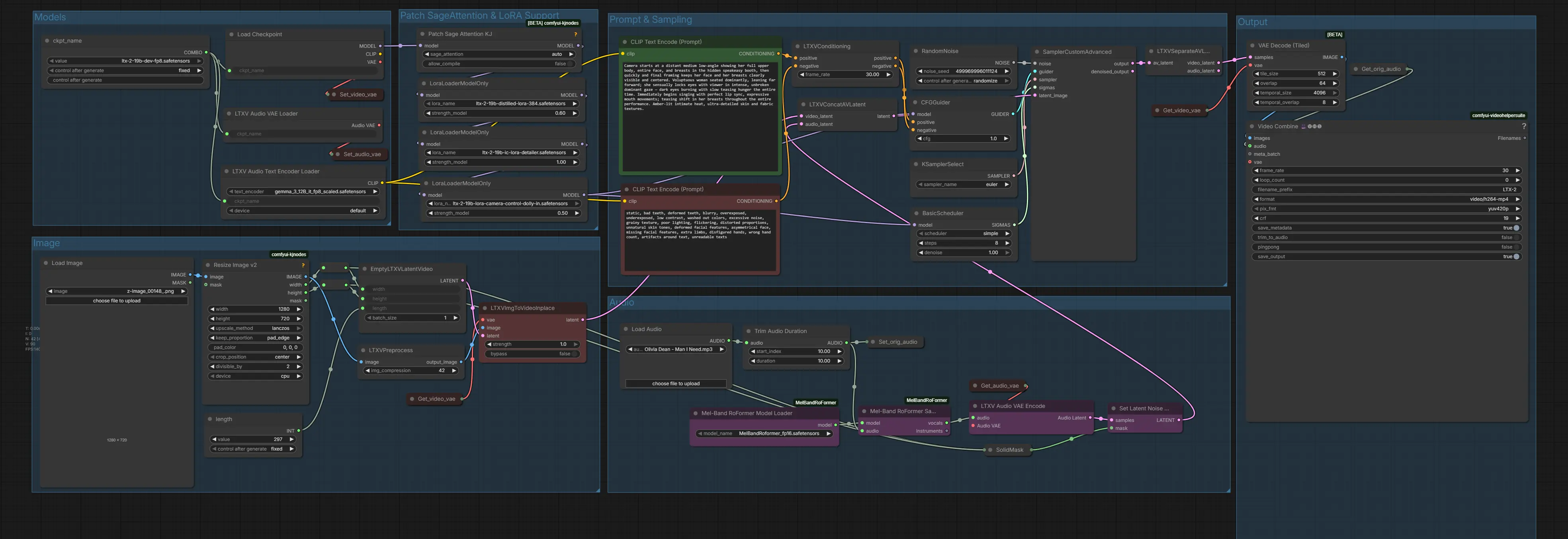
This workflow includes all essential nodes, file references, and audio-driven components pre-arranged for reliable, synchronized video generation. In the next section, we’ll look at running the workflow and generating your first video.
4. Running the LTX‑2 Image-to-Video Audio Workflow
Now that your workflow is loaded, it’s time to generate your first video using LTX‑2. The workflow is straightforward — everything is handled through a few key nodes, making it easy to turn a single image and audio track into a full video sequence.
Step 1: Upload Your Reference Image
In the Image group:
-
Upload your reference image. We'll start with the following:
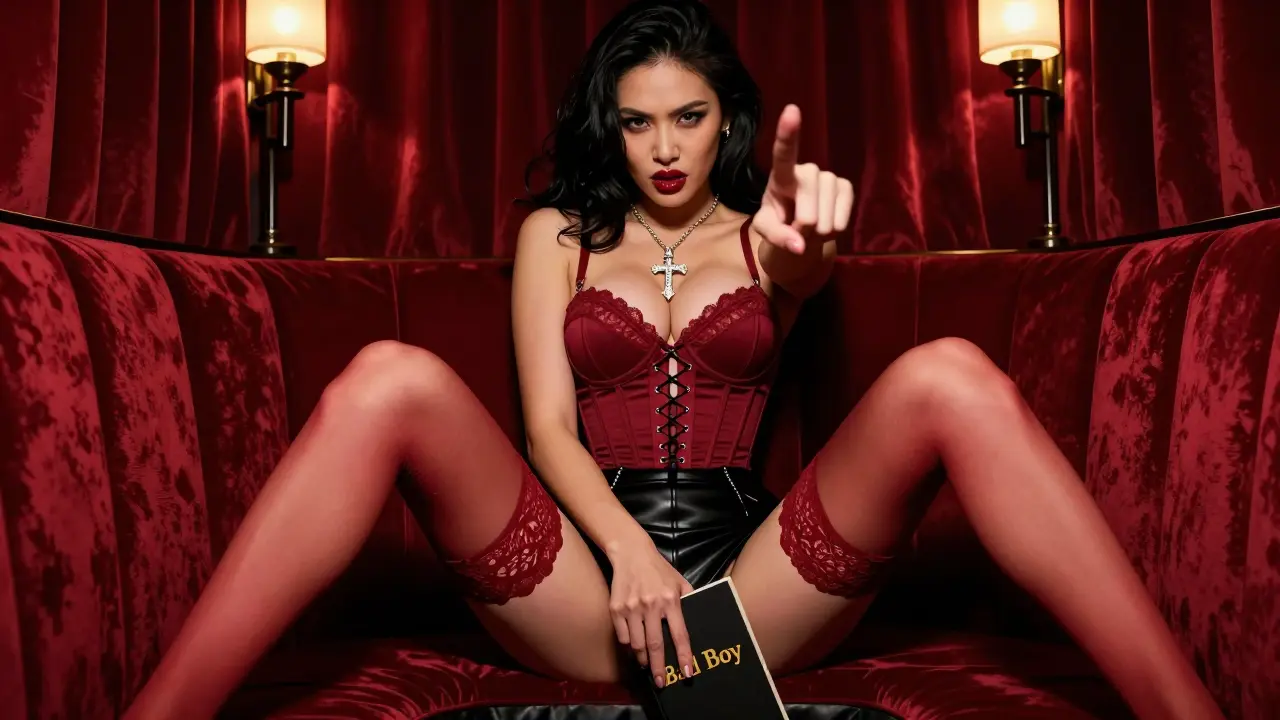
-
Set the Width and Height — this will determine the video resolution. Important: dimensions must be divisible by 32.
-
Set the Length — the total number of frames for your video. For example, if you are generating at 30fps and want a 10-second video, set Length = 300 frames.
| Setting | Description | Example |
|---|---|---|
| Width | Video width in pixels | 1280 |
| Height | Video height in pixels | 704 |
| Length | Total frames for the video | 297 (for 10s at 30fps) |
Step 2: Upload Your Audio
Next, upload your custom audio track to the Audio group. We'll be using the first part of this song:
You can also trim the audio if you only want a specific section:
| Setting | Description | Example |
|---|---|---|
| start_index | Starting point of the audio clip (seconds) | 10 |
| duration | Length of the audio clip to use (seconds) | 10 |
💡 Above settings will only use the portion from 10–20 seconds of the song.
Step 3: Enter Your Prompt
In the Prompt field, describe your video in detail. LTX‑2 recommends specifying:
-
Camera movement: Where the camera starts and ends
-
Object/subject motion: Movements, rotations, gestures
-
Environment & style: Lighting, background, mood, aesthetics
The more detailed your prompt, the more coherent and expressive the final video will be.
Step 4: Set Frame Rate (FPS)
Next to the prompt, set the frame rate (FPS). We recommend:
| Setting | Value | Description |
|---|---|---|
| FPS | 30 | Smooth video playback for most projects |
💡 Tip: Higher FPS = smoother motion but longer generation time.
Step 5: Final Check – Models, LoRAs & Sampler Settings
Before running the workflow, take a moment to verify that all models, LoRAs, and sampler settings are configured correctly. This step helps avoid unnecessary re-runs and ensures optimal quality.
Sampler Settings
Set the sampler configuration as follows:
| Setting | Value |
|---|---|
| Sampler | Euler |
| Scheduler | Simple |
| Steps | 8 |
The 8-step setup works especially well when using the distilled LTX-2 LoRA, offering fast generation with stable results.
Model Selection
Make sure the following models are selected in their respective nodes:
| Component | Model |
|---|---|
| Diffusion Model | ltx-2-19b-dev-fp8.safetensors |
| Audio Model | MelBandRoformer_fp16.safetensors |
LoRA Configuration
Enable the required LoRAs and set their strengths carefully:
| LoRA | Recommended Strength |
|---|---|
| Distilled LoRA (384) | 0.6 |
| Camera Control LoRA | 0.1–1 (optional) |
| Detailer LoRA | 0.1–1 (optional) |
💡 Important: While the distilled LoRA can be set to 1.0, a strength of 0.6 consistently produces better quality and stability, especially at low step counts.
Step 6: Run the Workflow
Once you’ve set image, audio, prompt, and FPS, your workflow is ready to run! Here's the result:
Feel free to experiment with different images, music segments, and camera motions to better understand how LTX-2 responds to various creative setups.
5. Conclusion: From Image to Video with Sound
LTX-2 makes it possible to turn a single image and an audio track into a coherent, motion-aware video directly inside ComfyUI. By combining image reference, sound input, and detailed motion prompts, you can generate videos that feel intentional and synchronized rather than random or purely visual. With the distilled LoRA enabled, low step counts, and the correct sampler settings, LTX-2 delivers strong results while keeping generation times reasonable—even for longer clips.
Running this workflow on high-VRAM GPUs like the RTX 5090 ensures stable performance, especially when working with higher resolutions and longer frame counts. Platforms like RunPod make this setup accessible without the hassle of local configuration, allowing you to focus entirely on experimentation and creative output.
Whether you’re creating music-matched visuals, animated characters, or cinematic image sequences, LTX-2 provides a flexible and production-ready image-to-video pipeline. With optional upscaling using FlashVSR, your final videos can be pushed even further in quality, making LTX-2 a powerful addition to any modern AI video workflow in ComfyUI.