How to Create a Character Training Dataset with Next Diffusion
Table of Contents
1. Introduction to AI-Powered Character Dataset Creation
Training a character LoRA requires a diverse dataset that captures your character from multiple angles, poses, expressions, and lighting conditions. Traditionally, this means organizing extensive photo shoots or manually collecting dozens of images—a time-consuming and resource-intensive process.
Next Diffusion's Dataset Creation tool is specifically designed for Character LoRA training. It generates a complete, diverse character dataset from just two reference images: a body shot and a face shot. This is the foundation of effective character LoRA training—ensuring facial consistency and body accuracy across every generated image.
With this AI-powered character dataset approach, you can:
-
Generate 40–80 diverse character images from just two reference photos
-
Maintain perfect character consistency across different poses, angles, and lighting
-
Ensure facial feature accuracy using dedicated face and body references
-
Control character styling with custom instructions for outfits, props, and settings
-
Save time and resources compared to traditional character photo shoots
-
Optionally create uncensored outputs, giving you full flexibility for creative projects
Whether you're creating a consistent character for creative projects, developing a recognizable persona, or building a character-based visual identity, the Dataset Creation tool provides exactly what character LoRA training demands.
2. Requirements Before You Start
Before diving into the Dataset Creation process, it’s essential to ensure that you have everything you need to make the most of Next Diffusion's capabilities. Here are the key requirements you must meet:
Active Next Diffusion Subscription
To access the Dataset Creation tool, you need an active subscription to Next Diffusion. This subscription operates on a token-based pricing model, where each generated image costs 4 tokens. Therefore, it’s crucial to have sufficient tokens available in your account to cover the cost of the images you wish to generate. For detailed information on subscription plans and pricing, visit the Next Diffusion Pricing Page.
Two High-Quality Character Reference Images
For effective character LoRA training, you will need two high-quality reference images of the same character:
-
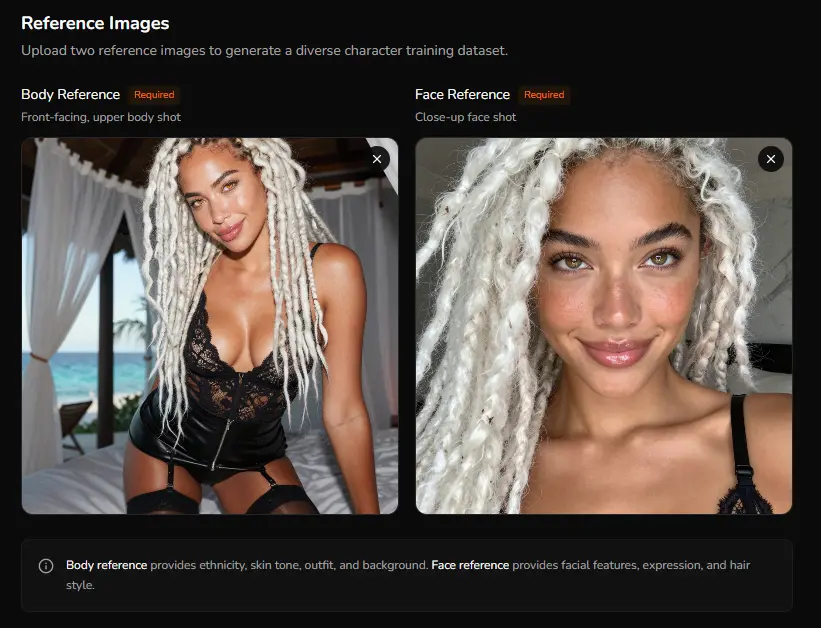
Body Reference (Required): This should be a front-facing, upper body shot that clearly shows your character's physique, skin tone, ethnicity, outfit, and overall appearance. A good body reference is crucial for capturing the character's essence.
-
Face Reference (Required): A close-up, front-facing shot of the character’s face is essential for maintaining facial consistency across all generated images. The image should clearly capture the character’s unique facial features, neutral expression, and hairstyle, with the subject looking directly at the camera.
💡 Why two references? Character LoRA training requires both facial consistency and body accuracy. The face reference ensures facial features remain identical across all generated images, while the body reference provides the physical context and appearance details.
Once you've confirmed these requirements, you're ready to create your character training dataset.
3. Using the Dataset Creation Interface
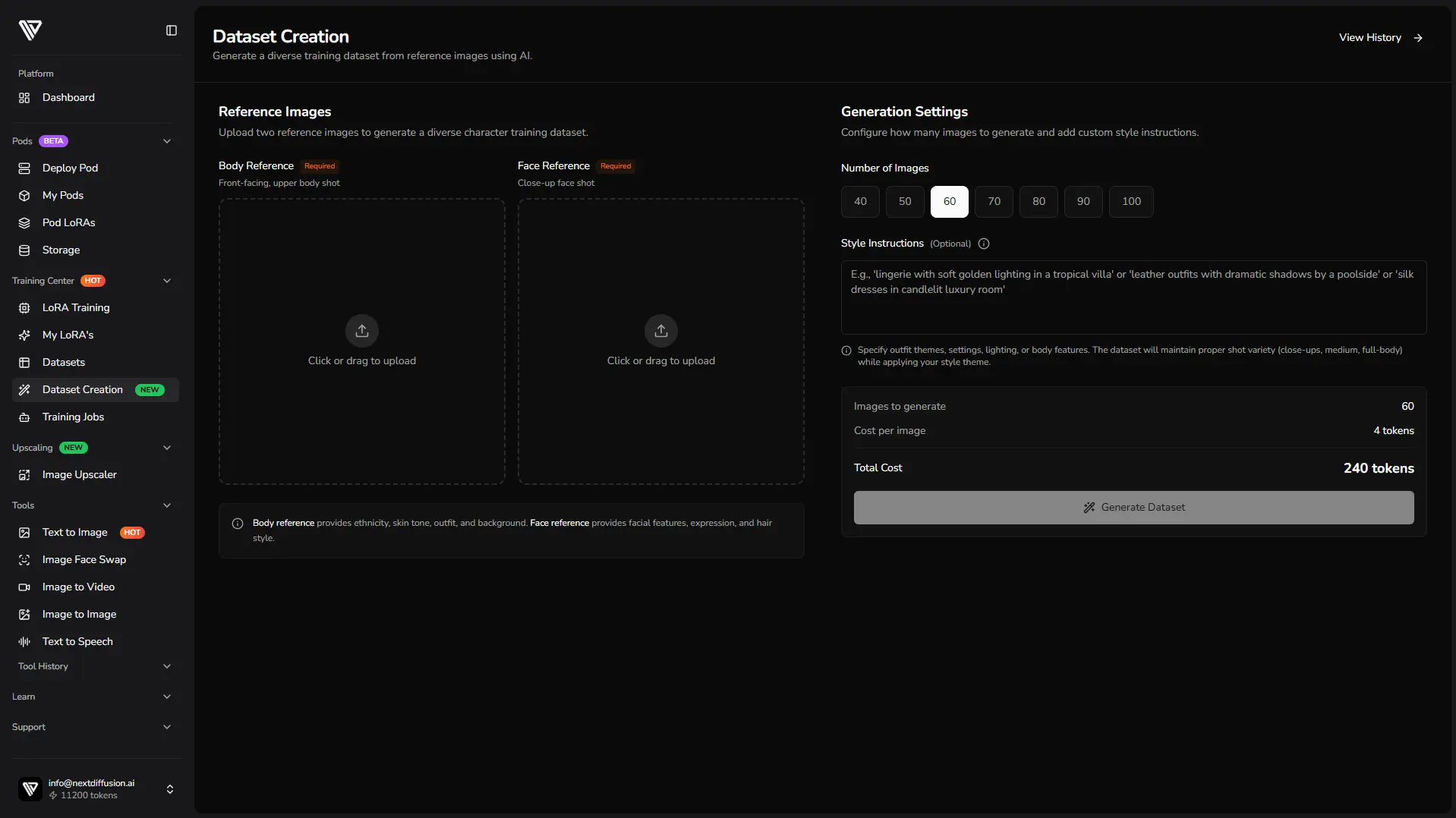
Now that you have your requirements in place, it’s time to navigate to the Dataset Creation interface within Next Diffusion. To access this, go to Training Center → Dataset Creation from the sidebar. You will be greeted with a user-friendly interface that is divided into two main sections: Reference Images on the left and Generation Settings on the right.
 ### Step 1: Upload Your Character Reference Images
The first step in the process is to upload your two required character reference images. It is crucial that both images depict the same character to ensure successful character LoRA training.
Body Reference (Required)
Click or drag to upload your front-facing, upper body shot. This image is vital as it provides essential details about your character's physique, ethnicity, skin tone, and overall appearance. A good body reference should be:
-
Clear and front-facing
-
Show the upper body (shoulders, torso, arms)
-
Well-lit with minimal shadows
-
High resolution (minimum 512px)
Face Reference (Required)
Next, upload your close-up face shot. This image is critical for maintaining facial consistency, which is a core requirement for character LoRA training. A good face reference should:
-
Clearly show all facial features
-
Have a neutral or natural expression
-
Include a complete view of the hairstyle
-
Be high resolution and in sharp focus
Step 2: Select Number of Images & Add Style Instructions
After uploading your reference images, you will need to choose how many character images you want to generate. The options range from 40 to 80 images, with each image costing 4 tokens. For most character LoRA projects this provides a good variety of poses, angles, and expressions while remaining manageable for review.
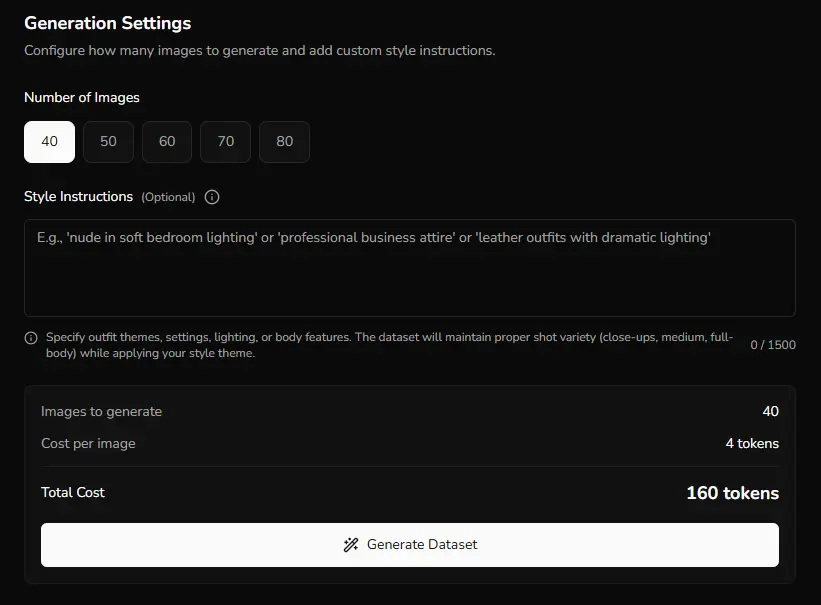
In the Style Instructions field, you can provide guidance on your character's styling, outfits, and settings. This field is optional, but if you choose to leave it blank, the AI will generate images based on the clothing and background from your reference images. If you do add instructions, the AI will apply your specified style while maintaining character consistency. Examples of style instructions could include themes like "lingerie with soft golden lighting in a tropical villa" or "leather outfits with dramatic shadows by a poolside".
Step 4: Click Generate Dataset
Once you have uploaded both reference images, selected the number of images, and optionally added style instructions, click the "Generate Dataset" button at the bottom of the Generation Settings panel. You will then be redirected to a generation page where your character images will be created.
4. Generating Your Training Dataset
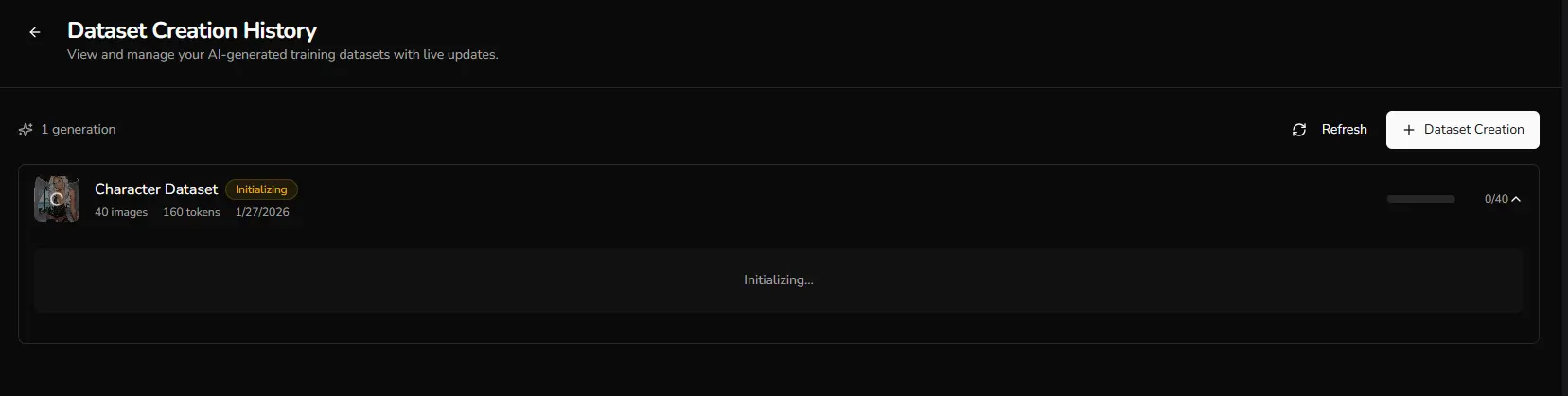
After clicking "Generate Dataset," the AI begins creating your diverse character training dataset. This process is fully automated and requires no further input.
 ### What's Happening Behind the Scenes
The AI system specifically designed for character LoRA training:
-
Analyzes both reference images to understand your character's facial features, physique, skin tone, and overall appearance
-
Generates diverse character variations with different poses, angles, lighting, and compositions
-
Maintains critical character consistency across all images—keeping facial features and body proportions identical
-
Applies your style instructions (if provided) while preserving character identity
Generation Time
Typical generation times:
-
40 images: ~25-30 minutes
-
80 images: ~45-50 minutes
💡 Tip: You can navigate away during generation and return later to review your completed character dataset.
5. Reviewing Your Generated Images
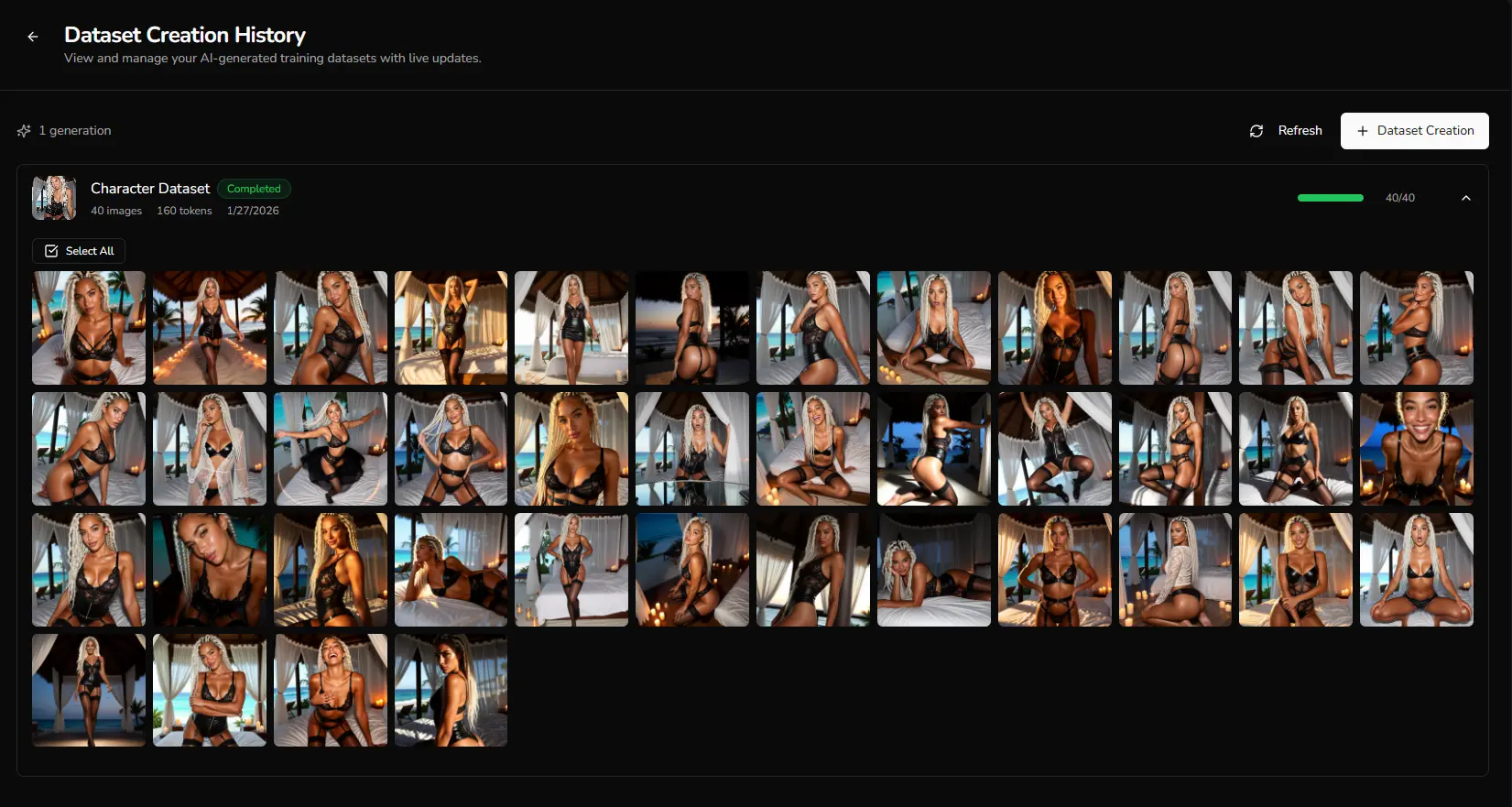
Once generation completes, you'll see a grid view displaying all your generated character images. This gives you a complete overview of the entire dataset at a glance.
Viewing Individual Images
Click on any image in the grid to open the image gallery. The gallery provides a full-size view where you can examine each generated character image in detail and download individual images if needed.
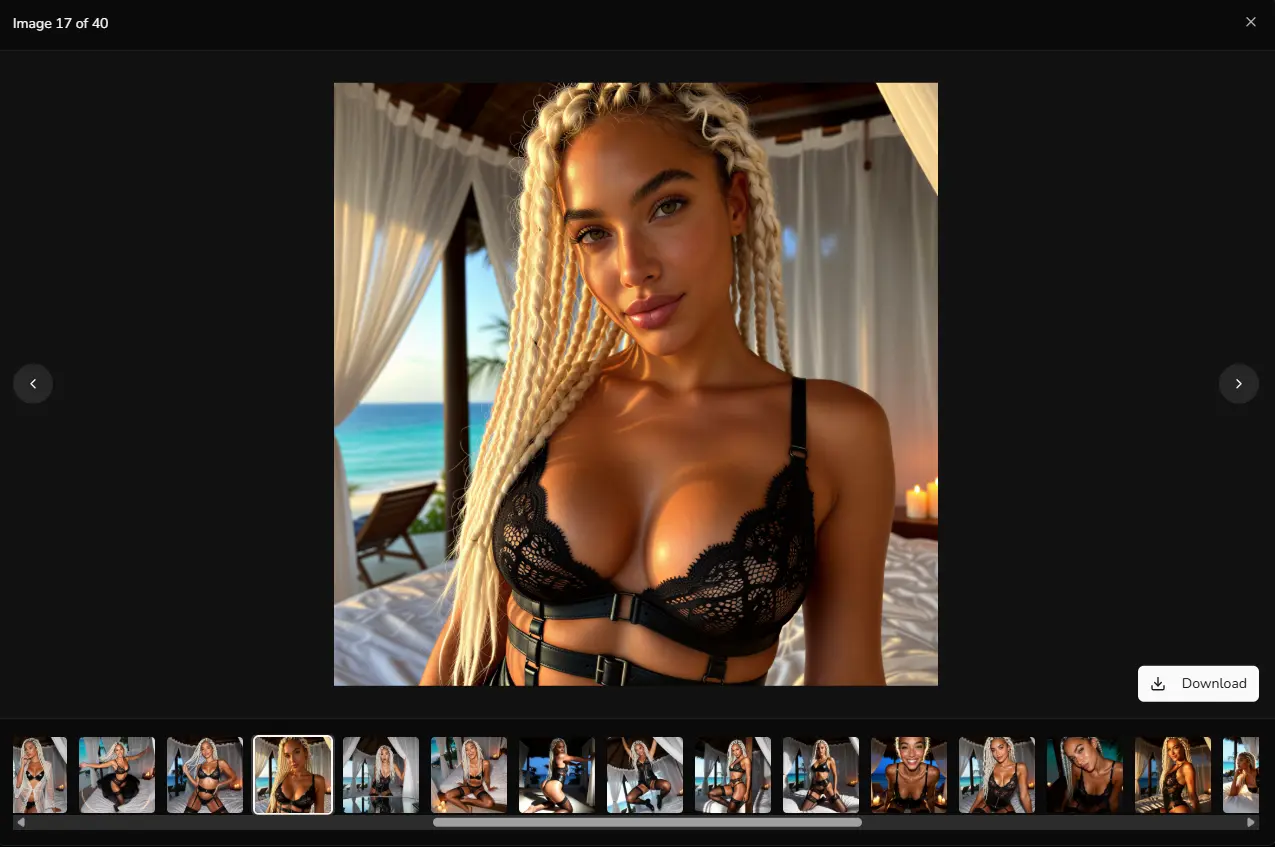
The gallery allows you to review image quality, check character consistency, and evaluate whether each generation accurately matches your reference images. Use the navigation controls to move through your generated images one by one.
6. Transferring to a Training Dataset
After reviewing your generated images, you can select specific images to transfer into a formal training dataset for character LoRA training.
Selecting Images for Your Dataset
Each image in the grid view has a checkbox that allows you to select it for transfer. Review the generated images and use the checkboxes to curate your final character dataset. Focus on selecting images that maintain character consistency while providing diverse poses, angles, and compositions.
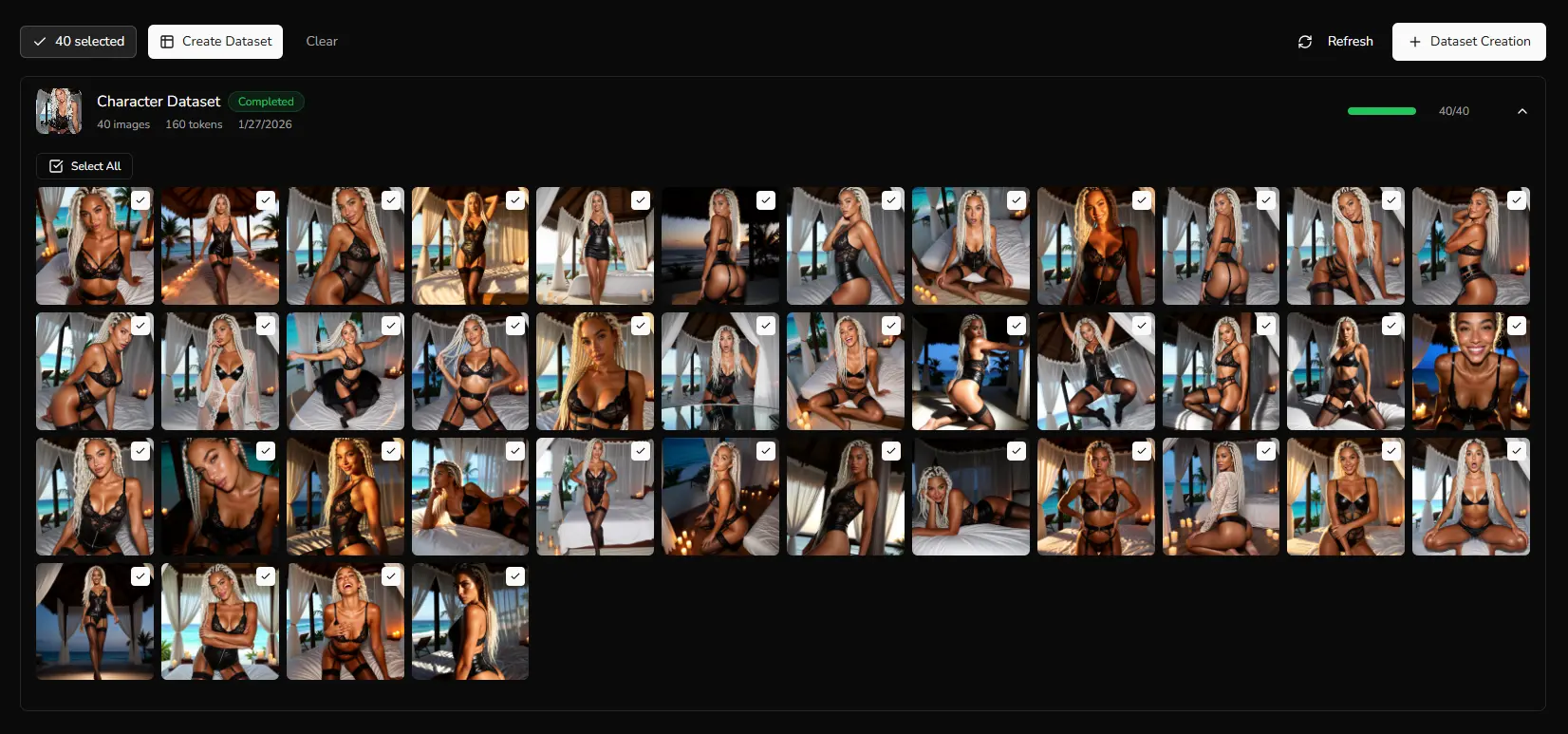 When selecting images, consider character facial consistency, body proportion accuracy, image quality, and overall variety. For most character LoRA projects, selecting 25-40 high-quality images provides the ideal balance between consistency and diversity.
Creating Your Character Dataset
Once you've selected your images using the checkboxes, click the "Create Dataset" button. A dialog will appear where you can configure your character training dataset. Provide a unique dataset name that identifies your character project, such as "Character_Name_v1". You can optionally add a description with details about your character dataset's content, such as the number of images, character styling, or any specific notes about the generation settings used.
Completing the Transfer
After entering your dataset name and optional description, review your selection count to confirm the number of images being transferred. Click "Create Dataset" to transfer the dataset.
You'll be redirected to your newly created character dataset page, where you can optionally add captions with your triggerword to your images before beginning the training process.
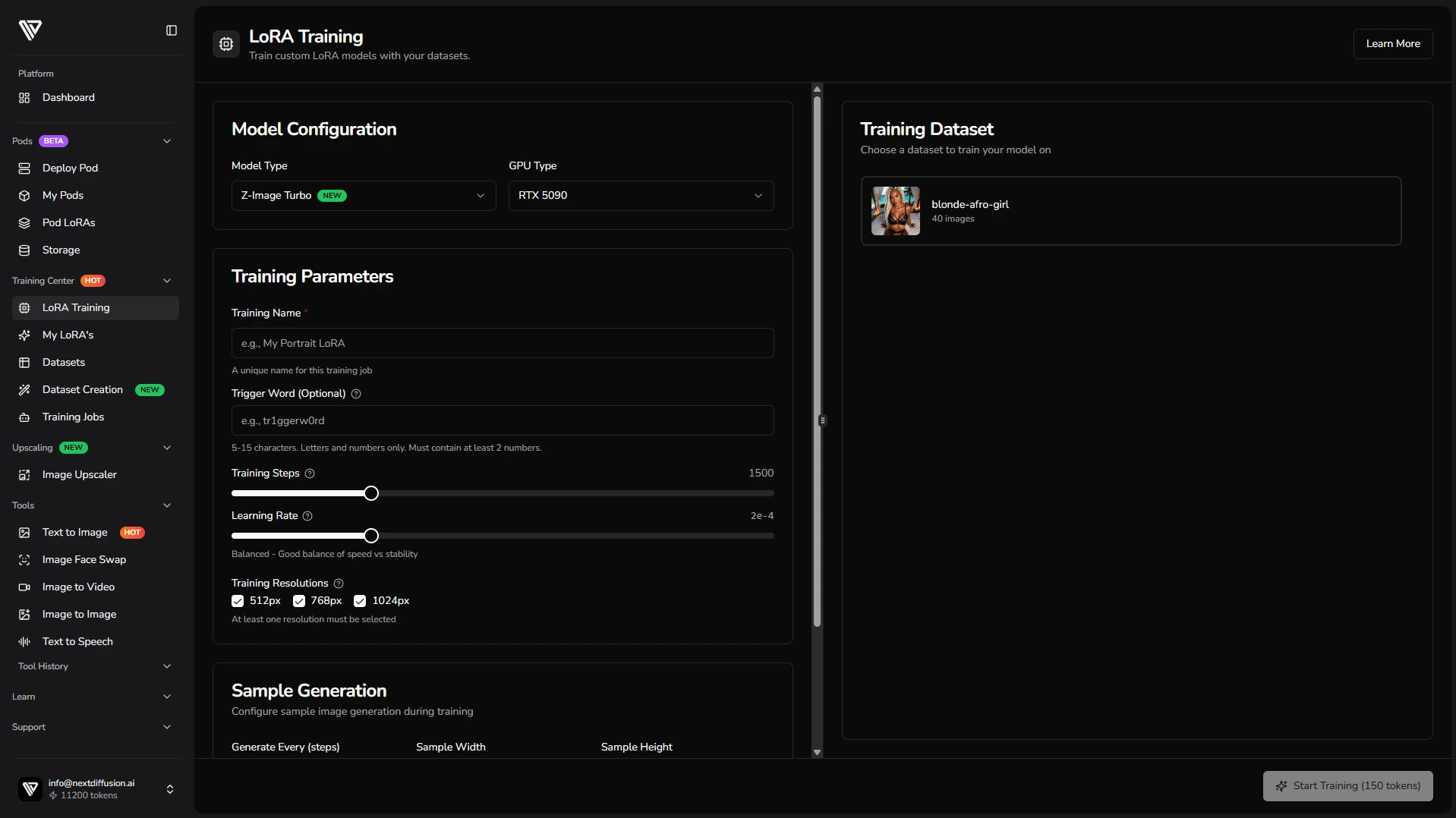
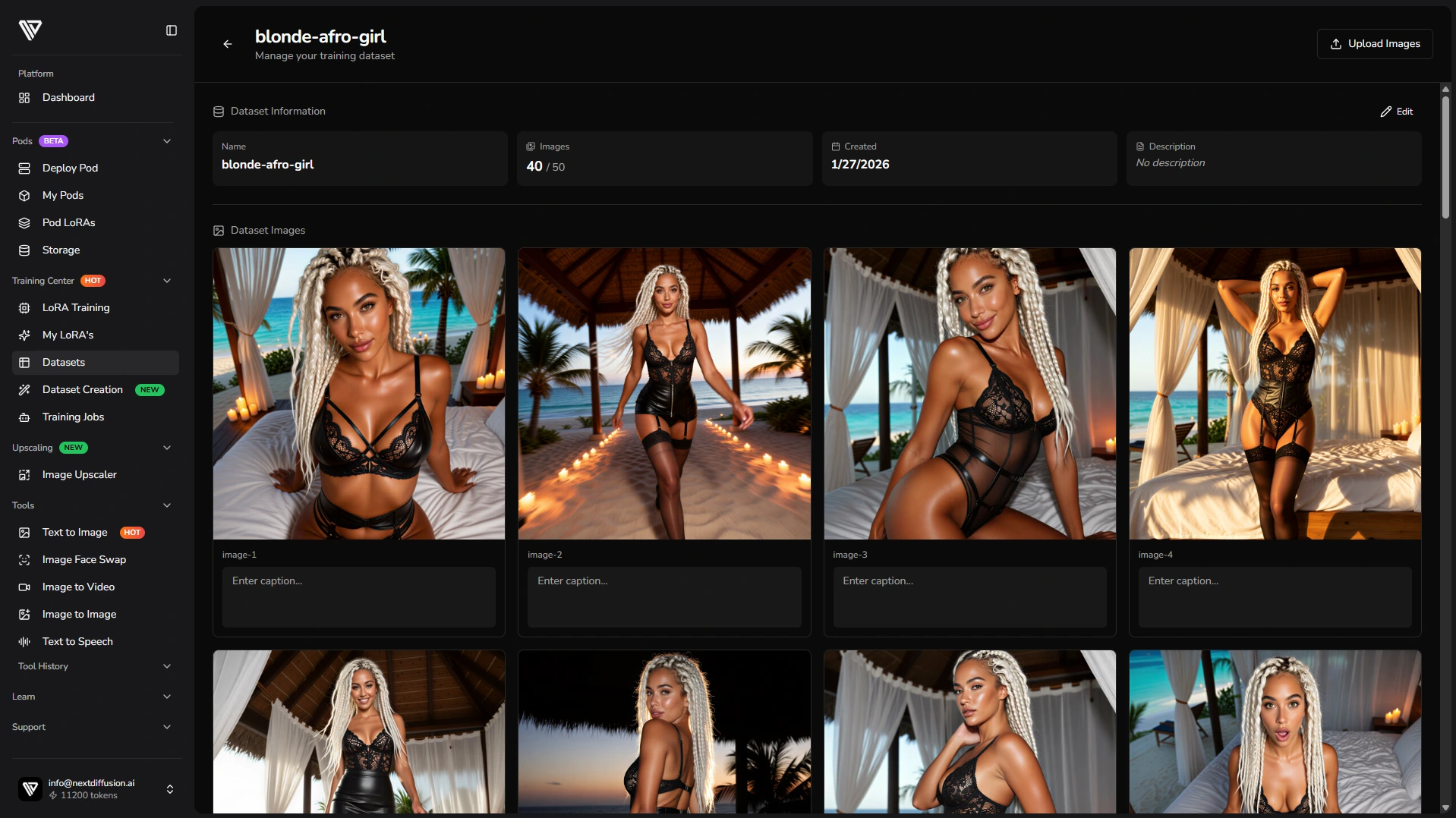 To use this dataset for character LoRA training, navigate to Training Center → LoRA Training and select your newly created dataset from the available options.
7. Conclusion: Ready for Character LoRA Training
You've successfully created a diverse, AI-generated character training dataset from just two reference images. Your curated character collection is now ready for LoRA training.
The Power of AI-Generated Character Datasets
Next Diffusion's Dataset Creation tool is purpose-built for character LoRA training, eliminating the need for extensive photo shoots while ensuring the facial consistency and body accuracy that character training demands. The dual-reference system (body + face) provides everything needed for successful character LoRA—identical facial features across all images combined with accurate body proportions and diverse poses.
Next Steps: Character LoRA Training
With your character dataset ready, you can now proceed to character LoRA training. Here's how to get started:
-
Navigate to Training Center → LoRA Training
-
Select your newly created character dataset
-
Configure your training parameters, including model, GPU, steps, and learning rate
-
Add captions to each image to include your character's trigger word
-
Start the training process and monitor your progress
💡 Need help with character LoRA training? Check out our comprehensive guide: How to Train a Z-Image Turbo LoRA with Next Diffusion