How to Set Up ComfyUI on RunPod with a Network Volume
Table of Contents
- 1. Introduction: Running ComfyUI with Network Volume
- 2. Create and Fund Your RunPod Account
- 3. Creating a Network Volume and Choosing a Region
- 4. Deploying the ComfyUI with Network Volume
- 5. Initializing Your Pod & Viewing Logs
- 6. Launching ComfyUI and Opening a Workflow
- 7. First Workflow Setup & Model Downloads on VS Code (Port 8888)
- 8. EXTRA: How to Update ComfyUI in RunPod
- 9. Troubleshooting: Rebuilding SageAttention
- 10. Conclusion
1. Introduction: Running ComfyUI with Network Volume
In the world of AI and machine learning, efficiency and speed are paramount. This tutorial will guide you through the process of setting up ComfyUI on RunPod, a platform that allows you to leverage high-performance GPUs without the need for expensive hardware.
What's New in This Version
This updated template brings significant improvements:
-
SageAttention 2.2.0: Optimized for multiple GPU architectures with improved performance
-
FlashAttention 2.8.3: Pre-built for CUDA 13.0 and PyTorch 2.10
-
Multi-Architecture Support: Optimized kernels for all modern NVIDIA GPUs:
- Ampere (A100) - compute capability 8.0
- Ada Lovelace (RTX 40 series) - compute capability 8.9
- Hopper (H100, H200) - compute capability 9.0
- Blackwell (RTX 50 series, B100, B200) - compute capability 10.0, 12.0
-
Python 3.13: Latest Python runtime for improved performance
-
PyTorch 2.10: Compatible with SageAttention 2.2.0 and modern GPUs
-
CUDA 13.0: Updated from CUDA 12.8 for better GPU acceleration
-
Triton: Latest compatible version
This guide walks you through everything from creating a RunPod account to deploying your first workflow, ensuring a smooth, hassle-free setup. With a Network Volume, all your downloaded models, workflow outputs, and custom nodes are saved automatically, giving you persistent storage across sessions.
2. Create and Fund Your RunPod Account
Start by creating a RunPod account to get access to GPU pods. Once registered, fund your account — a minimum of $10 is enough to begin. This balance covers both GPU usage and Network Volume storage.
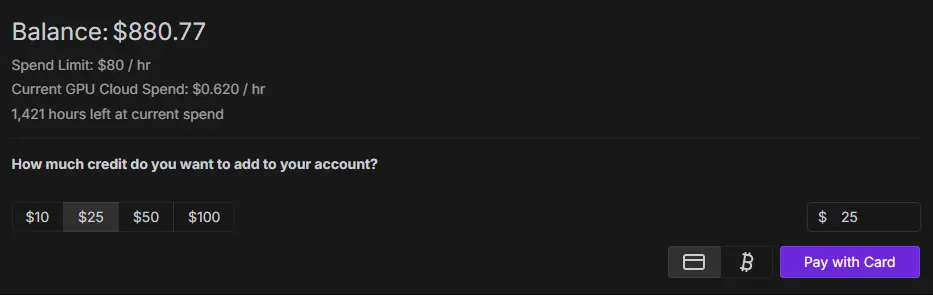
Next, set up a Network Volume, which acts as persistent storage for your ComfyUI installation, models, and workflows. With it properly configured, all your work is safely saved and ready whenever you launch a pod.
3. Creating a Network Volume and Choosing a Region
Creating a Network Volume is a crucial step in setting up your ComfyUI environment on RunPod. This persistent storage solution allows you to retain all your models, configurations, and workflows, ensuring that your work is not lost when a pod is restarted or terminated. Here’s how to create a Network Volume:
Step-by-Step Guide to Creating a Network Volume
-
Access the Storage Section: Log in to your RunPod dashboard and click on the Storage option in the left sidebar. This section is dedicated to managing all your network volumes.
-
Create a New Volume: Click on the New Network Volume button located at the top left of the page. This will open a form where you can specify the details of your new volume.
-
Choose a Region: Select a datacenter that is geographically close to your GPU pods. This minimizes latency and improves performance. The interface will display available GPUs in each region, helping you make an informed choice.
-
Name Your Volume: Give your volume a descriptive name, such as "ComfyUI RunPod Storage". This will help you keep your storage organized, especially if you plan to create multiple volumes in the future.
-
Specify Storage Size: Decide on the amount of storage you will need. A starting size of 50 GB is recommended for your initial setup, which can be expanded later as your needs grow.
-
Review and Create: After filling in all the necessary details, click on the Create Network Volume button to finalize your setup.
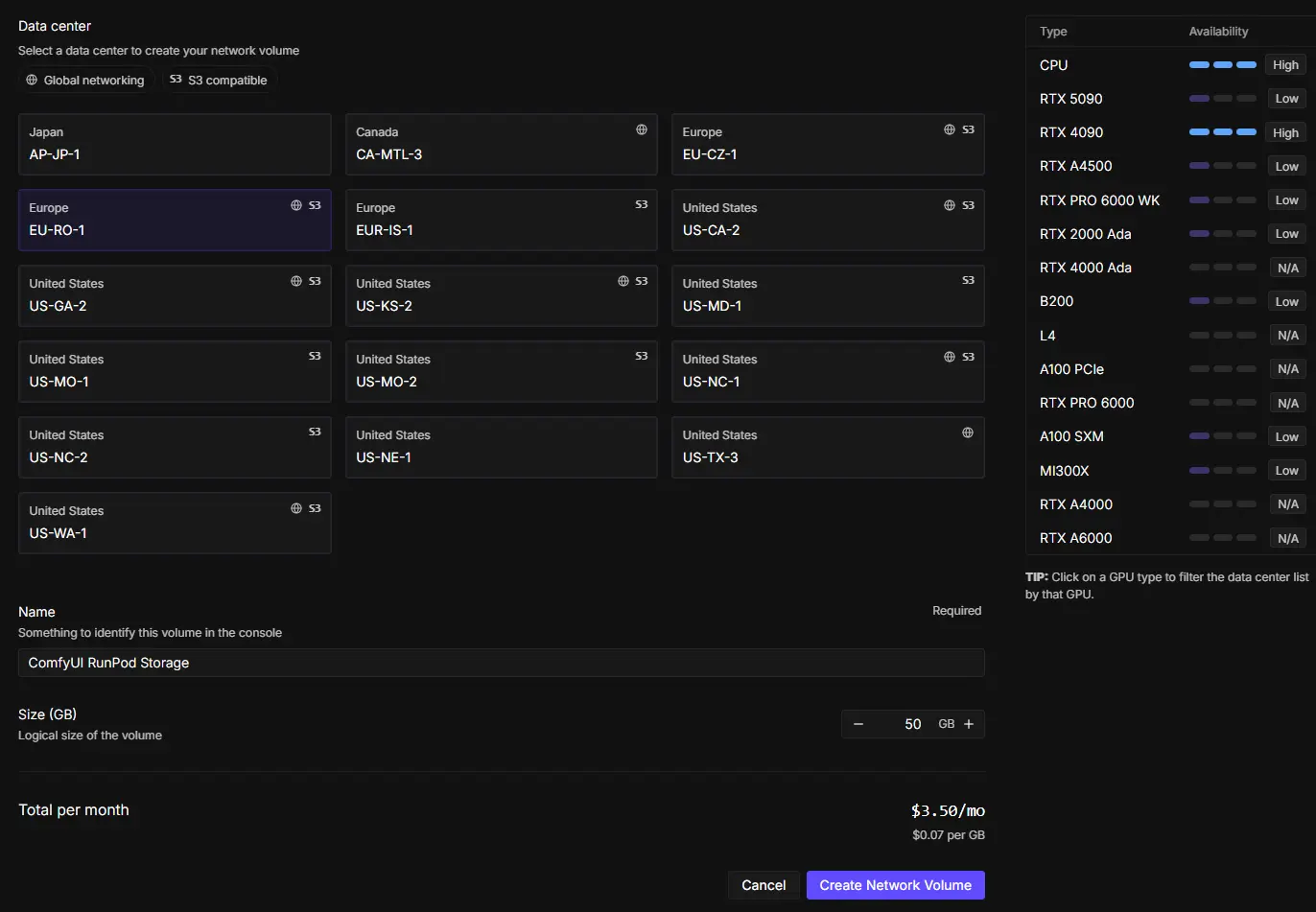
💡 Tip: Always check which region consistently offers the GPUs you plan to use. This will save you from the hassle of transferring large files later. With your Network Volume created, you are now ready to deploy your first pod using the Next Diffusion – ComfyUI RunPod template.
Important Notes on Network Volumes
-
Pricing: Network Volumes cost $0.07 per GB per hour, which comes to roughly $7/month for 100 GB.
-
Persistence: Your volume keeps all ComfyUI files, models, and workflows safe — even if a pod is stopped or deleted — saving you from having to re-download or reconfigure anything.
-
Volume Size: You can increase your volume size later, but cannot decrease it. It's best to start with a modest size (50–100 GB) and scale up as needed.
For this guide, we’ll use the EU-RO-1 region, which currently offers dependable access to the RTX 4090 (24 GB VRAM) — perfect for running ComfyUI workflows. Once your Network Volume is set up, you can move on to deploying your first pod using the Next Diffusion – ComfyUI RunPod template.
4. Deploying the ComfyUI with Network Volume
Now that you have your Network Volume set up, the next step is to deploy a pod using the Next Diffusion – ComfyUI RunPod template. This template is designed to automatically install all necessary components, ensuring a smooth setup process. Here’s how to deploy your pod:
Steps to Deploy Your Pod
-
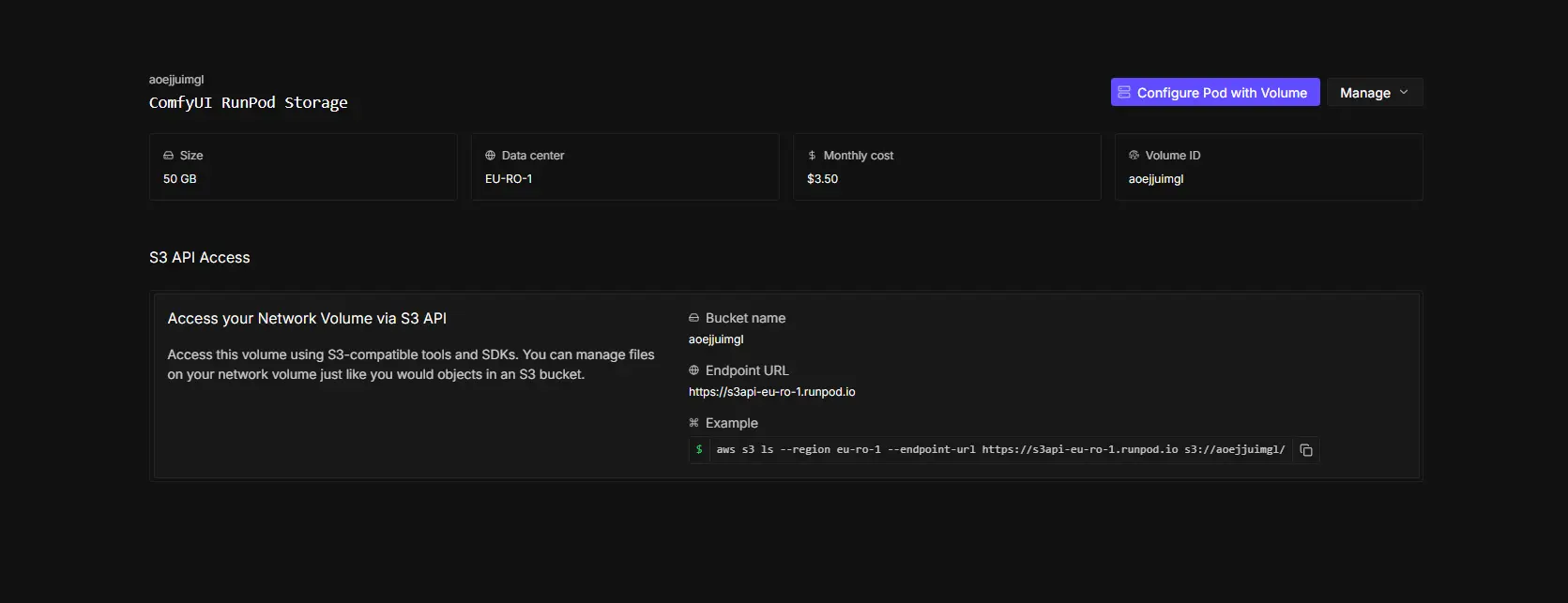
Navigate to the Storage Section: In your RunPod dashboard, go back to the Storage section and locate your newly created volume (e.g., ComfyUI RunPod Storage – 50GB). Click on it and you'll see your newly created network volume:
-
Deploy Pod with Volume: Click on the Deploy Pod with Volume option. This action will redirect you to the Deploy a Pod page, where your volume will already be selected in the Secure Cloud section.
-
Select CUDA Version: It’s crucial to ensure that CUDA 13.0 is selected in the additional filters. This version is required for the proper installation and GPU acceleration of the Next Diffusion – ComfyUI RunPod template.
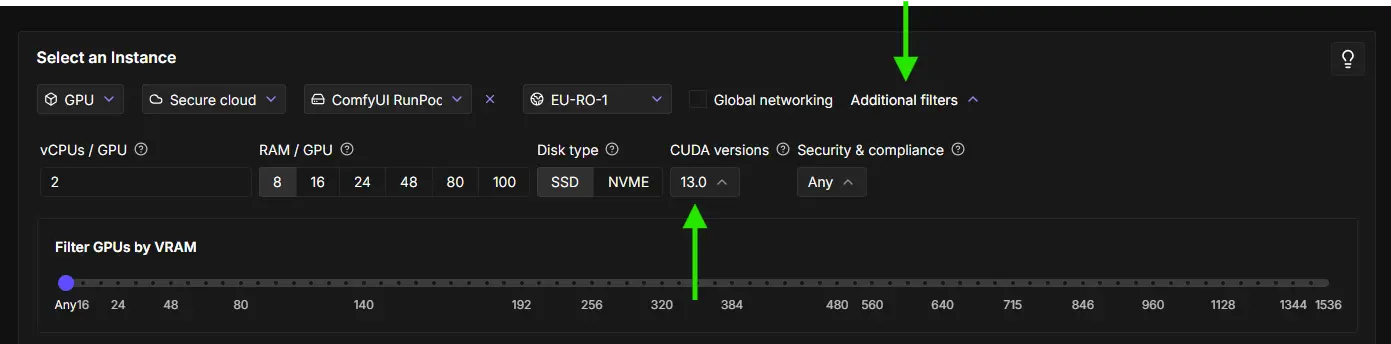
⚠️ Important: Our previous template used CUDA 12.8, but the new template requires CUDA 13.0 to leverage the latest optimizations.
-
Choose Your GPU: Select the GPU you wish to use for your pod. For this guide, we will use the RTX 4090, which offers excellent performance for simple ComfyUI workflows.
-
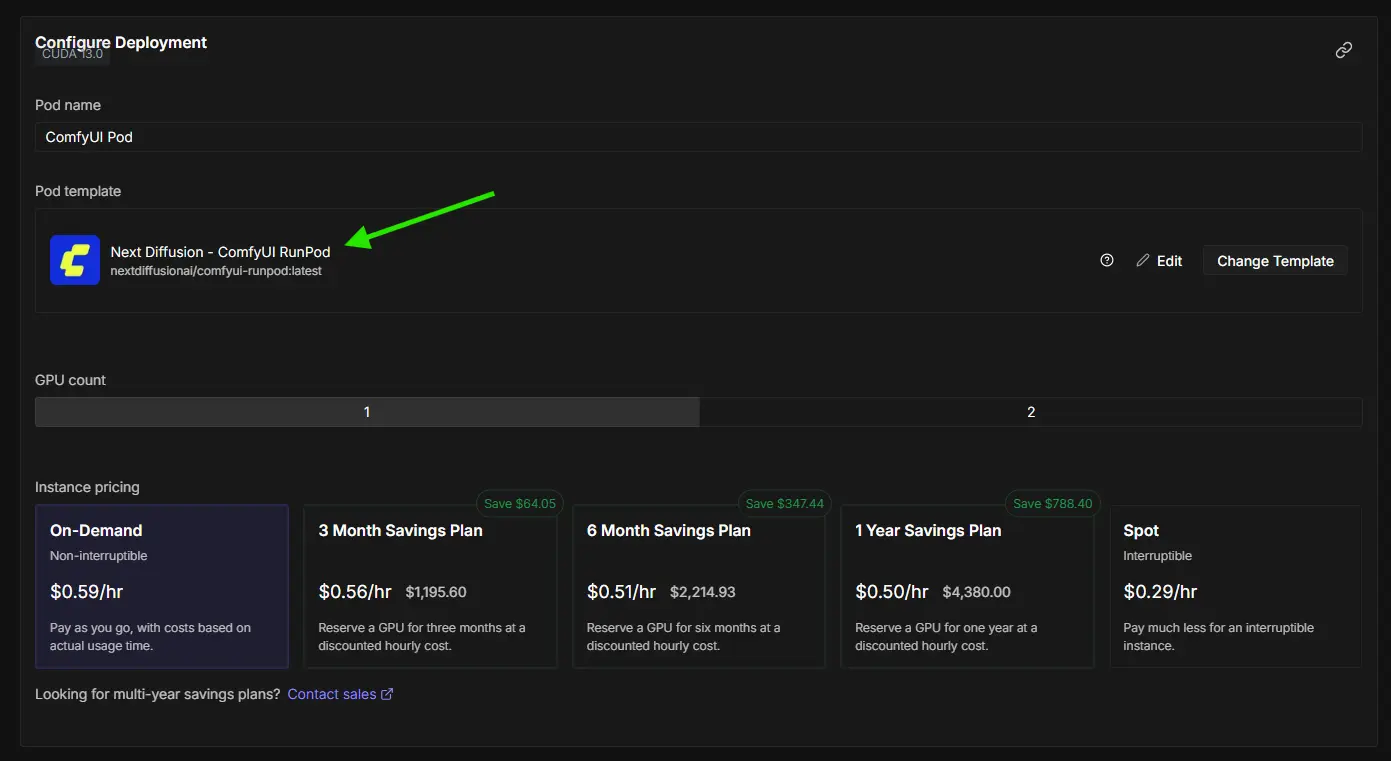
Select the Template: Click on Change Template and search for Next Diffusion – ComfyUI RundPod. If the template doesn’t appear in the list, use the link above to automatically select it.
-
Final Settings: Set the GPU count to 1 and choose On-Demand as the pricing type.
💰 Note: The RTX 4090 costs approximately $0.59/hour, which is a reasonable rate for high-end GPU performance.
- Launch Your Pod: Finally, scroll down and click on Deploy On-Demand to start your pod. You will be redirected to the My Pods section, where your GPU instance will begin to spin up with the selected template.
5. Initializing Your Pod & Viewing Logs
Once your pod is deployed, head to the Pods section in the sidebar — you should already be redirected there after clicking Deploy On-Demand in the previous step.
Checking Initialization Logs
When you start the pod, a right-hand panel will automatically slide out. From there, click on Logs. Inside the logs, you'll find two tabs:
-
System Logs – shows the progress of pulling the Docker image
-
Container Logs – shows runtime messages from the container
After the Docker image is fully pulled, switch to the Container Logs tab. Here you'll see a message from Next Diffusion indicating that initialization is in progress.
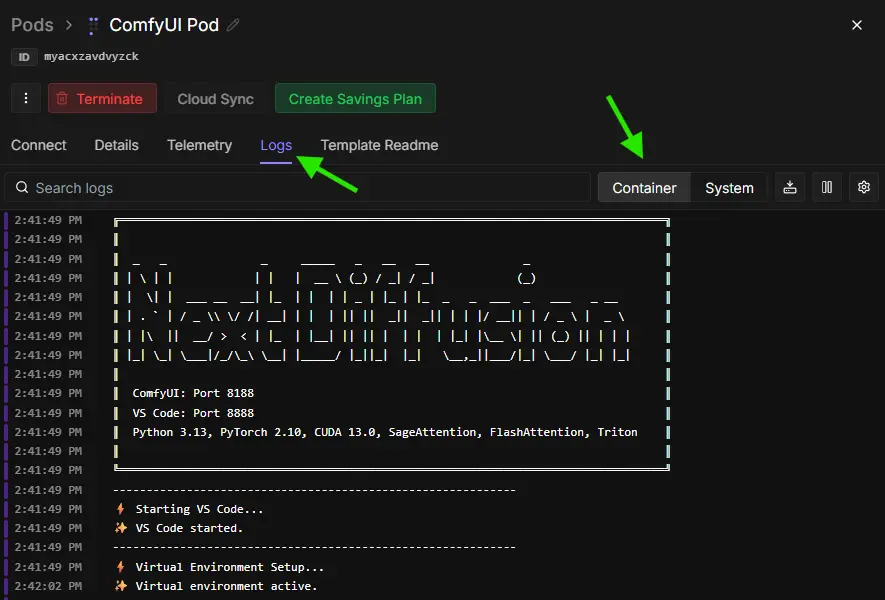
During this phase:
-
The Network Volume is being set up at /workspace
-
ComfyUI and ComfyUI Manager are being cloned and installed
-
SageAttention 2.2.0 is being compiled from source with support for all GPU architectures (sm_80, sm_86, sm_89, sm_90, sm_100a, sm_120a)
-
FlashAttention 2.8.3 is being installed and configured for CUDA 13.0
-
Python 3.13 virtual environment is being set up
-
All necessary packages and dependencies are being installed
⚡ Note: This can take approximately 15-20 minutes on the first run, depending on your pod's speed and GPU architecture. The SageAttention compilation step is particularly important as it builds optimized kernels specifically for the GPU architectures. Once everything is downloaded and installed, ComfyUI will automatically start on port 8188.
After this setup period, you'll see logs indicating that ComfyUI has started successfully on port 8188.
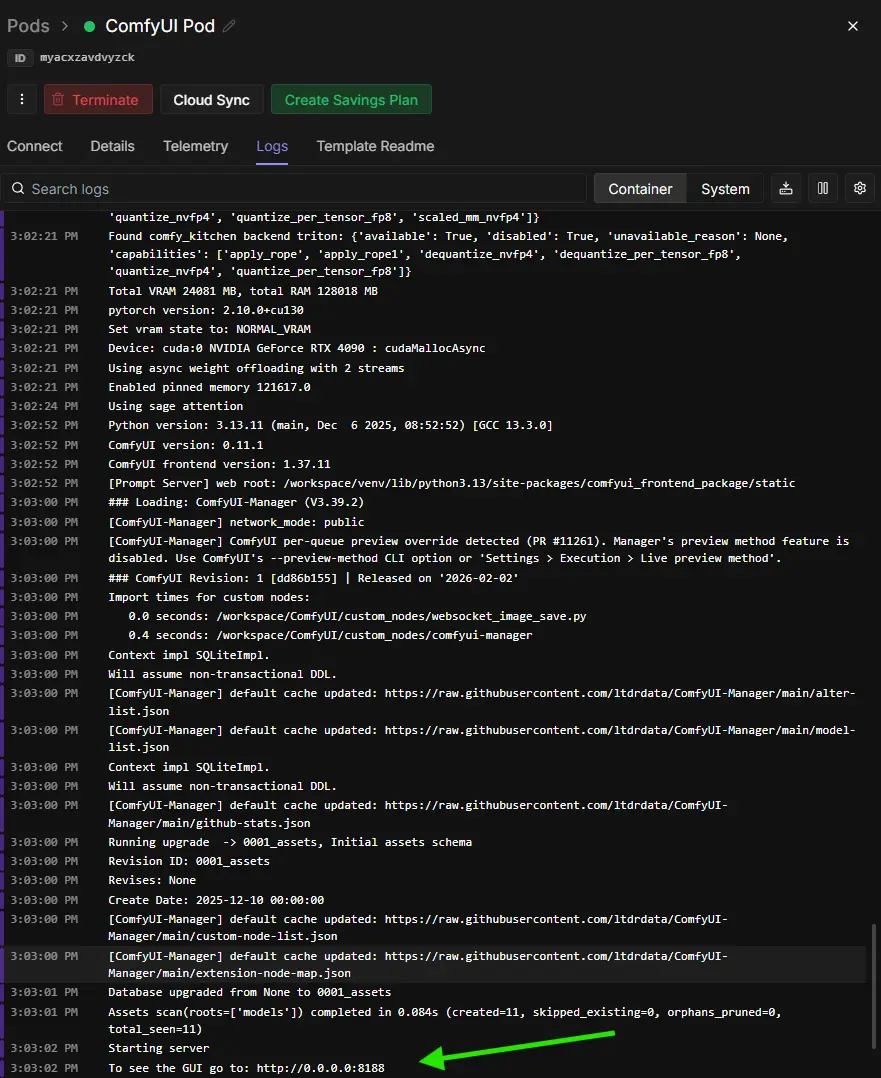
From here, we'll move on to starting ComfyUI in the browser, connecting to the interface, and loading a workflow. Once your workflow is loaded, we'll show how to download models and manage files using the VS Code environment on port 8888, ensuring your Network Volume is fully populated and ready for production use.
6. Launching ComfyUI and Opening a Workflow
Once your pod has completed initialization, ComfyUI is already running on port 8188, so you don’t need to use VS Code just to start it.
Accessing ComfyUI
-
Navigate to the Pods section in your RunPod dashboard.
-
Expand your active pod by clicking the arrow or panel toggle.
-
Click Connect on your pod.
-
Choose HTTP Service → :8188 to open the ComfyUI web interface.
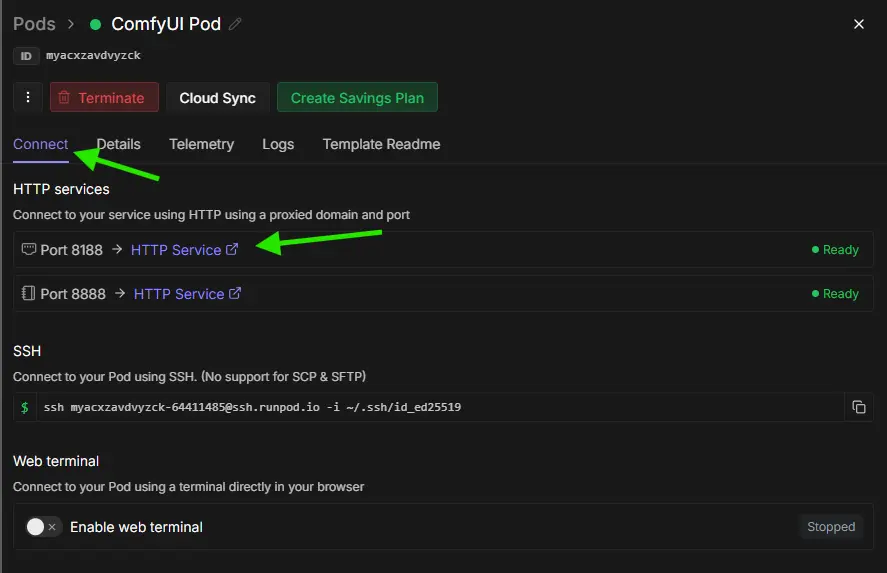
Once port 8188 is open, you’ll see the ComfyUI canvas with ComfyUI Manager preloaded and ready to use.
At this point, ComfyUI is live and ready. In the next section, we’ll show you how to run your first workflow and download the required models using VS Code on port 8888, ensuring everything is saved to your Network Volume for persistent access.
7. First Workflow Setup & Model Downloads on VS Code (Port 8888)
Now that ComfyUI is live, it’s time to get your first workflow running — we’ll be using the Z‑Image Turbo workflow. We’ll break it down into simple steps: first downloading the workflow JSON, then getting the required models, and finally verifying everything in VS Code.
Step 1: Download the Workflow File
Start by downloading the workflow JSON file designed specifically for Z‑Image Turbo. This file contains all the nodes, samplers, and model references pre-configured for smooth operation.
👉 Download Z‑Image Turbo ComfyUI Workflow JSON
Drag and drop the JSON workflow file onto the canvas:
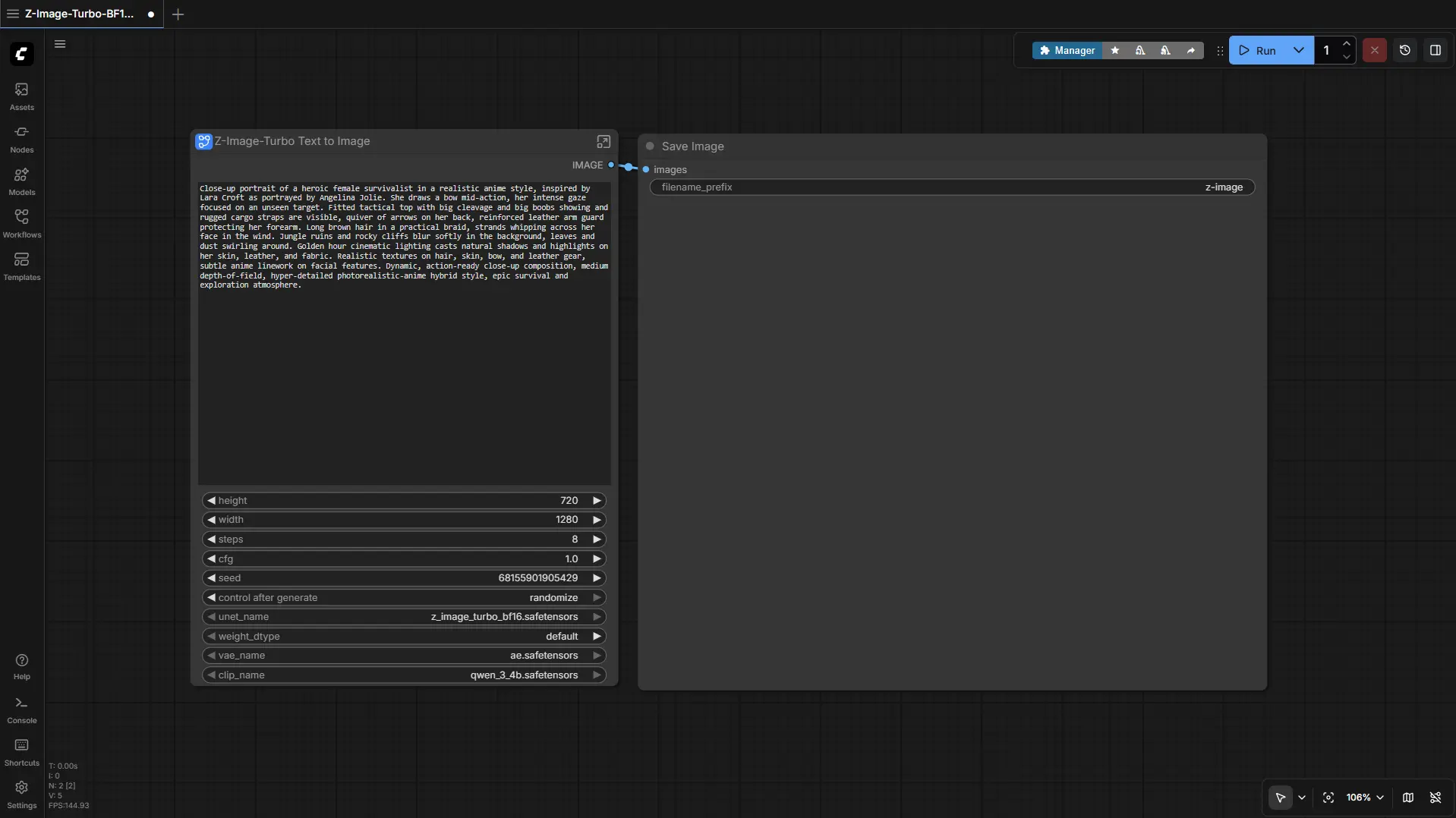
⚡ Note: At this stage, the workflow will appear in the canvas, but you don’t have the models downloaded yet, so running it will produce missing model errors.
Step 2: Download the Required Models
Next, we need to get the model files and place them in the correct directories inside ComfyUI. This ensures the workflow runs correctly and files persist on your Network Volume.
| File Name | Hugging Face Download Page | File Directory | Notes |
|---|---|---|---|
| qwen_3_4b.safetensors | 🤗 Download | ..\ComfyUI\models\text_encoders | Required |
| z_image_turbo_bf16.safetensors | 🤗 Download | ..\ComfyUI\models\diffusion_models | Required |
| ae.safetensors | 🤗 Download | ..\ComfyUI\models\vae | Required |
Step 3: Download Models via VS Code (Port 8888)
Now it’s time to download the models required for Z‑Image Turbo so the workflow can run properly.
-
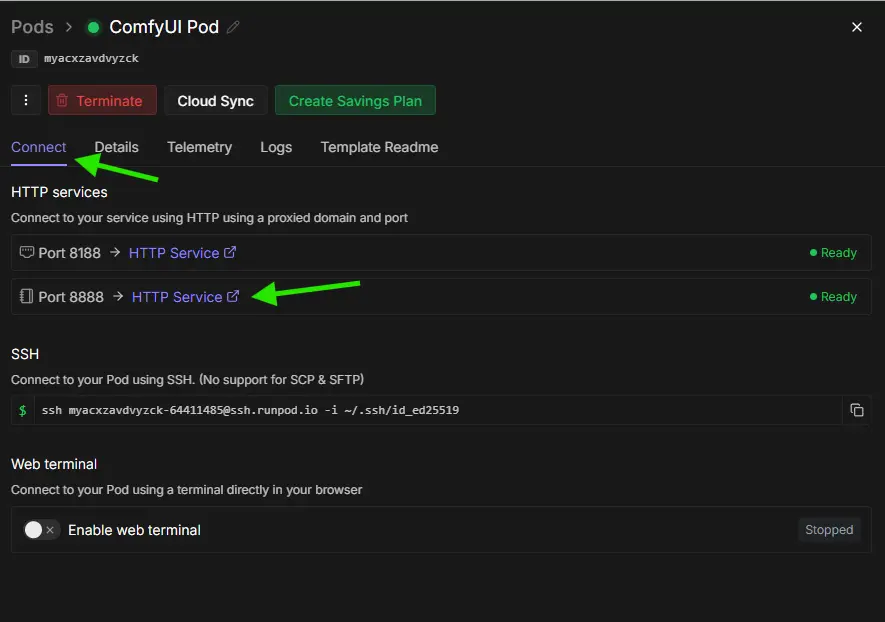
Open VS Code in your browser
-
Go to your RunPod dashboard → Pods → Connect → HTTP Service :8888.
-
This opens VS Code directly in your browser.
-
-
Open the terminal in the correct folder
-
In the file explorer (left sidebar), navigate to the folder for the model you want to download:
-
ComfyUI/models/diffusion_models → Z‑Image Turbo model
-
ComfyUI/models/text_encoders → Text Encoder
-
ComfyUI/models/vae → VAE model
-
-
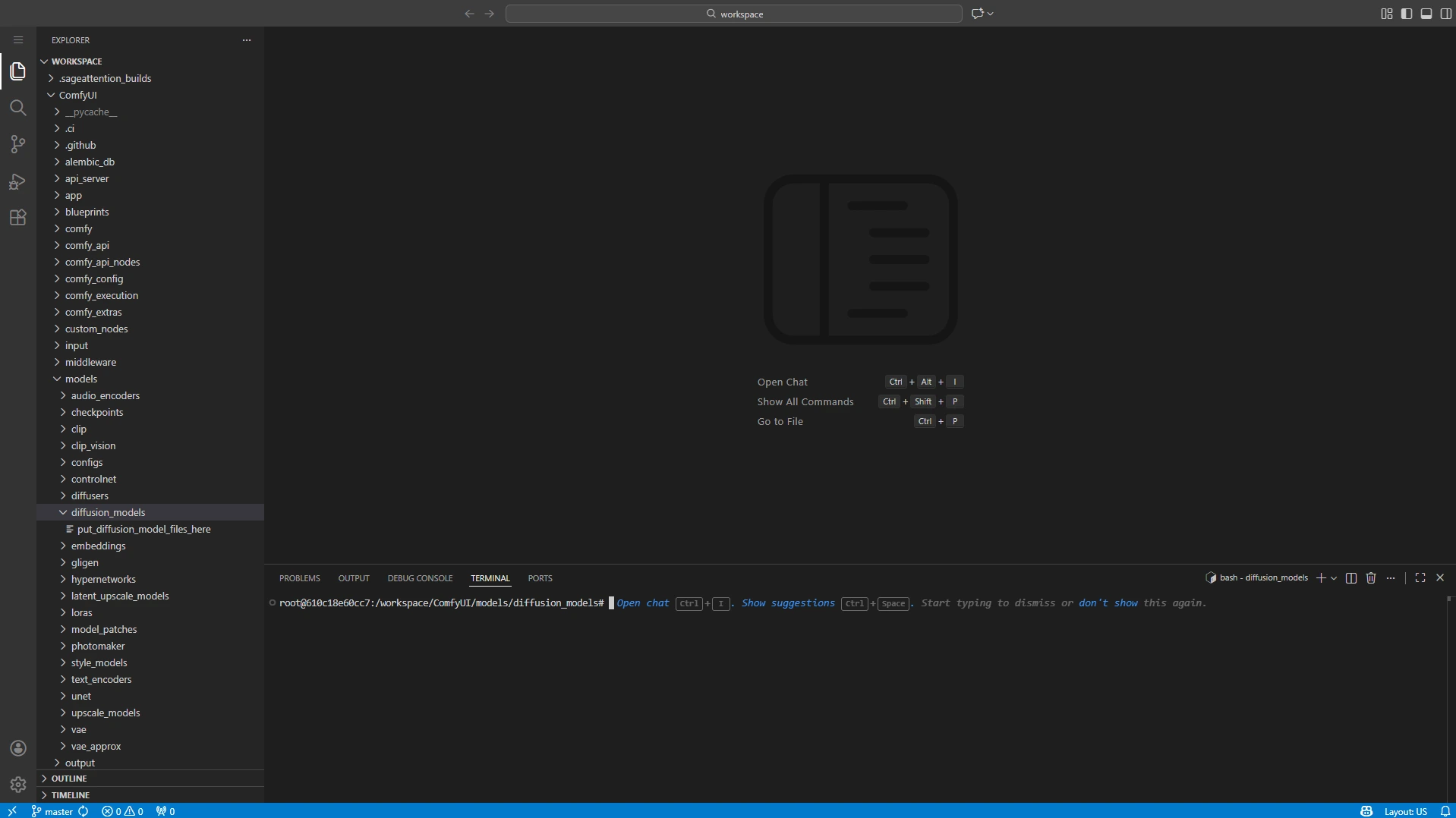
Right-click the folder → Open in Integrated Terminal.
-
This opens a terminal already pointed to the selected folder, so you don’t need to type any cd commands. For example, here’s what it looks like when you open the terminal in the diffusion_models folder:
-
-
Download each model using wget
-
Go to the 🤗 Download link from the model table.
-
On the Hugging Face page, click “Copy download link” — this is the direct URL we’ll use with wget.
-
In the VS Code terminal, type:
ts1wget <paste_download_link_here> -
So for example in the diffusion_models folder it looks like this:

-
Press Enter. The file will download directly into the folder opened in your terminal.
-
Repeat this process for all three model folders.
-
💡 Tip: Using “Open in Integrated Terminal” ensures each file goes into the right folder automatically. All files downloaded to /workspace are saved to your Network Volume, so they persist for future sessions.
Verify Folder Structure
After downloading, make sure your folders and files are organized like this:
ts1📁 ComfyUI/
2└── 📁 models/
3     ├── 📁 diffusion_models/
4     │     └── z_image_turbo_bf16.safetensors
5     ├── 📁 text_encoders/
6     │     └── qwen_3_4b.safetensors
7     └── 📁 vae/
8           └── ae.safetensors
Once everything is in place, your environment is ready.
Next step: Return to port 8188 where ComfyUI is running. Press R to refresh the nodes — this ensures that your freshly downloaded models are recognized and ready to use. Now you’re all set: just enter a prompt in your workflow and click Generate to start creating! 🚀

8. EXTRA: How to Update ComfyUI in RunPod
To ensure you have the latest features, bug fixes, and compatibility with new workflows or models, first update ComfyUI from the ComfyUI Manager inside the app—open the Manager tab and click Update ComfyUI. After that, open a terminal in VS Code Server (port 8888) and run the following command to update dependencies:
ts1 cd /workspace/ComfyUI && git pull origin master && pip install -r requirements.txt && cd /workspace
This ensures all dependencies/workflow templates are current and helps prevent compatibility issues with new workflows or models.
9. Troubleshooting: Rebuilding SageAttention
If you see kernel architecture errors like so:
ts1 Error running sage attention: SM89 kernel is not available. Make sure you have GPUs with compute capability 8.9
Or if you're using a Blackwell GPU (RTX 50 series, B100, B200) and SageAttention falls back to PyTorch attention, your SageAttention build may be missing support for your GPU architecture.
Fix: Rebuild SageAttention with all architectures
If you already have a network volume attached and want to rebuild SageAttention:
-
Open VS Code at port 8888
-
Open the integrated terminal in VS Code
-
Delete the SageAttention build folder:
ts1 rm -rf /workspace/.sageattention_builds -
Restart your Pod (Use the restart button in RunPod dashboard, or terminate and launch a new pod)
On restart, the entrypoint will automatically rebuild SageAttention with support for all modern GPU architectures. The rebuild process takes a few minutes and will compile optimized kernels for your specific GPU.
10. Conclusion
Congratulations! You’ve successfully set up ComfyUI with SageAttention on RunPod, complete with a persistent Network Volume to securely store your models, workflows, and extensions. With this powerful combination, you can now run high-performance AI workflows faster and more efficiently than ever, leveraging the speed and flexibility of Sage Attention!
You’ve learned how to:
-
Create and fund a RunPod account
-
Set up a Network Volume for persistent storage
-
Deploy a pod with the Next Diffusion – ComfyUI RunPod template
-
Access ComfyUI on port 8188 and start your workflows
-
Download models and manage files through VS Code on port 8888
-
Run your first AI workflow
This setup provides a solid foundation for experimentation — from generating images to testing custom nodes and workflows. With everything stored on your Network Volume, future pods are faster and ready to use, letting you focus on creating. Whether you’re an experienced developer or just starting out, your ComfyUI environment on RunPod delivers the speed, flexibility, and convenience to bring your ideas to life. Now it’s time to unleash your creativity!