SeedVR2: High-Quality AI Image Upscaling in ComfyUI
Table of Contents
1. Introduction
SeedVR2 is a high-quality diffusion-based upscaler designed specifically for images. It enhances resolution while preserving fine details, textures, and sharpness that traditional upscalers often miss. Fully integrated with ComfyUI, SeedVR2 is easy to set up and use, offering configurable settings for optimizing quality, speed, and VRAM usage. In this guide, we’ll walk you through installation, configuration, and workflow tips, so you can quickly upscale your images to stunning high-resolution results.
2. System Requirements for SeedVR2 Image Upscaling
Before diving into the installation and configuration of SeedVR2, it is crucial to ensure that your system meets the necessary requirements. This will help you avoid potential issues and ensure a smooth experience while using ComfyUI and SeedVR2 for image and video upscaling.
Requirement 1: ComfyUI Installed
You’ll need ComfyUI installed either locally or on a cloud GPU:
-
Local Installation: Run ComfyUI on your Windows machine.
-
Cloud-Based GPU: Use platforms like RunPod to run ComfyUI on a cloud GPU—this is an ideal solution if your local hardware has limited VRAM, allowing you to handle larger models and more complex projects without worrying about performance constraints.
Requirement 2: Update ComfyUI
Ensure your ComfyUI installation is up to date for full compatibility with SeedVR2 workflows.
-
Windows Portable: Open the ComfyUI folder and run update_comfyui.bat.
-
Cloud (RunPod) users: Run the following commands in your terminal:
ts1
2cd /workspace/ComfyUI && git pull origin master && pip install -r requirements.txt && cd /workspace
Requirement 3: Install Custom Nodes
SeedVR2 automatically downloads all necessary models, so no manual model files are required. The only step is to install the required nodes in ComfyUI:
-
Boot up ComfyUI.
-
Click the Custom Node Manager button in the top-right corner.
-
Click Install Missing Custom Nodes.
-
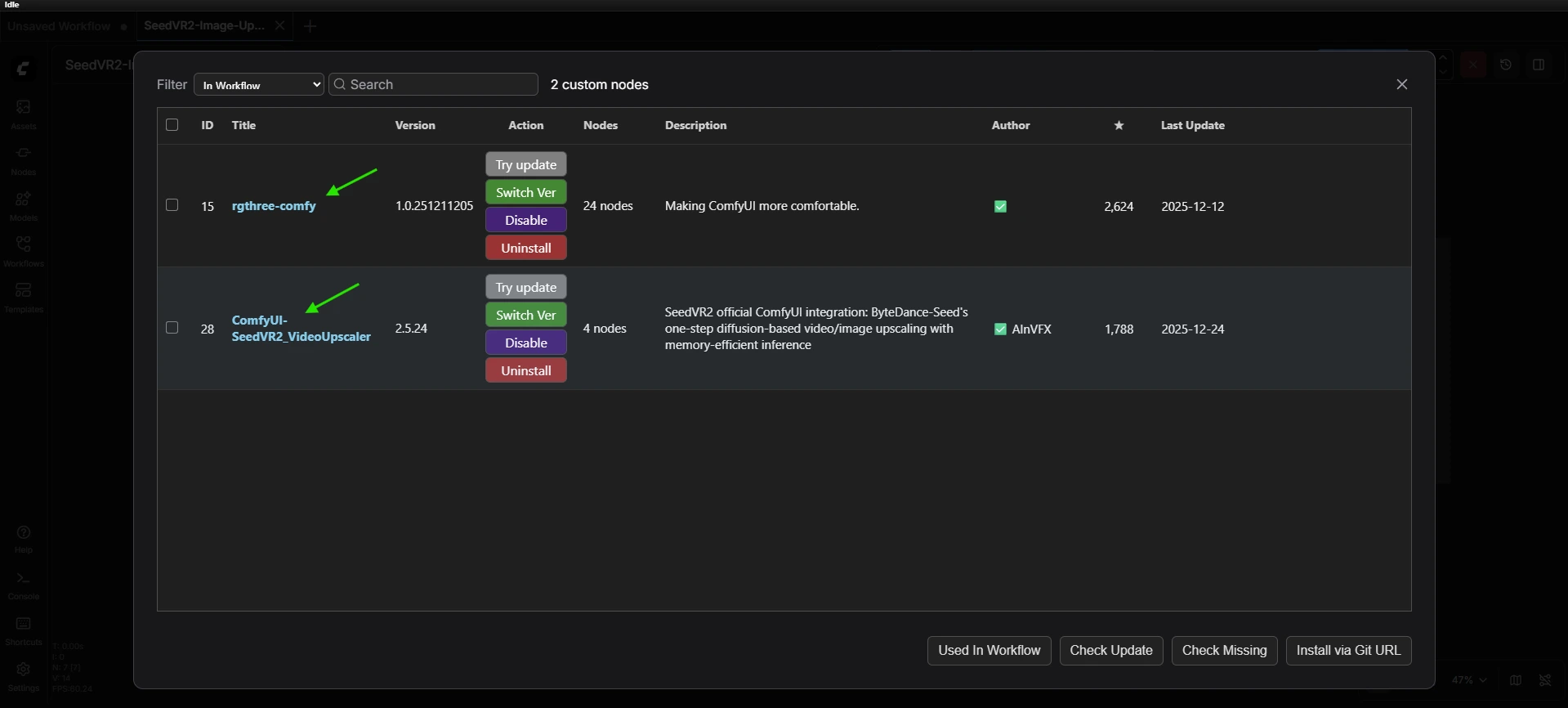
Install the following nodes:
-
rgthree-comfy – used for the image comparison node.
-
ComfyUI-SeedVR2_VideoUpscaler – install the latest version.
-
💡 Once these nodes are installed, ComfyUI will handle model downloads automatically, making setup quick and hassle-free.
With all the requirements set, we can now move on to downloading and loading the SeedVR2 Image Upscaler workflow into ComfyUI. This will prepare everything for high-quality image upscaling.
3. Loading the SeedVR2 Image Upscaler Workflow
Now that your requirements are set up, it’s time to load the SeedVR2 Image Upscaler workflow into ComfyUI. This workflow is pre-configured for high-quality image upscaling and includes all necessary nodes for seamless operation.
💡Note for RunPod users: If you’re spinning up a pod on RunPod, be sure to use our Next Diffusion - ComfyUI SageAttention. It comes pre-configured with Flash Attention and SageAttention, allowing you to boost rendering speed by up to 3× when flash_attn_2 is selected as the attention mode in the workflow.
Step 1: Download the Workflow File
Obtain the JSON workflow file for the SeedVR2 Image Upscaler. This workflow includes all nodes and default settings needed for upscaling images efficiently.
👉 Download SeedVR2 Image Upscaler Workflow JSON
Step 2: Load the Workflow in ComfyUI
-
Launch ComfyUI.
-
Drag and drop the workflow JSON file onto the canvas.
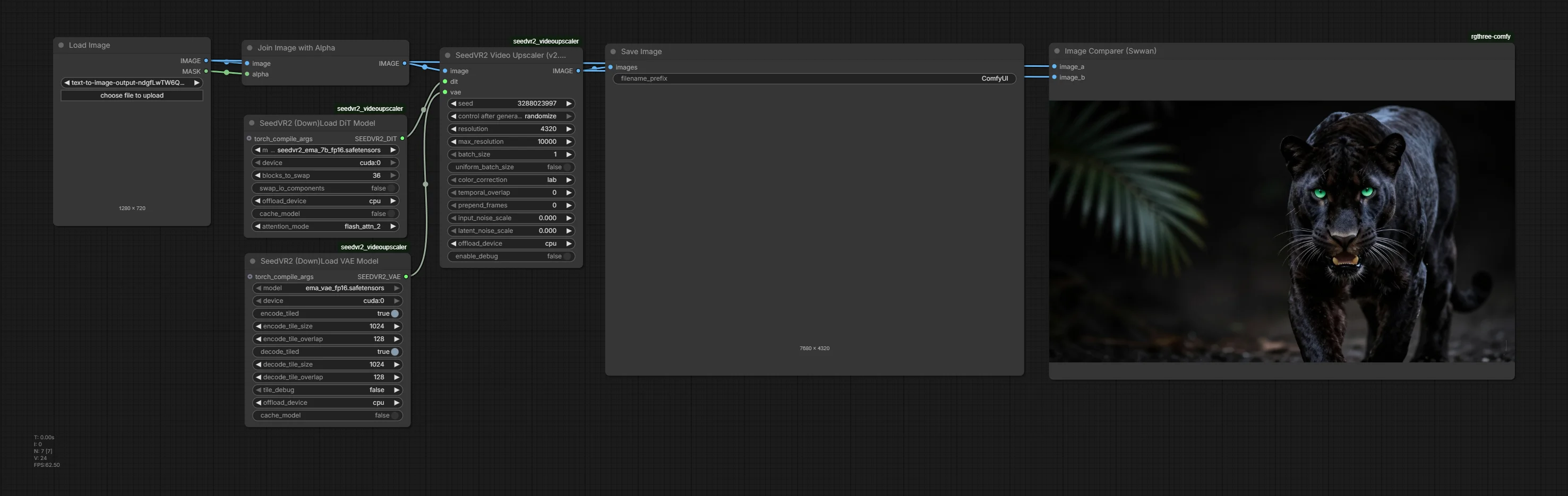
ComfyUI will automatically load all nodes and connect them for the SeedVR2 image upscaling pipeline.
Step 3: Verify Workflow Configuration
After loading the workflow:
-
Ensure all nodes are connected correctly.
-
If any nodes are missing or outlined as red, it may indicate:
-
ComfyUI is not fully updated.
-
A required custom node (SeedVR2 or rgthree-comfy) wasn’t installed.
-
4. Loading and Configuring SeedVR2 Settings in ComfyUI
Once your workflow is loaded, it’s time to configure SeedVR2 for your image upscaling project. In this example, we’ll be using an RTX 5090 GPU to take full advantage of high-resolution upscaling and faster performance. Follow these steps for optimal performance and quality:
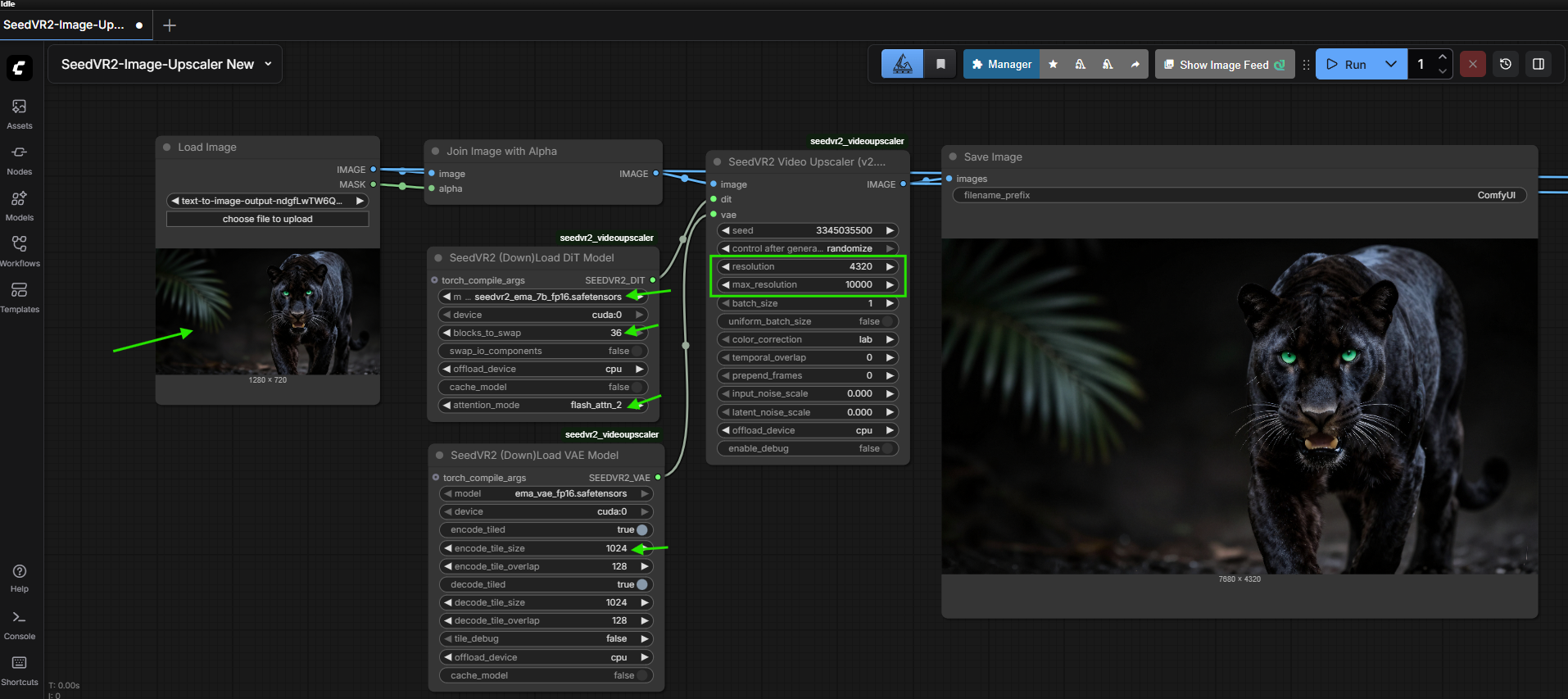
Step 1: Load Your Initial Image
Start by uploading the image you want to upscale into the workflow. This will serve as the input for SeedVR2.
Step 2: Select the SeedVR2 Model
Within the “SeedVR2 (Down)Load DiT Model” node, choose the model that best fits your GPU and desired image quality. For this guide, we’ll use the 7B FP16 model (seedvr2_ema_7b_fp16.safetensors) on an RTX 5090, but other options are available for lower VRAM setups.
Note: The models are automatically downloaded to your ComfyUI folder at: '/ComfyUI/models/SEEDVR2'
Here’s a quick reference table for choosing a model based on your system:
| Model Variant | File Name | Precision / Quantization | Recommended VRAM | Quality | Notes |
|---|---|---|---|---|---|
| 3B Models | seedvr2_ema_3b_fp16.safetensors | FP16 | 12–16 GB | Best quality (fast) | Smaller model, less disk space |
| seedvr2_ema_3b_fp8_e4m3fn.safetensors | FP8 | 8–12 GB | Good quality | Low VRAM usage | |
| seedvr2_ema_3b-Q4_K_M.gguf | GGUF 4-bit | 6–8 GB | Acceptable quality | Extremely lightweight | |
| seedvr2_ema_3b-Q8_0.gguf | GGUF 8-bit | 6–8 GB | Good quality | Slightly higher fidelity than Q4 | |
| 7B Models | seedvr2_ema_7b_fp16.safetensors | FP16 | 24+ GB | Best quality | ~15 GB on disk |
| seedvr2_ema_7b_fp8_e4m3fn_mixed_block35_fp16.safetensors | FP8 + last block FP16 | 16–24 GB | Good quality, fewer artifacts | Saves VRAM while preserving quality | |
| seedvr2_ema_7b-Q4_K_M.gguf | GGUF 4-bit | 12–16 GB | Acceptable quality | Lower VRAM / disk usage | |
| seedvr2_ema_7b_sharp_* | FP16 / FP8 variants | 24+ GB | Enhanced detail | Sharp variants for extra fine details |
💡 Tip:
-
Use GGUF models for low VRAM GPUs (6–12 GB).
-
Use FP8 models for moderate VRAM GPUs (12–24 GB).
-
Use FP16 models for high-end GPUs (24 GB+) like the RTX 5090.
-
Ensure you have enough disk space for 7B models (around 15 GB).
-
Choosing the right model based on VRAM and storage ensures smooth upscaling without errors.
Step 3: Configure Blocks to Swap
-
The “Blocks_to_Swap” setting helps manage GPU memory by moving completed transformer blocks from VRAM to the CPU
-
Recommended defaults:
-
3B models: 32 (default) or lower
-
7B models: 36 (default) or lower
-
Step 5: Configure VAE Tiling
Within the “SeedVR2 (Down)Load VAE Model” node, most default settings are already optimized. For high-resolution images or limited VRAM, adjusting VAE tiling can help SeedVR2 run smoothly.
Key settings:
-
encoded_tiled – Must be set to true to enable tiling.
-
encode_tile_size – Default is 1024. Lower values (e.g., 512) reduce VRAM usage but may increase processing time.
💡 Tip: Enable encoded_tiled and lower the encoded_tile_size if your GPU encounters OOM (Out of Memory) errors. This allows SeedVR2 to process the image in smaller sections, balancing memory usage and performance.
Step 6: Set Resolution and Max Resolution
In the SeedVR2 Upscaler Node, you can define both the resolution and the maximum resolution for your image upscaling.
How it works:
-
resolution – This resolution value will be applied to the shorter side of your uploaded image, and SeedVR2 will automatically upscale the longer side proportionally to maintain the original aspect ratio.
- Example: If your original image is 1280×720 and you set resolution to 4320, the upscaled output will be 7680×4320.
-
max_resolution – Ensure this is set higher than your chosen resolution. This prevents the workflow from limiting the upscale and ensures your image reaches the intended size.
With all those settings in place, we’re ready to click “RUN” and let SeedVR2 work its magic. Let’s continue and showcase some of the amazing capabilities of the SeedVR2 Image Upscaler!
8. Example Upscaling Results
To fully appreciate the capabilities of SeedVR2, it’s helpful to examine real-world upscaling results. This section presents before-and-after comparisons, showcasing improvements in textures, sharpness, and overall image quality. Be sure to watch the YouTube video at the highest settings to clearly see the differences. Rendering times can vary depending on your hardware, the selected resolution, and the encoded tile size used for VAE tiling. These examples were rendered on a high-end RTX 5090 GPU, and the video also displays the render duration and resulting upscaled image size for reference.
9. Conclusion
SeedVR2 is a powerful diffusion-based upscaler that delivers crisp, high-resolution images while preserving textures, sharpness, and detail. This guide has shown you how to install, configure, and optimize SeedVR2 within ComfyUI, handle common memory issues, and select the best model for your GPU. With these tools, you can confidently upscale images to professional quality, explore advanced features like color correction and noise control, and achieve stunning results efficiently. SeedVR2 makes high-quality image upscaling faster, easier, and more versatile than ever.