Wan2.2 Remix: Uncensored Text-to-Video Generation in ComfyUI
Table of Contents
1. Introduction
Creating uncensored videos using the Wan2.2 Remix model in ComfyUI (T2V) opens up a world of creative possibilities for content creators. This tutorial is designed to guide you through the entire process, from setting up your environment to generating high-quality video clips from text prompts. The Wan2.2 Remix model is specifically tailored for producing lifelike movements and smooth transitions, making it an excellent choice for those looking to create engaging and dynamic video content. In this guide, we will cover the essential steps needed to get started, including the necessary requirements, how to load the workflow, configure video generation settings, and provide example outputs to inspire your creativity. Keep in mind that while this tool is powerful, it should always be used responsibly and ethically. Now, let’s explore the exciting world of AI video generation!
2. Requirements & Setup (WAN 2.2 Remix)
Before you can start creating uncensored videos with the Wan2.2 Remix model in ComfyUI, it’s essential to ensure that your system meets the necessary hardware and software requirements. This model is optimized for strong GPU performance, and we recommend using a high-end GPU, such as the RTX 4090 with 24GB of VRAM, to achieve the best results. If you don’t have access to such hardware, consider using cloud-based solutions like RunPod for GPU access.
Requirement 1: ComfyUI Installation
To begin, you need to have ComfyUI installed on your system. You can either install it locally or use a cloud service. If you are installing it locally on Windows, follow the guide provided in the ComfyUI documentation.
Option 1: ComfyUI Local Installation
To get started, install ComfyUI locally or on a cloud service. If you’re using Windows and have enough VRAM (24GB) for a local setup, follow this guide:
👉 How to Install ComfyUI Locally on Windows
Option 2: ComfyUI Cloud Installation (Runpod)
If you don’t have access to a high-end GPU locally, consider a cloud solution like Runpod. Make sure to set up a persistent network volume for optimal performance and choose our Next Diffusion – ComfyUI SageAttention template, which includes SageAttention for maximum render speed. For a detailed step-by-step guide, see the dedicated article and the embedded YouTube video within the article below:
👉 How to Run ComfyUI on RunPod with Network Volume
Requirement 2: Download Models for Wan2.2 Remix (T2V)
Next, download the specific model files required for the Wan2.2 Remix T2V setup and place them in the correct directories within ComfyUI.
| File Name | Hugging Face Download Page | File Directory | Notes |
|---|---|---|---|
| Wan2.2_Remix_NSFW_t2v_14b_high_lighting_v2.0.safetensors | 🤗 Download | ../ComfyUI/models/diffusion_models | Required |
| Wan2.2_Remix_NSFW_t2v_14b_low_lighting_v2.0.safetensors | 🤗 Download | ../ComfyUI/models/diffusion_models | Required |
| nsfw_wan_umt5-xxl_bf16.safetensors | 🤗 Download | ../ComfyUI/models/text_encoders | Required |
| Wan2_1_VAE_bf16.safetensors | 🤗 Download | ../ComfyUI/models/vae | Required |
Verify Folder Structure
Confirm that your folders and files are organized as follows:
ts1📁 ComfyUI/
2└── 📁 models/
3    ├── 📁 text_encoders/
4    │   └── nsfw_wan_umt5-xxl_bf16.safetensors
5    ├── 📁 diffusion_models/
6    │   ├── Wan2.2_Remix_NSFW_t2v_14b_high_lighting_v2.0.safetensors
7    │   └── Wan2.2_Remix_NSFW_t2v_14b_low_lighting_v2.0.safetensors
8    ├── 📁 vae/
9    │   └── Wan2_1_VAE_bf16.safetensors
With all model files properly organized, you’re ready to move on to the Wan2.2 Remix Text-to-Video (T2V) workflow in ComfyUI. Next, we’ll download the workflow JSON file so you can get started generating videos.
3. Load the Wan2.2 Remix Workflow
With your environment set up and the necessary model files in place, the next step is to download and load the Wan2.2 Remix NSFW JSON workflow into ComfyUI. This workflow is crucial for configuring the model and ensuring it operates correctly for image-to-video generation.
Step 1: Download the Workflow File
Begin by downloading the workflow file specifically designed for the Wan2.2 Remix NSFW model. This file contains all the nodes, model references, and configurations needed for the workflow to function properly. You can find the download link on the official ComfyUI website or community forums.
👉 Download Wan2.2 Remix NSFW Text to Video (T2V) Workflow JSON
Step 2: Load the Workflow in ComfyUI
After downloading the workflow file, open ComfyUI and drag and drop the .json file onto the canvas.
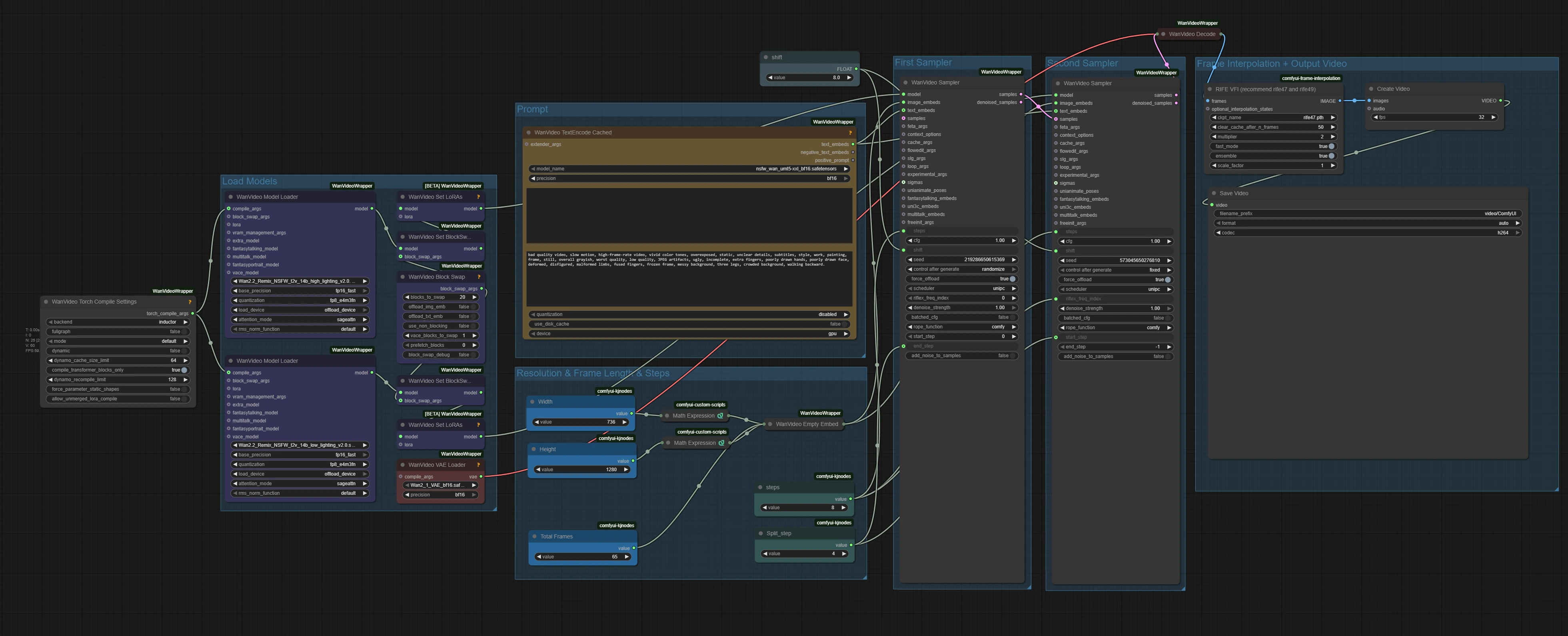
This action will load the complete setup, allowing you to start working with the model immediately. If you are using the Next Diffusion – ComfyUI SageAttention Template on RunPod, you can further improve rendering speeds by selecting sageattn within the WanVideo Model Loader nodes.
Once the workflow is loaded, you’re ready to adjust the settings and start generating videos. Let’s dive in!
4. Configure Wan2.2 Remix NSFW Video Generation Settings
Before diving into video generation, it’s essential to configure the Wan2.2 Remix Text to Video workflow settings to ensure optimal performance and output quality. his ensures optimal performance, smooth playback, and high-quality output.
| Setting | Value / Recommendation | Notes |
|---|---|---|
| VAE | Wan2_1_VAE_bf16.safetensors | Required |
| High Wan2.2 Remix Model | Wan2.2_Remix_NSFW_t2v_14b_high_lighting_v2.0.safetensors | Required |
| Low Wan2.2 Remix Model | Wan2.2_Remix_NSFW_t2v_14b_low_lighting_v2.0.safetensors | Required |
| Text Encoder | nsfw_wan_umt5-xxl_bf16.safetensors | Required |
| Steps | 8 | Default for workflow |
| Split_step | 4 | Default for workflow |
| Resolution (Width × Height) | Auto-calculated, divisible by 16 | Ensures proper rendering |
| Length (Frames) | e.g., 65 frames = 4 seconds | Adjust to desired video length |
| FPS + Frame Interpolation | Adjustable, Optional, recommended | Higher FPS + frame interpolation = smoother motion |
⚠️ Note: If you are not using the Next Diffusion - ComfyUI SageAttention Template or haven’t installed SageAttention, make sure to disable the WanVideo Torch Compile Node and set the attention_mode in both the WanVideo Model Loaders to sdpa.
5. Example Video of Wan2.2 Remix
To illustrate the capabilities of the Wan2.2 Remix Text to Video model, we will provide an example video generated using the T2V setup. While we cannot showcase explicit content, this example will highlight the model's ability to produce smooth motion, natural movements, and cinematic framing.
6. Conclusion
In this tutorial, we have explored the powerful capabilities of the Wan2.2 Remix uncensored Text-to-Video (T2V) model for generating high-quality videos from text prompts. By following the outlined steps, you are now equipped to set up your environment, load the required Wan2.2 Remix models, and configure the T2V workflow for smooth, efficient, and realistic video generation.
The Wan2.2 Remix uncensored model excels at producing lifelike movements, natural transitions, and cinematic framing, making it an ideal choice for creators seeking engaging and dynamic video content. Experimenting with different prompts allows you to unlock a wide range of creative possibilities, enabling you to craft unique and compelling AI-generated videos.
Happy creating and exploring the exciting world of AI-driven uncensored video generation with Wan2.2 Remix. Always remember to use this powerful tool responsibly and ethically.