Create Talking Avatars with SkyReels V3 in ComfyUI
Table of Contents
1. Introduction
In this tutorial, you’ll learn how to generate talking avatars from static portrait images using SkyReels V3 in ComfyUI. This audio-to-video (A2V) workflow drives facial motion directly from speech, producing synchronized lip movement, head motion, and expressive micro-animations.
Unlike traditional animation pipelines that rely on manual keyframes or face-tracking rigs, SkyReels V3 uses a diffusion-based motion model conditioned on a reference image and audio input. The model predicts temporally consistent facial motion while preserving identity from the source image.
By the end of this guide, you’ll be able to turn a single portrait image and an audio clip into a coherent talking avatar entirely inside ComfyUI, using Kijai’s optimized FP8 workflow for efficient generation.
2. System Requirements for SkyReels V3 Workflow
Before generating talking avatars with SkyReels V3, ensure your system meets the necessary hardware and software requirements. This workflow benefits significantly from a powerful GPU with sufficient VRAM — we recommend at least an RTX 4090 (24GB VRAM) for optimal performance, or using a cloud GPU provider like RunPod.
Requirement 1: ComfyUI Installed & Updated
You'll need ComfyUI installed and running, either locally or through a cloud service. For local Windows installation, follow this comprehensive guide:
👉 How to Install ComfyUI Locally on Windows
Once installed, navigate to the Manager tab in ComfyUI and click "Update ComfyUI" to ensure you're running the latest version. Keeping ComfyUI updated is essential for compatibility with the latest models, custom nodes, and workflow features that SkyReels V3 requires.
While SkyReels V3 can run locally with adequate hardware, we strongly recommend using the Next Diffusion - ComfyUI SageAttention template on RunPod. Here's why:
-
Pre-optimized Environment — Sage Attention and Triton acceleration come pre-installed and configured, dramatically improving generation speed and VRAM efficiency.
-
Zero Setup Friction — No need to manually install CUDA libraries, PyTorch dependencies.
-
Persistent Storage — Network Volume support ensures your models, workflows, and generated content are saved between sessions, eliminating repeated downloads.
Spin up a production-ready ComfyUI instance in minutes using our RunPod template:
👉 How to Run ComfyUI on RunPod with Network Volume
Requirement 2: Download SkyReels V3 Model Files
The SkyReels V3 Talking Avatar Workflow relies on a specialized set of models designed for audio-driven animation. These include the core SkyReels V3 A2V diffusion model, MelBandRoformer audio processor, VAE encoder, and text encoder for prompt guidance.
Download each of the following models and place them in their respective ComfyUI model directories exactly as specified below:
| File Name | Hugging Face Download Page | File Directory |
|---|---|---|
| Wan21-SkyReelsV3-A2V_fp8_scaled_mixed.safetensors | 🤗 Download | ..\ComfyUI\models\diffusion_models |
| MelBandRoformer_fp16.safetensors | 🤗 Download | ..\ComfyUI\models\diffusion_models |
| Wan2_1_VAE_bf16.safetensors | 🤗 Download | ..\ComfyUI\models\vae |
| umt5-xxl-enc-bf16.safetensors | 🤗 Download | ..\ComfyUI\models\text_encoders |
Once all models are downloaded and placed correctly, ComfyUI will automatically detect them on startup. This ensures the SkyReels V3 audio-to-video nodes load properly and can process your reference images and audio seamlessly.
Requirement 3: Verify Folder Structure
Before running the SkyReels V3 workflow, confirm that all downloaded models are organized in the correct ComfyUI subdirectories. Your folder structure should look exactly like this:
ts1📁 ComfyUI/
2└── 📁 models/
3    ├── 📁 diffusion_models/
4    │   ├── Wan21-SkyReelsV3-A2V_fp8_scaled_mixed.safetensors
5    │   ├── MelBandRoformer_fp16.safetensors
6    ├── 📁 vae/
7    │   └── Wan2_1_VAE_bf16.safetensors
8    ├── 📁 text_encoders/
9    │   └── umt5-xxl-enc-bf16.safetensors
With everything properly installed and organized, you're ready to load the SkyReels V3 Talking Avatar Workflow and start generating realistic, audio-synchronized animations from your portrait images.
3. Download & Load the SkyReels V3 Talking Avatar Workflow
Now that your environment and models are set up, it's time to load and configure the SkyReels V3 Talking Avatar Workflow in ComfyUI. This workflow integrates all the necessary components — diffusion models, audio processors, VAE, and text encoders — into a streamlined pipeline for generating expressive, lip-synced talking avatars from a single reference image and audio clip.
Load the SkyReels V3 Workflow JSON File
👉 Download the SkyReels V3 Talking Avatar Workflow JSON file and drag it directly into your ComfyUI canvas.
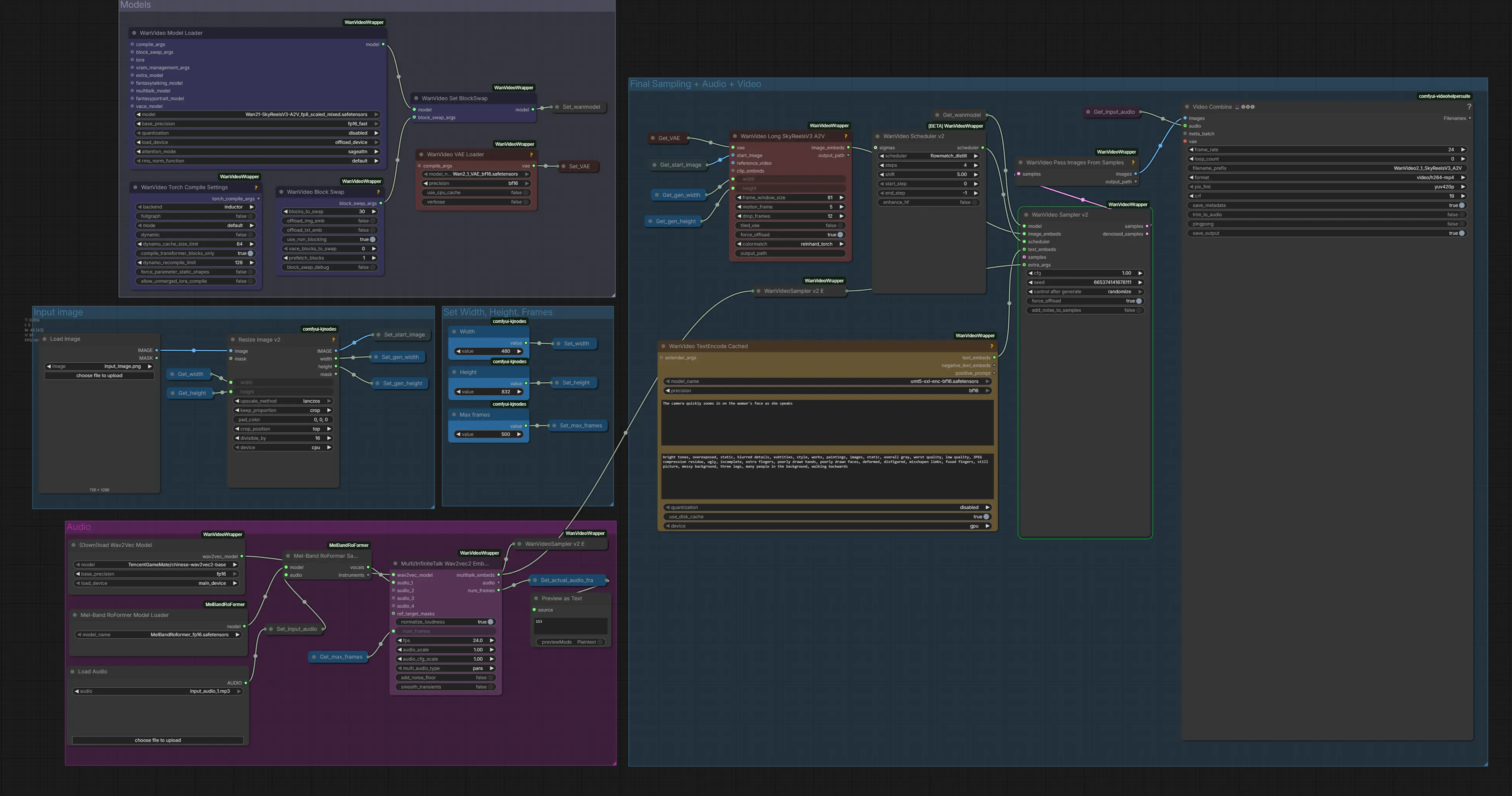
This workflow comes fully pre-configured with all essential nodes, model references, and audio processing components required for realistic lip-sync generation driven by your input audio.
Install Missing Nodes
If any nodes appear highlighted in red, it means certain custom nodes are missing from your ComfyUI installation.
To resolve this:
-
Open the Manager tab in ComfyUI.
-
Click Install Missing Custom Nodes.
-
After installation completes, restart ComfyUI to activate the changes.
This ensures all SkyReels V3-specific nodes and the MelBandRoFormer audio processing components are properly installed and ready to handle your talking avatar generation.
Once all nodes load successfully without errors, you're ready to upload your reference image and audio file, configure your prompt, and generate your first talking avatar with SkyReels V3.
4. Running the Talking Avatar Generation Workflow
With the workflow loaded and all components in place, you're ready to generate your first talking avatar using SkyReels V3 in ComfyUI. This section walks you through uploading your reference image, loading audio, setting parameters, and configuring prompts to produce smooth, expressive results with perfect lip-sync.
Upload Your Reference Image
Start by loading your reference image into the Image Loader node. This portrait will serve as the visual foundation for your talking avatar, with SkyReels V3 automatically animating facial features based on your audio input. We'll use the folling reference input image:
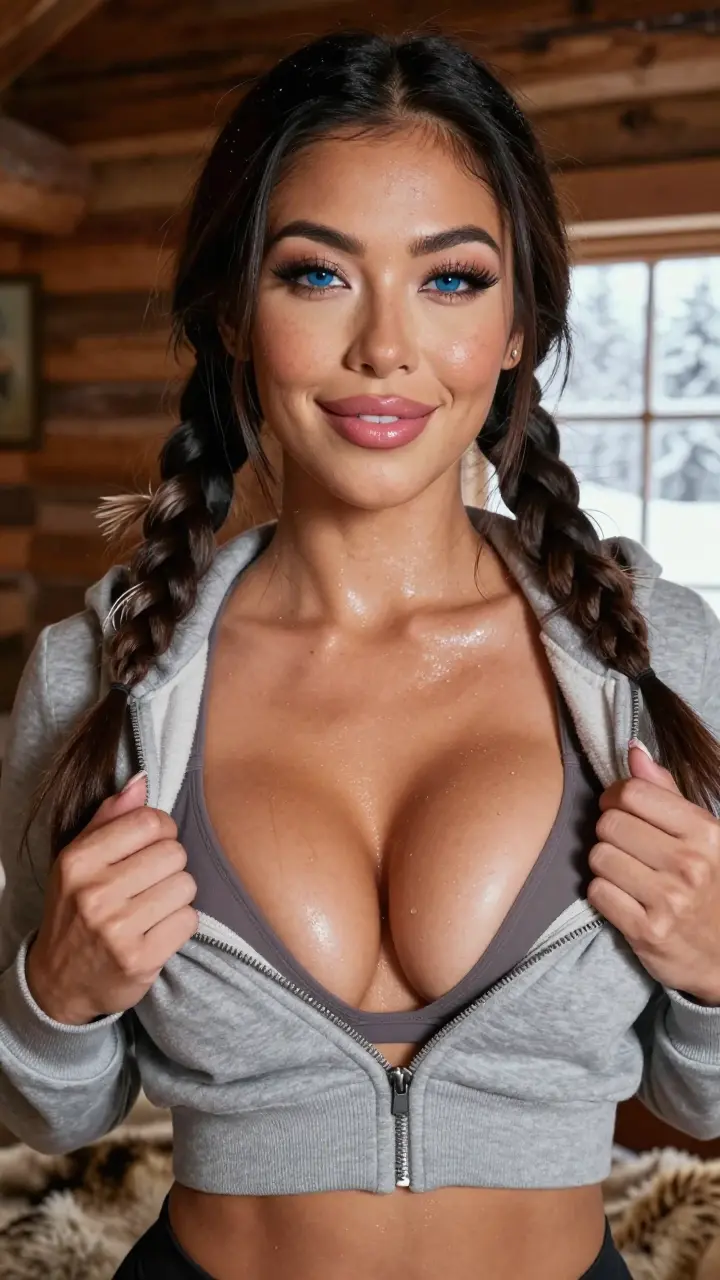 The quality of your reference image directly impacts the realism of the generated animation. Avoid heavily filtered or low-resolution images for optimal lip-sync accuracy.
Set Video Dimensions and Aspect Ratio
Define your output video dimensions in the Resize Image or Set Resolution node. SkyReels V3 works well with various aspect ratios, but for this tutorial, we'll use a vertical 9:16 portrait format — ideal for social media platforms like Instagram, TikTok, and YouTube Shorts.
Recommended settings for this tutorial (vertical portrait):
| Setting | Value | Notes |
|---|---|---|
| Width | 480 | Standard vertical portrait width |
| Height | 832 | Maintains 9:16 aspect ratio |
| Aspect Ratio | 9:16 | Perfect for social media content |
This 480×832 resolution balances generation speed with visual quality, making it ideal for learning the workflow and creating shareable content.
Load Your Audio File
Import your audio clip into the Audio Loader node. SkyReels V3 will analyze the audio waveform, extracting phoneme patterns, timing, and amplitude information to drive accurate mouth movements and facial expressions frame-by-frame. We'll use the following audio fragment:
Set Frame Count and Duration
In the Max Frame Settings node, set the max frames parameter. This acts as an upper limit for generation — the workflow will automatically generate frames to match your audio length, but will stop at the maxframes value if your audio is longer.
Recommended setting: Leave max_frames at 500 (the default).
At 24 fps (the recommended frame rate for SkyReels V3), this allows for:
| Max Frames | Maximum Video Length |
|---|---|
| 500 | ~20 seconds at 24 fps |
How it works:
-
If your audio is shorter than max_frames allows, the workflow generates exactly enough frames to match your audio length
-
If your audio is longer than max_frames allows, generation stops at 500 frames and the audio is truncated
Configure Your Text Prompt
One of the unique features of SkyReels V3 is the ability to guide the animation using text prompts. While the primary driving force is the audio (for lip-sync), the prompt helps shape:
-
Overall mood and emotional tone
-
Head movement and posture
-
Subtle facial expressions
-
Animation style and energy
Example prompts:
- "The camera quickly zooms in on the woman's face as she speaks"
The prompt provides context that complements the audio-driven lip-sync, creating a more cohesive and natural-looking talking avatar.
👉 Tip: Keep prompts focused on visible facial behavior and expression. Avoid overly detailed descriptions that might conflict with the audio-driven motion.
Run the Generation
Once your reference image, audio file, num_frames, and prompt are configured, click Queue Prompt to start the generation process.
SkyReels V3 will:
-
Process your audio to extract speech features
-
Analyze your reference image
-
Generate frame-by-frame animations with synchronized lip movements
-
Apply prompt-guided expressions and subtle motion
-
Output a complete video file
For faster, more cost-effective generation, we highly recommend using RunPod with GPU rental.
Once complete, you'll have a realistic talking avatar at 480×832 resolution (9:16 aspect ratio) with natural lip-sync, expressive facial movements, and audio-synchronized animation ready for your project.
5. Lip-Syncing to Music with SkyReels V3
While SkyReels V3 excels at creating talking avatars with speech audio, it can also generate impressive lip-sync animations to music and singing. Simply upload a music track or vocal recording instead of spoken dialogue, and the workflow will analyze the audio patterns to create synchronized mouth movements.
This opens up creative possibilities for:
-
Music video avatars
-
Singing character animations
-
Lyric visualization content
-
Artistic projects and creative storytelling
The process is identical — just load your music file into the Audio Loader node instead of speech audio, and SkyReels V3 will handle the rest.
Below is an example of lip-syncing to music:
The same workflow, different creative output. Whether you're working with dialogue, narration, or music, SkyReels V3 adapts to your audio input.
6. Conclusion
Congratulations! You've now mastered the complete workflow for creating realistic talking avatars with SkyReels V3 in ComfyUI. You've learned how to:
-
Set up your environment and install the necessary models
-
Load and configure the SkyReels V3 workflow
-
Upload reference images and audio files
-
Configure prompts and parameters for optimal results
-
Generate professional-quality talking avatars with perfect lip-sync
SkyReels V3 represents a powerful advancement in audio-driven video generation, making it possible to create expressive, natural-looking talking avatars without manual animation or expensive software. Whether you're producing virtual presenters, educational content, social media videos, marketing materials, or creative storytelling projects, this workflow provides the tools you need to bring static portraits to life with realistic speech and emotion.
The combination of reference image flexibility, audio-driven automation, and prompt-based control gives you unprecedented creative freedom. You can now transform any portrait into a speaking character that feels authentic and engaging.
Now it's your turn to experiment. Try different portrait styles, test various audio clips, and craft prompts that guide your avatars toward specific moods and expressions. With SkyReels V3 and ComfyUI, the only limit is your creativity.