Hyper Realistic Images with Qwen Image 2512 in ComfyUI (T2I)

Table of Contents
1. Introduction
Welcome to this guide on using the Qwen Image 2512 Text-to-Image (T2I) model in ComfyUI! This December update of Qwen-Image’s foundational model brings enhanced human realism, finer natural detail, and improved text rendering, producing fast, realistic images from text prompts.
We include two workflows: the full workflow for standard generation and an accelerated 4-step workflow using the Lightning LoRA, letting you choose between speed and quality. By the end of this guide, you’ll be ready to generate high-quality images efficiently with Qwen Image 2512.
2. Requirements for Qwen Image 2512 Image Generation
Before we jump into the setup, it’s essential to ensure that your system meets the necessary requirements for using the Qwen Image 2512 model. Here’s what you need to get started:
Requirement 1: ComfyUI Installed
You’ll need to have ComfyUI installed on your local machine or opt for a cloud-based GPU solution. Here are your options:
-
Local Installation: If you prefer to run ComfyUI locally, follow the instructions for installing it on Windows.
-
Cloud-Based GPU: Alternatively, you can use services like RunPod to run ComfyUI on a cloud GPU, which can be a great option if your local hardware is limited.
Requirement 2: Update ComfyUI
Make sure your ComfyUI is up to date to ensure compatibility with the Qwen Image 2512 workflows. For Windows portable users, navigate to the ComfyUI directory and double-click the update_comfyui.bat file. For cloud (RunPod) users, run the following commands in your terminal:
bash1
2cd /workspace/ComfyUI && git pull origin master && pip install -r requirements.txt && cd /workspace
Requirement 3: Download Qwen Image 2512 Model Files
You will need to download specific model files and place them in the correct directories within ComfyUI. Here’s a quick reference for the files you need:
| File Name | Download Page | ComfyUI Directory |
|---|---|---|
| qwen_image_2512_fp8_e4m3fn.safetensors | 🤗 Download page | ../ComfyUI/models/diffusion_models/ |
| qwen_image_vae.safetensors | 🤗 Download page | ../ComfyUI/models/vae/ |
| qwen_2.5_vl_7b_fp8_scaled.safetensors | 🤗 Download page | ../ComfyUI/models/text_encoders/ |
| Qwen-Image-Lightning-4steps-V1.0.safetensors | 🤗 Download page | ../ComfyUI/models/loras/ |
Requirement 4: Verify Folder Structure
Ensure that your folder structure matches the following layout:
ts1📂 ComfyUI
2└── 📂 models
3    ├── 📂 diffusion_models
4    │   └── qwen_image_2512_fp8_e4m3fn.safetensors
5    ├── 📂 vae
6    │   └── qwen_image_vae.safetensors
7    ├── 📂 text_encoders
8    │   └── qwen_2.5_vl_7b_fp8_scaled.safetensors
9    ├── 📂 loras
10    │   └── Qwen-Image-Lightning-4steps-V1.0.safetensors
This organization ensures ComfyUI can properly locate all necessary model files, making your workflow run smoothly without errors.
3. Downloading and Loading the Qwen 2512 Workflow for ComfyUI
Now that you have all the necessary requirements in place, it’s time to download and load the Qwen Image 2512 workflow into ComfyUI. We’ll start off with the 50-step workflow to showcase this incredibly high-quality image generator, ensuring realistic and detailed outputs.
Step 1: Download the Workflow File
First, obtain the workflow JSON file for Qwen Image 2512. This workflow is configured for standard 50-step T2I generation and contains all the nodes and settings needed for high-quality image outputs.
👉 Download Qwen Image 2512 T2I Workflow JSON
Step 2: Load the Workflow in ComfyUI
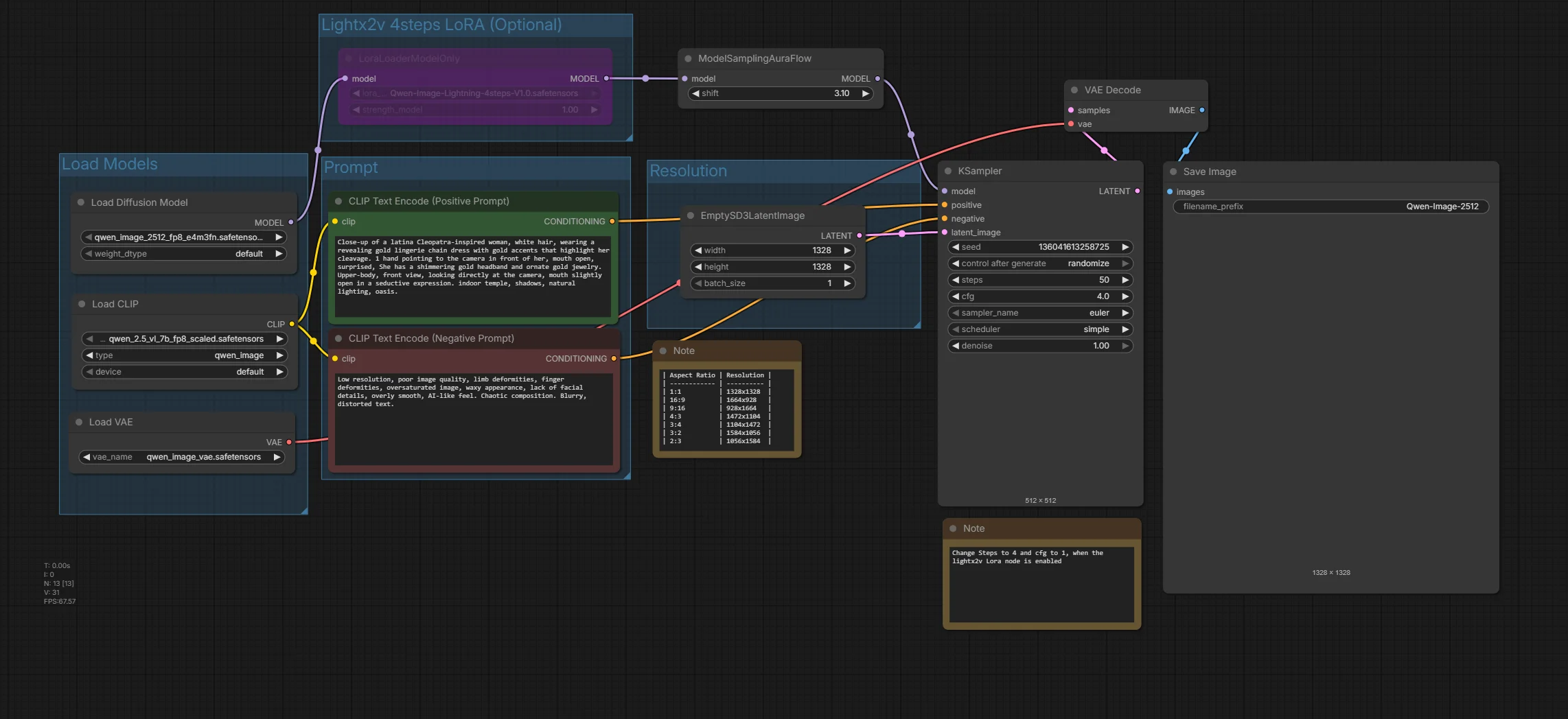
After downloading the JSON file, launch ComfyUI and drag and drop the workflow .json onto the canvas. This will automatically set up all the necessary nodes and connections for the qwen image 2512 generations.
Step 3: Verify Workflow Configuration
After loading the workflow, check that all nodes are connected correctly. If you notice missing nodes, it may indicate that your ComfyUI version is outdated or a node failed to import.
💡 Note: If you want to use the Lightning LoRA for accelerated 4-step rendering, make sure the LoRA model is downloaded, the node is present, and it’s enabled by clicking on it and pressing Ctrl + B.
4. Configuring Qwen 2512 Image Generation Settings
With the workflow successfully loaded, it’s time to configure the Qwen 2512 image generation settings. This step is vital for ensuring that you get the best possible results from your image generation process. Here’s how to set everything up:
Step 1: Load Models
Start by selecting the appropriate models for your workflow. You’ll need to configure the following nodes:
| Node | File / Option | Notes |
|---|---|---|
| Diffusion Model Node | qwen_image_2512_fp8_e4m3fn.safetensors (standard) qwen_image_2512_bf16.safetensors (high VRAM) | Choose default |
| Text Encoder Node | qwen_2.5_vl_7b_fp8_scaled.safetensors | Ensures text prompts are processed correctly. |
| VAE Node | qwen_image_vae.safetensors | For the Variational Autoencoder. |
| LoRA Node (Optional) | Qwen-Image-Lightning-4steps-V1.0.safetensors | Include for accelerated 4-step rendering. Optional for faster generation. We will cover this in a later section. |
Step 2: Set Image Resolution
Next, you’ll want to choose your preferred image resolution. The aspect ratio can significantly affect the final output, so select one that fits your needs. Here are some supported resolutions:
-
1:1: 1328x1328
-
16:9: 1664x928
-
9:16: 928x1664
-
4:3: 1472x1104
-
3:4: 1104x1472
-
3:2: 1584x1056
-
2:3: 1056x1584
Step 3: Enter Text Prompt
Now it’s time to provide a detailed text prompt. Be specific about the subject, style, environment, lighting, and any other details that will help the model generate the best results.
Step 4: Configure Sampler Settings
For optimal performance, configure the sampler settings. Here are the recommended settings:
-
steps: 50 (use 4 when using Lightx2v LoRA)
-
cfg: 4 (use 1 when using Lightx2v LoRA)
-
sampler_name: euler
-
scheduler: beta
-
denoise: 1.00
Step 5: Click RUN
Finally, once everything is set up, click the RUN button to start the image generation process. Rendering times will vary depending on your GPU and the resolution you’ve chosen. On an RTX 4090, the first run takes longer as the models are loaded into memory, but subsequent 50-step generations take around 110 seconds. Using the 4-step Lightning LoRA, generation is dramatically faster, with renders taking only about 10 seconds. The example shown here was generated at a 1:1 aspect ratio with a resolution of 1328×1328.
5. Example Images Generated with Qwen Image 2512 (T2I)
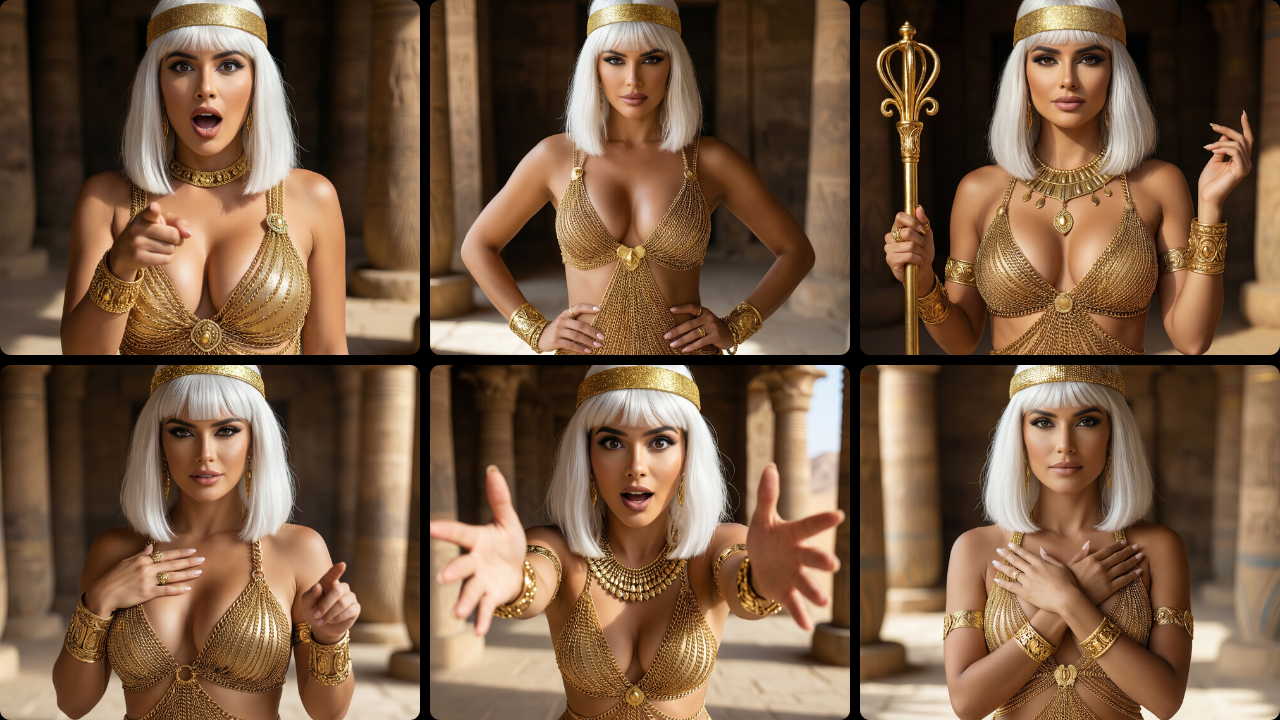
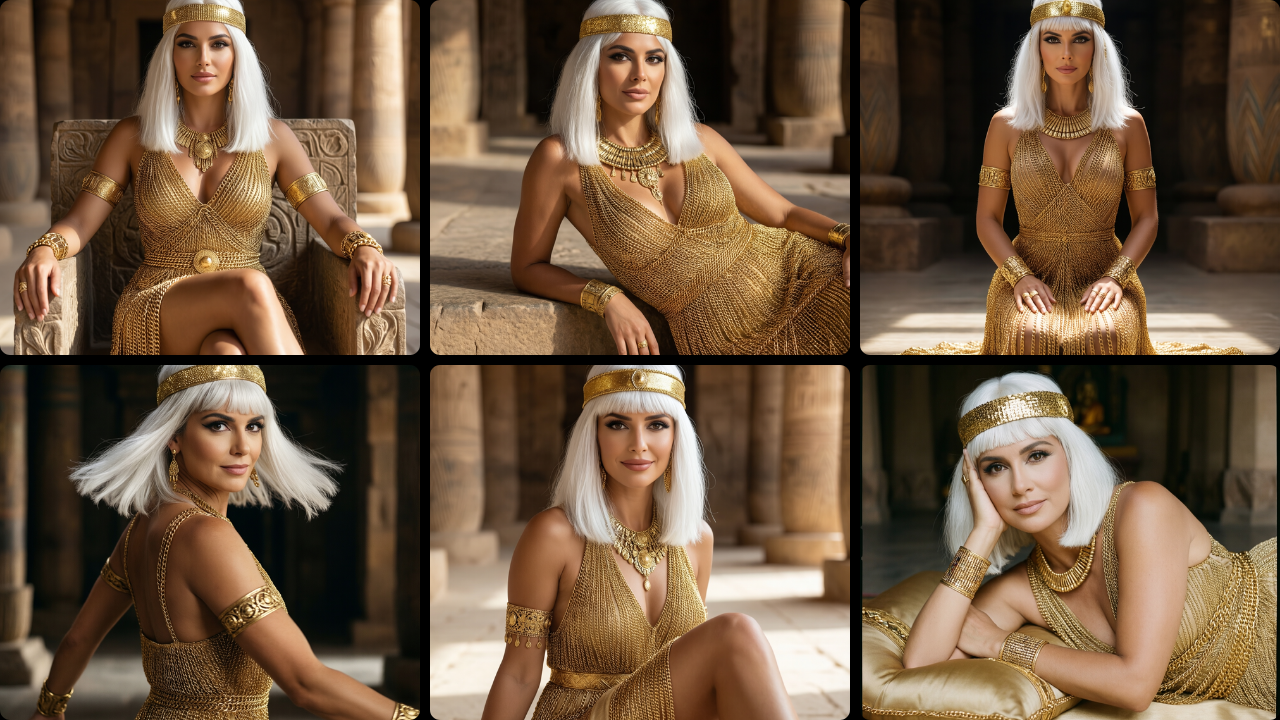
Now let’s showcase the capabilities of the Qwen Image 2512 model through a series of example images. These examples demonstrate the model’s strong performance in rendering hand anatomy, poses, facial expressions, and camera angles. All images were generated using 50 steps.
1. Example Images Showcasing Hand Anatomy
2. Example Images Showcasing Different Poses
3. Example Images Showcasing Different Expressions
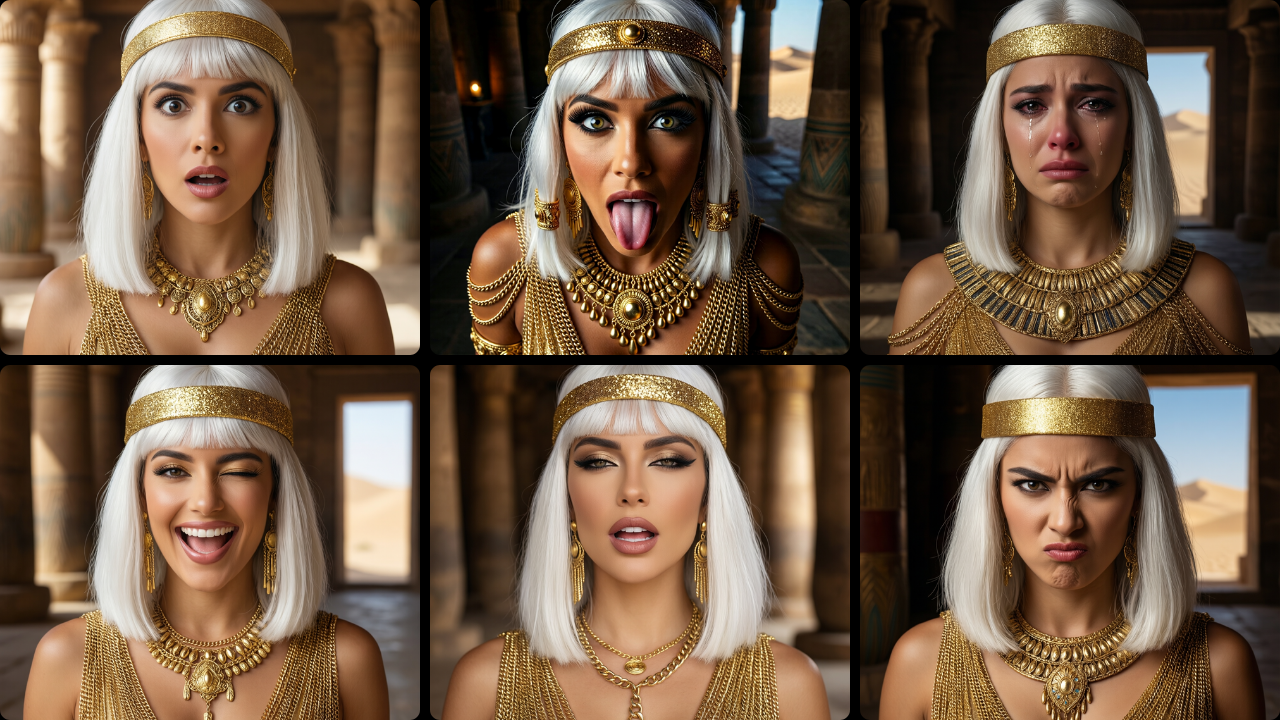
Most of these examples were generated with 50 steps, except for one image using the Lightning LoRA and 4 steps. Can you spot the one? You can clearly notice a slight drop in quality, but thanks to the much faster generation, we can still fully appreciate the level of detail and expressiveness in the image!
6. Conclusion
Congratulations! You’ve successfully set up the Qwen Image 2512 model in ComfyUI and configured it for high-quality image generation. By following the steps outlined in this tutorial, you can now create stunning images from text prompts, even on systems with limited VRAM.
The combination of the Qwen Image 2512 model and the 4-step Lightning LoRA allows for fast rendering without compromising on quality that much, making it an excellent tool for artists, designers, and anyone interested in realistic AI-generated imagery.
As you continue to explore the capabilities of ComfyUI and the Qwen Image 2512 model, don’t hesitate to experiment with different prompts.

Thank you for following this guide! We hope you found it helpful and informative. Happy image generating!