Z-Image Turbo with LoRA in ComfyUI for Consistent Image Creation
Table of Contents
- 1. Introduction to Z-Image Turbo with LoRA
- 2. System Requirements for LoRA-Enhanced Z-Image Turbo Workflow
- 3. Download & Load Z-Image Turbo Workflow with LoRA Support in ComfyUI
- 4. Running Z-Image Turbo with LoRA for Consistent Image Generation
- 5. Example Outputs with LoRA Consistency
- 6. Conclusion: LoRA-Powered Z-Image Turbo
1. Introduction to Z-Image Turbo with LoRA
In the realm of AI image generation, Z-Image Turbo stands out as a powerful tool, especially when integrated with LoRA (Low-Rank Adaptation). This tutorial will guide you through the process of utilizing Z-Image Turbo within ComfyUI, focusing on its capabilities for rapid, uncensored, and consistent image generation. Designed specifically for low VRAM setups, Z-Image Turbo is an ideal choice for artists, hobbyists, and professionals who require high-quality outputs without the need for extensive hardware resources.
The Z-Image Turbo model, boasting 6 billion parameters, is engineered to produce photorealistic images swiftly. The integration of LoRA enhances this capability by ensuring that the generated images maintain a consistent style, theme, or character across various prompts. This is particularly beneficial for projects that demand a cohesive visual narrative, such as character design or thematic artwork.
In this tutorial, we will cover the essential steps to set up and run Z-Image Turbo with LoRA in ComfyUI, ensuring you can harness its full potential for your creative endeavors. Whether you are looking to create stunning visuals for a project or simply explore the capabilities of AI-generated art, this guide will provide you with the knowledge and tools needed to get started.
2. System Requirements for LoRA-Enhanced Z-Image Turbo Workflow
Before you begin, ensure your system meets the hardware and software requirements to run Z‑Image Turbo with LoRA in ComfyUI. This workflow is optimized for efficiency and is capable of producing high-quality, uncensored, and consistent AI images even on modest GPUs. For most users, a GPU with 6–12 GB of VRAM is sufficient to generate images at standard resolutions with smooth performance. If your local GPU has limited VRAM, cloud platforms like RunPod are perfect for running Z‑Image Turbo with LoRA workflows, enabling reliable and consistent image generation.
Requirement 1: ComfyUI Installed
You’ll need ComfyUI installed either locally or on a cloud GPU service.
-
Local Windows installation: Follow this guide:
👉 How to Install ComfyUI Locally on Windows -
Cloud GPU (e.g., RunPod): If your GPU is limited, you can run ComfyUI in the cloud using a persistent network volume. Step-by-step instructions are available here:
👉 How to Run ComfyUI on RunPod with Network Volume
Requirement 2: Update ComfyUI
Keeping ComfyUI updated ensures full compatibility with the latest workflows, nodes, and features.
For Windows Portable Users:
-
Open the folder: ...\ComfyUI_windows_portable\update
-
Double-click update_comfyui.bat
For RunPod Users:
ts1 cd /workspace/ComfyUI && git pull origin master && pip install -r requirements.txt && cd /workspace
💡Keeping ComfyUI updated guarantees you have the latest features, bug fixes, and node compatibility.
Requirement 3: Download Models for Z‑Image Turbo
Download the following Z‑Image Turbo model files and place them in the correct directories inside ComfyUI:
| File Name | Hugging Face Download Page | File Directory | Notes |
|---|---|---|---|
| qwen_3_4b.safetensors | 🤗 Download | ..\ComfyUI\models\text_encoders | Required |
| z_image_turbo_bf16.safetensors | 🤗 Download | ..\ComfyUI\models\diffusion_models | Required |
| ae.safetensors | 🤗 Download | ..\ComfyUI\models\vae | Required |
| own_lora.safetensors | ..\ComfyUI\models\loras | Required |
Verify Folder Structure
Confirm that your folders and files are organized like this:
ts1📁 ComfyUI/
2└── 📁 models/
3     ├── 📁 diffusion_models/
4     │     └── z_image_turbo_bf16.safetensors
5     ├── 📁 text_encoders/
6     │     └── qwen_3_4b.safetensors
7     ├── 📁 vae/
8     │     └── ae.safetensors
9     └── 📁 loras/
10           └── own_lora.safetensors
Once all files are properly placed and organized, your environment is ready. With a Low VRAM GPU, you can comfortably generate uncensored AI images at standard resolutions without performance issues. Next, we’ll move on to downloading and loading the Z‑Image Turbo LoRA workflow in ComfyUI.
💡 Tip: You can also easily train your own Z‑Image Turbo LoRA using your own custom dataset. Once trained, simply add your LoRA file to the correct ComfyUI folder to achieve personalized and consistent image outputs.
3. Download & Load Z-Image Turbo Workflow with LoRA Support in ComfyUI
Now that your system and models, including your own LoRA, are ready, it’s time to load the Z‑Image Turbo workflow with LoRA into ComfyUI. This workflow comes pre-configured with all required nodes, samplers, and LoRA integration to enable fast, uncensored, and consistent image generation.
Step 1: Download the Workflow with LoRA Integration
Start by downloading the JSON workflow file designed specifically for Z‑Image Turbo with LoRA. This file includes all nodes, model references, and configurations needed to ensure LoRA-based consistent image outputs.
👉 Download Z‑Image Turbo with LoRA ComfyUI Workflow JSON
Step 2: Load the Workflow in ComfyUI
Once the workflow is downloaded:
-
Launch ComfyUI.
-
Drag and drop the workflow JSON file onto the canvas.
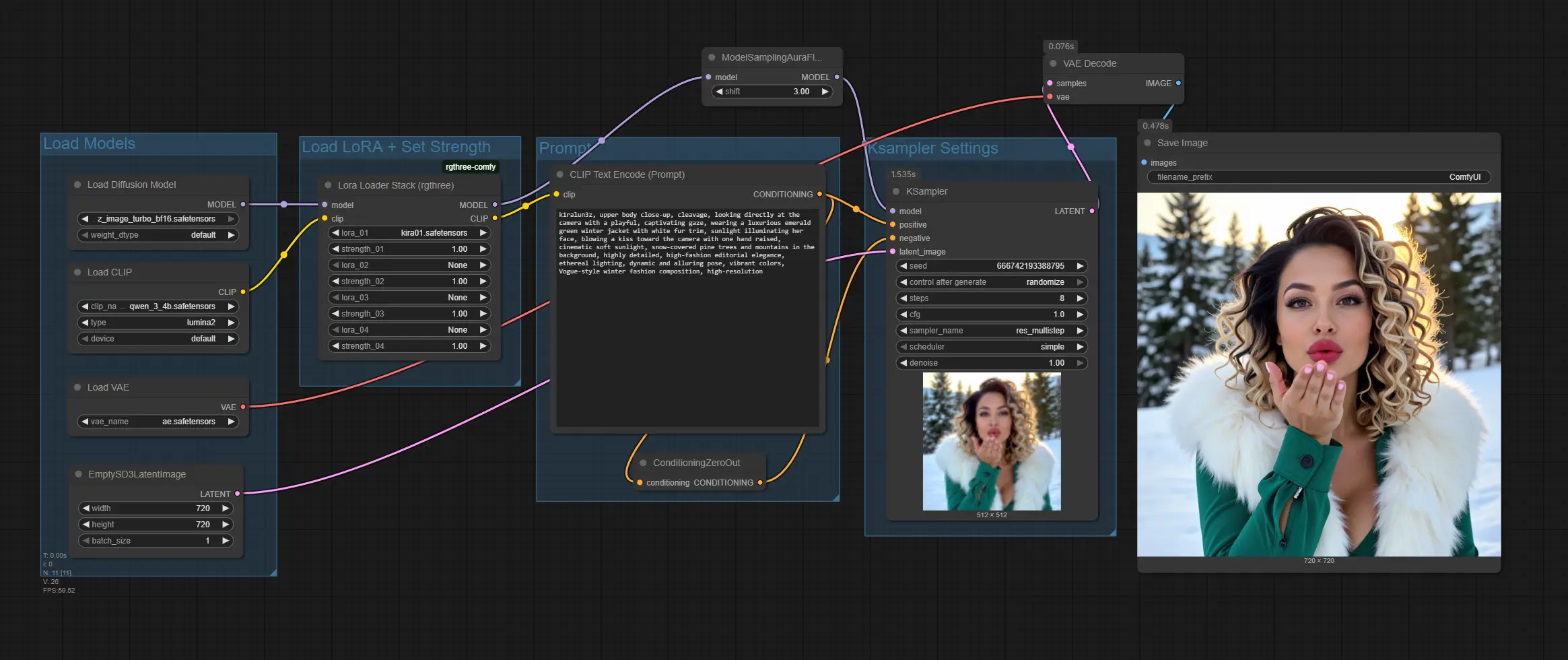
The workflow will automatically populate all required nodes, including:
-
Diffusion model (z_image_turbo_bf16.safetensors)
-
Text encoder (qwen_3_4b.safetensors)
-
VAE (ae.safetensors)
-
LoRA node for consistent image generation
-
Samplers and output nodes
4. Running Z-Image Turbo with LoRA for Consistent Image Generation
With the workflow successfully loaded, you are now ready to generate your first images using Z-Image Turbo with LoRA. This step involves configuring your prompts and settings to achieve the desired results. Here’s how to proceed:
Step 1: Add Your Prompt
Begin by typing a detailed prompt in the CLIP text encoder node. This prompt should specify elements such as style, lighting, subject, and environment. The more detailed your prompt, the better the AI can understand your vision and generate an image that aligns with it.
💡 Tip: If you are using a LoRA that was trained on specific keywords or concepts, make sure to include these keywords in your prompt. This ensures the model fully leverages the LoRA for consistent and personalized image generation.
Step 2: Configure Steps, Models & Image Size
Next, configure the settings for your image generation. Set the number of steps to 8 for a balance of speed and quality. Ensure that you select the correct models: z_image_turbo_bf16.safetensors for the diffusion model, qwen_3_4b.safetensors for the text encoder, and ae.safetensors for the VAE. Additionally, to achieve consistent image generation, be sure to select your own LoRA in this step. Next, choose your image dimensions by setting the width and height. For this tutorial, we’ll use 1280 × 720, which corresponds to a 16:9 aspect ratio.
Step 3: Run the Workflow
Finally, click the Run button on the Z‑Image Turbo node. The system will process your prompt and generate a high-quality image—if your model or LoRA was trained on uncensored data, this will be fully supported. Thanks to the LoRA integration, the output remains consistent with any previously generated images under similar prompts, ensuring reliable and coherent results.
5. Example Outputs with LoRA Consistency
To demonstrate the power of LoRA-enhanced Z‑Image Turbo in generating consistent images, we trained a custom LoRA using the Next Diffusion platform. This LoRA was designed to maintain anatomical correctness and character consistency across multiple generations.
LoRA Training Details:
| Parameter | Value |
|---|---|
| Dataset | 40 images |
| Captions | 40 descriptive captions |
| Learning Rate | 2e-4 (0.0002) |
| Training Steps | 1500 |
| Trigger Word | k1ralun3z |
1. Hands & Fingers Showcase

2. Hands, Arms, & Body Poses Showcase

3. Facial Expressions Showcase

3. Camera Angle Consistency Showcase


With this LoRA workflow in combination with Z‑Image Turbo for ComfyUI, you can generate high-quality images that preserve anatomical accuracy and maintain consistent character features, making it perfect for character-focused art and iterative creative workflows.
6. Conclusion: LoRA-Powered Z-Image Turbo
Using Z‑Image Turbo with LoRA in ComfyUI enables fast, uncensored, and consistent image generation, even on low VRAM setups. This workflow is ideal for artists and creators seeking high-quality visuals while maintaining style and subject consistency across multiple images.
This tutorial provides a clear guide to setting up and running Z‑Image Turbo with LoRA, from system compatibility to generating stunning results. By following these steps, you can fully leverage this powerful AI tool and focus on your creative projects without typical limitations.
Experimenting with different prompts and LoRA's lets you explore the full potential of this workflow, whether for personal or professional art. With speed, quality, and consistency combined, Z‑Image Turbo with LoRA can elevate your creative process. Happy Creating!