Consistent Outfit Changes with Multi Qwen Image Edit 2511 (ComfyUI)
Table of Contents
1. Introduction
Welcome to this tutorial on consistent outfit changes using Multi Qwen Image Edit 2511 in ComfyUI.
Qwen-Image-Edit-2511 is an enhanced version of Qwen-Image-Edit-2509, offering improved character consistency, multi-person editing, strengthened geometric reasoning, and greater stability during edits.
Changing a character's outfit while preserving identity, pose, and lighting is one of the biggest challenges in AI image editing. This workflow uses multi-image conditioning, allowing you to define the character with one image and the outfit or style with another, ensuring reliable, high-quality results.
By following this guide, you’ll gain a stable and repeatable workflow for professional-quality outfit editing in ComfyUI, while also having the flexibility to experiment with other types of image edits.
2. Requirements for Multi Qwen Image Edit 2511
Before you embark on your journey with Multi Qwen Image Edit 2511, it’s crucial to ensure that your system is adequately prepared. Here are the essential requirements you need to meet:
Requirement 1: Install ComfyUI
You must have ComfyUI installed on your system. You have two options for installation:
-
Local Installation: If you prefer to run ComfyUI on your local machine, follow the instructions for installing it on Windows.
-
Cloud GPU (RunPod): Alternatively, you can run ComfyUI on a cloud GPU service like RunPod. This option is especially helpful if you don’t have a powerful local machine—check out the article below for an in-depth guide on using cloud solutions like RunPod to run ComfyUI workflows.
Requirement 2: Keep ComfyUI Updated
To ensure the best compatibility and performance, always use the latest stable or nightly version of ComfyUI. Regular updates provide access to new nodes, bug fixes, and performance improvements.
For Windows Portable Users:
-
Open the folder: ...\ComfyUI_windows_portable\update
-
Double-click update_comfyui.bat
For RunPod Users:
ts1 cd /workspace/ComfyUI && git pull origin master && pip install -r requirements.txt && cd /workspace
💡 Regularly updating ComfyUI ensures access to the newest features, important bug fixes, and full compatibility with all nodes.
Requirement 3: Download Qwen Image Edit 2511 Model Files
You will need to download specific model files and place them in the correct directories within ComfyUI. Here’s a quick reference for the files you need:
| File Name | Hugging Face Download Page | ComfyUI Directory |
|---|---|---|
| qwen_image_edit_2511_bf16.safetensors | 🤗 Download page | ../ComfyUI/models/diffusion_models/ |
| qwen_image_vae.safetensors | 🤗 Download page | ../ComfyUI/models/vae/ |
| qwen_2.5_vl_7b_fp8_scaled.safetensors | 🤗 Download page | ../ComfyUI/models/text_encoders/ |
| Qwen-Image-Edit-2511-Lightning-4steps-V1.0-bf16.safetensors | 🤗 Download page | ../ComfyUI/models/loras/ |
Requirement 4: Verify Folder Structure
Ensure that your folder structure matches the following layout:
ts1📂 ComfyUI
2└── 📂 models
3    ├── 📂 diffusion_models
4    │   └── qwen_image_edit_2511_bf16.safetensors
5    ├── 📂 vae
6    │   └── qwen_image_vae.safetensors
7    ├── 📂 text_encoders
8    │   └── qwen_2.5_vl_7b_fp8_scaled.safetensors
9    ├── 📂 loras
10    │   └── Qwen-Image-Edit-2511-Lightning-4steps-V1.0-bf16.safetensors
By ensuring that all requirements are met, you will set a solid foundation for the subsequent steps in this tutorial.
3. Downloading and Loading the Qwen Multi-Image Edit 2511 Workflow
In this step, we will set up the full multi-image editing workflow required for consistent outfit changes using Multi Qwen Image Edit 2511. This workflow also includes the optional SeedVR2 upscaler, which enhances clothing textures, patterns, and overall image resolution. You can toggle the upscaler on or off as needed, and the required models are automatically downloaded on first run—no manual file management required.
When running this workflow on RunPod using our Next Diffusion - ComfyUI SageAttention, Flash Attention is enabled as well, which can significantly speed up the SeedVR2 upscaling stage while helping preserve fine outfit details for high-quality, professional results.
Step 1: Download the Workflow File
First, you need to download the prebuilt JSON workflow that is optimized for multi-image conditioning, identity preservation, and outfit replacement. This file is essential for the next steps.
👉 Download Multi Qwen Image Edit 2511 & Upscaler Workflow JSON
Step 2: Load the Workflow in ComfyUI
Once you have downloaded the workflow file, open ComfyUI. You can easily load the workflow by dragging and dropping the JSON file directly onto the canvas. This action will automatically load the entire workflow, preparing it for use.
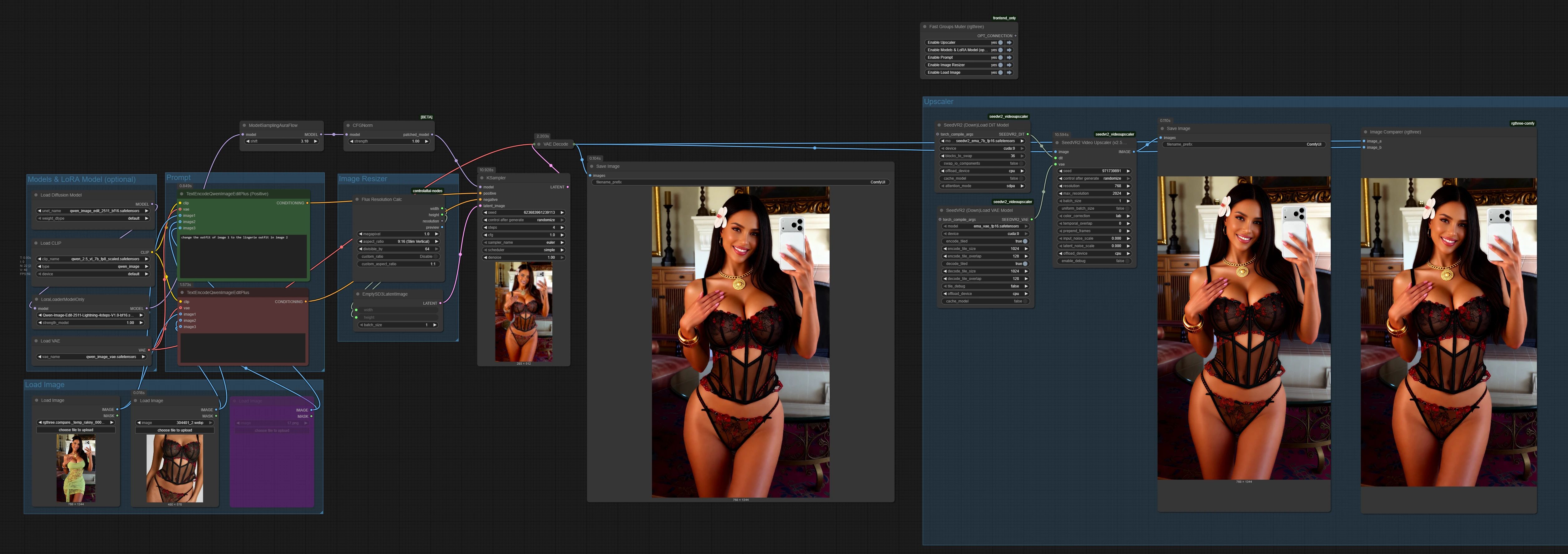
Step 3: Install Missing Custom Nodes (IMPORTANT)
After loading the workflow, you may notice that some nodes appear with a red outline. This indicates that there are missing custom nodes that need to be installed. To resolve this:
-
Open the ComfyUI Manager.
-
Click on Install Missing Custom Nodes.
-
Select all the missing nodes that are highlighted.
-
Click Install.
-
When prompted, reboot ComfyUI.
After restarting, reload the workflow to ensure all nodes are correctly displayed with no red outlines. You can now continue configuring the settings to consistently change outfits in your original images.
4. Settings for Qwen Multi Image Edit 2511 & Image Upscaler
Now that your workflow is ready, let’s explore how to configure and run Multi Qwen Image Edit 2511 for consistent outfit changes. This section walks you through the essential node settings and workflow setup for optimal results.
| Node / Step | Key Settings / Notes |
|---|---|
| UNETLoader | Model: qwen_image_edit_2511_bf16.safetensors (Diffusion Model) |
| VAELoader | Model: qwen_image_vae.safetensors |
| LoraLoaderModelOnly | LoRA: Qwen-Image-Edit-2511-Lightning-4steps-V1.0-bf16.safetensorsStrength: 1 (boosts consistency & details) |
| CLIPLoader | Text encoder: qwen_2.5_vl_7b_fp8_scaled.safetensors |
| LoadImage | Upload at least two images: character reference + outfit reference |
| Positive Prompt | Use clear, direct instructions that explain how the images are combined, for example: “Change the outfit of image 1 to the outfit in image 2.” This clarifies which image defines the character and which provides the outfit, improving consistency. |
| FluxResolutionNode | Defines output resolution and aspect ratio |
| TextEncodeQwenImageEditPlus | Positive prompt: describe outfit change / Negative prompt: describe what to avoid |
| KSampler | Steps: 4 (optimized for 4-step LoRA)Sampler: EulerCFG Scale: 1.0Randomize seed: yes |
| SeedVR2VideoUpscaler (optional) | Toggle on/off for automatic upscaleModels auto-download on first run |
| VAEDecode → SaveImage | Converts latent to final image and saves |
Image Upscaler Group (Optional)
Within the toggler above the workflow, you can enable or disable the Upscaler group.
When enabled, focus on the green SeedVR2VideoUpscaler node within the group and adjust the following settings to ensure optimal upscaling results:
| Node / Step | Key Settings / Notes |
|---|---|
| SeedVR2VideoUpscaler (Green Node) | Resolution: Set the shorter side to your desired output size[hardBreak]Max Resolution: Must be higher than the target upscale resolution; the longer side scales proportionally based on the image aspect ratio |
-
4K → Resolution: 2160, Max Resolution: 3840
-
6K → Resolution: 3456, Max Resolution: 6144
-
8K → Resolution: 4320, Max Resolution: 7680
-
12K → Resolution: 6480, Max Resolution: 11520
Now, with all the settings correctly configured, we can move on to showcase some clothing change examples using the new Qwen Image Edit 2511 model.
5. Outfit Change Examples with Qwen Image Edit 2511
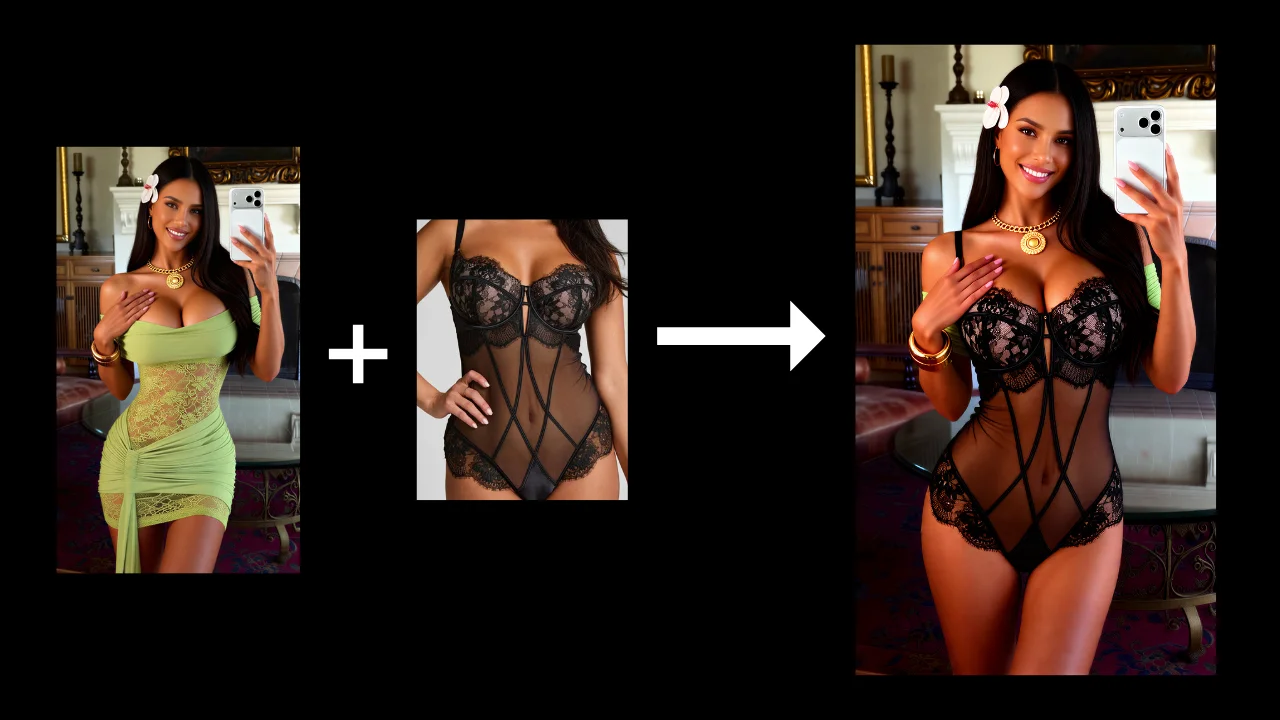
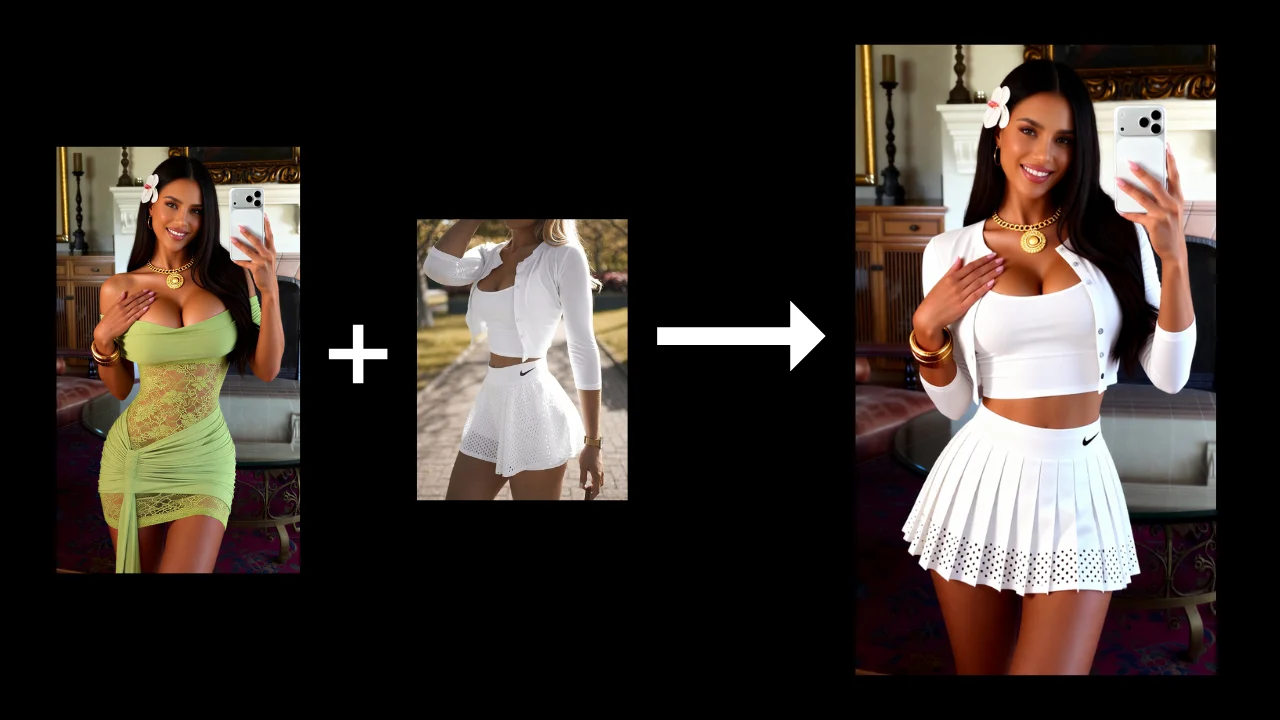
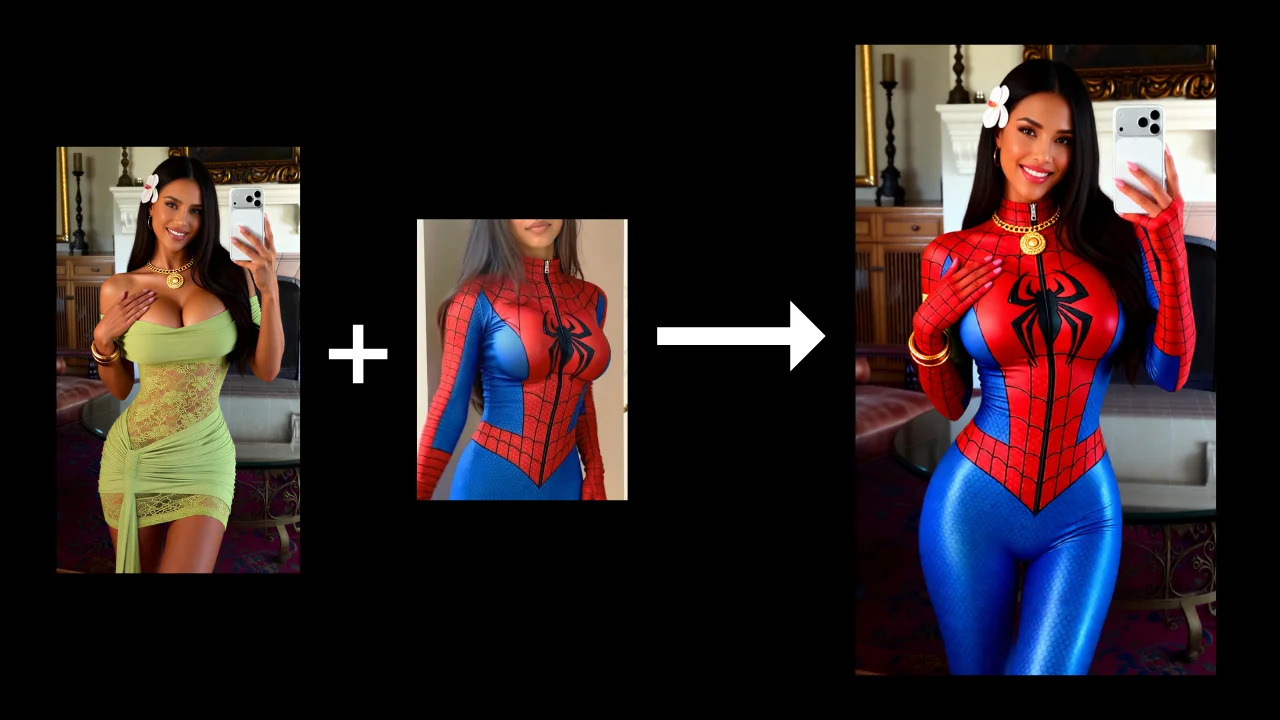
This section showcases outfit change examples created with Qwen Image Edit 2511, highlighting how well the model preserves character identity, pose, and facial consistency while introducing entirely new outfits. This workflow is ideal for creating AI influencers or virtual fashion models where consistency across multiple looks is essential for professional and realistic results.
Example 1
Example 2
Example 3
Example 4
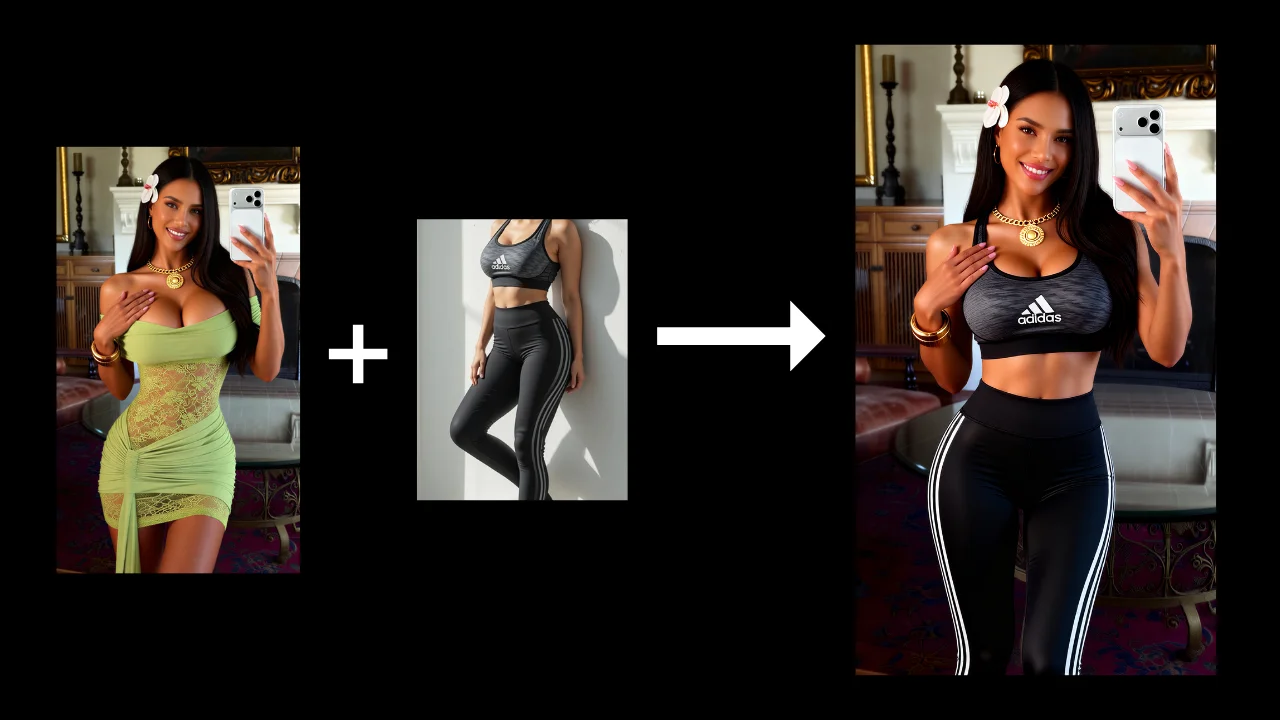
As you can see, the character consistency remains high while the outfit closely matches the reference image. This makes the workflow especially useful for e-commerce fashion listings, virtual try-ons, and AI influencer content where reliable, repeatable results really matter.
6. Conclusion
In conclusion, Multi Qwen Image Edit 2511 offers a robust and efficient solution for achieving consistent outfit changes in ComfyUI. By leveraging the power of multi-image conditioning, BF16 diffusion stability, Lightning 4-step acceleration, and SeedVR2 high-quality upscaling, you can produce professional-quality outfit edits with ease.
While the Qwen Image Edit 2511 excels in many areas, it’s essential to be aware of its limitations. Very fine logo details, small text, or complex brand typography may not transfer accurately. For best results, focus on style, shape, texture, and color consistency, avoiding reliance on the model to reproduce small readable text.
By keeping these considerations in mind, you can achieve the most consistent and realistic results in your outfit editing endeavors. Happy editing, and may your creative projects flourish with the help of Multi Qwen Image Edit 2511!