Wan2.2 Remix v3: Create Uncensored Videos in ComfyUI (I2V)

Table of Contents
1. Introduction
Creating cinematic video clips from images has never been more advanced, thanks to the Wan 2.2 Remix v3 model. This latest version builds on previous releases by improving motion realism, anatomical accuracy, and scene consistency—making it one of the most powerful tools for image-to-video (I2V) generation. In this tutorial, we will guide you through the process of generating NSFW and uncensored image-to-video clips using Wan2.2 Remix v3 in ComfyUI. This step-by-step guide covers everything from setup to workflow configuration and example outputs to help you get started.
What’s New in I2V v3.0
Wan 2.2 Remix I2V v3.0 introduces several major upgrades that significantly improve video generation quality and consistency. Key enhancements include:
-
VBVR LoRA: This addition enhances spatial understanding and scene coherence, allowing for more realistic animations.
-
UnifiedReward Optimization: This feature improves stability and overall output quality, ensuring smoother transitions and better motion.
-
Improved NSFW LoRAs: These enhancements provide higher visual consistency in uncensored scenes, making the model more versatile for various content types.
These upgrades result in more stable motion, improved realism, and cleaner frame transitions. This release is considered the final version of the Wan 2.2 Remix I2V series, and no further updates are expected unless major technological breakthroughs occur. With native NSFW capability, users can generate uncensored content without external LoRA dependencies. In this tutorial, you’ll learn how to set up and use Wan 2.2 Remix v3 in ComfyUI, from installation to workflow configuration.
⚠️ Important: This tool should be used responsibly. It is the user’s responsibility to ensure ethical and legal use of the model.
2. Requirements & Setup (WAN 2.2 Remix v3)
Before diving into the creation of uncensored videos with Wan2.2 Remix v3, it’s crucial to ensure that your system meets the necessary requirements for optimal performance. Video generation models are GPU-intensive and require robust hardware to function efficiently. Here’s what you need to get started:
Recommended Hardware
-
GPU: An RTX 5090 (32GB VRAM) or higher is recommended for handling the intensive processing required for video generation.
-
Storage: An SSD with a minimum of 35GB free space is essential for fast read/write speeds, which are critical for video processing.
Cloud Option
If your local hardware is limited, consider using GPU cloud platforms like Runpod that can provide the necessary resources for running the model effectively.
Requirement 1: ComfyUI Installed
Ensure that ComfyUI is installed either locally or in a cloud environment. This user interface is essential for managing the workflow and settings of the Wan2.2 Remix v3 model.
-
Local installation: 👉 How to Install ComfyUI Locally on Windows
-
RunPod setup: 👉 How to Run ComfyUI on RunPod with Network Volume
Requirement 2: Download Models for Wan2.2 Remix v3 (I2V)
You will need to download specific models and place them in the appropriate directories within ComfyUI. Here’s a list of required models and the corresponding directories:
| File Name | Hugging Face Download Page | File Directory | Notes |
|---|---|---|---|
| Wan2.2_Remix_NSFW_i2v_14b_high_lighting_fp8_e4m3fn_v3.0.safetensors | 🤗 Download | ..\ComfyUI\models\diffusion_models | Required (High-noise model for motion generation) |
| Wan2.2_Remix_NSFW_i2v_14b_low_lighting_fp8_e4m3fn_v3.0.safetensors | 🤗 Download | ..\ComfyUI\models\diffusion_models | Required (Low-noise refinement model) |
| nsfw_wan_umt5-xxl_fp8_scaled.safetensors | 🤗 Download | ..\ComfyUI\models\text_encoders | Required (CLIP / text encoder for prompts) |
| wan_2.1_vae.safetensors | 🤗 Download | ..\ComfyUI\models\vae | Required (VAE decoder for video frames) |
| Wan2.2-Lightning_I2V-A14B-4steps-lora_HIGH_fp16.safetensors | 🤗 Download | ..\ComfyUI\models\loras | Optional (Speeds up generation, slight quality trade-off) |
| Wan2.2-Lightning_I2V-A14B-4steps-lora_LOW_fp16.safetensors | 🤗 Download | ..\ComfyUI\models\loras | Optional (Speeds up generation, slight quality trade-off) |
Optional Performance Enhancements
For improved performance, consider downloading the Lightx2v Wan 2.2 Lightning (FP16) LoRA model, which can be placed in the ..\ComfyUI\models\loras directory. This optional model can significantly speed up rendering times but comes with a slight quality trade-off.
Verify Folder Structure
Ensure that your folder structure matches the following:
ts1📁 ComfyUI/
2└── 📁 models/
3    ├── 📁 diffusion_models/
4    │   ├── Wan2.2_Remix_NSFW_i2v_14b_high_lighting_fp8_e4m3fn_v3.0.safetensors
5    │   └── Wan2.2_Remix_NSFW_i2v_14b_low_lighting_fp8_e4m3fn_v3.0.safetensors
6    │
7    ├── 📁 text_encoders/
8    │   └── nsfw_wan_umt5-xxl_fp8_scaled.safetensors
9    │
10    ├── 📁 vae/
11    │   └── wan_2.1_vae.safetensors
12    │
13    └── 📁 loras/
14        ├── Wan2.2-Lightning_I2V-A14B-4steps-lora_HIGH_fp16.safetensors (optional)
15        └── Wan2.2-Lightning_I2V-A14B-4steps-lora_LOW_fp16.safetensors (optional)
Once everything is properly set up, you’re ready to download and load the workflow.
3. Download and Load the Wan2.2 Remix v3 Workflow
With your environment set up and all necessary files in place, the next step is to download and load the Wan2.2 Remix v3 workflow into ComfyUI. This process is straightforward and will prepare you for generating your uncensored videos.
Step 1: Download the Workflow File
First, you need to download the Wan2.2 Remix v3 I2V workflow JSON file. This file contains all the nodes, model references, and pipeline configurations required for the video generation process. Ensure that you download the correct version to avoid compatibility issues.
👉 Download Wan2.2 Remix v3 NSFW Workflow JSON
Step 2: Load the Workflow in ComfyUI
Once you have downloaded the workflow file, open ComfyUI. The interface is designed to be intuitive and workflow-focused, making it easy to manage and organize your projects.
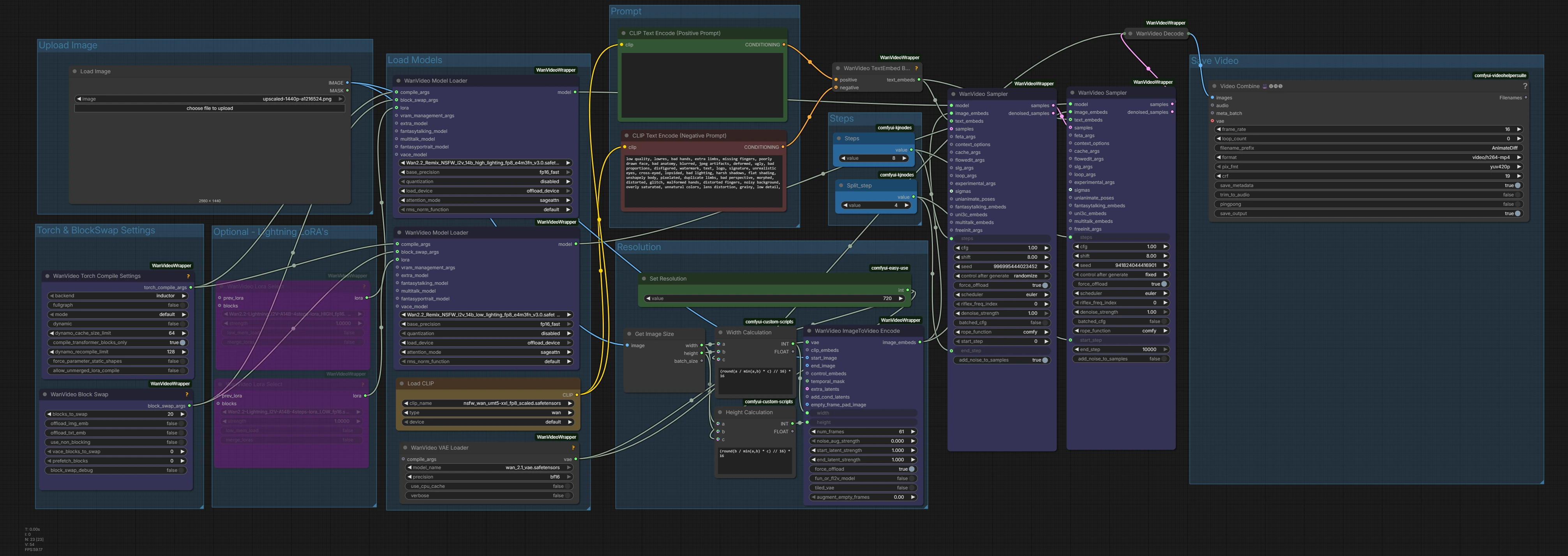
To load the setup, simply drag and drop the downloaded .json file directly into the ComfyUI canvas. This will automatically import and connect all the required nodes needed to run the workflow, allowing you to start generating immediately without any manual configuration.
Step 3: Install Missing Nodes
If any nodes appear in red after loading, open the Node Manager tab in the top-right corner of ComfyUI. Click Install Missing Custom Nodes, then select all missing nodes from the list and press Install.
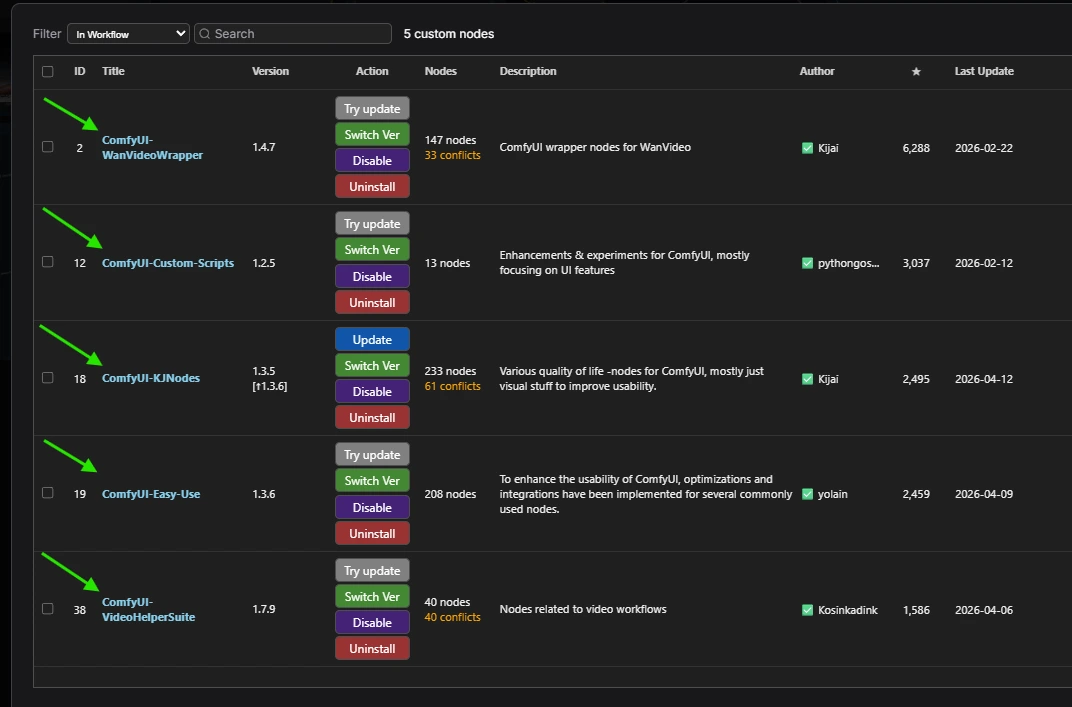
Once the installation is complete, a prompt will appear asking you to restart ComfyUI—click it to reboot the application. After ComfyUI restarts, all required components will be loaded automatically, and the red nodes should be resolved. At this point, your workflow will be fully functional and ready for configuration.
By following these steps, you will have successfully loaded the Wan2.2 Remix v3 workflow into ComfyUI, setting the stage for the next phase of video generation.
4. Configure Wan2.2 Remix v3 NSFW Video Generation Settings
Before generating videos, ensure your Wan 2.2 Remix v3 workflow is fully loaded in ComfyUI with all required models in place. The downloaded workflow already comes pre-configured with optimized default settings, meaning you can start generating immediately without any manual setup.
However, you can still adjust a few key parameters such as prompt, resolution, num_frames, and FPS depending on your output length and hardware capacity.
Wan 2.2 Remix v3 Settings Overview
| Setting | Default | Notes / Optional Changes |
|---|---|---|
| VAE | wan_2.1_vae.safetensors | Required |
| UNET High / Low Lighting | Pre-configured in workflow | Already set in downloaded workflow |
| CLIP Encoder | nsfw_wan_umt5-xxl_fp8_scaled.safetensors | Required |
| Steps | 8 | Reduce to 4 if using Lightning LoRAs |
| Split_step | 4 | Reduce to 2 if using Lightning LoRAs |
| Resolution | 720 | Short-side resolution (can be increased if VRAM allows) |
| Length (Frames) | 61 | ~4 seconds of video |
| FPS | 16 | Frames per second |
Frame Length Guide
-
61 frames → ~4 seconds
-
81 frames → ~5 seconds
-
97 frames → ~6 seconds
-
113 frames → ~7 seconds
-
129 frames → ~8 seconds
Longer frame counts extend the video duration and require more VRAM.
Lightning LoRA Optimization
If you enable Lightning LoRAs for faster generation:
-
Set Steps → 4
-
Set Split_step → 2
This reduces compute load and speeds up rendering, especially useful for testing prompts or rapid iteration.
With this setup, Wan 2.2 Remix v3 is ready for NSFW image-to-video generation directly in ComfyUI.
5. Example Video of Wan2.2 Remix v3
Below is an example video generated using the Wan 2.2 Remix v3 model. Due to display limitations, we cannot show explicit or fully uncensored NSFW content here. However, in your own setup or Private HUB session, this is definitely possible. This preview instead highlights the model’s ability to produce smooth motion, natural movement, and cinematic-style framing.
Below we showcase this cinematic beach rescue scene generated with Wan 2.2 Remix v3.
Let’s just say that “medical kit” probably isn’t going to save your life… you might want to call real emergency services after that one 😂
6. Conclusion
In conclusion, Wan 2.2 Remix v3 represents the final and most refined release in the Remix I2V series, delivering major improvements in motion quality, stability, and realism.
By following this guide, you are now fully equipped to:
-
Set up the model correctly in your environment
-
Load workflows smoothly in ComfyUI
-
Generate high-quality uncensored image-to-video content with ease
With native NSFW support, improved motion systems, and seamless Lightx2v integration, Wan 2.2 Remix v3 offers one of the most efficient and powerful video generation workflows available today. As the final release in the series, it serves as a stable and mature foundation for AI video generation, ready to be explored through creative prompting and experimentation.
Thanks for following along, and happy video generating!